Blinking Red on Your WiFi Router: Urgent Troubleshooting Guide
Learn fast diagnostic steps when your WiFi router blinks red. This urgent guide covers quick fixes, safe resets, and when to call your ISP to restore network access quickly.


A blinking red light usually signals a hardware fault or critical connectivity error. Start with the basics: power cycle the router, check cables, and verify the modem is online. If the blink persists, reset to factory settings only after saving your config, then reconfigure. If problems stay, contact support for guidance today.
Understanding the Blinking Red Indicator
On most consumer routers, a blinking red LED signals an error that disrupts normal operation. It's not a normal status light, and it usually means the device or its connection to the internet is not functioning correctly. If you search for "what to do if your wifi router is blinking red", you'll find advice that ranges from simple reboots to firmware checks. According to WiFi Router Help, blinking red often points to power issues, overheating, or firmware failures, but exact meanings vary by brand. The important thing is to stay methodical: verify power, examine physical connections, and check for firmware updates before assuming a hardware failure. This approach keeps you from rushing to a replacement and helps protect your network configuration. Remember: keep devices away from heat sources and ensure vents aren’t blocked to prevent thermal faults.
Immediate Checks You Can Do Right Now
Before diving into complex fixes, run through quick, safe checks. Power cycle the router and modem, confirm all cables are snug (power, WAN, LAN), and verify the modem shows online. If you’re using a separate modem, ensure it’s not in bridge mode unless you intend it. Check for a recent outage or service advisory from your ISP. Keep a record of any LED change patterns, as many models have specific blink codes. If any step shows an abnormal indicator, proceed to the next diagnostic step rather than guessing. This systematic approach minimizes risk and data loss.
Diagnosing LED Patterns: What They Really Mean
LED behavior is your fastest clue. A fast blinking red often signals a hardware fault or boot error, while a slow blink may indicate minor connectivity issues. A steady red might point to no internet from the modem, or a hardware fault that prevents the device from initializing. Compare your model’s LED code in the manual or on the manufacturer’s support site, as meanings vary. If you notice accompanying beeps, temperature rise, or physical damage, treat the issue as potentially serious and move to immediate power and ventilation checks. Document the exact blink cadence and any accompanying lights for support calls.
Non-destructive Fixes: Quick Wins
Start with non-destructive fixes to rule out simple causes. Power cycle both router and modem; swap to a known-good outlet or power strip. Improve ventilation and dust out vents to address overheating. Confirm firmware is up to date via the admin panel, then reboot. Re-seat all cables and try a different Ethernet port if you’re troubleshooting a wired connection. These steps are low risk and frequently resolve blinking red issues when the underlying cause is software or connection related.
When to Reset and Reconfigure: Safe Practices
If the blinking persists after non-destructive fixes, a factory reset may be necessary. Before doing so, back up your current configuration and take screenshots of important settings (Wi‑Fi name, password, port forwards). A reset restores factory defaults and can clear corrupted firmware settings, but you’ll need to re-enter your ISP login, WAN settings, and wireless credentials. After reset, reconfigure in a calm environment and verify internet connectivity before restoring devices. If you’re unsure or the router is under warranty, contact the manufacturer or ISP to guide you through the reset process. Avoid multiple resets in quick succession, as they can confuse network state.
Safety, Privacy, and Best Practices
Working with network equipment involves slight electrical risk. Always unplug devices when opening or inspecting internals, and never touch exposed circuitry. Use strong, unique Wi‑Fi credentials and enable WPA3 if available. Keep firmware up to date to protect against known vulnerabilities. If you report issues that involve your account or service credentials, reset those credentials after you’re back online. Finally, consider placing your router in a ventilated, central location to prevent overheating and improve signal stability across the home.
Preventing Red Blinks: Habits That Help Long-Term
Regular maintenance reduces the likelihood of red blinking. Schedule firmware checks monthly, clean vents quarterly, and monitor connected devices for unusual activity. Consider a periodic restart routine during off-peak hours to refresh memory and clear transient errors. If you rely on advanced features (guest networks, QoS, parental controls), document your changes and keep a recovery plan in case a feature causes instability. A simple habit list like this helps sustain stability and reduces emergency troubleshooting later.
Steps
Estimated time: 45-60 minutes
- 1
Power cycle and verify basics
Unplug the router and modem, wait 30 seconds, plug them back in starting with the modem, then the router. Observe the startup sequence and LED behavior to see if the blink improves.
Tip: Use a stable outlet and avoid power strips that could fail during boot. - 2
Check physical connections
Ensure the coax/ethernet cable between modem and router is firmly seated. Inspect cables for wear or damage and replace if needed.
Tip: Detachable power adapters should click firmly into the port; loose plugs cause intermittent faults. - 3
Access the router admin page
Log in to the router's web interface to view status, logs, and error codes. Look for recent changes or failed updates.
Tip: Take a screenshot of the status page before applying fixes. - 4
Update firmware and reboot
If an update is available, install it and reboot. Firmware updates resolve many stability and security issues.
Tip: Do not interrupt the update process; ensure uninterrupted power. - 5
Backup, then reset if needed
If blinking persists, back up your Wi‑Fi settings, perform a factory reset, and reconfigure from scratch.
Tip: Document your ISP login and any port-forwarding rules before resetting. - 6
Test network and monitor
After reconfiguration, test all devices for connectivity, run a speed test, and monitor for 24–48 hours.
Tip: Keep a log of any recurring issues to share with support.
Diagnosis: Router blinking red
Possible Causes
- highPower supply issue
- mediumOverheating or poor ventilation
- mediumFirmware corruption or outdated software
- lowModem or ISP signaling problem
- highDefective router hardware
Fixes
- easyPower cycle router and verify the power adapter and outlet are functioning
- easyCheck for overheating and improve ventilation; clean dust from vents
- mediumUpdate firmware from the router's admin interface or factory recovery mode if needed
- easyVerify all cables are secure and correctly connected to the modem and WAN port
- hardPerform a factory reset only after backing up settings, then reconfigure from scratch
People Also Ask
What does a blinking red router light mean?
A blinking red light usually indicates a hardware fault, overheating, or a signaling error with the modem. Start with power, connections, and firmware checks.
A blinking red light usually means a fault or error. Start with power and cables, then check for firmware updates.
Is blinking red dangerous for my network?
It's not dangerous to you, but it can stop internet access or leave devices unprotected if the router isn't functioning properly. Address it promptly.
It's not dangerous to you, but it can disrupt access. Fix it promptly.
Should I reset my router if it blinks red?
Resetting can fix software issues but risks losing custom settings. Try power-cycle and firmware update first.
Reset can fix software problems but back up settings first.
When should I contact my ISP?
If the modem shows linked error lights or the router cannot establish a connection after troubleshooting, contact your ISP.
If the modem shows errors or you can't establish a connection after basic checks, call your ISP.
How long should a reboot take?
Most routers boot within 1-5 minutes. If it takes longer or never completes, deeper issues exist.
Usually 1-5 minutes; longer boots suggest problems.
Can a blinking red light indicate a hardware failure?
Yes, persistent blinking can indicate hardware failure; consult a technician if updates and resets don't help.
Persistent blinking can mean hardware failure; consider support.
Watch Video
What to Remember
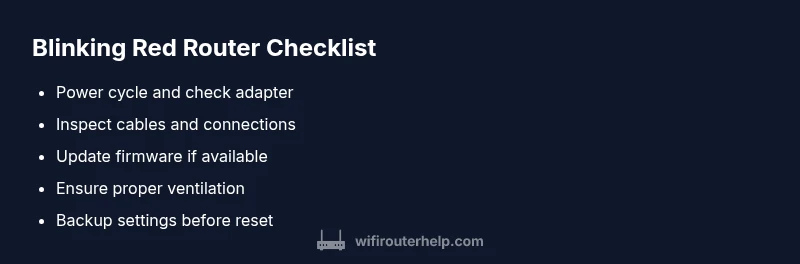
- Power cycle first to rule out simple faults
- Check power, cables, and ventilation
- Update firmware before resets
- Back up settings before a factory reset
- If unresolved, contact support