Forgot Your Router Password? A Clear, Step-by-Step Recovery Guide
Forgot your router password? This educational, step-by-step guide shows safe recovery methods, how to reset, and how to secure your network after regaining access.


Forgot your router admin password? You can regain access by using a password reset or factory reset, then reconfiguring your settings. This guide walks you through safe recovery, what to prepare, and how to secure your network afterward. By following these steps, homeowners can restore control without risking device damage or data loss. No special tools beyond a paperclip and a connected device are required.
Why forgetting your router password happens
For many homeowners, the router password becomes a forgotten detail after a move, a software update, or simply a long time since the last change. The admin credential is often tucked away in a binder, a notes app, or merged with other credentials, making it easy to lose. According to WiFi Router Help, forgetting the router password is a common hurdle rather than a failure, and there are reliable paths to regain control without risking your network. The router's password is separate from your Wi‑Fi password, and losing it can prevent you from adjusting parental controls, port forwarding, or guest networks. If you rely on a managed gateway supplied by an ISP, the password may be controlled by the provider, which adds a layer of complexity to recovery. Before taking action, identify whether you are trying to recover the admin credentials or simply reconnect devices to the network. In many cases, a reset to factory settings is needed to restore ownership and begin a fresh configuration. Keeping a written copy of your new credentials in a password manager reduces future risk of similar headaches.
Tools & Materials
- Router with recessed reset button(Physical access needed; know your model to find the exact button location)
- Paperclip or small pin(To press the recessed reset button without damage)
- Device to access admin interface (phone/computer/tablet)(Must connect to the router via Wi‑Fi or Ethernet after reset)
- Ethernet cable (optional but handy)(Stability during initial setup)
- Pen and paper or password manager(To securely store the new admin and Wi‑Fi passwords)
- ISP account details (optional)(Needed if using an ISP-provided gateway that requires login after reset)
Steps
Estimated time: 30-45 minutes
- 1
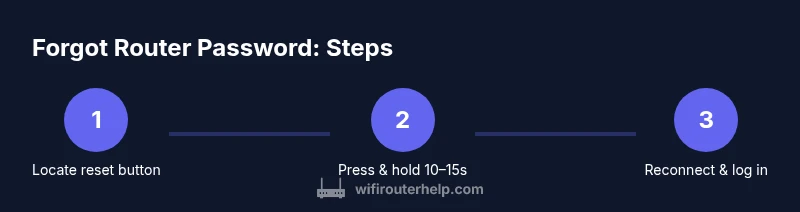
Locate the reset button on the router
Find the recessed reset button on the back or underside of the device. It is usually labeled and may require a pointed object to press. This establishes the primary action you will perform to regain control.
Tip: Use a flashlight if the button is hard to see; don’t press other buttons during the reset. - 2
Power on and ensure the router is responsive
Make sure the router is plugged in and showing normal indicator lights. A powered-off state or an unresponsive LED can indicate a separate hardware issue.
Tip: If the lights are blank, try plugging into a different outlet and reseating the power cable. - 3
Press and hold the reset button for 10–15 seconds
Using the paperclip, press and hold the reset button for about 10–15 seconds until the router’s lights flash or restart. This signals factory defaults are loaded.
Tip: Avoid releasing early; incomplete resets may leave the device in an unstable state. - 4
Wait for the router to reboot to factory defaults
Allow 1–3 minutes for the router to reboot with factory settings. Don’t unplug or power cycle during this period, as it can corrupt the boot process.
Tip: If the reboot takes unusually long, check the manufacturer’s support page for guidance. - 5
Connect a device to the router’s default network
Join the router’s default Wi‑Fi network or connect via an Ethernet cable to the admin interface. The default SSID and password are typically printed on the router label.
Tip: If you can’t see the network, enable device Wi‑Fi scanning or use a wired connection. - 6
Log in to the router admin page with default credentials
Open a browser and enter the default IP address (commonly 192.168.0.1 or 192.168.1.1). Use the default username (often admin) and password (often admin or empty) as shown on the label or manual.
Tip: If login fails, consult the manual or manufacturer’s site for the exact defaults. - 7
Create a new admin password and secure Wi‑Fi settings
In the admin UI, change the admin password to a strong, unique one and update the Wi‑Fi password. Consider enabling WPA3, disabling WPS, and applying any recommended security settings.
Tip: Use a 12–16 character passphrase with a mix of letters, numbers, and symbols. - 8
Save credentials and verify connectivity
Record the new credentials securely (password manager recommended) and test devices on both the Wi‑Fi network and LAN to confirm full access.
Tip: Perform a quick speed and device test to ensure you didn’t disrupt services.
People Also Ask
Can I recover my router password without resetting the device?
In most cases, the old admin password cannot be recovered. You must reset to regain control, then set a new password. If you have a separate guest network or a stored credential elsewhere, you may reuse those settings after recovery.
Usually you can’t recover the old admin password; you’ll need to reset and start fresh.
What should I do if the default login doesn’t work after reset?
Double-check the exact default IP and credentials from the router label or manual. If still unsuccessful, contact the manufacturer or your ISP for guidance and possible recovery options.
If the default login doesn’t work, consult the device’s manual or support for the correct details.
Will resetting erase my internet service settings or port forwards?
Yes. A factory reset restores the device to factory defaults, removing custom settings like Wi‑Fi name, passwords, port forwards, QoS rules, and parental controls. You’ll need to reconfigure these after login.
A reset wipes your custom settings, so you’ll need to reconfigure after you regain access.
How can I secure my network after regaining access?
Enable WPA3 if available, use a strong admin password, disable WPS, keep firmware up to date, and create separate guest networks if needed. Regularly review connected devices.
After regaining access, lock down security with a strong password and current firmware.
What if my router is ISP-provided and I can’t reset it?
Some ISP gateways restrict access to reset or changes. Contact your ISP support for guidance or request a bridge mode or a different gateway to regain control.
If your ISP-provided device blocks reset, reach out to your provider for options.
Where can I find the default IP and credentials for my router?
Check the device label, user manual, or the manufacturer’s website. If you still can’t find them, contact support for exact defaults.
Look on the router’s label or the manufacturer’s site for the default login details.
Watch Video
What to Remember
- Take control by resetting only when necessary
- Store new credentials securely to prevent future lockouts
- Reconfigure security to protect your network
- Document and back up your settings for easier recovery
- Verify connectivity across all devices after completing setup