How to Get Your Router Password: A Practical, Safe Guide
Learn how to get your router password quickly and safely. This guide covers locating default credentials, accessing the admin page, resetting forgotten passwords, and securing your network for ongoing protection.


Goal: recover or reset your Wi‑Fi password quickly and safely. You can get it by checking the router label for factory credentials, logging into the router’s admin interface to view or change the password, or performing a secure reset if forgotten. You’ll need physical access to the device and, ideally, the account login for any admin portal.
How to securely recover your router password
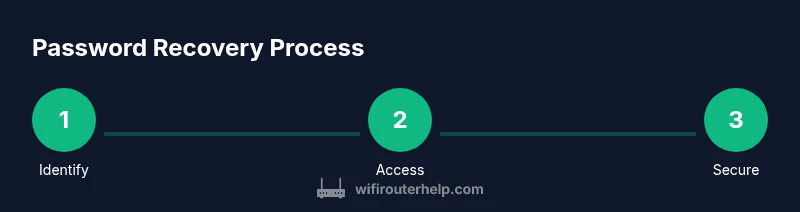
According to WiFi Router Help, most home networks rely on two passwords: the Wi‑Fi password and the router admin password. To learn how to get router password, start by understanding the two distinct credentials: the one that lets devices join your network (Wi‑Fi) and the admin password that controls the router’s settings. This guide focuses on retrieving or resetting the admin password while keeping your network safe. By following careful steps and best practices, you can regain control without exposing sensitive data or creating new security gaps. The process requires physical access to the router and access to the admin interface, or a hardware reset if necessary.
Locating the router label and default credentials
Most routers place a label on the bottom or back that shows the default admin username and password. This information is intended for first-time setup and troubleshooting. If the label has worn off, consult the model’s manual or the manufacturer’s support site using your exact model number. Keep in mind that the default credentials are a starting point and should be changed immediately after initial access to prevent unauthorized use. In many cases, you’ll also find the default IP address listed for reaching the router’s admin page.
Accessing the router admin page securely
To view or change the router password, you’ll typically log in through a web browser using the router’s IP address (commonly 192.168.0.1 or 192.168.1.1) or a dedicated mobile app. Make sure you’re connected to the router’s network, and use HTTPS if the interface supports it to protect credentials in transit. If you’re on a public network, avoid performing password changes on untrusted networks. If you can’t load the login page, try a wired connection or clear browser cache.
Finding the password in the admin interface
Once logged in, navigate to the Wireless or Security settings to locate the admin password or to reset it. Some routers display the current password in plain text, while others require you to reveal it or generate a new one. If the admin password is hidden or you’re locked out, proceed with a reset as described in the next section. After accessing, save or record any changes in a secure location.
When you can’t access the admin interface: reset options
If you cannot sign in, a hardware reset may be necessary. This restores factory defaults, including the admin credentials, so you can start fresh. Remember that a reset will erase custom settings (port forwarding, parental controls, saved networks). You’ll need to reconfigure the router afterwards and rejoin devices to the network. Ensure you have the model number and access to the physical device before proceeding.
Performing a secure reset without losing control
To perform a reset safely, locate the reset button (often recessed) and hold it for 10–15 seconds with a paperclip. After the router reboots, log in with the default credentials and immediately set a strong admin password and a new Wi‑Fi password. Reapply essential settings, such as your network name (SSID) and security mode (WPA3 or WPA2). Consider disabling remote management unless you need it, and enable a firewall.
Choosing and storing a new strong password
Create a password that is long, unique, and difficult to guess. Use a mix of uppercase, lowercase, numbers, and symbols. Avoid common words and personal data. Use a password manager to store the credentials securely and enable two‑factor authentication if supported. After changing passwords, test all devices to confirm they reconnect automatically and that you haven’t created conflicts in DHCP or IP assignments.
Distinguishing between Wi‑Fi password and router password
The Wi‑Fi password protects access to your wireless network, while the router password protects the admin interface. Do not reuse passwords across these two areas. Keeping them separate reduces risk if one credential is exposed. Document which password controls which access level, and rotate passwords periodically to strengthen security.
Security considerations after regaining access
With access restored, audit your router’s security settings. Ensure firmware is up to date, change the default admin username if possible, enable automatic updates if available, and disable UPnP if not needed. Regularly review connected devices and reset credentials if you notice unfamiliar activity. These steps help maintain a resilient home network.
Troubleshooting password issues: quick fixes
If you still cannot access the router after a reset, verify that you are using the correct IP address and the right default credentials for your model. Some vendors require a specific browser or app version. If problems persist, contact the manufacturer’s support or consult the WiFi Router Help guidance for model-specific steps.
Common mistakes to avoid and next steps
Avoid using the same password across multiple devices or services. Do not ignore firmware updates, and never leave the admin interface exposed to the internet. If you’re unsure about any step, pause and consult official documentation or trusted guides such as those from WiFi Router Help before proceeding.
Tools & Materials
- Smartphone, tablet, or computer(Used to access the browser-based admin page or app)
- Web browser(Ensure it supports HTTPS if available)
- Router IP address (usually 192.168.0.1 or 192.168.1.1)(Needed to open the admin interface)
- Router power and physical access(Needed for resets or hard reboots)
- Label with default credentials (on router)(If still legible, helps initial login)
- Pen and paper or password manager(To securely record new credentials)
Steps
Estimated time: 20-30 minutes
- 1
Identify the credentials you need
Determine whether you’re after the router admin password or the Wi‑Fi password. The admin password grants configuration access, while the Wi‑Fi password secures devices on your network. Understanding the distinction helps you choose the correct recovery path.
Tip: If you’re unsure which password you need, start with the admin login to regain control over settings. - 2
Find the router label or manual
Look for a sticker on the router’s underside or back with default credentials. If the sticker is damaged, consult the model manual or the manufacturer’s website using the exact model number.
Tip: Take a photo of the label for reference before you reset. - 3
Open the admin page in a browser
Connect to the router’s network, then enter the IP address (commonly 192.168.0.1 or 192.168.1.1) in your browser. If prompted, enter the default username and password from the label or manual.
Tip: Use a wired connection if the wireless link is unstable. - 4
Navigate to the password location
In the admin interface, go to Wireless/Security or Admin Settings to view or reset the password. If you can’t see the current password, you’ll typically be allowed to generate a new one.
Tip: Record the new password securely immediately after you change it. - 5
If login fails, perform a secure reset
If you cannot log in, perform a reset by holding the reset button for 10–15 seconds. This restores factory defaults, including credentials, so you can start fresh.
Tip: Note: resets erase custom settings; you’ll need to reconfigure your network. - 6
Set strong, distinct passwords
Create a long, unique admin password and a separate strong Wi‑Fi password. Use a password manager to store them securely and enable firmware updates.
Tip: Avoid common phrases and reuse across devices. - 7
Verify connectivity and document changes
Reconnect devices to the Wi‑Fi network and confirm the admin login works after changes. Document passwords and settings so future recovery is faster.
Tip: Keep a secure, backed-up record of credentials.
People Also Ask
What is the difference between a router password and a Wi‑Fi password?
The router password protects access to the router’s admin interface and settings, while the Wi‑Fi password protects devices joining your wireless network. They are separate credentials and should be managed independently.
The router password is for the admin page, while the Wi‑Fi password is for connecting devices to your network.
Where can I find the default router login credentials?
Default credentials are usually printed on the router’s label or in the manual. If the label is unreadable, check the manufacturer’s support site for your model number.
Check the sticker on the bottom or back of the router, or the manufacturer’s manual for the login details.
What if I forgot both passwords and can’t access the admin page?
If you can’t access the admin page, perform a hardware reset to restore factory defaults, then set new credentials immediately. Remember that this erases customized settings.
If you’re locked out, a factory reset usually restores access, but you’ll need to reconfigure your network afterward.
Can I recover passwords without resetting the router?
Yes, if you still have the admin login, you can view or change the password from the settings. If you don’t remember the admin login, a reset may be necessary.
If you have the admin login, you can recover or update the password without resetting.
Is it safe to reset the router to regain access?
A reset is safe when performed correctly, but it will wipe custom network settings. Have model info handy and be prepared to reconfigure essential features.
Resetting is safe, but you’ll need to reconfigure your network afterward.
What security steps should I take after regaining access?
Update firmware, set strong passwords, disable unnecessary remote access, and review connected devices. Regular maintenance helps prevent future lockouts.
After regaining access, update firmware and strengthen passwords to protect your network.
Watch Video
What to Remember
- Know which password you need before starting
- Use the router label or admin page to recover credentials
- Resetting should be a last resort and will erase custom settings
- Always replace default credentials with strong, unique passwords
- Document and securely store new credentials