What to Do If You Forget Your WiFi Router Password
A practical, educational guide to recover or reset a forgotten wifi router password with safe, step-by-step instructions, security best practices, and troubleshooting tips for homeowners and tech enthusiasts.


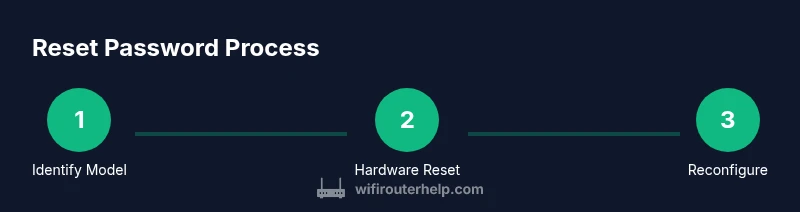
According to WiFi Router Help, forgetting your wifi router password happens more often than you might think. You can regain access by checking the router label for default credentials, logging into the admin page, or performing a hardware reset to factory settings. The WiFi Router Help team found that after resetting, you should immediately change both the admin and wifi passwords and reconfigure your network for best security.
what to do if you forget your wifi router password
When you lose or forget the credentials that control your home network, it can feel like a roadblock to all online activity. This section explains the distinction between the admin password that controls the router's settings and the WiFi password that protects your wireless clients. Understanding this difference helps you decide which password to recover first and what to expect during the reset process. The goal is to regain control quickly without compromising security. For many users, a combination of locating default credentials and a cautious reset strategy works best. The WiFi Router Help team emphasizes that taking a deliberate, well-documented approach minimizes downtime and preserves your ability to reconfigure later.
Locate model information and default credentials
The first step is to identify your router model and check the default login details, typically printed on a label on the device or in the manual. Common defaults are usernames like admin with passwords such as admin or password, though variations exist by brand and model. If you can access the router’s admin page using these defaults, you can create a new, strong administrator password and then set a fresh WiFi password. If the default credentials don’t work, you may need to move to a hardware reset. Keeping a copy of the model number and manufacturer’s support link handy speeds up the process. WiFi Router Help recommends confirming the exact model to avoid trying incorrect defaults on a different device.
Understand hardware reset vs software reset options
Hardware reset involves pressing a recessed button on the router itself, usually with a paperclip, to restore factory settings. A software reset (also called a reset from the admin interface) uses the router’s web UI to restore defaults. Hardware resets tend to be more universally reliable, especially if you don’t know the current admin credentials, but they erase all custom settings. A software reset preserves some options if you can log in, but it can be more model-specific. The choice depends on whether you can access the current admin credentials and how much reconfiguration you’re willing to do.
Reclaim access: log in, then change passwords and reconfigure
After a successful reset, connect a device to the router and open the admin page (common addresses include 192.168.1.1 or 192.168.0.1). Log in with the default credentials printed on the device, then create new admin and WiFi passwords immediately. Reconfigure your network name (SSID) and security settings (prefer WPA2 or WPA3 if available). Save changes and test connectivity with a few devices to confirm the new credentials are working. The process is straightforward but requires careful re-entry of all settings you recall, such as port forwarding rules or DHCP reservations.
When resets don’t solve the problem: alternatives and support
If you cannot access the admin page after a reset or if the device behaves erratically, contact your internet service provider or the router manufacturer’s support line. Some ISPs supply a managed router and may require you to use their app or portal for access. If you have a home network with a modem and separate router, ensure you’re addressing the correct device. In rare cases, firmware issues can block login; in such scenarios, official guidance or a replacement device may be necessary. WiFi Router Help notes that documenting your model and serial number speeds up support interactions.
Security best practices after resetting
Resetting a router is a fresh start, so adopt strong, unique credentials and enable modern encryption (WPA2 or WPA3). Avoid using the same password for admin access and WiFi; use a long passphrase (16+ characters with a mix of letters, numbers, and symbols). Disable WPS if your model supports it, since WPS can be exploited by attackers. Regularly review connected devices and consider enabling guest networks to segregate traffic. WiFi Router Help analysis shows that a proactive security posture reduces post-reset risk.
Tools & Materials
- Paperclip or pin for recessed reset button(Use to perform a hardware factory reset (approximately 10-15 seconds).)
- Device to access router admin page (phone, tablet, or computer)(Connected via Ethernet during reset if WiFi is unavailable.)
- Router’s default login credentials (from label/manual)(Common combos include admin/admin or admin/password; model-specific defaults vary.)
- Power connection for the router(Keep power connected during reset and setup.)
- Manual or manufacturer support page(Helpful for model-specific instructions or recovery options.)
- Notes on your network configuration(Re-create SSID, password, port-forwarding, and DHCP reservations if used.)
Steps
Estimated time: 45-60 minutes
- 1
Identify model and locate reset button
Find the exact router model on the label and locate the recessed reset button. Confirm you have the correct device before attempting a reset to avoid unintended changes to other equipment.
Tip: If there is no recessed button, consult the manual for the safe reset method. - 2
Prepare reset tool and power
Grab a paperclip or pin and ensure the router is plugged in and powered on. A stable power supply prevents partial resets that can leave the device in a bad state.
Tip: Have the router within reach and avoid moving it during the reset window. - 3
Perform a factory reset
Press and hold the reset button for 10-15 seconds until the status lights flash, then release. This restores factory defaults and clears current credentials.
Tip: Do not unplug the router during the reset process. - 4
Wait for reboot
Allow the router to reboot completely; this can take 1-2 minutes. Lights will settle to their normal pattern when ready.
Tip: If the device doesn’t reboot, retry with a longer hold time. - 5
Connect to the router’s default network
Connect a computer or phone to the router’s default Wi‑Fi network or via Ethernet. You’ll use this connection to access the admin page.
Tip: If the SSID is unknown, use the printed defaults on the label. - 6
Open the admin page
Enter the router’s default IP address (commonly 192.168.1.1 or 192.168.0.1) in a browser. If these don’t work, try the other common default address listed in the manual.
Tip: Disable any VPNs that might block local network access during setup. - 7
Log in with default credentials
Use the default username/password from the label or manual. If successful, you gain access to the admin dashboard to set a new password.
Tip: If you can’t log in, try recovering from the manufacturer’s support page or repeat the reset. - 8
Change admin password immediately
Create a strong, unique admin password and save it in a secure location. This prevents unauthorized changes to your router settings.
Tip: Use a password manager to store long, complex credentials. - 9
Reconfigure Wi‑Fi: SSID and password
Set a new network name and a strong Wi‑Fi password. Enable WPA2 or WPA3, depending on your router’s capabilities.
Tip: Avoid common phrases and reuse of old passwords; combine random characters with meaningful phrases. - 10
Save, reboot, and test
Save changes and reboot the router if required. Test connectivity with multiple devices to ensure the new credentials work.
Tip: Note any custom rules (port forwarding, DHCP reservations) and re-create them as needed.
People Also Ask
What should I do first if I forget my router password?
Start by identifying the router model and checking the default login details on the device label or manual. If you can log in with defaults, change the admin and WiFi passwords immediately. If not, proceed with a hardware reset as a last resort.
First, identify your model and try the default login. If that fails, reset the router.
Will a factory reset erase all my settings?
Yes. A factory reset returns the router to its original state, removing custom SSID, passwords, port forwards, and DHCP reservations. You will need to reconfigure everything after the reset.
Yes, reset wipes settings; you’ll need to set things up again.
Can I recover the password without resetting?
Occasionally you can recover or view the admin password if you have an active session or password recovery options provided by the manufacturer. If those options aren’t available, a reset is typically required.
Sometimes there are recovery options, but often you must reset.
What if I can't access the admin page after reset?
Ensure you’re connected to the router’s network, try both common default IPs, clear browser cache, and retry. If access remains blocked, contact the manufacturer or your ISP for assistance.
Check connection, try the default IPs, and contact support if needed.
How often should I change my router password?
Change the admin and WiFi passwords when you suspect a compromise, or at least every 6–12 months as a precaution. After a reset, set fresh credentials immediately.
Change passwords when needed or every 6–12 months.
Is it safe to use the WPS button for quick connection after forgetting password?
WPS is convenient but less secure. Use it only for temporary access or disable WPS after you set a strong password.
WPS is convenient but less secure; disable after setup.
Watch Video
What to Remember
- Forget password? Start by model ID and default credentials.
- Factory reset is a reliable path when login fails.
- Always set new admin and Wi‑Fi passwords after reset.
- Secure the network with WPA2/WPA3 and disable WPS if possible.
- Document credentials and keep backups for quick recovery.