What to Do If Router Password Is Forgotten
Learn how to recover or reset a forgotten router password safely. This guide covers default credentials, password recovery, factory resets, and secure reconfiguration to restore access quickly.


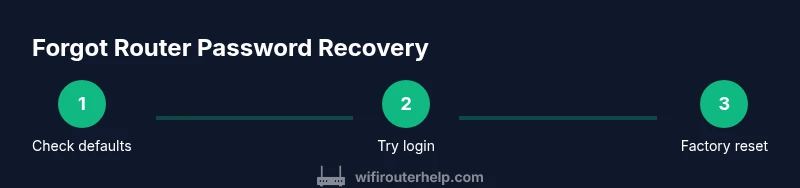
If you forget your router password, start by checking the device label for default login details, then try logging in. If login fails, use the router’s built-in password recovery if available, or reset the device to factory settings and reconfigure your network. After regaining access, set a strong, memorable password and save a backup of your settings.
Understanding the situation
Losing or forgetting the router password can feel like a roadblock to your entire home network. When you can't log in, you can't change settings, view connected devices, or implement new security measures. The good news is that most home routers include built-in options to regain control without calling a technician. The WiFi Router Help team emphasizes that patience and a methodical approach reduce downtime and protect your network. Before you take drastic steps, take a breath and plan the next moves: determine whether you can recover the password via the admin interface, locate the default credentials printed on the device, or prepare for a factory reset if necessary. Keep in mind that any reset will revert custom configurations to the default state, so you should back up what you can and have a plan to re-create your network afterward. This approach minimizes risk and speeds up restoration of service.
Locate default credentials on the router label
Many routers ship with a label on the bottom or back that lists the default login details. The username and password shown there are meant for first-time setup and basic access. If you can read these credentials, you can log in and change the password immediately. If the label is damaged or unreadable, consult the manufacturer’s support site or your model’s manual. WiFi Router Help recommends keeping a note of the model number, serial, and current firmware version so you can quickly locate the exact defaults for your device. Remember: default credentials are for initial setup and should be changed as soon as you regain access to protect your network.
Access the admin interface with default login
Connect a device to the router via Wi‑Fi or a wired Ethernet connection, then open a browser and navigate to the router’s admin page using the IP address shown on the label or in the manual. Enter the default username and password found on the device. If login succeeds, immediately set a new, strong admin password and save the change. If the login fails, move to the next recovery option rather than guessing multiple times, which could lock you out temporarily. When in doubt, consult the support page for your exact model to confirm the correct URL and credentials.
Password recovery options in the admin interface
Some routers provide a recovery option within the web interface, such as a security question, recovery email, or a secondary admin account. If you see a “Forgot password” or “Password recovery” link, follow the prompts carefully. If the feature exists, you may regain access without resetting the device. If there is no recovery option, proceed to consider a factory reset, understanding that you will lose customized settings.
Prepare for factory reset: backup and plan
If there is no non-destructive way to recover the password, you’ll need to reset the router to factory defaults. Before doing so, back up any critical configuration you can recall or document current settings like the Wi‑Fi SSID, security mode, and port forwarding rules. Take screenshots of the admin pages while you have access, note the current SSID and password, and prepare a plan for reconfiguring these after the reset. Having a plan reduces downtime and makes post-reset setup smoother. If you have a custom network infrastructure (guest networks, parental controls, QoS rules), write down those policies so you can recreate them later.
Perform a factory reset correctly
Factory resets restore the router to its original state. Locate the recessed reset button on the back or bottom of the device. With the device powered on, press and hold the reset button for 10–15 seconds using a paperclip or a similar tool, then release. The router will reboot and return to its default settings. Do not unplug the device or interrupt the reset process. Once the reset completes, you can access the router using the default credentials printed on the device.
Reconfigure basic settings after reset
After a successful reset, connect to the router’s default Wi‑Fi network and log in using the factory credentials. Change the admin password immediately and set a new, strong password for your wireless network. Configure your preferred SSID and security (prefer WPA3 or at least WPA2). Reapply any essential settings you noted earlier, like port forwarding rules, QoS, and parental controls, but only after verifying they align with your current network needs. If you previously used a custom DNS or IPv6 settings, consider whether you want to keep them or revert to defaults.
Securely set passwords and Wi‑Fi settings
Create unique, strong passwords for both the admin interface and the Wi‑Fi network. Consider using a passphrase rather than a short password, and store these credentials in a password manager. Disable WPS, enable automatic firmware updates if available, and enable a firewall setting on the router. With modern routers, enabling WPA3 is the strongest option; if your device supports only WPA2, choose the strongest compatible setting. Regularly review connected devices and revoke access for unfamiliar clients.
Restore from backup and test connectivity
If you saved a backup of your previous configuration, you can import it after the reset. If not, re-create essential settings step by step and test connectivity by connecting a few devices to the network. Run a basic speed test and confirm that port forwarding and parental controls behave as expected. Verify that guests can connect if you rely on a separate guest network. Finally, document the new credentials and store them securely.
Ongoing security and maintenance to prevent future lockouts
Maintain your network by keeping firmware up to date, enabling automatic updates when possible, and occasionally reviewing security settings. Establish a routine for changing passwords every 6–12 months and keep a simple inventory of your devices and their access permissions. Consider enabling two-factor authentication if your router supports it. Regular backups of configurations, plus a written recovery plan, reduce future downtime and improve resilience.
Tools & Materials
- Computer or mobile device with web browser(Needed to access the router admin page and manage settings)
- Router manual or official support page(Contains model-specific defaults and reset instructions)
- Router label or printed default credentials(Often found on the bottom/back of the device)
- External backup plan (screenshots or notes of current config)(Helps you restore settings after reset)
- Paperclip or similar small tool(Use only for recessed reset buttons)
- Ethernet cable (optional)(Useful for stable connection during reset/reconfiguration)
Steps
Estimated time: 30-60 minutes
- 1
Check for default credentials on the label
Inspect the router for a label that lists the default login username and password. This is your first chance to regain access without contacting support. If you find readable credentials, note them or take a photo for reference.
Tip: If the label is damaged, visit the manufacturer’s site with your model number. - 2
Log in using the default credentials
Connect a device to the router, open a web browser, and enter the router’s admin URL. Enter the default username and password to access the dashboard. If successful, proceed to change the admin password immediately.
Tip: Log out and log back in after changing the password to verify the change worked. - 3
Try built-in password recovery if available
Some routers offer a recovery option within the admin interface or via a password reset link. Follow the prompts to recover or reset the admin password without wiping all settings.
Tip: If you see a recovery option, complete all verification steps exactly as instructed. - 4
Decide if a factory reset is necessary
If there is no recovery option and you cannot log in, a factory reset may be required. Prepare by backing up visible settings and noting your current network configuration to minimize post-reset effort.
Tip: Only reset if you are comfortable reconfiguring your network afterward. - 5
Perform the factory reset
With the router powered on, press and hold the recessed reset button for 10–15 seconds using a paperclip. Release and wait for the router to reboot to factory defaults. Do not interrupt the process.
Tip: If the button is hard to reach, consult the manual for alternate reset methods. - 6
Reconnect and access the default admin page
After reset, connect to the default Wi‑Fi network and log in with the factory credentials. Change the admin password before doing anything else.
Tip: Write down the new admin password and store it securely. - 7
Reconfigure the base network settings
Set a new, strong admin password and configure your Wi‑Fi SSID and security (prefer WPA3 or WPA2). Apply only essential settings first to avoid confusion during the initial setup.
Tip: Document the new network name and password for future reference. - 8
Restore essential configurations if available
If you saved a backup or screenshots, restore key settings like port forwarding and parental controls. Re-check every critical function after restoration.
Tip: Test by connecting multiple devices and running a speed/latency check. - 9
Update firmware and secure the network
Check for and install any available firmware updates. Enable automatic updates if supported and verify that the firewall is active and WPS is disabled.
Tip: Regularly check for updates to minimize security risks.
People Also Ask
What should I try first if I forget my router password?
Start by checking the router label for default login details and attempt logging in. If that fails, look for a password recovery option within the admin interface or prepare for a factory reset.
First, check the label for defaults and try logging in. If that doesn’t work, look for a recovery option in the admin page or prepare to reset.
Can I recover the password without resetting the router?
If the admin interface offers a password recovery feature, you can regain access without a reset. Not all models support this, so your next option might be a factory reset.
If recovery is offered in the admin interface, you can regain access without resetting. If not, a reset may be necessary.
Will a factory reset erase my custom network settings?
Yes. A factory reset returns the router to its default state, which means custom networks, port forwards, and parental controls are removed unless you back them up beforehand.
A factory reset erases custom settings unless you have a backup.
How can I back up router settings before resetting?
If your router supports it, export a backup file from the admin interface. Take screenshots of key pages and write down essential values like SSID, security settings, and port forwards.
Export a backup if possible, and document critical settings before resetting.
What should I do if the reset button doesn’t work?
Ensure the device is powered on, hold the recessed button for the recommended duration, and try a different tool tip or consult the manual. If it still fails, contact the manufacturer’s support.
If the reset button won’t work, check the manual or contact support.
How long does it take to reconfigure after a reset?
Typically 15–45 minutes, depending on how many custom settings you had and whether you saved a backup to restore.
Reconfiguring usually takes about 15 to 45 minutes.
Watch Video
What to Remember
- Back up existing configurations before resetting.
- Change admin and Wi‑Fi passwords immediately after regaining access.
- Use strongest available security (prefer WPA3).
- Document credentials and keep them in a secure manager.
- Keep firmware updated to prevent future lockouts.