Forgotten Router Password? A Practical Troubleshooting Guide
Learn fast, safe ways to recover a forgotten router password with clear steps, from quick checks to factory reset options, plus prevention tips to avoid future lockouts.


Most likely you forgot the router admin password. Start by checking the router label for default credentials and try those. If that fails, you can reset the router to factory defaults (press and hold the reset button) and then set a new password. After that, save your new credentials in a password manager.
Why password access matters for home networks
Losing or forgetting the router admin password can freeze your ability to manage the network, update firmware, adjust parental controls, or change security settings. Without admin access, devices may remain insecure or stuck on default configurations. According to WiFi Router Help, the administrator password is the gateway to your home network setup, so regaining access should be a top priority. The router is the central hub that controls Wi‑Fi networks, guest networks, and device prioritization; when the password is forgotten, you may find yourself locked out of important settings or unable to apply security updates. The immediate goal is to restore control safely: identify what you recall about the username, inspect the device label for default credentials, and plan a reset only if you cannot recover the password. Remember that a factory reset will revert all custom settings to factory defaults, including your network name and password unless you’ve backed up the configuration. After you regain access, choose a strong, unique admin password and store it securely in a password manager. Yes, it’s a hassle, but a calm, methodical approach saves time and reduces risk.
In many households, the router is the nerve center of connectivity, and losing access means more than just an inconvenient login. It can affect smart home routines, parental controls, and guest network access. The sooner you establish a reliable recovery path, the less disruption you’ll experience. From a practical standpoint, proceed in a calm, reproducible sequence: verify what you know, locate the default credentials on the device, and decide whether a reset is really necessary. This mindset helps you protect your network while regaining control as quickly as possible.
Quick checks before resetting
Before you reach for the reset button, run through a few quick checks that can save time and avoid data loss. Confirm you’re connected to the router’s network or connected via Ethernet to access the admin page. Look at the router label; many models list the default admin username and password. Check if you or someone else in the household has saved credentials in your browser’s autofill or a password manager; clearing autofill can prevent auto-typed values from being rejected. If you have recently changed the password but forgotten it, search for your notes or password manager entry. Finally, verify whether you’re dealing with a separate guest network or a guest access portal that might prompt for different credentials. If none of these steps help, proceed to the next section’s options with confidence, knowing you have safe recovery paths.
If there’s a shared device in your home or a managed network, double-check whether someone else updated the credentials recently. In corporate or hybrid setups, administrators might manage login pages that appear different from the standard router UI. These checks are quick but powerful: they can save you from an unnecessary reset and preserve your existing network configuration.
In short, start with the simplest explanations before resorting to factory defaults—this preserves your settings and reduces downtime.
Factory reset vs password recovery options
There are two main paths when you’ve forgotten the router password: attempting to recover or performing a factory reset. Password recovery (if supported) might involve answering security questions or using a linked email for reset instructions; however, many consumer routers don’t offer that flow. A factory reset restores the device to its original settings, which means you will lose any customizations, including the Wi‑Fi name (SSID) and the admin password. After a reset, you will log in with the default credentials listed on the device label or in the manual and immediately create a new, strong admin password. If you have a recent backup of the router’s configuration, you can restore some settings after the reset. Remember that a reset is permanent for all practical purposes unless a backup exists. In all cases, ensure you have physical access to the router and a few minutes to reconfigure.
When deciding, weigh what you’ve invested in the current configuration: custom parental controls, port forwarding rules, and device prioritization. If these are critical, try recovery options first, but have a plan for a reset if access cannot be regained. Always perform a reset only after you’ve exhausted non-destructive options and secured your network plan for reconfiguration.
Step-by-step recovery flow
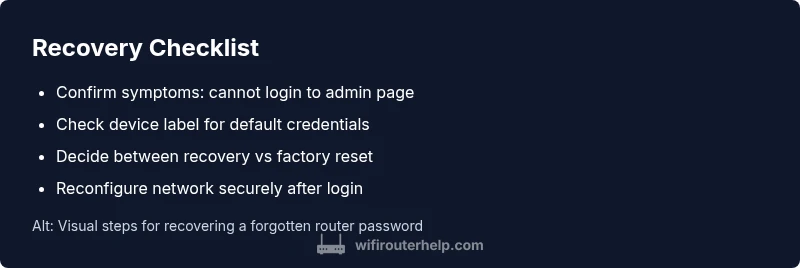
Flow: symptom → diagnose → solve. Start with symptoms: you cannot access the admin page, or you receive password errors after login attempts. Next, explore likely causes: forgotten credentials (high), wrong username (medium), stored credentials interfering (low). Then apply fixes in order: check for default credentials on the device label (easy), attempt a password reset via the hardware button (easy), if not possible, perform a clean factory reset (easy). After the reset, reconfigure anew: connect to the router using the default SSID, access the admin page, set a new password, and re‑establish network settings. Finally, test devices and confirm you can log in again. Always verify firmware version and update if needed. If you cannot access the admin UI after a reset, it may be a hardware fault requiring professional help (or contacting the manufacturer).
This flow helps you avoid ad-hoc tinkering that might lock you out for longer. Document every change you make so you can revert if something doesn’t work. If you’re uncomfortable with hardware resets or firmware updates, consider seeking professional guidance.
Security implications and best practices after regaining access
Once you regain access, update to a strong password and enable features like WPA3 or at least WPA2, disable WPS, and enable a guest network with separate credentials. Update firmware to the latest version and set up two-factor authentication if supported by your router. Consider writing down the password only in a secure password manager and enabling auto-logout if available. Review port forwarding rules and UPnP settings to minimize exposure. Regularly back up your configuration if your router supports it, and test that you can recover your password in a controlled way. Revisit your security posture periodically to prevent future lockouts. The goal is not just regaining access but creating a robust, auditable security posture that makes future recovery quick and safe.
Prevention tips to avoid forgetting passwords
- Use a password manager; store admin credentials with notes about device name and location.
- Enable two-step verification if supported by the router (some models allow email or mobile notification for changes).
- Keep a backup of the config or at least a written note stored securely.
- Choose a password that is strong but memorable using passphrases; avoid common words.
- Document the default login for each device in the household with model numbers.
Troubleshooting edge cases and when to call support
If you still cannot recover access after a factory reset, confirm hardware buttons function correctly (press and hold for 10-15 seconds). Check that you're using the correct reset method (some models require power cycling before reset). Ensure you’re not in airplane mode or using a misconfigured Ethernet connection. If issues persist, contact the manufacturer or your Internet Service Provider for assistance, as there may be a hardware fault or an account-level lock. Professional support can guide you through advanced recovery or repair, and they can help you reconfigure the device to your home network.
Steps
Estimated time: Total: 25-40 minutes
- 1
Confirm you want to reset
Ensure you have physical access and can tolerate reconfiguring the network. Gather model number, current power supply, and any notes on the existing settings. Decide if a reset is truly necessary before proceeding.
Tip: Back up important config if possible before resetting. - 2
Identify reset method
Locate the reset button on the back or bottom. Some models require a paperclip to hold the button for 10-15 seconds while powered on. If there’s a reset procedure in the manual, follow it exactly.
Tip: If the button is stuck, apply gentle pressure with the correct tool—avoid forcing it. - 3
Perform factory reset
Hold the reset button for the recommended duration until the LEDs blink or reboot. This resets all settings to factory defaults and clears the forgotten password. Do not interrupt the process.
Tip: Note the default credentials printed on the device label for the first login. - 4
Reconnect and log in
Connect a computer to the router via Ethernet or join the default Wi‑Fi network. Open a browser and log in with the default admin credentials. Change the admin password immediately.
Tip: Do not reuse old passwords; use a strong unique password. - 5
Reconfigure network
Set a new network name (SSID), security type (WPA3/WPA2), and password. Reapply any essential settings like guest networks, parental controls, and port forwarding.
Tip: Document the new details securely. - 6
Update firmware
Check for and install firmware updates to patch vulnerabilities and improve stability. Reboot after updates if prompted.
Tip: Only download firmware from the official site or UI to avoid malware. - 7
Test and verify
Test all devices for connectivity and verify you can log in again. Confirm the admin password works and that settings persist after a reboot.
Tip: Keep a test device handy for quick login checks. - 8
Document and secure
Store the new credentials and backup configuration securely. Set reminders to review passwords periodically and update as needed.
Tip: Use a password manager with encrypted storage.
Diagnosis: Cannot access the router’s admin interface due to a forgotten password
Possible Causes
- highYou truly forgot or lost the admin password
- mediumYou’re using the wrong admin username or login
- lowStored credentials in browser autofill interfere or fill with outdated values
- lowThe router is in bridge mode or managed by another device
Fixes
- easyCheck the device label for the default username and password and try those
- easyAttempt a hardware reset via the reset button to restore factory defaults
- easyIf UI access is still possible after a reset, log in and immediately set a new password; back up settings if available
- mediumIf the device is in a bridged setup or managed by another controller, consult the administrator or manufacturer for the proper recovery path
People Also Ask
What should I do first if I forgot my router password?
Start with non-destructive checks: look for default credentials on the router label, check if browser autofill saved old values, and confirm you’re connected to the correct network. If nothing works, prepare for a reset.
First, check for default credentials on the device label and disable autofill to prevent old values from appearing.
Can I recover the password without resetting?
Some models offer password recovery through email or security questions, but many consumer devices do not. If recovery isn’t available, a reset is the reliable option.
Recovery options vary by model; if you don’t see a recovery flow, you’ll likely need a reset.
Will resetting erase all my settings?
Yes. A factory reset restores factory defaults, including SSID and admin password. You will need to reconfigure your network and settings after the reset.
A reset wipes most settings, so you’ll need to reconfigure afterward.
What if the reset button doesn’t work?
Ensure you apply the correct duration and power cycle if required. If the button still doesn’t respond, consult the manufacturer’s support or consider hardware fault.
If the reset button fails, contact support for guidance or repair.
Is it safe to use a password that’s easy to remember?
Avoid obvious phrases. Use a strong passphrase that’s easy for you to remember but hard for others to guess. Combine words, numbers, and symbols.
Use a strong passphrase rather than a simple password to improve security.
When should I contact support?
If the device won’t reset, you suspect a hardware fault, or you’re locked out after multiple attempts, contact the manufacturer or ISP for assistance.
If basic recovery fails or you suspect hardware problems, seek professional help.
Watch Video
What to Remember
- Act quickly but methodically when password access is lost
- Factory reset is a last resort and erases custom settings
- Secure, unique admin password right after regain
- Regular backups and password management prevent future lockouts