Where Is Router Password? A Step-by-Step Guide to Locate, Reset, and Secure Your Network
A complete, step-by-step guide to locate your router password, reset it when forgotten, and secure your home network with best-practice advice from WiFi Router Help.


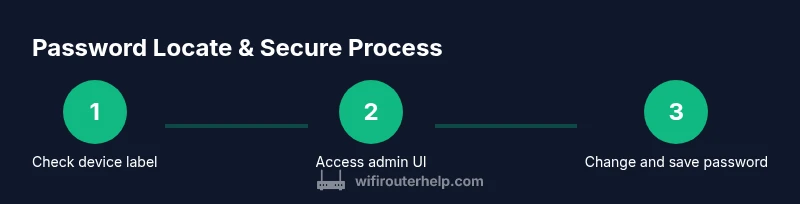
The router password is usually found on the device label, in the admin web interface, or in the setup documentation. This quick guide shows where to look, how to access the router’s admin page, and how to reset securely if you’ve forgotten it. Have your router model handy and a connected device ready to proceed. This will help you safeguard your network and avoid lockouts.
Understanding Router Passwords
A router password is a gateway credential that controls access to the device’s administrative settings. There are two kinds you should know about: the router login password (admin credentials) and the wireless password used by devices to join your Wi‑Fi network. The admin password protects the router’s configuration and firmware settings, while the Wi‑Fi password protects who can use your network. For homeowners and tech enthusiasts, understanding these two layers is essential for secure home networking. According to WiFi Router Help, recognizing the purpose of each password helps you prioritize security tasks without confusing the two. When you manage both, you reduce the risk of misconfigurations that can expose your devices to attackers. In practice, you’ll typically encounter a label on the device that contains default login details, and an admin interface that lets you view or change those credentials. Keeping both passwords strong and unique is a foundational step in modern home networking. In this guide, we’ll walk through where to find the passwords, how to log in, how to reset if needed, and best practices for ongoing security.
Default Passwords and Labels
Many routers ship with default credentials that are easy to guess or widely known. The exact defaults vary by manufacturer, but common patterns include a default username like admin with a password of admin, 1234, or left blank. The most reliable place to confirm these defaults is the router’s label—often a sticker on the bottom or back of the device—and the included quick-start guide. Always treat defaults as temporary and replace them during setup. If you cannot locate a default in the label or guide, check the manufacturer’s website for your exact model. Do not rely on “admin/admin” defaults for devices that are already connected to your network; resetting them to factory defaults will restore those credentials, but you should then secure the device immediately. The key idea is to verify the credentials before attempting access and to prepare a new, unique password once you’re in. In many households, the label is your fastest first stop, but manufacturers frequently update defaults across product lines, so always confirm with official sources. WiFi Router Help emphasizes verifying defaults with the official documentation before attempting a login to avoid accidental lockouts or misconfigurations.
Accessing the Router Admin Interface
Accessing the admin interface is the most reliable method to view or change credentials. Start by connecting your computer or phone to the router’s network, either via Wi‑Fi or an Ethernet cable for stability. Open a web browser and enter the router’s default gateway address—commonly 192.168.0.1 or 192.168.1.1, though some brands use other addresses like 192.168.1.254. When prompted, enter the administrator username and password from the label or setup guide. If you succeed, navigate to the sections labeled “Administration,” “System,” or “Security” to locate the field named “Router Password” or “Admin Password.” If your router uses a mobile app instead of a browser, follow the in-app prompts to reach the admin area. After logging in, you can view or reset credentials and apply security best practices. If you cannot log in due to locked accounts or forgotten credentials, you’ll need to reset the device using the hardware reset button. The reset will restore the default credentials, but you must reconfigure your network immediately afterward.
Resetting Your Password Safely
If you’ve forgotten your router password or a login attempt fails, a factory reset can restore access. Locate the recessed reset button on the back or bottom of the unit. With a pointed object (like a paperclip), press and hold the button for 10–15 seconds until the lights flash. After reset, the router will revert to its default credentials, which you should change immediately. Before performing a reset, gather your ISP details if the gateway was provided by your internet provider, as you may need to re-enter account information or PPPoE settings after reconfiguration. A reset may erase custom settings like port forwarding, DHCP reservations, or parental controls, so be prepared to re-create those configurations. If you still cannot access the device after a reset, consult the manufacturer’s support page or your ISP for model-specific guidance. Remember: always document new credentials and store them securely to prevent future lockouts.
Changing and Storing Your New Password
After gaining access, create a strong, unique password for both the admin interface and the Wi‑Fi network. For the router login, aim for a passphrase-style password that combines upper and lower-case letters, numbers, and symbols. Avoid using personal information or common phrases. For the Wi‑Fi password, consider a longer password with a mix of characters, ensuring it’s not reused from other services. Update the password in the appropriate sections of the admin interface: usually under Security, Administration, or Wireless settings. Save and apply changes, then test by logging out and logging back in. Finally, store the passwords securely in a password manager or a locked notebook kept in a safe place. Consistency between the two passwords isn’t required, but maintaining strong credentials for both provides a robust defense against unauthorized access. Regularly review and refresh passwords every 6–12 months, especially after a device replacement or a suspected breach.
ISP-provided Gateways vs Standalone Routers
Some homes rely on an Internet Service Provider (ISP) gateway that combines a modem and router in a single device. In these setups, your router password is managed by the gateway’s admin interface, and changes may affect the entire network. If you’re using a separate router behind the gateway, you’ll typically manage the router password on the standalone router, while the gateway handles basic connectivity. When you have an ISP-provided device, you may need to access the gateway’s web interface at a specific URL or use the provider’s app to access admin settings. In contrast, a dedicated router gives you more granular control over features like QoS, parental controls, and guest networks. If you encounter issues with either setup, ensure that you’re editing the correct device’s credentials and that you’re connected to the right network. WiFi Router Help recommends documenting device roles and keeping firmware up to date to minimize security gaps that password changes alone can’t address.
Security Best Practices for Router Passwords
Strong password hygiene is essential for home networks. Always replace default credentials with unique, long passwords and avoid reusing passwords across services. Enable WPA3 if your router supports it; otherwise, use WPA2 with a strong passphrase. Disable remote admin access if it isn’t needed, and ensure the router’s firmware is current to mitigate known vulnerabilities. When possible, enable two-factor authentication (2FA) for the admin interface. Regularly review connected devices and enable guest networks to isolate IoT devices from your main network. Finally, keep a secure record of passwords in a password manager and avoid storing them in plain text on the router itself or on unprotected notes. Implementing these practices reduces risk and makes password management practical for busy households.
Quick Troubleshooting If You Still Can’t Find It
If you’re unable to locate the password despite checking the label and the admin interface, re-check model-specific manuals or vendor support pages for login defaults. Confirm you’re connected to the correct network and that you’re using the device’s current IP address. If you’ve recently changed hardware or moved, consult your ISP or the router manufacturer for guidance on model-specific defaults and reset procedures.
In cases of suspected compromise, perform a factory reset and reconfigure credentials securely. When in doubt, contact brand support for step-by-step assistance with model-specific nuances. The goal is to avoid lockouts while maintaining strong, unique credentials that protect your entire home network.
Tools & Materials
- Router(Powered on; accessible from a connected device)
- Computer, smartphone, or tablet(For web access to the admin interface or mobile app)
- Web browser or router app(Chrome/Firefox/Safari or manufacturer app)
- Paper and pen or password manager(To securely store new credentials)
- PIN or paperclip for reset(Used for a hardware reset if you forget the password)
- Ethernet cable (optional)(Can provide a stable connection during setup)
Steps
Estimated time: 20-30 minutes
- 1
Gather devices and locate labels
Power on the router and collect a connected device. Locate the device label on the bottom or back, which often lists default admin credentials and the router’s IP address. If your label is unreadable, locate the manual or the manufacturer’s support page for the exact model. This step ensures you have the right starting information before attempting login.
Tip: If in doubt, photograph the label with your phone for accurate reference. - 2
Connect to the router admin page
Open a web browser on the connected device and enter the router’s default gateway IP (commonly 192.168.1.1 or 192.168.0.1). When prompted, enter the default login from the label or manual. If the credentials are unknown, move to the reset option in step 4. This step establishes access to the router’s configuration.
Tip: Use an Ethernet connection for reliability if Wi‑Fi is unstable during login. - 3
Find the password field
Once logged in, navigate to sections like Administration, Security, or Wireless. Look for the fields labeled Admin Password and Wireless Password. If you’re setting up a new password, prepare to copy or write it down securely. This step is where you confirm or update both passwords carefully.
Tip: If multiple password fields exist, distinguish between the admin password and the Wi‑Fi password to avoid confusion. - 4
Reset password if login is not possible
If you cannot log in, locate the reset button (often recessed) and press for 10–15 seconds with a paperclip. The router will revert to factory defaults, including the default admin credentials. After reset, immediately log in and change both the admin and Wi‑Fi passwords to new, strong values. Be mindful that a reset may erase customized settings.
Tip: Note the reset effect on port forwarding, DHCP reservations, and Guest Network settings; you’ll need to reconfigure them afterward. - 5
Create and apply strong passwords
In the admin interface, create a unique, long admin password and a separate strong Wi‑Fi password. Use a combination of upper and lower case letters, numbers, and symbols. Save changes, then test logging out and back in to confirm the new credentials work as intended.
Tip: Consider using a passphrase with random words for memorability and security. - 6
Document and secure your passwords
Record the new credentials securely in a password manager or a protected offline notebook. Avoid storing passwords in plain text on the router or in open notes. Backups help prevent future lockouts and ensure you can recover quickly if needed.
Tip: Enable optional two-factor authentication on the admin interface if supported by your router. - 7
Verify network security and keep firmware updated
Check that WPA2/WPA3 is active for wireless security and review connected devices for unknown entries. Update the router’s firmware to patch vulnerabilities and improve stability. Regular maintenance reduces risk beyond password changes alone.
Tip: Set automatic firmware updates when possible to stay current. - 8
Create a maintenance plan
Set a reminder to review passwords and firmware every 6–12 months or after major network changes. This habit helps keep your home network resilient against evolving threats and ensures credentials remain protected.
Tip: Document the date of the last password change for audit purposes.
People Also Ask
Where is the router password usually located?
Typically, the router password exists on the device label or in the admin interface. If you’ve changed it, refer to the configuration pages or reset the device to restore defaults, then immediately secure it with a new password.
Usually on the router label or in the admin page. If needed, reset and then set a new password.
What should I do if I forget the admin password?
If you forget the admin password, use the hardware reset button to restore factory defaults, then create new credentials in the setup wizard. After resetting, update both the admin and Wi‑Fi passwords and document them securely.
Use the reset button to restore defaults, then reconfigure with a new admin password and secure Wi‑Fi password.
Can I access the password without logging into the admin page?
Not usually. The password is stored in the router’s firmware and is accessible only from the admin interface. If you can’t login, try the reset procedure or consult your manufacturer’s support for model-specific steps.
Usually you need admin access; try resetting if you’re locked out and then reconfigure.
Will changing the router password affect my Wi‑Fi network?
Changing the router admin password does not change your Wi‑Fi password by itself. If you also want stronger Wi‑Fi security, set a new Wi‑Fi password in the Wireless settings and reconnect all devices.
Admin password change won’t automatically change Wi‑Fi. Update both if you want stronger security.
What if my device uses a gateway provided by my ISP?
ISPs often provide a combined gateway device with its own admin interface. Access that interface to manage credentials, but remember that changes may affect the whole network. If you add a separate router, manage that device’s password independently.
ISP gateways have their own admin page; manage credentials there, or use a separate router for more control.
How often should I change router passwords?
Aim to review and refresh admin and Wi‑Fi passwords at least once a year, or after any suspected breach or device replacement. Regular updates improve security posture over time.
Update passwords at least annually or after a suspected breach.
Watch Video
What to Remember
- Replace default passwords with unique, strong credentials.
- Know where to find credentials: label, admin UI, and manuals.
- Store passwords securely and back them up.
- Keep firmware up to date and review access regularly.
- Separate admin and Wi‑Fi passwords to minimize risk.