What Is Wrong With Airtel Router Network? A Practical Troubleshooting Guide
Urgent, practical troubleshooting guide to fix Airtel router network issues. Learn checks, diagnostic steps, and proven fixes to restore connectivity fast.


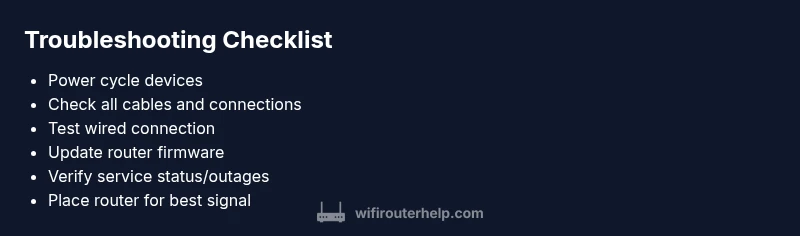
Most Airtel router network problems stem from a simple mix of power, wiring, or configuration issues. Start by rebooting the router and modem, checking all cables, and verifying the service status with Airtel. If problems persist, test a wired connection and update firmware. These quick checks resolve the majority of outages within minutes.
Understanding Airtel Router Network Issues
Airtel router networks can fail in ways that seem mysterious until you break them down. Common symptoms include intermittent Wi-Fi drops, slow browsing, devices reporting no internet, or inconsistent speeds across rooms. According to WiFi Router Help, many of these problems trace back to simple root causes that you can fix quickly. The WiFi Router Help team found that most users regain stable connectivity after a structured, methodical check of power, cables, and configuration settings. In practice, start by verifying basic hardware and service status before diving into advanced tweaks. This approach aligns with best practices for home networks and reduces frustration when devices suddenly disconnect.
Consider the environment: nearby electronics, microwaves, or thick walls can degrade signal. If you’re on Airtel’s broadband service, outages or rare line problems can masquerade as router faults. Document LED statuses on the device and compare them to your model’s manual. This initial assessment helps you decide whether the issue lives inside your home network or on the provider side.
Common Causes of Airtel Router Problems
Many Airtel router issues stem from a few repeatable culprits. First, service outages or maintenance in your area can appear as a total loss of connectivity even when your hardware is fine. Second, incorrect WAN/Internet settings, such as PPPoE credentials or DHCP configuration, can block access despite a healthy LAN. Third, physical issues like loose Ethernet cables, damaged connectors, or a poorly seated modem can interrupt the path to the internet. Fourth, outdated firmware may introduce instability, compatibility issues with new devices, or degraded security. Fifth, excessive wireless interference from neighboring networks, smart devices, or metal objects can cause dropped connections or slow speeds. Finally, improper NAT/UPnP settings can divert traffic, triggering double NAT or port conflicts that degrade performance.
Address each category in order: check service status, confirm correct login details from your ISP, reseat cables, and verify firmware. If you confirm firmware is current but problems persist, consider a factory reset after backing up settings. These steps cover the majority of scenarios faced at home.
Quick Checks You Can Do Right Now
Before calling support, run through a quick triage that requires no specialized tools. Start with a power-cycle: unplug the router and modem, wait 60 seconds, then plug back in. While powering up, inspect all cables for wear and ensure tight connections at the wall socket, the modem, and the router. If possible, connect a device directly via Ethernet and test a basic latency or speed test. If wired works but Wi‑Fi does not, focus on wireless settings and channel selection. Finally, log into the router’s admin page to confirm the WAN status, DNS configuration, and firmware version. If you notice an outage alert on Airtel’s status page, the problem might be external rather than on your device.
Diagnostic Considerations: When to suspect service outage vs router fault
To effectively diagnose, separate provider-side issues from home-network problems. If multiple devices lose internet simultaneously, you’re likely facing a service outage or line fault rather than a single device failure. Cross-check your device arps by pinging a public DNS (for example, 8.8.8.8) from a connected device. If pings fail across both wired and wireless devices, the problem is more likely on the line or with Airtel’s gateway. If only wireless devices stall while a wired PC remains online, the router’s Wi-Fi hardware or settings may be at fault. In both cases, capture LED patterns, timestamps, and exact times to compare with any outage notices.
Step-by-Step Troubleshooting Scenarios
This section walks through common scenarios with actionable fixes. Start with scenario A: no internet on both wired and wireless devices. Step 1: power cycle, check the WAN/LAN LEDs, and confirm the login credentials. Step 2: test with a wired connection; if it works, adjust Wi-Fi settings (SSID, password, channel). Step 3: update firmware and reboot. Scenario B: slow Wi-Fi performance. Step 1: recheck channel interference, enable QoS if available, and re-run a speed test. Step 2: place the router in a central location with minimal obstacles. Step 3: ensure your devices aren’t starving the network with background updates. These steps mirror typical troubleshooting progressions.
When to Call Support or Consider Upgrading
If you’ve methodically worked through the steps and the Airtel router network still behaves unpredictably, it’s time to escalate. Contact Airtel support to rule out line faults or service outages, and share your diagnostic notes, LED patterns, and timestamps. If your router is old or undersized for your home, consider upgrading to a newer model with better heat management and wider range, or explore a bridge-mode setup with a dedicated modem. Proactive preventive measures—regular firmware updates, strong admin passwords, and a documented change log—keep issues from sneaking back.
Steps
Estimated time: 20-40 minutes
- 1
Power cycle and inspect cabling
Unplug the router and modem, wait 60 seconds, then plug back in. While off, check all cables for wear and ensure tight connections at the wall, the modem, and the router. This resets hardware paths and helps clear minor glitches.
Tip: Label each cable so you can reconnect correctly after reassembly. - 2
Verify WAN/Internet settings
Log into the router’s admin page and confirm WAN settings (PPPoE/DHCP/Static as required by your plan) and ensure credentials are correct. A wrong setting is a common cause of no internet.
Tip: Take a screenshot of current settings before changing anything. - 3
Test wired connection
Connect a device directly via Ethernet to ensure the issue isn’t solely Wi-Fi. If wired access works, the problem is likely wireless, not provider or modem. If wired fails, focus on the modem/line.
Tip: If the Ethernet port feels loose, try a different port. - 4
Update firmware
Check for and install the latest firmware from the router’s admin interface. Firmware updates fix bugs, improve stability, and close security gaps that can cause disconnects.
Tip: Do not interrupt the update process. - 5
Consider a reset if needed
If problems persist after updates, perform a factory reset and reconfigure from scratch using your ISP-provided credentials. Back up your current settings first to avoid losing critical configurations.
Tip: A reset should be a last resort after trying simpler fixes. - 6
Monitor and adjust placement
Place the router in a central, elevated location away from thick walls and electronic devices. Monitor performance over the next 24–48 hours to confirm stability before making further changes.
Tip: Avoid cramped spaces; heat builds up quickly in confined areas.
Diagnosis: Intermittent internet drops or no internet on Airtel router
Possible Causes
- highService outage in Airtel network affecting your area
- highIncorrect WAN/Internet settings on your router
- mediumFaulty or loose cables or connectors
- mediumOld firmware causing instability
- lowOverheating router or insufficient ventilation
Fixes
- easyCheck Airtel service status page or outage alerts; if outage, wait for service restoration
- easyRe-enter WAN/Internet settings according to your plan, and ensure correct login credentials
- easyPower-cycle devices, reseat cables, and replace damaged cables
- easyUpdate router firmware via admin interface
- easyEnsure the router has proper ventilation; relocate away from heat sources
People Also Ask
What should I do first when Airtel router network is down?
Begin with a power cycle of the router and modem, inspect cables, and verify service status. If the problem persists, check WAN settings and attempt a wired connection to rule out a Wi-Fi issue.
Start with a power cycle and basic checks; if it continues, verify WAN settings and test with Ethernet to isolate the issue.
Why is my Airtel router blinking orange?
A blinking orange LED often indicates a problem with the internet connection or the router’s startup sequence. Check for firmware updates and ensure the device is obtaining an IP address from the ISP.
A blinking orange light usually means there’s a connection or startup issue; run through updates and IP checks.
How can I check the Airtel service outage status?
Visit Airtel’s official status page or contact customer support for outage notifications in your area. Compare with your device symptoms to decide if the issue is provider-side or home-network related.
Check Airtel’s status page or call support for outage info; compare with your symptoms to narrow down the cause.
Does changing the Wi-Fi password affect connection?
Changing the Wi-Fi password does not fix a hardware fault, but it can fix access issues if devices were trying to connect with an old credential. Reconnect devices using the new password.
A password change can fix access issues if devices were using the old credential.
Is it safe to reset the router to factory settings?
Factory reset is safe but should be a last resort. Back up settings if possible, then reconfigure using ISP credentials after the reset.
Factory reset is safe but should be last resort; back up settings first.
Why might firmware update disconnect my network?
Firmware updates can momentarily disrupt connectivity. Ensure you have a stable power source and avoid interrupting the update process.
Updates can cause short disconnects; make sure power is stable and don’t interrupt the process.
Watch Video
What to Remember
- Take systematic, quick checks first
- Differentiate service outages from router faults
- Keep firmware updated and secure
- Document changes and monitor results