How to Fix Router Not Connecting to Internet
A practical, urgent guide to diagnose and fix a router that won't connect to the Internet. From quick resets to firmware updates, learn steps that work, with a structured diagnostic flow and safety tips.


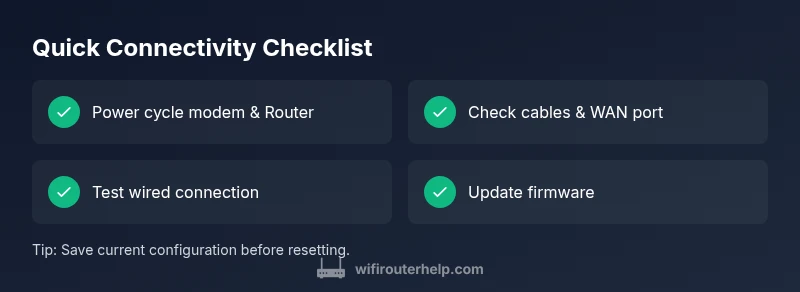
Start with a quick power cycle and cable check, then test a wired connection to rule out Wi‑Fi issues. If the problem persists, perform a factory reset and then update firmware. If this doesn't fix it, contact your ISP to confirm service status and avoid unnecessary hardware replacements. Keep the modem and router powered during tests.
What You're Experiencing and Why It Happens
When your router isn't connecting to the Internet, it can feel urgent—and rightly so. According to WiFi Router Help, many home network outages start with a simple snag rather than a failed device. If you’re looking for how to fix router not connecting to internet, begin with the basics: confirm power, inspect cables, and verify the modem’s online status. The most common warning signs are a lack of web pages loading, streaming apps timing out, and a router light that is amber or off rather than steady green. This suggests either a local network problem or a wider service issue from your ISP. Before you rush to replace gear, rule out the obvious culprits: power supply stability, loose Ethernet or coax cables, and whether the WAN port shows activity. Approach the problem as a sequence: test connections, then test devices, then test the service. Keeping a calm, methodical checklist will save you time and money while giving you clear next steps.
Common Causes at Home
Most router-not-connecting-to-internet issues fall into a short list of causes you can check quickly. A service outage from your ISP is plausible, especially during storms or maintenance windows. A miscommunication between the modem and the router can leave the gateway unreachable; ensure the modem is in bridge or router mode as appropriate. Cable problems—damaged coax, loose Ethernet, or worn connectors—are another frequent culprit. Wrong WAN settings, DHCP disabled, or MAC filtering can block new devices from obtaining an IP address. Outdated firmware, overheating, or excessive load on the router (too many connected devices) can also disrupt connectivity. If the Wi-Fi signal seems fine but nothing loads, focus on DNS and DHCP configuration. Finally, check for device-specific issues: a single device vs all devices indicating a broader network problem. This overview sets the stage for targeted fixes and prevents unnecessary hardware replacements.
Quick Checks Before Deep Troubleshooting
Before diving into advanced steps, run through these fast checks. Ensure the power adapters are firmly connected and powered on. Re-seat all cables: coax from wall to modem, Ethernet from modem to router, and Ethernet from router to a computer if you test wired. Look at the lights: the online/ WAN light should be solid or blinking in a predictable pattern; amber often signals a problem. Try a different Ethernet port on the router if available. Temporarily disable any VPNs or firewall rules on your test device to rule out local filtering. If you have a cable or fiber modem, reboot the entire stack: unplug the modem, wait 60 seconds, plug it back in, then do the same for the router. If you still cannot browse, test a wired connection directly from a computer to the modem to determine whether Internet access is available without the router. These quick checks save you time and pinpoint where to focus next.
Isolate the Problem: Wired vs Wireless
Separating the issue into wired and wireless domains helps you pinpoint root causes. If a wired connection from a PC to the modem or router works but Wi‑Fi does not, the problem is likely wireless-related (signal coverage, channel congestion, or Wi‑Fi security settings). If both wired and wireless fail, the problem probably lies with the modem, the ISP service, or the router’s basic Internet settings. Document the tested devices and observe whether the issue appears during certain times of day, after firmware updates, or after adding new devices. This context will help you choose the most efficient next steps and avoid unnecessary reconfigurations.
The Diagnostic Flow in Practice
Think of troubleshooting as a flowchart: symptom → likely cause → fix. Start with the most probable and least invasive actions, then escalate. For example: symptom: no Internet on all devices. diagnosis: ensure the modem is online and connected to the router; fix: power cycle, check cables, verify service status with your ISP, and test with a wired connection. If the problem persists, proceed to more involved steps such as factory reset and firmware update, but only after backing up settings. This diagnostic routine minimizes downtime and keeps you from chasing phantom issues. Remember to document every step so you can revert configurations if needed.
Safe Fixes: Step-by-Step Solutions
Below are practical fixes you can perform in order. Start with the least invasive actions and move to more involved steps only as needed. Each fix includes a quick rationale and a safety reminder to prevent mistakes.
- Use a clean power cycle: unplug both devices, wait 60 seconds, plug back in, and power up in sequence. This clears stuck sessions and reinitializes the handshake with the ISP.
- Check all cables: reseat the coax from wall to modem and the Ethernet from modem to router. Try a different Ethernet port on the modem if available. Damaged cables should be replaced promptly.
- Verify WAN and DHCP: log into the router admin panel, confirm the WAN/Internet settings match your ISP’s requirements, and ensure DHCP is enabled so devices receive IP addresses automatically. If you’re using PPPoE or static IP, confirm credentials and IP settings are correct.
- Update firmware: navigate to the router’s update section and install the latest stable firmware from the manufacturer’s site. Firmware updates fix known bugs and improve compatibility with ISPs.
- Consider a factory reset: if the above steps fail, perform a factory reset and reconfigure the essential settings. Back up current configurations before resetting; a reset wipes custom rules and port mappings.
Estimated total time: 60-90 minutes.
Prevention and Maintenance to Avoid Recurrence
To keep connectivity reliable, implement a small set of best practices. Schedule regular firmware checks and automatic updates where possible, but allow manual review on a known-safe network. Place your router in a well-ventilated area to prevent overheating, which can cause performance drops. Use a consistent channel that minimizes interference from neighbors and other devices. Enable a guest network to keep IoT devices segregated and protect main devices. Finally, perform periodic reboots and health checks to catch issues before they affect your family’s internet usage.
Final Thoughts and Next Steps
A structured, non-frantic approach to troubleshooting saves time and reduces the chance of misdiagnosis. Start with the simplest fixes, verify the basics, and progressively escalate to more comprehensive solutions. If you reach a point where you’re uncomfortable adjusting settings or performing a reset, don’t hesitate to contact your ISP or a qualified technician. The goal is a stable, secure home network with minimal downtime. The WiFi Router Help team stands by with this practical flow to guide you safely back online.
Steps
Estimated time: 60-90 minutes
- 1
Power cycle devices
Shut down the modem and router, unplug them, wait 60 seconds, then plug back in and power up starting with the modem, then the router. Allow a full boot cycle for both devices.
Tip: A clean boot often clears stuck network sessions. - 2
Check physical connections
Ensure coax and Ethernet cables are securely connected; reseat ports and try alternate ports if available. Avoid using damaged cables.
Tip: Loose cables are the #1 cause of intermittent connectivity. - 3
Validate ISP and modem mode
Log into the modem to confirm online status; if you’re using bridge mode, ensure the router handles DHCP. Avoid double NAT scenarios.
Tip: If you’re unsure about bridge mode, consult your ISP’s setup guide before changing modes. - 4
Test with a wired device
Connect a laptop directly to the router or modem via Ethernet and run a quick page load to verify Internet reachability.
Tip: If wired works but Wi‑Fi doesn’t, focus on wireless settings and coverage. - 5
Access the router admin page
Check DHCP status and WAN/Internet settings; confirm credentials for PPPoE or static IP if required. Back up current config first.
Tip: Document current IP addressing to speed up reconfiguration if you reset. - 6
Factory reset if needed
If nothing else works, reset to factory defaults and reconfigure the essential settings. Restore only necessary rules and ports.
Tip: Resetting is a last resort; it wipes custom configurations.
Diagnosis: Router won't connect to Internet on all devices
Possible Causes
- highPower or cable issue
- lowISP outage or service degradation
- mediumModem-router misconfiguration or double NAT
- lowFirmware outdated or overheating
Fixes
- easyPower cycle all equipment (modem and router) in sequence
- easyCheck and reseat all cables; swap damaged cables
- easyTest a wired connection to isolate Wi‑Fi vs Internet
- mediumUpdate firmware and reset if needed
- hardFactory reset with reconfiguration if the problem persists
People Also Ask
Why is my modem showing 'Online' but I still can't browse?
This can indicate a DNS issue or a misconfigured router. Start with a reboot, then test a wired connection to the modem. If the problem persists, check DHCP and DNS settings in the router admin page.
Your modem appears online, but you may have a DNS or router setting problem. Reboot and test a wired connection, then verify the router's DHCP and DNS settings.
Is a factory reset safe, and when should I do it?
Factory reset is safe if you back up settings first and follow the reconfiguration steps. Use it only after basic troubleshooting fails or you suspect firmware issues.
A factory reset is a last resort after backing up, to fix deeper configuration problems.
Can updating firmware fix connection problems?
Firmware updates can resolve compatibility and stability issues. Check manufacturer support pages for your model and follow the official update procedure.
Yes, firmware can fix connectivity by addressing bugs and compatibility.
Why does Wi‑Fi sometimes work but pages won’t load?
This often points to DNS issues or busy networks. Try flushing DNS, using a different DNS server, or reducing connected devices.
Wi‑Fi is connected but DNS or network congestion can block pages.
Should I call my ISP?
If you’ve ruled out local issues and the modem shows issues or outages, contact your ISP. They can confirm service status and help with line tests.
If the service is down or you’re seeing modem problems, contact your ISP.
What’s the difference between a reset and a reboot?
A reboot is a temporary restart that clears running processes, while a reset restores factory settings. Start with a reboot, then escalate to a reset if needed.
Reboot first, then reset only if needed.
Watch Video
What to Remember
- Power cycle first to clear glitches
- Test wired connection to isolate the issue
- Update firmware before performing hard resets
- Back up settings before resets