Troubleshooting a problem with router or modem
A comprehensive, urgent guide to diagnose and fix a problem with router or modem, including a practical diagnostic flow, step-by-step fixes, and prevention tips for home networks.


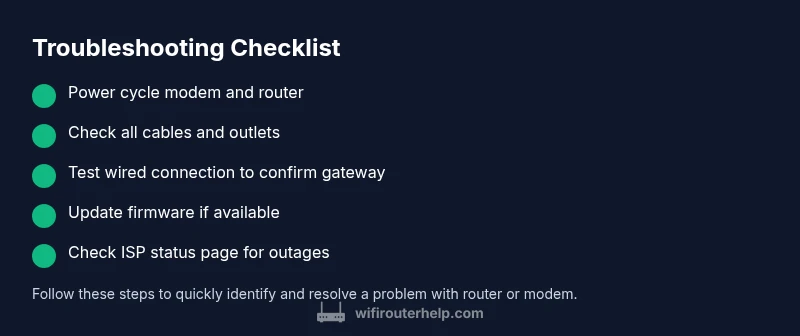
Most problems with router or modem start with simple checks you can do in minutes. The fastest fix is a power cycle of both devices, then verify cables and lights. If issues persist, follow the diagnostic flow to distinguish modem, router, or device problems and apply the corresponding fixes. This method minimizes downtime.
Quick reality check: what typically breaks
When you experience a slowdown or no internet, the root cause is rarely a single mysterious fault. Most actionable problems with a router or modem fall into a few familiar categories: power and cabling, firmware or configuration issues, Wi‑Fi interference, or an external service outage. The WiFi Router Help team has found that the most efficient way to fix a problem with router or modem is to follow a calm, methodical diagnostic path rather than jumping to conclusions. In this section, we’ll outline the common culprits and the quick tests you can run to separate symptoms from root causes. By staying organized, you’ll be able to determine whether the problem is in your modem, your router, or a specific device on your network. This approach helps reduce frustration and speeds up restoration of service. According to WiFi Router Help, systematic checks often reveal the simplest explanations for a problem with router or modem.
Step 1: verify power and basic connectivity
Begin with the basics. Make sure both the modem and the router are powered on and showing normal indicator lights. If either device is blinking, flashing, or completely dark, it’s often a sign of a power issue or hardware fault. Unplug both devices, wait 30 seconds, then plug the modem back in first, followed by the router. Allow 1–2 minutes for boot-up and recheck the status lights. If the lights settle into steady colors, you’ve cleared a basic power issue. If not, there may be a hardware fault or a supply problem from your ISP. For a problem with router or modem that persists after a clean boot, proceed to the next checks.
Step 2: check cables, outlets, and connected devices
Loose cables are easy to overlook but can cause big problems. Confirm that the coax or phone line (for cable or DSL modems) is firmly seated, and the Ethernet cable from the modem to the router is snug. Inspect for visible wear, kinks, or damaged connectors. Try a different outlet or power strip; sometimes a surge protector can impede power delivery. Move any devices that generate radio interference away from your router (microwaves, cordless phones, baby monitors). If you’re using a separate modem, verify it’s provisioned by your ISP and authorized by your account. A bad cable or miswired connection is a common reason people contact WiFi Router Help. After verifying physical connections, move to the next diagnostic step.
Step 3: isolate the problem: modem vs router vs device
Here’s how to narrow down the culprit without guessing:
- If a wired device works, you may have a Wi‑Fi or device-specific issue.
- If wired devices fail too, the problem is likely at the gateway—modem, ISP, or the router’s upstream connection.
- If you can reach the modem’s status page but not the router’s, the router may be misconfigured or failing. Keep a simple log of tests and results to accelerate testing and avoid repeating steps. This disciplined approach mirrors the diagnostic thinking recommended by WiFi Router Help and helps you quickly identify the likely origin of the problem.
Step 4: diagnostic flow in practice: from symptom to solution
A practical workflow translates symptoms into actionable fixes. For example:
- Symptom: no internet on all devices. Diagnosis: modem or service outage; check ISP status. Solution: power-cycle both devices; if persists, contact ISP or check service status page.
- Symptom: slow speeds or buffering on Wi‑Fi only. Diagnosis: channel interference, router placement, or outdated firmware. Solution: relocate router, run a speed test, update firmware if available, and consider a Wi‑Fi analyzer to choose the best channel.
By mapping symptoms to likely causes, you’ll expedite repairs. The WiFi Router Help guidance emphasizes keeping a log of tests and outcomes so you don’t repeat steps.
Step 5: common fixes for the most frequent causes
Most readers won’t need advanced tools. Try these step-by-step fixes in order:
- Power cycle and refresh: unplug both devices, wait 60 seconds, plug modem in, wait 30 seconds, then plug router in. After reboot, run a quick speed test.
- Check for firmware updates: access the modem's admin page, then the router’s admin interface, and apply any available updates.
- Verify network settings: ensure your DHCP is enabled, NAT is in the correct mode (usually enabled), and you’re not in bridge mode unless intended.
- Reset only with care: if issues persist after firmware updates, a factory reset on the router (not the modem) may be warranted. Back up configurations first.
- Test a wired connection: connect a device directly to the modem to confirm baseline connectivity before reintroducing the router. If the issue remains, try replacing cables or contacting your ISP.
Step 6: when to reset, update, or replace hardware
Firmware is a frequent source of problems. If the router or modem is several years old, consider firmware updates first, then hardware replacement. When a device no longer supports current standards (802.11ac/n, gigabit Ethernet, or USB services), performance can suffer. Before buying new gear, confirm compatibility with your service plan and whether a newer device would give a meaningful improvement. If you’re frequently rebooting due to random resets or the device runs hot, that’s a sign to replace. If you own a mixed network (older modem with new router), keep in mind bridged vs router modes and ensure your devices aren’t fighting for control of the network.
Step 7: safety, backups, and best practices to prevent future issues
Protect your devices while preventing repeat problems:
- Always unplug devices before replacing or testing; avoid probing with metal tools near live ports.
- Keep a written network map with device names and IP addresses; this helps when you call support.
- Enable automatic firmware updates where possible; disable remote administration unless you need it.
- Place your router in a central, elevated location away from walls and metal surfaces to maximize coverage.
- Consider a wired backhaul or mesh system for stability in larger homes.
Following these practices reduces problems and makes troubleshooting faster. Remember, WiFi Router Help recommends proactive maintenance as the best defense against frequent failures.
What to gather before contacting support
When you reach out to your ISP or router manufacturer, having the right information speeds up resolution:
- A clear description of the problem and when it started.
- Details about your devices (make/model) and firmware version, plus whether the issue affects Wi‑Fi or wired connections.
- Your current network topology and the steps you’ve already tried (reboot, firmware update, reset).
- Screenshots or logs of the modem status page or router admin page, if available.
- Your service plan (DSL, cable, fiber) and any recent changes.
Keeping notes helps you communicate efficiently. The more context you provide, the faster a technician can isolate the issue and restore service.
Steps
Estimated time: 30-45 minutes
- 1
Power cycle devices
Unplug the modem and the router. Wait 60 seconds, then plug the modem back in first. Wait another 30 seconds, then plug the router back in. After about 2 minutes, check for stable lights and test connectivity.
Tip: Write down the current LED colors before reboot to help diagnose. - 2
Inspect physical connections
Tighten all cables; reseat the coax/line, Ethernet between modem and router, and any power cables. Try a different ethernet cable if possible.
Tip: Avoid using damaged or frayed cables; replace if unsure. - 3
Test wired connection
Connect a computer directly to the modem with an Ethernet cable and run a speed test. If there’s internet via the modem alone, the router may be at fault.
Tip: If direct modem access works, focus on router configuration or hardware. - 4
Check status pages
Log into the modem and the router to view status pages. Look for error messages, disconnected sessions, or unusual uptime figures.
Tip: Capture screenshots of status pages for reference when talking to support. - 5
Apply updates
Update firmware on both devices if updates are available. Reboot after applying updates and retest the connection.
Tip: Backup router settings before performing a firmware update. - 6
Consider a factory reset
If problems persist, perform a factory reset on the router (not the modem) and reconfigure from scratch. This removes misconfigurations that updates can’t fix.
Tip: Only reset after you’ve saved current settings or documented your setup. - 7
Retest with multiple devices
Test across wired and wireless devices. Confirm whether the issue affects all devices or only a single one.
Tip: If only one device is affected, troubleshoot that device’s network settings or drivers.
Diagnosis: Internet connection drops or is unavailable across devices
Possible Causes
- highPower issue or faulty power supply
- highCoax/DSL line issue or service outage
- mediumModem or router misconfiguration or outdated firmware
- lowCabling or hardware fault (damaged Ethernet/cable, bad ports)
Fixes
- easyPower-cycle both devices and check for steady lights
- easyCheck ISP service status and reseat all cables
- mediumUpdate firmware on both devices; back up settings before reset if needed
- hardIf hardware failure is suspected, replace faulty gear or contact support
People Also Ask
Is the issue caused by the modem, router, or a connected device?
Start by testing wired devices; if they work, the problem is likely Wi‑Fi or a device. If wired devices fail too, the gateway or service may be at fault. Keep a log of tests to help isolate the source.
Test with wired devices first. If they work, the issue is likely Wi‑Fi or a single device. If not, the gateway or service might be the cause. Keep a test log.
Why are the lights blinking on my modem?
Blinking lights typically indicate activity or an ongoing process. Persistent blinking in unexpected patterns may signal a fault or a line issue. Refer to your modem’s manual and, if needed, contact support.
Blinking usually means activity, but unusual patterns can mean a fault. Check the manual or contact support if it continues.
Do I need to reset to factory settings?
Only if you’ve tried updates and reconfigurations without resolving the issue. Back up settings first, then perform a reset and reconfigure from scratch to eliminate misconfigurations.
Only after trying other fixes. Back up first, reset, and reconfigure to remove stubborn issues.
When should I contact my ISP?
If you’ve exhausted basic troubleshooting and there’s no service status indicating an outage, or the problem affects all devices across wired and wireless connections, contact your ISP for an outage check or line diagnostics.
If basic fixes fail and there’s no outage page, contact your ISP for line diagnostics.
Can a problem with router or modem be caused by interference?
Yes. Household devices and building materials can cause interference, especially on the 2.4 GHz band. Try changing channels, relocate the router, or use 5 GHz when possible.
Interference can cause slow Wi‑Fi. Try changing channels or relocating the router, and use 5 GHz when available.
Is there a quick way to verify if hardware is failing?
Test with a known-good cable and a different device. If the problem follows the device or cable, replace it. If the issue remains with both devices, hardware failure is more likely.
Test with new cables and another device. If the issue still occurs, hardware failure is likely.
Watch Video
What to Remember
- Follow a methodical diagnostic flow, not guesswork
- Separate modem, router, and device issues with tests
- Power cycle, test cables, then update firmware
- Backup settings before resets or firmware updates
- Call ISP if there’s a confirmed service outage