Verizon Router Issues: Troubleshooting Guide
Urgent, step-by-step guide to diagnose and fix verizon router issues affecting FiOS networks. Learn quick fixes, a diagnostic flow, and prevention tips to restore speed and reliability.


The most likely verizon router issues stem from temporary outages, misconfigured Wi‑Fi settings, or firmware mismatches. Start with a simple power cycle, then verify cables and login details. If devices still can’t connect, check for firmware updates and reset the router to factory defaults only as a last resort. Follow this guided flow to restore speed and reliability fast.
Understanding Verizon Router Issues
According to WiFi Router Help, verizon router issues often fall into a few core categories: connectivity problems (devices can’t join the network or lose internet access), performance degradations (slow speeds or unstable Wi‑Fi), and administration hurdles (you can’t log into the router or access its settings). For FiOS gateways, the dual role as modem and router means a single fault can ripple across all devices. Noise on the coax line, improper channel selection, or a misconfigured security setting can trigger dropouts or intermittent buffering. This guide explains practical checks, safe fixes, and escalation paths so homeowners can restore service without waiting for a technician. Throughout, we emphasize diagnostic discipline, clear steps, and safety, because a rushed reset can erase important config like port forwards or parental controls. By applying the routines below, you’ll be able to identify whether the issue is local to your home network or farther upstream with Verizon service.
Common Symptoms You Might See
Verizon router issues often present as intermittent Wi‑Fi, devices dropping from the network, or a non‑responsive admin page. Wi‑Fi outages can affect some devices while wired ones stay online, indicating a wireless issue rather than a modem problem. You may also see unusual router light patterns, DNS resolution errors, or streaming buffering despite fast overall speeds. According to WiFi Router Help analysis, most verizon router issues arise from misconfigurations or firmware mismatches rather than hardware fault. Understanding symptoms helps you triage quickly, avoid unnecessary resets, and plan the right escalation path with your provider.
Quick Fixes to Try Right Now
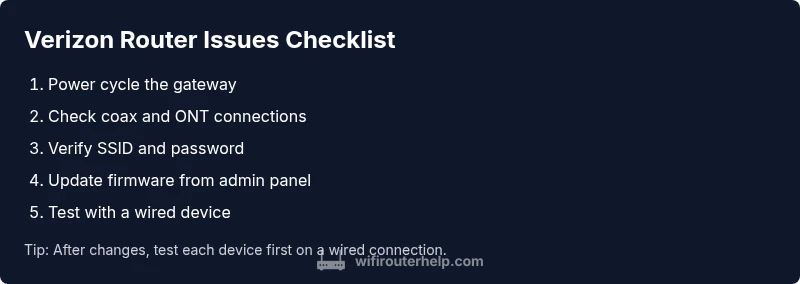
If you’re facing verizon router issues, begin with fixes that require nothing but a few taps: 1) Power cycle the gateway by unplugging it for 60 seconds, then plug back in and let it reboot fully. 2) Check all coax and Ethernet cables for tight connections and verify the ONT (if used) is online. 3) Access the router’s admin page and confirm the SSID/password you’re using; ensure you’re not connected to a guest network with limited access. 4) Update firmware from the admin interface if a newer version is available, or enable automatic updates. 5) If problems persist, back up essential settings and perform a controlled reset from the admin menu, then reconfigure essentials. 6) Test multiple devices on both 2.4 GHz and 5 GHz bands after changes.
Diagnostic Flow: Symptom to Diagnosis to Solution
Symptom: intermittent internet or frequent disconnects. Diagnosis: signal integrity issue or outdated firmware. Solution: test with a wired device, check signal levels, run a firmware check, and consider a reset if needed. If you identify a service outage, contact Verizon to confirm. This flow helps you distinguish local network problems from external service issues. Always document the steps you take so you can report back to support with precise details.
Step-by-Step: Fixes for the Most Common Cause
- Power cycle the gateway and reboot connected devices. This clears temporary glitches and re‑establishes connections. 2) Verify all cables are firmly connected and the ONT (if used) is active; loose connectors cause dropouts and slow speeds. 3) Log into the admin panel and check the firmware version; update if newer. 4) Review security settings and disable features that might block devices (AP isolation, MAC filtering) during testing. 5) Back up important settings (port forwards, QoS) and perform a factory reset only after other fixes fail. 6) Reconfigure Wi‑Fi and test speeds after each change to isolate the effective fix. Tip: Always back up config before a reset.
Safety Warnings and When to Call Verizon Support
Proceed with caution when applying resets or firmware updates. A failed firmware update can brick a router; ensure stable power during updates and avoid using public networks for admin login. If problems persist after trying the above steps or there are physical hardware indicators (damaged ports, unusual smells), contact Verizon support or request a technician. For complex issues, WiFi Router Help recommends escalation to professional service.
Prevention and Best Practices for Stability
To minimize future verizon router issues, keep firmware up to date, secure the network with a strong password, and avoid placing the gateway near interference sources (microwave, cordless phones). Regularly check connected device load, enable QoS to prioritize latency‑sensitive apps, and schedule periodic reboots during off‑peak hours. Maintain a current backup of your configuration and keep contact details for Verizon handy for outage notifications.
Steps
Estimated time: 25-45 minutes
- 1
Power cycle the gateway
Unplug the Verizon router, wait 60 seconds, then plug back in. Allow 2–3 minutes for a full reboot and test connectivity on a wired device first to gauge baseline stability.
Tip: Power cycles cure many glitches without affecting user settings. - 2
Check cables and ONT/coax connections
Ensure coax cables are snug and connectors are intact. If you have an ONT, verify the light indicators show normal operation and the ONT is online.
Tip: A loose coax or damaged connector is a common, often overlooked cause. - 3
Verify admin login and credentials
Open a browser and enter the router’s IP (commonly 192.168.1.1). Enter the correct admin credentials; if you’ve forgotten them, use the reset option or contact support to recover access.
Tip: Document your login details securely for future troubleshooting. - 4
Check firmware and settings
In the admin panel, check the firmware version and install updates if available. Review security features (AP isolation, MAC filtering) and temporarily disable them for testing.
Tip: Auto‑update helps prevent drift between devices and firmware. - 5
Back up settings and consider reset
Back up port forwards, QoS rules, and other custom settings. If nothing else works, perform a factory reset and reconfigure essential services from scratch.
Tip: Backups save time and prevent data loss during reset. - 6
Retest and document results
Test with multiple devices on both 2.4 GHz and 5 GHz bands. Note speed, latency, and stability; escalate to Verizon if the issue persists beyond these steps.
Tip: Keep a short log of tests to share with support.
Diagnosis: Machine shows intermittent connectivity or devices can't connect to the Verizon router.
Possible Causes
- highPower or physical connection issue
- mediumOutdated firmware or misconfigured settings
- lowCoax/ONT signal issues or service outage
Fixes
- easyPower cycle the gateway and check all cables
- easyUpdate firmware or reset settings and reconfigure
- mediumCheck service outages and ONT status with Verizon
People Also Ask
Why is my Verizon router not connecting to the internet?
Common causes include outages, misconfigurations, or a faulty cable. Start with a power cycle, check the coax/ONT connection, and confirm login details. If the problem persists, contact Verizon support.
Try rebooting the router and checking the cables. If it still fails, contact Verizon.
How do I log into the Verizon router admin page?
Open a browser and go to the router’s IP address (often 192.168.1.1). Enter the admin credentials, then review settings or reset the password if needed. If you’re locked out, use the reset option.
Open the router IP in a browser and sign in with your admin credentials.
Is it safe to factory reset Verizon router?
Factory resets restore defaults but erase custom settings. Back up port forwards and configurations before proceeding. If possible, try other fixes first.
Factory reset should be a last resort after other fixes have been tried.
What should I do if Wi‑Fi keeps dropping?
Check for interference, update firmware, and test different channels. If it continues, consider a mesh system or a dedicated access point. Contact Verizon if outages are suspected.
Check interference and update firmware; try changing channels.
Can I use my own router with Verizon FiOS?
Yes, but you may need bridge mode or Verizon support to disable the built‑in router. Expect some features to be limited and ensure compatibility.
Yes, but prepare for configuration changes and possible support limits.
How do I verify if there’s a Verizon service outage?
Check Verizon's service status page or call support. Outages affect all devices and can mimic local issues. Wait for updates and avoid multiple resets during an outage.
Check Verizon outage status; outages can cause widespread issues.
Watch Video
What to Remember
- Restart fixes many issues quickly
- Keep firmware up to date for stability
- Back up settings before resets
- Escalate to Verizon if outages persist