Router for Verizon FiOS: Setup, Optimization, and Troubleshooting
A comprehensive, step-by-step guide to choosing a compatible router for Verizon FiOS, bridging the ISP gateway, and optimizing home Wi-Fi with practical how-tos from WiFi Router Help.


This guide helps you select a router for verizon fios that matches your plan, bridge or pass-through the ISP gateway when needed, and optimize your home Wi‑Fi for reliable coverage. You’ll find practical, step-by-step setup, troubleshooting tips, and security best practices from WiFi Router Help. Expect clear how-tos, real-world scenarios, and gear-agnostic recommendations.
Understanding the Verizon FiOS Router Landscape
For many homes, the easiest path to fast, reliable Wi‑Fi is to use the FiOS gateway provided by Verizon, but a strong third‑party router can unlock better coverage and advanced features. According to WiFi Router Help, Verizon FiOS networks typically feed the home through an optical network terminal (ONT) that connects to a gateway device, which then distributes Internet throughout the house. If you want to maximize performance, you’ll often place a high‑quality router behind the ISP gateway and manage routing yourself. This approach can reduce dead zones, improve throughput on crowded networks, and give you more control over security settings. However, compatibility and configuration details matter: not every router will play nicely with FiOS, and mistakes can introduce double NAT, IP conflicts, or unstable connections. This section sets the stage for what to expect when you bring a second router into the network and how to plan for a smooth transition.
Compatibility Essentials: What Makes a Router Work with FiOS
Key factors to consider when choosing a router to pair with FiOS include the WAN interface, bridge or passthrough capability, and the ability to handle the speeds your plan offers. Most FiOS installations feed the home network through Ethernet from the ONT or gateway. To avoid double NAT, you’ll want the FiOS device to operate in bridging mode or to provide a passthrough/DMZ connection to your new router. Check whether the router supports modern Wi‑Fi standards (Wi‑Fi 6/6E), robust MU‑MIMO, and strong beamforming, which improve real‑world performance in busy households. Also verify firmware update policies and security features such as a built‑in firewall, guest networks, and parental controls. If you rely on IPTV or voice services, ensure the router can handle required QoS rules or that the FiOS device can be set up to forward the necessary ports. In short, compatibility means the two devices cooperate without double NAT, while the features keep your home network fast, secure, and easy to manage.
Choosing the Right Router for Verizon FiOS
When evaluating routers for a FiOS setup, focus on WAN capabilities, wireless performance, and management features. Look for a gigabit Ethernet WAN port, support for Wi‑Fi 5/6/6E, and enough RAM/CPU to handle many devices simultaneously. For homes with multiple floors or thick walls, prioritize routers with strong antennas or mesh capabilities to extend coverage. A good model should offer:
- Dual‑band or tri‑band operation, with separate 2.4 GHz and 5 GHz networks
- QoS for prioritizing video calls, gaming, or streaming
- Modern security, including WPA3, automatic firmware updates, and a hardened admin interface
- Easy‑to‑use app or web interface for setup and monitoring Remember to check compatibility notes with FiOS through your service provider’s support pages or user forums, and consider whether you prefer direct gateway management or simple bridge passthrough. The goal is to maximize coverage and speed while avoiding double NAT and complicated configurations. By choosing thoughtfully, you’ll unlock more stable, higher‑quality Wi‑Fi across your home.
Step-by-Step Setup Overview
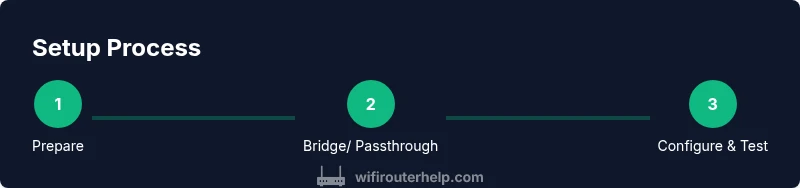
This overview summarizes the practical steps you’ll perform when configuring a FiOS‑friendly router. Start by verifying gear compatibility and preparing the FiOS gateway for bridge or passthrough mode. Then connect your third‑party router to the FiOS device using an Ethernet cable, power both units, and boot the new router. Access the router’s admin panel to configure WAN settings (DHCP or PPPoE as required), set up your LAN, create SSIDs, and enable security features. Finally, place the router where it can cover the most area, run a few speed tests, and adjust channels for best performance. This section is designed to map the flow so you can align expectations with the STEP‑BY‑STEP instructions that follow.
Optimizing Coverage Across Your Home
Signal quality matters as much as raw speed. The location of your router determines how well the network reaches every room. Start by placing the router on a central shelf, elevated from furniture, and away from large metal appliances, microwaves, and thick walls that can block signals. Use separate SSIDs for 2.4 GHz and 5 GHz bands to minimize interference and give devices a clear path to the right network. If you have a large home or multiple floors, consider a mesh extender or a second router to fill dead zones. When possible, run a quick room‑to‑room speed test and adjust the channel settings to minimize overlap with neighboring networks. For FiOS environments, ensuring that the gateway is not causing interference and letting your primary router handle DHCP and NAT helps preserve consistent performance.
Security and Privacy Best Practices
Security should be front and center when you deploy any router, especially in a home with many smart devices. Change default admin credentials immediately and choose a strong, unique password for Wi‑Fi and the router dashboard. Use WPA3 when available, enable automatic firmware updates, and turn on a guest network to isolate visitors’ devices from your main network. Disable WPS to reduce the risk of unauthorized access, and enable firewall features in the router’s settings. Regularly review connected devices and refresh passwords if you notice unfamiliar equipment. This approach minimizes risk while keeping management simple for everyday users.
Common Issues and Quick Fixes
Double NAT is a frequent culprit when adding a second router. If you notice flaky connections, try placing the FiOS gateway in IP passthrough or bridge mode and reboot both devices. If speeds dip intermittently, verify cable quality and confirm that the WAN port on your third‑party router is set to DHCP or PPPoE as required by your ISP configuration. Firmware updates often resolve stability problems, so check for a newer version and apply it. If devices still fail to connect, perform a factory reset on the router and reconfigure from scratch, ensuring you back up settings beforehand.
Final Tips and Next Steps
With a well‑chosen router and careful setup, you’ll enjoy stronger, more reliable Wi‑Fi across your home. Maintain a habit of checking for firmware updates every few months, monitor network performance during peak usage times, and adjust your mesh or extender strategy as your home changes. If you regularly add new IoT devices, consider segmenting traffic with a guest network and enabling QoS rules for latency‑sensitive tasks like gaming or video calls. The path to optimal FiOS performance is iterative—start with a solid baseline, then fine‑tune as you observe how your family uses bandwidth.
Tools & Materials
- Third-party router(Must support WAN Ethernet and current Wi‑Fi standards (Wi‑Fi 5/6/6E))
- Verizon FiOS gateway/ONT(Keep powered and accessible for bridging/passthrough configuration)
- Cat5e/Cat6 Ethernet cable(At least 1.5–2 meters for flexible placement)
- Power adapters for both devices(Have surge protection and label which port powers which device)
- Computer or tablet with web browser(For admin UI access and changes)
- Notepad or password manager(To record new network credentials securely)
Steps
Estimated time: 30-60 minutes
- 1
Verify compatibility and gather gear
Confirm your chosen router supports WAN Ethernet and modern Wi-Fi standards, and collect all hardware together. This reduces mid‑install mistakes and keeps you focused during the setup.
Tip: Have your service plan details handy in case PPPoE credentials are needed. - 2
Decide bridging/passthrough mode on FiOS gateway
Access the FiOS gateway admin, enable IP passthrough or bridge mode when possible to avoid double NAT. If bridging isn’t available, enable DMZ to the new router instead.
Tip: If you’re unsure, start with DMZ on a small test device and monitor stability. - 3
Connect the new router to the FiOS device
Link the new router’s WAN port to the FiOS gateway using a Cat5e/Cat6 cable. Power both devices and boot the new router first to ensure it detects an active Internet connection.
Tip: Use a fixed, short Ethernet cable path to reduce signal noise. - 4
Configure WAN and LAN settings on the new router
Set WAN to DHCP (or PPPoE if required). Disable the old gateway’s Wi‑Fi to avoid interference and ensure your router handles DHCP for connected devices.
Tip: Record the new IP range and gateway address for quick future changes. - 5
Set up Wi‑Fi, security, and admin access
Create strong SSIDs, enable WPA3 if available, set a robust admin password, and enable a guest network for visitors. Update firmware if prompted.
Tip: Avoid using common passwords or default SSIDs to reduce attacks. - 6
Test, optimize, and document baseline
Run speed tests across 2.4 GHz and 5 GHz bands in multiple rooms, adjust channels to reduce interference, and note the optimal placement.
Tip: If coverage is patchy, consider adding a mesh extender or repositioning the router higher up.
People Also Ask
Can I use a third-party router with Verizon FiOS without bridging?
Yes, you can, but you may encounter double NAT and limited control. Bridging or IP passthrough is recommended to ensure your router handles routing and IP allocation. Check your FiOS gateway settings and your router’s documentation to confirm the best approach.
You can, but bridging is usually better for performance. Check FiOS settings and your router’s guide.
What is IP passthrough and why do I need it?
IP passthrough forwards your public IP from the FiOS gateway to your third-party router, enabling it to manage NAT and routing. This avoids double NAT and often improves performance for multiple devices.
IP passthrough sends your public IP to the new router, reducing double NAT.
Will a third‑party router improve FiOS Wi‑Fi speed?
A good third‑party router can improve coverage, stability, and features like QoS and guest networks. Real gains depend on your home layout and device placement, not just the hardware spec sheets.
A new router can boost coverage and control, depending on your home layout.
How do I enable bridge mode on the FiOS gateway?
Bridge mode is typically found in the FiOS gateway’s admin interface under advanced settings. If bridge mode isn’t available, IP passthrough or DMZ can approximate the same effect. Follow Verizon’s official steps for safety.
Bridge mode is in the gateway settings; if missing, try passthrough or DMZ.
Do I need to replace the FiOS router if I upgrade to gigabit service?
Not necessarily. A capable third‑party router with gigabit‑class WAN port can handle higher speeds, but ensure your FiOS gateway is not bottlenecking and that you have correct bridge/passthrough settings.
You might not need to replace it; focus on compatibility and bridge settings.
Is it safe to use a guest network to separate devices?
Yes. A guest network isolates visitors’ devices from your main network, reducing risk to connected smart devices and personal data. Remember to limit access and monitor connected devices.
A guest network is a safe practice to keep devices separated.
Watch Video
What to Remember
- Identify FiOS setup and bridging needs.
- Verify WAN, Wi‑Fi, and security specs before buying.
- Position for coverage and segregate networks for guests.
- Keep firmware current and monitor performance.