Router for Verizon: A Practical Setup and Optimization Guide
Learn how to choose, install, and optimize a router for Verizon FiOS, with practical steps, security tips, and troubleshooting to keep your home network fast and reliable.


This guide explains how to pick a router that works with Verizon FiOS, install it correctly, and optimize settings for speed and reliability. You’ll learn how to verify compatibility, enable bridge mode or IP passthrough when needed, and secure your network for everyday use. Follow the step-by-step instructions to minimize interference, improve coverage, and keep your home network stable.
Why a dedicated router matters for Verizon FiOS
For many homes using Verizon FiOS, the built‑in gateway can be adequate for basic internet needs, but a dedicated third‑party router often delivers stronger coverage, better performance, and advanced features like guest networks, QoS prioritization, and robust parental controls. A separate router can help you tailor your network to your home layout, streaming devices, and smart home ecosystem. According to WiFi Router Help, many FiOS households see tangible gains when they upgrade to a capable dual‑band router and place it centrally away from thick walls. The WiFi Router Help team found that optimizing router placement and enabling modern security settings consistently yields faster, more reliable Wi‑Fi across a multi‑room home. This section sets the stage for practical compatibility checks and deployment decisions that avoid common misconfigurations.
Key takeaway: upgrading to a well‑chosen router can unlock better range and control over your Verizon network, especially in larger or multi‑story homes.
typeLabelDetected
Tools & Materials
- A computer or smartphone with a web browser(Needed to access router admin pages and Verizon gateway settings)
- Ethernet cable (Cat5e or better)(For a reliable hard‑wired link between ONT/gateway and your router)
- Current Verizon FiOS account details and ONT/gateway info(Needed to access bridge/IP passthrough settings)
- A second router with at least dual‑band support(Optional if you plan to replace the gateway entirely)
- Notepad or network diagram sheet(Record IPs, SSIDs, and password changes for future reference)
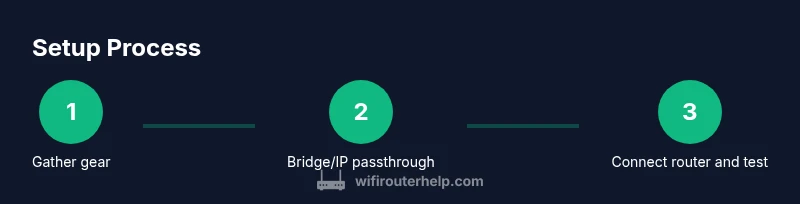
Steps
Estimated time: 45-90 minutes
- 1
Gather and verify gear
Collect your computer or mobile device, the Ethernet cable, and the router you plan to use. Confirm you have your Verizon FiOS service details and access to the gateway admin interface. This step ensures you can complete network changes without interruptions and reduces back‑and‑forth troubleshooting.
Tip: Label each device and note the current SSID so you can revert easily if needed. - 2
Decide between bridge mode and IP passthrough
Bridge mode and IP passthrough both allow your own router to handle routing. Bridge mode is simpler for most users, while IP passthrough may be more compatible with certain ISP features. Understand which option your gateway supports before proceeding.
Tip: If you plan to use advanced features (VPN, multiple subnets), bridge mode is typically the better starting point. - 3
Access the Verizon gateway settings
Connect a device to the gateway and log in to its admin interface using the gateway’s IP address. Look for sections labeled Bridge, IP Passthrough, or WAN/Router settings. Do not change settings you're unsure about to avoid losing internet access.
Tip: Keep a backup of the current configuration in case you need to revert. - 4
Enable bridge mode or IP passthrough
Activate Bridge Mode or IP Passthrough and apply the changes. This disables the gateway’s routing features for devices connected through your new router. Allow a few minutes for the gateway to reboot and propagate the new configuration.
Tip: If the option isn’t visible, contact Verizon support for guidance on enabling it on your model. - 5
Connect your third‑party router
Plug the router’s WAN/Internet port into the gateway’s Ethernet port that previously connected to the ONT. Power up the router and await its boot sequence. This creates a new path for internet traffic through your own device.
Tip: Use a wired connection for initial setup to avoid wireless configuration hiccups. - 6
Configure the router’s WAN and LAN settings
Set the WAN connection to DHCP (automatic IP). On the LAN side, enable NAT, configure a private subnet, and create a strong administrator password. Enable WPA2‑WPA3 mixed mode or the strongest available security, and customize guest networks if you need them.
Tip: Disable UPnP unless you need it for specific devices to reduce exposure to external threats. - 7
Optimize wireless settings
Create separate 2.4 GHz and 5 GHz networks with distinct SSIDs. Use 802.11ac/ax features where available, set appropriate channel widths (20/40/80 MHz), and place the router for even coverage. Test speeds on multiple devices to confirm improvements.
Tip: Limit interference by keeping away from cordless phones, microwaves, and large metal objects. - 8
Test connectivity and secure the network
Verify internet access across wired and wireless devices. Run a few speed tests and check for stable ping times. Change default usernames and passwords, enable the firewall, and enable automatic firmware updates when possible.
Tip: Document the new network name and password in a secure place for future reference. - 9
Document and monitor
Record your network layout, including device names, IP ranges, and important settings. Periodically check for firmware updates and re‑test coverage after any reconfiguration or new device additions.
Tip: Schedule a quarterly check to ensure security patches and performance updates are applied.
People Also Ask
Can I use my own router with Verizon FiOS?
Yes. You can use a third‑party router by enabling bridge mode or IP passthrough on the FiOS gateway, then wiring the router’s WAN port to the gateway. This approach gives you more control over security and features.
Yes. You can use your own router with FiOS by enabling bridge mode or IP passthrough, then wiring the router's WAN port to the gateway.
What is bridge mode and do I need it?
Bridge mode disables the gateway’s routing functions, allowing your own router to handle DHCP, NAT, and firewall. It’s usually the simplest path when using a separate router.
Bridge mode disables the gateway’s routing so your own router handles traffic.
Will using a third‑party router improve speed?
In many homes, a capable dual‑band router improves coverage and device responsiveness, especially with modern devices and smart home setups. Actual speed depends on your service tier and network layout.
A better router can improve coverage and device performance, but it depends on your plan and home layout.
How do I access the gateway admin page safely?
Open a browser and sign in using the gateway’s admin URL and credentials from your manual or label on the device. Avoid sharing credentials and log out after changing settings.
Open the gateway's login page in a browser and sign in with the admin credentials; log out when done.
Do I need a separate modem for FiOS?
Verizon FiOS uses an optical network terminal (ONT). With bridge mode or IP passthrough, your own router handles routing; a separate modem is generally not needed for FiOS functionality.
FiOS uses an ONT; your own router can handle routing when bridged, so a separate modem isn’t usually required.
Watch Video
What to Remember
- Choose a dual‑band router compatible with bridge mode for Verizon FiOS.
- Bridge mode or IP passthrough simplifies topology and reduces double NAT.
- Place your router centrally and optimize SSIDs to maximize coverage.
- Secure networks with strong passwords and up‑to‑date firmware.
- Document settings and monitor performance regularly.