What Router Works with Verizon FiOS: A Practical Guide
Discover which routers work with Verizon FiOS, how to set them up behind the ONT, and practical tips to optimize Wi-Fi performance across your home.


Verizon FiOS users can pair a standard router with a WAN port to the FiOS ONT, or place a capable third‑party router behind the ONT in bridge mode. The essential requirements are IPv4/IPv6 support, WPA3 security, and reliable hardware for your home size. You can keep the FiOS router as a gateway or disable it in bridge mode when using a separate router.
Verizon FiOS Basics: How the Network Is Structured
Verizon FiOS uses a fiber optic network that terminates at an optical network terminal (ONT). From there, the gateway device provided by Verizon often handles routing, firewall, and Wi‑Fi for many homes. In typical setups, you connect a router to the gateway via Ethernet to create a private home network. A few paths exist: rely on the FiOS gateway, connect a single third‑party router to its LAN port, or enable IP Passthrough/bridging to hand your public IP to a separate device. The choice affects NAT behavior, firewall features, and the ability to run advanced settings like QoS, guest networks, and mesh backhaul. This article by WiFi Router Help explores practical implications, compatibility nuances, and setup tips. According to WiFi Router Help, the most flexible path for power users is IP Passthrough combined with a modern router that supports Wi‑Fi 6/6E and WPA3, while casual users may prefer to keep the FiOS gateway active and optimize its wireless network. The bottom line: pick a path that fits your home size, device count, and security needs.
Compatibility Essentials: What Makes a Router Work with FiOS
Compatible routers share a few core capabilities: a standard WAN port, support for IPv4 and IPv6, and reliable performance at your home’s size. When you connect a third‑party router to FiOS, you typically do so behind the gateway using one of two approaches: IP Passthrough (often the preferred option) or bridge/DMZ mode on the FiOS gateway. Not all gateway models expose bridge mode in the same way, so confirm your specific device capabilities with your service provider’s documentation. A modern router should also support WPA3, guest networks, and strong security features to keep the home network safe. If you anticipate multiple devices streaming or gaming, consider a router with robust CPU performance and sufficient RAM to handle QoS rules and multiple SSIDs. The takeaway, echoed by the WiFi Router Help team, is that compatibility is less about a brand and more about the right settings, proper bridging, and a router with current wireless standards.
Setup Paths: Direct Connection vs Bridge Mode
Direct connection path: connect a third‑party router’s WAN port to the FiOS gateway’s LAN port and leave IP Passthrough off. In this setup, the FiOS gateway acts as the bridge between the fiber network and your router, but NAT and firewall duties remain shared, which is usually fine for smaller homes. Bridge mode path (IP Passthrough): enable IP Passthrough on the FiOS gateway and assign a device to receive the public IP. Reboot both devices, then configure your router to obtain an IP automatically. This path minimizes double‑NAT, improves gaming latency, and makes advanced features easier to manage. Note that enabling bridge mode may temporarily disable some FiOS gateway features, and you might need to reconfigure DNS, DHCP, and port forwarding on the new router. If you’re unsure, test both paths on a weekend and monitor how streaming devices and online games perform. The WiFi Router Help team recommends logging changes and keeping firmware current.
Hardware Choices: Router vs Gateway vs Mesh
Your choice depends on coverage needs and budget. The built‑in FiOS gateway is convenient and maintenance‑free but often lacks advanced QoS and feature flexibility. A dedicated Wi‑Fi 6/6E router gives you stronger performance, better security, and more control over guest networks; it also supports features like VPN passthrough and custom DNS. For larger homes or multi‑story layouts, a mesh system with a wired backhaul can provide seamless roaming without dead zones, though it costs more and may add complexity. When evaluating candidates, prioritize chip efficiency, RAM, number of streams, and the ability to handle simultaneous connections. Also check compatibility notes for IP Passthrough and the ability to disable the FiOS wireless network. The WiFi Router Help guidance emphasizes planning for future Wi‑Fi standards and ensuring your router can handle peak usage across rooms.
Performance and Range: Maximizing Wi‑Fi Coverage
Wi‑Fi performance depends on more than just the router spec. Positioning is critical: place the router central to your home, away from walls and metal appliances, and elevate it if possible. Use a high‑gain antenna if your model supports it, or enable mesh backhaul for large environments. The choice between single‑router, multi‑router, or mesh should reflect your floor plan, device count, and streaming needs. To minimize interference, set 2.4 GHz and 5 GHz bands to separate SSIDs and adjust channel settings away from neighbors. Consider enabling QoS rules for bandwidth‑hungry devices and ensure firmware is kept up to date. Newer routers with Wi‑Fi 6/6E typically deliver better performance in mixed environments, especially when combined with strategic placement and wired backhaul. The WiFi Router Help analysis, 2026, reinforces this trend.
Security and Privacy Considerations
Security starts with a solid password and up‑to‑date firmware. With third‑party routers, ensure WPA3 is enabled and use unique guest networks for visitors. Disable remote administration unless you need it, and review firewall settings to block unsolicited inbound connections. If you enable IP Passthrough, remember that your firewall protection now relies more on your own router’s features, so keep it updated and configure strong NAT policies. Some FiOS gateway features, like parental controls or device filtering, may be inaccessible once IP Passthrough is active; plan a way to preserve essential controls in your chosen setup. Always monitor connected devices and sign up for automatic security updates when available.
Setup Walkthrough: IP Passthrough Step‑by‑Step
Step 1: Verify you have a FiOS gateway that supports IP Passthrough and check your service plan for bridged configurations. Step 2: Access the FiOS gateway admin interface (commonly at 192.168.1.1) and locate IP Passthrough or Bridge/DHCP settings. Step 3: Enable IP Passthrough and assign the intended device (your third‑party router) as the Passthrough device. Step 4: Reboot both devices and connect your router’s WAN port to the FiOS gateway. Step 5: On your router, set the WAN interface to obtain an IP automatically (DHCP) and ensure LAN settings are configured for your network. Step 6: Test the connection with wired devices first, then verify wireless coverage. Step 7: Fine‑tune security features and QoS rules as needed. If you run into issues, consult your device manuals and WiFi Router Help’s troubleshooting tips.
Troubleshooting Common FiOS Router Compatibility Issues
Symptoms like no internet after enabling IP Passthrough, intermittent Wi‑Fi, or devices failing to obtain an IP usually indicate misconfigurations. Double‑check that the Passthrough device is correctly selected, the gateway’s DHCP is disabled, and the third‑party router is set to DHCP. If the issue persists, revert to a standard connection and test step‑by‑step. Sometimes a simple software update on the FiOS gateway or the router resolves stubborn problems. For persistent issues, contact your service provider or consult WiFi Router Help’s guide on advanced troubleshooting.
Quick‑Start Checklist and Final Recommendations
Use IP Passthrough when you want full control over your network and plan to run a modern router. If you prefer simplicity, keep the FiOS gateway and optimize its settings for coverage. Always update firmware, test with wired connections first, and consider a mesh system if your home has multiple floors. The WiFi Router Help team’s verdict: with careful bridging, current hardware, and proactive security, Verizon FiOS can power a fast, reliable home network with a third‑party router or mesh system.
Comparison of FiOS router setups
| Router Type | Pros | Cons | Best For |
|---|---|---|---|
| FiOS Gateway in IP Passthrough | Single NAT on the home network; direct control of public IP for the third‑party router | Requires configuration; may temporarily disable some FiOS features | Power users needing control and performance |
| Standalone third‑party router (Wi‑Fi 6/6E) | Stronger features, security, customizations | Potentially more setup steps; NAT/routing decisions on your own | Medium to large homes; performance‑focused users |
| Mesh system with dedicated backhaul | Excellent coverage; scalable across large homes | Higher cost; possible setup complexity | Very large homes or multi‑story layouts |
People Also Ask
Can I use any router with Verizon FiOS?
You can use many standard routers behind the FiOS gateway, especially with IP Passthrough. Some devices integrated with the gateway may not support all features; check your gateway model and Verizon's docs.
Yes, many routers work behind FiOS, especially with IP Passthrough.
What is IP Passthrough and why use it?
IP Passthrough forwards the public IP from Verizon's gateway to your own router, reducing double NAT and enabling full control over network settings.
IP Passthrough forwards your public IP to your router so you can manage everything.
Should I disable the FiOS Wi‑Fi network?
If you plan to use a separate router, disabling the FiOS Wi‑Fi helps avoid interference and simplifies management.
Yes, disable FiOS Wi-Fi if you’re using a separate router.
Will a mesh system work with FiOS?
Yes, mesh systems can work behind FiOS with proper bridging; ensure backhaul connections and consistent bridging settings.
A mesh setup works well after bridging, giving whole‑home coverage.
Do I need to buy a new router every time I upgrade internet speed?
Not always, but as speeds increase, you’ll benefit from a newer router with higher throughput and better Wi‑Fi 6/6E features.
Usually yes, for best speeds, upgrade when you upgrade service.
What about security features like WPA3 and VPN?
Choose a router that supports WPA3 and VPN passthrough if you need advanced security; keep firmware up to date.
Look for WPA3 and good security controls.
“Choosing the right FiOS router setup comes down to bridging options and matching hardware to your home layout. Start with IP Passthrough if you want full control, or optimize the FiOS gateway for simpler setups.”
What to Remember
- Decide bridging path before buying gear
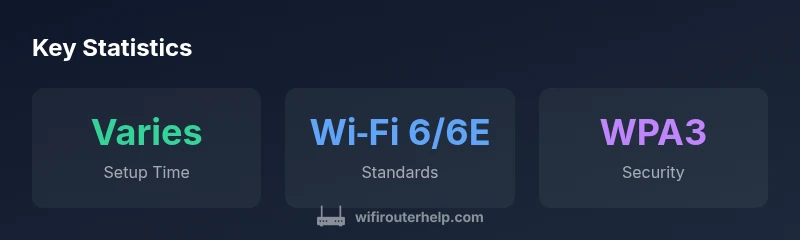
- Prioritize modern wireless standards (Wi‑Fi 6/6E) and WPA3
- Plan for backhaul and placement, not just hardware
- Verify IP Passthrough support for your gateway before enabling
- Test speeds with wired connections first