Rebooting Your Verizon Router: A Step-by-Step Guide
Learn how to reboot a Verizon router to restore connectivity, fix slow Wi-Fi, and prevent future issues with practical, step-by-step instructions and best practices.


Rebooting your Verizon router can resolve many connectivity problems and improve overall performance. Start with a simple power cycle for most issues, or use the Verizon mobile app for a quick remote reboot. This guide explains when to reboot, how to do it safely, and what to check afterward.
What a reboot actually does for your network
A reboot resets the router’s software state, clears temporary caches, and renegotiates connections with modems and connected devices. In many homes, performance issues like frequent dropouts, slow Wi‑Fi speeds, or devices not issuing IP addresses are resolved by a clean restart. A reboot can also help apply small firmware updates that were downloaded in the background. According to WiFi Router Help, understanding the exact benefits of a reboot helps you choose the right reboot method and avoid unnecessary steps. A reboot does not change your internet plan or the tools you use every day, but it can refresh your network’s baseline performance. If you notice persistent issues after reboot, you may need deeper diagnostics (see later sections).
When a reboot fixes common issues
Reboots are most effective when problems are intermittent or isolated to the home network rather than a slow internet connection from the service provider. Common symptoms include devices unable to connect to Wi‑Fi, devices showing limited connectivity, or slow browsing with normal download speeds on speed tests. Rebooting gives the router a chance to renegotiate its WAN link, refresh DNS caches, and re-establish stable wireless channels. If you recently changed settings (like QoS, parental controls, or port forwarding), a reboot ensures those changes take effect properly. For many households, a scheduled reboot—especially during off-peak hours—reduces the chance of simultaneous updates triggering in the background.
Step-by-step: Power cycling your Verizon router
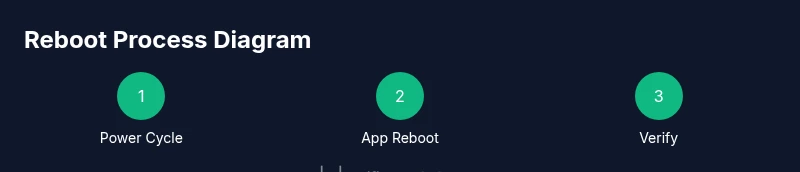
A basic power cycle is the most common reboot method and works in nearly all situations. Start by unplugging the router from the power outlet, wait 30–60 seconds to clear residual energy, and then plug it back in. This short pause helps the device reset its hardware state and clears minor memory leaks that accumulate during normal use. After reconnecting, give the router 2–3 minutes to fully boot and re‑establish all connections. If devices still show issues, proceed to the next methods described in this guide.
Step-by-step: Reboot via the Verizon app
Using the official app is convenient when you’re away from the router or want to avoid manual unplugging. Open the app, locate the network device, and select Reboot or Restart. The app triggers a controlled reboot, allowing the router to gracefully shut down services and restart without a power cycle. Ensure your phone is connected to the same network or has a valid mobile data connection to manage the reboot remotely. Some apps may require you to reauthenticate after the reboot.
Step-by-step: Scheduling automatic reboots
Automatic reboots can help maintain performance on busy networks by clearing caches and refreshing connections at regular intervals. Many Verizon routers support a reboot schedule in their admin interface or via the mobile app. Set a gentle cadence—such as once every 7–14 days or during off-peak hours—to minimize disruption. If you rely on smart home devices, coordinate schedules to avoid interrupted routines and scenes.
After reboot: validating your connection and devices
Post-reboot validation ensures everything returned to expected performance. Check that you can browse the web on multiple devices, streaming works without buffering, and speed tests show stable results close to your plan’s advertised speeds. Reconnect devices that may have dropped offline, re‑enable any features you disabled before reboot (guest networks, QoS, parental controls), and verify DNS resolution by loading several websites. If problems persist, gather logs from the router’s admin page for deeper troubleshooting.
Common mistakes to avoid during reboot
Avoid disconnecting power cables during firmware updates or while the router is applying critical configuration changes. Do not perform multiple reboots in quick succession in an attempt to fix issues; this can prolong boot times and cause confusion. If you have a fiber modem or a separate gateway device, ensure you’re rebooting the correct device and not the modem alone. Finally, never bypass official firmware updates; apply updates when available to fix known bugs and security issues.
Advanced tips for stable home Wi-Fi after reboot
Place the router in a central, elevated location away from metal objects and microwaves to improve coverage. If you have multiple access points, ensure they are on non-overlapping channels to reduce interference. Consider enabling automatic channel selection or using a dedicated 5 GHz network for high‑bandwidth devices. Regularly check for firmware updates and review connected devices to spot unfamiliar or unauthorized clients. A healthy reboot routine can be part of a broader optimization strategy.
Tools & Materials
- Verizon router and power outlet(Ensure the router is plugged into a stable outlet and surge protection is available)
- Ethernet cable (optional)(Useful to verify a wired connection during testing)
- Smartphone or computer with Verizon app installed(Needed for app-based reboot or remote management)
- Uninterruptible power supply (UPS) or surge protector(Optional but recommended during storms or outages)
- Notepad or notes app(Record observations before and after reboot)
Steps
Estimated time: Total: 15-25 minutes
- 1
Identify issue and prepare
Clarify the problem (slow speeds, dropouts, devices not connecting) and ensure you have physical access to the router. Gather the items listed above and save logs if available.
Tip: Document the symptoms before reboot to compare post‑reboot results. - 2
Power-cycle the router
Unplug the router, wait 60 seconds, then plug it back in. Allow 2–3 minutes for full boot and re‑connection of devices.
Tip: Avoid touching reset buttons during this process. - 3
Check device connections
Once the lights stabilize, test a few devices for connectivity. Confirm both 2.4 GHz and 5 GHz networks are broadcasting.
Tip: If only one band is available, try rejoining the other network manually. - 4
Reboot via the Verizon app (optional)
Open the app, select the router, and choose reboot. This triggers a controlled restart from a remote location.
Tip: Ensure you’re logged into the same account linked to the router. - 5
Test performance with a speed check
Run a speed test on multiple devices to verify performance isn’t degraded after reboot.
Tip: Test at different times of day to identify peak vs off-peak variations. - 6
Review settings and firmware
Check for firmware updates and review essential settings (SSID, password, guest network, QoS).
Tip: Enable automatic updates if available to keep security current.
People Also Ask
Why should I reboot my Verizon router?
A reboot clears temporary caches, refreshes connections, and applies pending updates that can fix slow speeds and dropped connections. It’s a safe first step before more complex troubleshooting.
Rebooting can clear small issues and refresh connections, which often fixes slow Wi-Fi.
What’s the best method to reboot a Verizon router?
For most issues, start with a manual power cycle. If you’re away from the router or want convenience, use the Verizon app to reboot remotely.
Try a quick power cycle first, then use the app if you prefer remote reboot.
Will rebooting erase my network settings?
Rebooting generally does not erase personal network settings, but if you perform a factory reset, all settings will be lost. Reboot is a safe, non-destructive step.
A regular reboot won’t wipe your settings, just refreshes the system.
How often should I reboot my router?
Reboot only when you notice issues or as part of a maintenance routine every few weeks if you experience intermittent problems. Don’t overdo reboots as it can cause momentary downtime.
Reboot when you have problems or as part of a light maintenance schedule.
What should I check after reboot if problems persist?
Check device connections, verify both bands are broadcasting, test with multiple devices, and review firmware for updates. If issues continue, contact your ISP or consult advanced diagnostics.
If issues persist, check connections, test devices, and look for firmware updates.
Is a firmware update needed after reboot?
Sometimes updates are downloaded during normal operation and installed on reboot. Check for firmware updates in the router’s admin page or via the Verizon app to ensure security and performance improvements.
Updates might arrive automatically; verify firmware after reboot.
Watch Video
What to Remember
- Identify when reboot helps and choose the right method
- Power-cycle is the fastest option for most issues
- App-based reboot offers remote convenience
- Post-reboot tests confirm healthy connectivity