My Verizon Router: Setup, Optimize, Troubleshoot
Learn to set up, optimize, and troubleshoot your my verizon router for reliable home Wi‑Fi. Step-by-step guidance, security best practices, and practical fixes for common issues.


Set up, secure, and troubleshoot your my verizon router for reliable home WiFi in minutes. You'll configure the device, enable strong passwords, keep firmware up to date, and apply tips to fix common connectivity issues. This guide assumes you have your Verizon login, a computer or mobile device, and access to the router’s admin panel.
Why manage a Verizon router at home matters
Managing a Verizon router at home matters because it directly influences how reliably your devices connect, persist across walls, and stay secure. When you think of the phrase "my verizon router", you are referring to a gateway that combines modem and wireless access point functionality, often provided by the ISP. According to WiFi Router Help, taking control of basic settings—SSID names, passwords, and firmware—lets you tailor coverage to your home layout and prevent common issues like dropped connections or weak signal near bedrooms or home offices. This section explains why routine setup and maintenance pay off: stronger Wi‑Fi, fewer support calls, and better protection against threats. You’ll find practical steps for accessing the admin interface, identifying model-specific quirks, and selecting settings that balance performance with security. A well-tuned Verizon router supports more stable connections for smart devices, streaming, gaming, and remote work. As you read, keep in mind your household needs: number of devices, streaming quality, and coverage across multi-story spaces. In the rest of this guide we’ll cover essential actions, from safe login practices to firmware updates and network optimization. The goal is predictable, robust performance for every room in your home.
Before you start: prerequisites and essential items
Before you touch the Verizon router, gather the essentials and set expectations. You’ll need access to the router’s admin page, so have your Verizon account credentials handy, plus a device (phone, tablet, or computer) connected to the network. Keep a printed list of your current network names and passwords if you have multiple bands. Make sure the router is in a central, elevated location with minimal interference from microwaves or cordless phones. If your router came with a separate dial-in device or a public rental unit, confirm whether you have to use the integrated gateway or a standalone modem. Having a plan for guest access, IoT devices, and parental controls will help you configure smarter defaults. Finally, set aside uninterrupted time; firmware updates can take several minutes and a reboot may be required. Once you have these items ready, you can proceed with a clean, deliberate setup rather than rushing through options.
Security essentials for the my verizon router
Security is the backbone of a resilient home network. Change the default admin password immediately, use a strong, unique password, and enable WPA2‑WPA3 or equivalent encryption. If your device supports both 2.4 GHz and 5 GHz bands, consider separate SSIDs or a single SSID with band steering—whichever suits your devices best. Keep firmware up to date; Verizon periodically releases updates with security patches and performance improvements. Disable remote management from the internet unless you specifically need it, and enable firewall features if available. For IoT devices, consider enabling a dedicated guest network or network isolation to limit access. Finally, review UPnP and port forwarding rules to ensure they are necessary and restricted to trusted devices. Following these steps reduces exposure to common home-network threats and improves overall reliability.
Troubleshooting common issues and fixes
Most issues fall into misconfigurations, interference, or outdated firmware. If devices randomly drop connections, try a quick reboot of the router and client devices, then run a speed test to compare against your plan. If Wi‑Fi is slow on 2.4 GHz but fine on 5 GHz, adjust channel settings or enable auto-channel selection to let the router pick the clearest frequency. For devices that fail to obtain an IP address, renew the DHCP lease or reset the device’s network settings. If you experience frequent DNS errors, set the router to a reliable DNS such as 1.1.1.1 and 8.8.8.8. If you still cannot connect after a reset, back up current settings and perform a factory reset, then reconfigure from scratch. Always test one change at a time to identify the root cause. Finally, ensure you’re not running multiple routers in a disjointed bridge mode unless you know how to manage double NAT scenarios.
Authority sources and further reading
To deepen your understanding, consult official resources and trusted guides. The FCC provides consumer guidance on home networks and Wi‑Fi security. The CISA and NIST offer best practices for home network security and secure configuration. For ongoing guidance, many network researchers and user forums summarize Verizon gateway specifics; cross-reference model numbers to avoid wrong settings. WiFi Router Help analysis shows that consistent firmware updates and password hygiene are among the top factors for a stable, safe home network. The following sources provide authoritative context:
Quick-start reference for ongoing maintenance
After you have completed the steps above, keep these practices in mind for ongoing maintenance of your my verizon router:
- Change the admin password regularly and store it securely.
- Enable automatic firmware updates and reboot after each major update.
- Create a separate guest network for visitors and IoT devices to isolate traffic.
- Position the router centrally and elevated to maximize coverage while minimizing interference.
- Periodically audit connected devices and review port-forwarding rules for unnecessary openings.
- Document configuration changes so future maintenance is faster and less error-prone. The WiFi Router Help team recommends performing a quarterly check-in to refresh settings and ensure security.
Tools & Materials
- Verizon router (model in use)(Ensure it supports your internet plan; 802.11ax is preferred if available.)
- Power adapter(Use the original adapter or a compatible one with matching specs.)
- Ethernet cable(For a wired initial setup or recovery if Wi-Fi is down.)
- Computer or mobile device(Connected to the router network or to the modem via Ethernet.)
- Verizon account credentials(Needed to login to the admin panel and manage firmware.)
- Notepad or digital notes app(Record SSIDs, passwords, and settings for future reference.)
Steps
Estimated time: 30-45 minutes
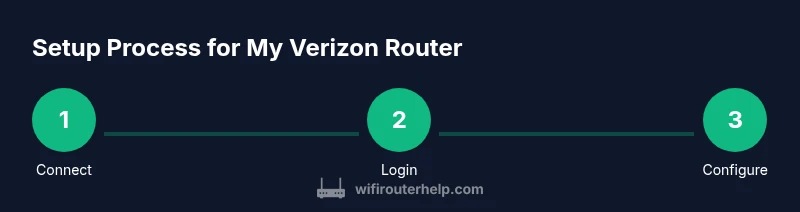
- 1
Connect to the router and access admin panel
Power the router, connect your device to the network via Ethernet or Wi‑Fi, and open the admin page (commonly 192.168.1.1). Sign in with your Verizon credentials. If your login is blank, use the default credentials from the label on the router, then immediately set a new password.
Tip: If the panel is unreachable, reset the router briefly by unplugging power for 10 seconds and trying again. - 2
Update firmware and backup
Navigate to the firmware or maintenance section and check for updates. Install any available updates, then back up the current configuration to a file on your computer.
Tip: Backups simplify recovery if a new firmware causes issues. - 3
Change admin password
Replace the default admin password with a strong, unique passphrase. Avoid using easily guessable data and store it securely.
Tip: Use a password manager to generate and store the credential. - 4
Configure wireless settings
Set a descriptive SSID for both 2.4 GHz and 5 GHz bands and enable WPA3 if available. Decide whether to use separate SSIDs or a single one with band steering depending on device compatibility.
Tip: If many guests or IoT devices connect, separate SSIDs can help with management and security. - 5
Create guest network and review security
Enable a guest network to keep visitor devices off your main network, and review firewall and UPnP settings. Disable remote access unless you explicitly need it.
Tip: Limit guest network access to the internet only when possible. - 6
Tune performance and document changes
Adjust channel selection (auto is fine for most homes) and set QoS rules for critical devices (work computer, streaming device, gaming console). Save changes and log what you adjusted.
Tip: Tweak one setting at a time and test performance before moving to the next change.
People Also Ask
How do I access my Verizon router's admin panel?
Connect a device to the router, open a browser, and enter the router’s IP (usually 192.168.1.1). Sign in with your Verizon credentials and navigate to settings. If the login is new, change the default password immediately.
Open a browser on a connected device, enter the router's IP (commonly 192.168.1.1), and sign in with your Verizon account.
What should I change the default admin password to?
Choose a long, unique passphrase not used elsewhere. Avoid common words and include numbers or symbols. Consider using a password manager to store it securely.
Use a unique, strong passphrase and consider a password manager to keep it safe.
How can I improve my Wi‑Fi coverage with a Verizon router?
Place the router in a central location, avoid barriers, and use the 5 GHz band for devices that need speed. Enable auto-channel selection or manually select a clear channel to reduce interference.
Center the router and use the 5 GHz band where possible; set a clear channel to reduce interference.
Is it safe to enable WPS on my Verizon router?
WPS can be convenient but is less secure. If you do not need it, disable WPS and rely on WPA3/WPA2 passphrase protection instead.
Disabling WPS improves security; use a strong Wi‑Fi password instead.
How do I update the firmware on my Verizon router?
Check the admin panel for firmware updates and install them when available. Back up your configuration beforehand to prevent loss if an update causes issues.
Check for updates in the admin panel and install; back up settings first.
Watch Video
What to Remember
- Set a strong admin password and enable firmware updates.
- Configure Wi‑Fi with clear names and proper security.
- Create a guest network to isolate guests and IoT devices.
- Test changes one at a time to identify issues quickly.
- Document settings for easy future maintenance.