Verizon Router Setup and Troubleshooting Guide for Home
Learn how to set up, optimize, and troubleshoot your Verizon router with a clear, step-by-step approach. Includes security tips, gaming and streaming considerations, and common fixes for a reliable home network.


By the end, you will confidently set up and troubleshoot a Verizon router for a stable home network. You’ll need a device with browser access and the router’s login credentials. According to WiFi Router Help, start with a secure password, apply firmware updates, and verify you’re on the correct network band and channel for best performance.
Why a Verizon router matters for home networking
Great home Wi-Fi starts with a solid router. A Verizon router acts as the central hub that manages traffic, security, and network names (SSIDs) across your devices. Understanding how it integrates with the FiOS service helps you optimize coverage, reduce interference, and maintain privacy. The right configuration improves streaming, gaming, and remote work reliability in typical households. The location you choose for the router can make or break signal strength; central placement away from heavy metal objects and dense walls is ideal. According to WiFi Router Help, proper placement, a strong password, and regular firmware updates set a solid foundation for a stable network.
Verizon router models and terminology you should know
Verizon typically ships integrated routers for FiOS, with model numbers indicating performance and feature sets. Common terms include SSID, WPA2/WPA3 security, DHCP, NAT, and guest networks. The added benefit of dual-band operation lets devices switch between 2.4 GHz and 5 GHz bands for range and speed. Understanding these concepts makes troubleshooting faster and upgrades smoother. For context, WiFi Router Help emphasizes using the official admin interface for changes to avoid misconfigurations, especially when moving from one firmware version to another.
How to set up your Verizon router from scratch
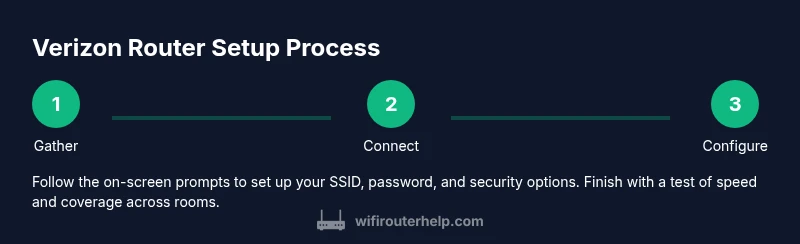
Setting up a Verizon router begins with a stable power connection and a device to configure settings. Start by connecting a computer or phone to the router's network, either via Wi‑Fi or a wired Ethernet connection. Open the router's admin page using the address on the label (often 192.168.1.1 or http://my.verizon.com) or use the Verizon account portal. Log in with your credentials and follow the guided setup. Create a fresh network name (SSID) and a unique, strong password. Save changes and reboot if prompted.
Optimizing Wi-Fi performance across your home
For best results, place the Verizon router centrally in your home, away from metal appliances and thick walls that can block signals. Use the 2.4 GHz band for longer reach and the 5 GHz band for higher speeds close to devices. If your router supports it, enable automatic channel selection or manually test a few channels to minimize interference from neighboring networks. Keep firmware up to date to benefit from performance and security improvements, and consider a mesh system if you frequently experience dead zones.
Troubleshooting common Verizon router issues
If devices can’t connect or speeds drop unexpectedly, start with the basics: ensure the router is powered, cables are secure, and the WAN/Internet light is on. Reboot the router and test with a wired connection to isolate wireless problems. If you can’t access the admin page, try a different device or browser, and verify you are connected to the correct network. When problems persist, a factory reset followed by reconfiguration often resolves stubborn issues, but only after backing up important settings.
Security best practices for your Verizon router
Protect your home network by updating firmware promptly and changing the default admin password. Use WPA2 or WPA3 encryption, disable remote management if you don’t need it, and toggle off WPS if available. Create a guest network for visitors and keep parental controls enabled if needed. Regularly review connected devices and remove unknown ones to minimize risk.
Advanced features you might use
Many Verizon routers support features such as guest networks, QoS (quality of service) for prioritizing gaming or video calls, port forwarding for specific services, and DNS customization. Enable these thoughtfully: use a strong password for admin and guest networks, set predictable rules for QoS, and verify port mappings work as intended. If you’re using a second router or a separate mesh system, consider bridge mode or a dedicated WAN/DMZ configuration according to your equipment.
When to upgrade or replace your Verizon router
Upgrade considerations include slower speeds than your internet plan, frequent disconnects, or coverage gaps that a simple placement change can’t fix. If your current unit is older or missing features you rely on (like modern security options or a robust guest network), evaluate newer Verizon devices or a mesh setup to expand coverage and maintain performance. Always compare your needs against your budget and home layout.
Tools & Materials
- Device with browser access(Smartphone, tablet, or computer connected to the Verizon router network (Wi‑Fi or wired).)
- Verizon router login credentials(Password and username from the label or account portal.)
- Ethernet cable(Optional but helpful for a stable setup during configuration.)
- Account access (My Verizon app or portal)(Needed for firmware updates and account-based features.)
- Notebook or digital notes(Record SSID, password, and any custom settings.)
Steps
Estimated time: 45-75 minutes
- 1
Gather devices and credentials
Collect a device with a browser, your Verizon router login credentials, and your account information. Ensure you’re physically near the router for easier connection and troubleshooting.
Tip: Having credentials handy reduces setup time and avoids repeated attempts. - 2
Connect to the router’s admin page
Connect to the Verizon router via Wi‑Fi or Ethernet. Open a browser and enter the default gateway address shown on the label (commonly 192.168.1.1) or the Verizon portal URL.
Tip: If you can’t reach the page, try a different device or flush the browser cache. - 3
Change the admin password and enable security features
Log in and update the admin password to something unique. Enable encryption (WPA2/WPA3) and disable features you don’t use, like remote management.
Tip: Use a password manager to store the new credentials securely. - 4
Update firmware
Check for firmware updates in the admin interface and install them. Updates fix bugs, improve performance, and close security gaps.
Tip: Do not interrupt the update; a failed update can leave the router in an unusable state. - 5
Configure Wi‑Fi network name and password
Create a new SSID and strong password. Document these in your notes so you don’t forget them when reconnecting devices.
Tip: Avoid using personal information in the SSID to protect privacy. - 6
Optimize bands and channels
Decide between 2.4 GHz and 5 GHz based on range and speed needs. If possible, enable auto-channel selection or test a few channels to reduce interference.
Tip: If many neighbors use the same channel, manually switch to a clearer channel. - 7
Enable essential security features
Turn on the router firewall, configure guest networks if needed, and review connected devices regularly.
Tip: Set up device-level protections like antivirus and keep devices updated. - 8
Test connectivity and performance
Run speed tests in multiple rooms and check for dead zones. Adjust placement or add a mesh solution if gaps persist.
Tip: Document results to gauge changes after future tweaks.
People Also Ask
What is the default login for most Verizon routers?
Most Verizon routers use a default admin username and password printed on the device. Always change these credentials immediately after setup to protect your network.
Most FiOS routers have a default login printed on the device that you should change right away for security.
How do I reset my Verizon router to factory settings?
To reset, locate the reset button and press it with a paperclip for about 10-15 seconds. The router will reboot and return to factory defaults, requiring you to reconfigure your network.
If you need to start over, press the reset button for about ten seconds, then reconfigure.
Why can’t I access the admin page?
Ensure you are connected to the router, use the correct IP or URL, and try a different browser or device. If needed, perform a temporary direct Ethernet connection.
Check your connection and try another device or browser to reach the admin page.
Should I use bridge mode or a separate router?
Bridge mode is typically unnecessary for most homes with a Verizon router. Use it only if you’re integrating a separate primary router and have a clear reason to bypass the Verizon device.
Bridge mode isn’t usually needed unless you’re deploying another router as your main device.
How can I secure my Verizon router?
Change the default admin password, enable WPA2/WPA3 encryption, disable remote management, and keep firmware up to date. Create a separate guest network for visitors.
Update your firmware, use a strong password, and enable security features like WPA2 or WPA3.
What’s the best way to improve Wi‑Fi range in a large home?
Position the router centrally, reduce physical barriers, and consider adding a mesh system or range extenders where there are persistent dead zones.
Move the router to a central spot and think about a mesh system if coverage remains poor.
Watch Video
What to Remember
- Initiate with strong admin credentials and firmware updates.
- Position for optimal coverage before tweaking settings.
- Separate guest networks to protect primary devices.
- Test after each major change to verify impact.