The Complete Guide to Wireless Router Verizon: Setup and Optimization
A comprehensive, step-by-step guide to setting up, securing, and optimizing your Verizon wireless router for strong coverage, fast speeds, and reliable home networking.


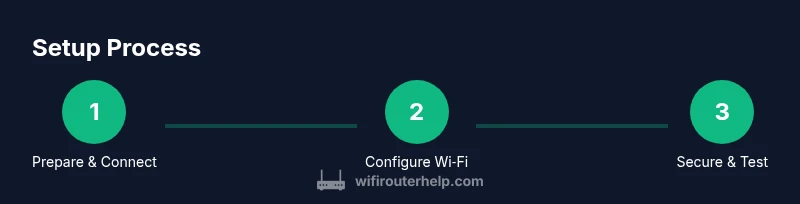
According to WiFi Router Help, learn how to set up, secure, and optimize a wireless router Verizon for reliable home Wi‑Fi. This guide covers essential steps: connecting the device, configuring the network and security, updating firmware, and testing performance. You’ll also learn placement tips, guest networking, and common troubleshooting techniques to keep your home network fast and safe.
Why a Verizon Wireless Router Matters for Your Home Network
For homes using a wireless router verizon, you get a single device for routing, firewall, and Wi‑Fi broadcast. The right setup can dramatically improve coverage, reduce dead zones, and simplify device management. In this section we’ll outline why Verizon’s equipment matters for most households and what you gain by optimizing its placement, firmware, and security settings. According to WiFi Router Help, a well-configured router is the backbone of a stable home network, enabling fast streaming, reliable video calls, and responsive gaming. Understanding the basics helps homeowners avoid common misconfigurations that slow performance and invite security risks. In practice, your goal is consistent signal strength across living spaces, predictable uptime, and straightforward access for guests and family members.
Key Differences: Verizon Infrastructure vs Generic Routers
Verizon routers—whether provided by FiOS, Wireless Internet services, or mobile hotspots—often bundle gateway features, firewall rules, and DNS management in a single device. Compared with third‑party routers, they can be easier to deploy for non‑tech users, yet they may have limited customization options. The trade‑off is between convenience and advanced control. For power users and tech enthusiasts, you may prefer to bridge the Verizon gateway to a separate high‑performance router, or enable specific features (port forwarding, QoS) with careful configuration. This section compares common capabilities, including NAT modes, firewall options, and parental controls, to help you decide the best path for your home network.
How to Identify Your Verizon Router Model
Start by locating the sticker on the bottom or back of the device. Record model numbers, firmware version, SSID defaults, and admin login details. If you don’t have the paperwork, you can also log in to the router’s admin interface to verify the model and current firmware. Once identified, you can check Verizon’s support pages for model‑specific setup instructions and compatibility notes with additional devices and services. Documenting the exact model helps you follow the correct steps for updates, security settings, and feature availability. If you’re unsure, join the official support chat for model identification guidance and links to manuals.
Initial Setup: Prepare Your Network
Before powering up the router, make a quick checklist: confirm you have a working internet connection from Verizon, a computer or mobile device to access the admin page, and a place to mount or place the router for optimal coverage. Power on the gateway, then connect your computer to the router using an Ethernet cable for the initial configuration. You’ll want to disable any conflicting Wi‑Fi signals in nearby environments (e.g., guest networks on other devices) during the initial setup to avoid interference. Prepare to change defaults as soon as you gain access to the admin interface to lock down security and privacy.
Physical Setup and Placement Best Practices
Placement is critical for signal quality. Place the router centrally in the home, elevated off the floor, away from thick walls and large metal appliances. Avoid placing the unit in cabinets or behind furniture where airflow is restricted. If possible, use a clear line of sight to high‑usage areas (home office, living room, bedrooms). For multi‑story homes, consider a single router near the center of the top floor, or pair with a mesh system if coverage gaps persist. A simple rule of thumb: higher, open spaces beat cluttered, low‑placement corners. This helps maximize signal strength and reduce interference from microwaves and Bluetooth devices.
Accessing the Router Admin Interface
Most Verizon gateways expose a web interface at a local IP address (often 192.168.1.1 or similar). Connect your device to the router via Ethernet or Wi‑Fi, then open a browser and enter the admin URL. Log in with the default credentials found on the device label, then immediately change the password to a strong, unique passphrase. If you can, enable two‑factor authentication for the admin account and record the new credentials in a password manager. Documenting these steps keeps you prepared for future maintenance and helps guests or family members access the network without exposing admin details.
Configuring Wi‑Fi: SSID, Password, and Security
Set a unique SSID for your 2.4 GHz and 5 GHz networks, or use separate networks for efficiency and security. Choose a password that’s long, random, and unique to prevent unauthorized access. Prefer WPA3 security if available; if not, use WPA2‑PSK with a strong passphrase. Turn off WPS (Wi‑Fi Protected Setup) to close a common security vulnerability. Also consider disabling remote management if you don’t need it, and enable automatic firmware updates to keep protection current.
Advanced Settings: Guest Network, QoS, Bridge Mode
Guest networks extend security by isolating guest devices from your primary network. Enable a guest network with its own password and access limits to protect your main devices. Quality of Service (QoS) helps prioritize bandwidth for important activities (work calls, streaming, gaming). If your goal is to use the Verizon gateway with a separate router, bridge mode can turn off the gateway’s routing features, letting your own router handle routing duties. Each option improves reliability, but requires careful configuration to avoid unintended service interruptions.
Performance and Troubleshooting Common Issues
If you notice slow speeds, run a quick speed test from multiple locations in the home to map signal quality. Check for interference from neighbor networks, cordless phones, or microwaves, and adjust channel settings if needed. Restarting the gateway and client devices can fix transient glitches. If problems persist, review logs for abnormal events, verify DNS settings, and confirm that firmware is current. For persistent issues, consider contacting Verizon support with your model number and a description of the symptoms.
Security Essentials and Firmware Updates
Regular firmware updates patch vulnerabilities and improve performance. Enable automatic updates if you can, or check manually on a routine schedule. Use strong admin passwords, disable remote management, and review connected devices regularly to remove unfamiliar clients. Consider enabling firewall logging and setting up a guest network for visitors to keep your main network clean. Security is the ongoing practice that protects your family’s data and devices.
Ongoing Maintenance and Optimization
Create a regular maintenance routine: check firmware quarterly, rotate passwords, review connected devices, and reassess coverage after major changes (new devices, furniture moves, or remodeling). If you frequently experience buffering, re‑run site surveys to identify coverage gaps and adjust placement or add a mesh extension if needed. Keep a simple network map (SSID names, passwords, device roles) to streamline future changes and troubleshooting. The goal is a resilient, observable network with minimal manual intervention.
Common Pitfalls to Avoid
Avoid using default credentials or leaving WPS enabled. Don’t rely on a single small router to blanket a large home; coverage gaps will likely appear. Avoid turning on every feature at once—start with core security and known‑good performance settings, then iterate. Finally, don’t ignore guest network isolation; it’s a key practice to protect devices that guests bring into your home network.
Tools & Materials
- Smartphone or computer(Needed to access the router admin page and perform initial configuration)
- Ethernet cable (CAT5e or better)(For a stable first‑setup connection)
- Verizon account details(To verify service and access any account‑level settings)
- Access to router admin credentials(If you don’t know them, reset to factory defaults using the device label)
- Password manager(Helpful for storing strong, unique passwords securely)
- Notepad or network diagram(Optional for recording settings and layout)
Steps
Estimated time: 60-90 minutes
- 1
Gather prerequisites
Collect your Verizon device, power adapter, account details, and a computer or smartphone ready to access the admin interface. Ensure you have a stable internet connection from Verizon before beginning. This prepares you to perform the initial configuration with minimal interruptions.
Tip: Having the model number handy speeds up model‑specific guides from Verizon support. - 2
Connect to the gateway
Use an Ethernet cable to connect your computer directly to the Verizon gateway for the first setup. If you must use Wi‑Fi initially, ensure you connect to the device’s default network and avoid other nearby networks during configuration.
Tip: Wired connections reduce the risk of mid‑setup drops and misconfigurations. - 3
Access the admin interface
Open a web browser and enter the router’s local IP address (often 192.168.1.1). Log in with the default credentials found on the device label, then immediately change the password to a strong, unique one.
Tip: If you can’t access the page, try a hard reset and start over with the default credentials. - 4
Update firmware
Check for the latest firmware and install it. This closes known security gaps and improves performance. Do not interrupt the update process once it starts.
Tip: Enable automatic updates if available to simplify ongoing maintenance. - 5
Configure Wi‑Fi settings
Set distinct SSIDs for 2.4 GHz and 5 GHz bands, choose strong passwords, and enable WPA3 if available. Disable WPS to reduce vulnerability exposure.
Tip: Use different, memorable names for the networks so you can easily distinguish them on devices. - 6
Enable security features
Turn on the firewall, review connected devices, and set up device isolation if you have many guests. Consider enabling guest networking with a separate password.
Tip: Regularly review the connected device list to spot unknown devices early. - 7
Set up a guest network
Create a guest network with restricted access to your main devices and resources. Assign a strong guest password and limit bandwidth if the router supports it.
Tip: Guest networks reduce risk if guests' devices are compromised. - 8
Configure bridge mode (optional)
If you prefer to use your own router, enable bridge mode on the Verizon gateway so it acts as a modem only, letting the new router handle routing and Wi‑Fi.
Tip: Bridge mode can simplify advanced setups but may disable some gateway features. - 9
Test basic connectivity
Run speed tests from multiple rooms to confirm coverage and stability. Check streaming and video call quality to ensure QoS is effectively prioritizing traffic.
Tip: If speeds vary dramatically, reposition the router or add a mesh satellite for coverage gaps. - 10
Document configuration
Save important settings, including SSIDs, passwords, and firmware version, in a secure location. This helps with future maintenance and troubleshooting.
Tip: Keep a simple network diagram for quick reference during changes. - 11
Review parental controls
If you need to manage access times or block content, configure parental controls with user profiles and schedules. Test to ensure restrictions apply correctly.
Tip: Balance convenience with protection; overly strict controls can hamper family productivity. - 12
Plan ongoing maintenance
Schedule periodic checks for firmware updates and network performance. Reassess placement after major home changes or new devices.
Tip: Set calendar reminders for quarterly reviews to keep the network updated.
People Also Ask
How do I change my Verizon router admin password?
Access the router's admin interface via its local IP address, log in with the current credentials, and replace the password with a strong, unique passphrase. If you can’t log in, reset to factory defaults and reconfigure.
To change the admin password, log in to the router's settings and update it to a strong password. If needed, reset and start from scratch.
Should I use bridge mode with my Verizon router?
Bridge mode turns off the router’s routing features so you can use your own router. It’s useful for advanced setups but may disable gateway features like firewall rules handled by the Verizon device.
Bridge mode is helpful when you want to run your own router, but it disables some gateway features.
How can I improve Wi‑Fi coverage in a multi‑room home?
Place the router centrally and elevated, reduce interference sources, and consider adding a mesh system or range extenders in larger homes.
Center the router and add a mesh system if you still have dead zones.
What security settings are essential on a Verizon gateway?
Enable WPA3 if available, disable WPS, keep firmware updated, and use a guest network to isolate visitors’ devices from your main network.
Use WPA3, disable WPS, update firmware, and set up a guest network.
How often should I update firmware on my Verizon router?
Check for updates monthly or enable automatic updates if available to ensure security patches and performance improvements are installed.
Update firmware monthly or enable automatic updates.
What if I forget my network password?
Use the admin interface to view or reset the Wi‑Fi password. If you can’t access the router, do a factory reset and reconfigure your network.
You can reset the password via the router’s admin page or reset the device if you’ve forgotten it.
Watch Video
What to Remember
- Secure the admin interface with a strong password.
- Use separate SSIDs and WPA3 where possible.
- Prioritize coverage with optimal placement or a mesh system.
- Regularly update firmware and review connected devices.