Verizon FiOS Router Yellow Light Troubleshooting Guide
Urgent, step-by-step guide to resolve the Verizon FiOS router yellow light with quick fixes, diagnostic flow, and safe escalation paths from WiFi Router Help.


The yellow light on a Verizon FiOS router typically signals a signal or initialization issue, not a device failure. Start with quick fixes: power cycle both the ONT and router, reseat all coax and Ethernet cables, and verify service status for outages. If the light remains yellow, follow the diagnostic flow and escalate as needed.
Understanding the verizon fios router yellow light
Seeing the verizon fios router yellow light can be frustrating, but understanding what it signals helps you react quickly. According to WiFi Router Help, the yellow LED in many FiOS models points to a signal or initialization issue rather than a failed device. Different FiOS gateways and ONTs may use slightly different codes, but the underlying pattern is similar: your router is waiting for a successful handoff from the optical network terminal or a clean upstream signal.
The most common reasons are a momentary loss of signal, an imperfect cable connection, or a service-side outage. Before you panic, perform the simplest checks first: confirm the ONT is powered, verify the coax and Ethernet cables are snug and undamaged, and check if there is a known outage in your area. If the light turns green after a reset, you likely had a transient problem; if it stays yellow, you need to step through the flow below.
Quick checks you can do in minutes
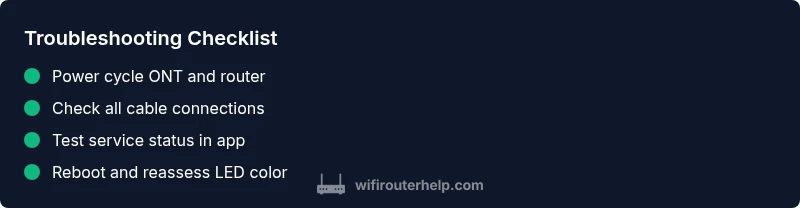
Most issues that cause a yellow light are fixable with fast, repeatable steps. Start with the simplest actions and work down the list. First, power cycle the ONT (the fiber box) and the router. Wait 60 seconds, then plug them back in and observe the LED sequence. Next, inspect all connections at the ONT and router end: reseat the coaxial cable from the wall to the ONT, reseat the Ethernet cable from the ONT to the router, and verify there are no loose strands or damaged pins.
If the light remains yellow, check for an area outage. Verizon’s service status pages or your mobile app can confirm whether there is a wider problem. Also ensure your router’s firmware is up to date if your device offers a software update option. If you’re unsure about the model-specific LED meanings, consult the user manual or WiFi Router Help’s model-agnostic LED guide. When the outage or hardware checks clear, test by connecting a known-good device and monitoring the LED for a change. If you still see yellow, proceed to the diagnostic flow below.
Diagnostic flow: from symptom to solution
This flow keeps you from guessing and ensures every likely cause is addressed logically. Symptom: yellow light on Verizon FiOS router. Diagnosis starts with checking for a signal issue, then verifies physical connections and service health. If a signal handshake succeeds, the light should revert to green or blue depending on the model.
-
If the ONT shows a stable power and the light remains yellow, probable cause: loose cable or a transient service fault. Solution: reseat all cables and re-run the power cycle.
-
If the ONT or router shows no power or a critical error indicator, probable cause: power or hardware fault. Solution: test outlets, try a different power adapter, and inspect for overheated hardware.
-
If service outage is confirmed, probable cause: external network problem. Solution: contact Verizon and wait for restoration.
-
If none of the above resolves it, call for professional diagnostics. Note the times you observed the LED pattern to share with support.
In-depth fixes and escalation path
Here are the most effective, repeatable fixes for the typical yellow light scenario, starting with the simplest and ending with escalation.
-
Power-cycle sequence (easy): Power off the ONT and router, unplug them, wait 60 seconds, plug ONT back in, wait for it to initialize, then power the router. Ensure the ONT's status light becomes solid green before powering the router. Tip: Keep a log of the LED changes to spot patterns.
-
Cable integrity check (easy): Inspect all coax and Ethernet cables for cuts, kinks, or loose fittings. Replace any damaged cable and avoid cheap splitter configurations that degrade signal. Pro tip: Use shielded coax and direct connections where possible.
-
Confirm service status (easy/medium): Use the Verizon app or website to check for outages in your area. Even when your hardware looks fine, an outage can trigger a yellow light. If outage is active, follow Verizon's restoration ETA; if not, continue.
-
Router and ONT alignment (medium): Some models require you to rebind or reconfigure the connection after a restart. Access the router admin page and ensure the WAN/Internet settings reflect the correct service type (PPPoE, DHCP, etc.) for your plan.
-
Firmware and resets (medium): Check for firmware updates; update if available. If you still see yellow after updating, perform a factory reset as a last resort. Note that this will erase custom settings; back up configurations.
-
When to escalate (hard): If the light remains yellow after all steps, schedule a technician visit or request a line test from Verizon. Document your diagnostics: the LED state, time stamps, and steps taken.
Estimated total time: 40-60 minutes.
Steps
Estimated time: 40-60 minutes
- 1
Identify LED status and basic model info
Note the exact LED color pattern and confirm your FiOS model and ONT type. Check the user manual or WiFi Router Help’s LED guide to correlate colors with issues.
Tip: Take a photo of the LED pattern for reference. - 2
Power cycle the ONT and router
Power off both devices, unplug from power, and wait 60 seconds. Plug the ONT back in first and wait for its lights to stabilize, then plug in the router.
Tip: Allow full initialization time before testing connectivity. - 3
Check all physical connections
Inspect the coax from the wall to the ONT and the Ethernet from the ONT to the router. Reseat connections, replace any frayed cables, and avoid loose adapters or splitters.
Tip: Prefer direct connections without splitters where possible. - 4
Test connectivity with a known-good device
Connect a laptop or smartphone to the Wi-Fi or Ethernet to test access. If devices can browse while the LED remains yellow, the issue is likely signal-level rather than device failure.
Tip: Note any error messages or slow pages. - 5
Check service status and firmware
Use the Verizon app or website to confirm outages. Check for router firmware updates in the admin interface or app, and install if available.
Tip: A firmware update may resolve LED misreporting. - 6
Factory reset as last resort
If all else fails, perform a factory reset to restore default settings. This will erase personal configurations; back up important data first.
Tip: Only do this if you have documented settings or can reconfigure easily.
Diagnosis: Yellow light on a Verizon FiOS router
Possible Causes
- highSignal issue (handshake or line fault)
- mediumLoose or damaged cables
- lowArea service outage
Fixes
- easyPower cycle ONT and router to reinitiate the link
- easyVerify and reseat coax/Ethernet cables, replace damaged cables
- easyCheck for a service outage in your area and follow restoration updates
- mediumIf needed, contact Verizon for a line test or professional diagnostics
People Also Ask
What does a yellow light on a Verizon FiOS router mean?
A yellow light usually signals a signal or initialization issue rather than a device failure. Check connections, power, and service status before escalating.
A yellow light usually means a signal issue; start by checking cables, power, and service status, then follow the steps in this guide.
I already tried power cycling; what next?
If power cycling didn’t help, inspect all coax and Ethernet connections, reseat cables, and verify ONT power. Then check for outages in your area.
If cycling didn’t help, check cables again and look for outages in your area.
Can a service outage cause a yellow light?
Yes. A service outage can trigger a yellow light even when hardware is fine. Confirm outage status via Verizon's app or official site before proceeding with hardware fixes.
Outages can trigger the yellow light; check outage status first.
When should I call Verizon for help?
Call Verizon if the light stays yellow after all basic checks and there’s either a confirmed outage or a suspected line fault requiring professional testing.
Call Verizon if the light remains yellow after all checks and there might be a line fault.
Will firmware updates help with a yellow light?
Firmware updates can fix LED misreporting and improve stability. Check for updates in the router’s admin interface or app and install if available.
Firmware updates can fix LED issues; check for updates and install.
Is it safe to perform a factory reset?
Factory reset should be a last resort; it will erase custom settings. Back up configurations if possible and reconfigure afterward.
Only reset as a last resort; you’ll need to reconfigure your settings.
How can I prevent this in the future?
Keep cables secure, monitor for outages, and perform periodic firmware checks. Regular reboots can also help maintain stability.
Secure cables, monitor outages, and keep firmware up to date to prevent future issues.
Can a yellow light indicate a faulty router?
While possible, a yellow light more often points to signal or connection issues rather than a defective router. Rule out cables and outages first.
Usually not the router itself; check cables and service first.
Watch Video
What to Remember
- Identify the LED meaning for your model.
- Power cycle both ONT and router to reset the link.
- Check all cables and service outages before deep fixes.
- Escalate to Verizon if the issue persists after all checks.
- Keep firmware up to date to prevent future issues.