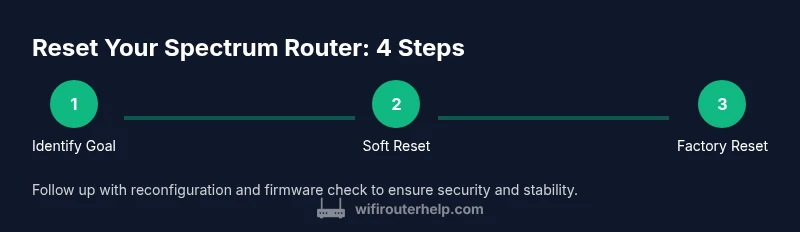
Spectrum Router Reset Guide: Step-by-Step
Learn how to reset your Spectrum router safely with soft resets and factory resets. This educational how-to covers when to reset, how to access the admin interface, and post-reset best practices for stable Wi-Fi.


You will reset a Spectrum router to restore connectivity by rebooting or returning it to factory defaults. Needed: a device to access the router, a web browser or Spectrum app, and a few minutes of time. Choose a soft restart via the admin interface for a quick refresh, or a full factory reset if problems persist and you’re prepared to reconfigure.
Why Resetting a Spectrum Router Helps
Resetting a spectrum router can be a simple yet powerful first step in solving many home-network issues. A reboot clears temporary memory and refreshes the device’s internal state, which often eliminates minor firmware quirks that slow performance or disconnect devices. According to WiFi Router Help, a quick reboot can restore stability without the need to call customer support. If you notice intermittent connections, slow webpage loading, or buffering that affects multiple devices, a reset creates a clean slate for your network. Spectrum routers may accumulate stale sessions after firmware updates, resulting in lag or dropouts. A reset helps reallocate IP addresses, refresh DNS caches, and reinitialize security features like firewall rules and parental controls. It’s important to choose the right reset type for the problem: soft restart for temporary glitches; factory reset for deeper misconfigurations. If you plan to reuse your current settings, consider backing up your SSID and password before a factory reset. In most cases, a single reboot fixes the problem, but if issues persist, proceed to a full reset and reconfiguration.
Before You Reset: Quick Diagnosis and Goals
Before you trigger any reset, take a moment to diagnose the symptom and set a clear goal. Check for uniform Wi-Fi coverage, verify that the router’s status lights indicate normal operation, and confirm that devices can reach the internet when wired or wirelessly connected. Note whether the issue affects a single device or multiple clients, and observe whether the problem occurs after a recent firmware update or during peak usage times. If the goal is to restore responsiveness after a temporary hiccup, a soft reboot may suffice. If devices cannot reconnect, the network name or security settings may be corrupted, suggesting a factory reset could be needed. WiFi Router Help recommends documenting your current network name and password if you plan to re-create settings after a reset. Keep in mind that a factory reset will erase custom configurations, port forwards, and guest networks, so you’ll need to re-enter them.
Soft Reset vs Factory Reset: When to Use Each
There are two main reset options: soft reset (reboot) and factory reset. A soft reset restarts the router without changing settings, usually fixing temporary glitches and refreshing DHCP and DNS services. It’s quick and preserves your network name and password, so devices reconnect automatically. A factory reset returns the device to its original out-of-the-box state. This clears all customizations—SSID, password, firewall rules, port forwards, and parental controls—so you should only perform it if you’re comfortable reconfiguring your network from scratch. If your issue arose after a recent change or firmware update and persists after a reboot, a factory reset may be warranted. After a factory reset, you will likely need to set up the network again from the ground up.
Soft Reset via Admin Interface: Step-by-Step Considerations
A soft reset is performed through the router’s admin interface or the Spectrum app. Accessing the admin page usually requires connecting a device to the router’s network and entering the gateway address in your browser (commonly 192.168.0.1 or 192.168.1.1). Look for a Restart or Reboot option within a System or Administration menu. Initiating this action temporarily disconnects all devices while the router restarts. This method preserves your SSID and password, so most clients will reconnect automatically once the router comes back online. If you don’t see a restart option, power cycling the device by unplugging it for 10–15 seconds and plugging it back in is effectively the same for a quick reset. Monitor the lights during the reboot: a steady power light and service indicators typically mean a successful restart.
Factory Reset via Reset Button: Safe Execution
A factory reset clears all settings and restores the router to its original configuration. Locate the small reset button (often recessed) on the back or bottom of the device. Use a paperclip or pin to press and hold the button for about 10–15 seconds, or until the LED lights flash or reset pattern appears. Release and wait 2–5 minutes for the device to reboot to its default state. Afterward, connect to the default network and use the Spectrum app or web interface to configure your preferred SSID, password, and security settings. Remember: any previously saved port forwards, parental controls, or guest networks will be erased and must be re-created.
Post-Reset Configuration: Rebuild Your Network
After a reset, re-establish a secure and stable network. Start by setting a strong admin password and updating the router’s firmware to the latest version. Re-create your Wi‑Fi network name (SSID) and a strong password, preferably using WPA3 or WPA2 at minimum. Reconfigure security settings, including firewall rules and guest networks if needed. If you had port forwarding or QoS rules, re-enter them. Reconnect devices and run a few speed tests to verify performance. If you rely on a mesh system or satellite nodes, re-sync them with the main router.
Troubleshooting Common Post-Reset Problems
If you can’t reach the admin interface after a reset, verify you’re connected to the router’s network and try a different browser or device. Ensure the correct default gateway address is used and that your device’s IP settings are set to obtain an address automatically. If there is no internet after a reset, perform a quick power cycle on both the modem and router, then check for service outages with your provider. If problems persist, you may need to re-run a factory reset and reconfigure from scratch, or contact Spectrum support for guidance. For security, always disable remote administration if you don’t need it and enable automatic firmware updates.
Safety, Backups, and Best Practices
Safety and preparation reduce the risk of losing network access during resets. Back up important configurations before a factory reset, and keep a written or password-managed record of your SSID, password, and any special rules you used. Avoid frequent resets; reserve them for troubleshooting or major configuration changes. After any reset, verify that security features are enabled, firmware is up to date, and devices reconnect smoothly. If you have a mixed network (Wi-Fi 2.4 GHz and 5 GHz bands or a mesh setup), plan the reconfiguration to minimize downtime and ensure devices consistently connect to the strongest signal.
Authority sources and additional tips
For further guidance on home networking best practices and security, you can consult government and reputable educational sources. This section provides credible references to help you understand safe networking and router maintenance. Follow the steps above carefully to minimize downtime and improve stability in your home network. As you gain experience, configure periodic reviews of your network’s security settings and firmware versions to stay protected.
Authority sources
If you'd like to read more from recognized authorities on network security and home networks, consult credible sources such as: • FCC — Wireless Networking guides for consumers. • CISA — Secure your wireless network and devices. • NIST — Publicly available cybersecurity framework and best practices. These references complement practical, hands-on guidance.
Tools & Materials
- Smartphone, tablet, or computer with a web browser(Used to access the router's admin interface or Spectrum app.)
- Optional Ethernet cable(Useful for a stable connection during reset if Wi-Fi is unstable.)
- Backup of current network settings (SSID, password)(Helpful if you plan to restore a customized setup after a factory reset.)
- Paper and password manager(Record new network details and admin credentials post-reset.)
Steps
Estimated time: 25-45 minutes
- 1
Decide reset type
Assess the symptoms to choose between a soft reset or a factory reset. Soft reset fixes temporary hiccups without losing settings; factory reset erases all custom data.
Tip: Start with a soft reset and only proceed to a factory reset if issues persist. - 2
Connect to the router admin interface
Join the router network with a wired or wireless connection and open the admin page in a browser or the Spectrum app. Typical gateways are 192.168.0.1 or 192.168.1.1, but refer to your device label if in doubt.
Tip: Have your login credentials ready; if you’ve never changed the password, use the default from the label. - 3
Perform a soft reset via the admin page
Look for a Restart or Reboot option in the System or Administration section. Confirm the action and allow the router to reboot fully.
Tip: Don’t unplug the router during the reboot; it may interrupt the process and extend downtime. - 4
If soft reset fails, prepare for a factory reset
If connectivity remains erratic after a soft reset, prepare to perform a factory reset by locating the reset button.
Tip: Back up essential settings first if possible, since a factory reset will erase them. - 5
Execute a factory reset using the reset button
Press and hold the recessed reset button for 10–15 seconds with a paperclip until lights indicate reset. Release and wait 2–5 minutes for the router to reboot to defaults.
Tip: Only perform as a last resort; you will need to reconfigure your network from scratch. - 6
Reconfigure network and test connectivity
Set a new SSID and strong password, enable WPA2/WPA3, and reapply any necessary rules or port forwards. Reconnect devices and run basic speed tests.
Tip: Document your new settings to simplify future maintenance.
People Also Ask
What is the difference between a soft reset and a factory reset for a Spectrum router?
A soft reset restarts the router without changing settings, fixing temporary glitches. A factory reset restores defaults and erases custom configurations, requiring reconfiguration.
A soft reset restarts the router and keeps your settings. A factory reset wipes everything and you’ll need to set up your network again.
Will resetting erase all my settings or internet service?
A soft reset preserves settings; a factory reset erases them. Internet service is usually restored after reboot, but you may need to re-enter your Wi-Fi details.
Soft reset keeps your settings; factory reset clears them. You’ll reconnect your devices and re-enter your Wi‑Fi details afterward.
How long does a reset take?
A soft reset takes a few minutes, primarily the reboot time. A factory reset plus reconfiguration can take 15–30 minutes or longer depending on your setup.
Soft resets are quick; factory resets plus setup can take a bit longer.
Do I need to contact Spectrum after resetting?
Usually you don’t need to contact Spectrum after a routine reset. If problems persist after a factory reset or if service is down, reach out to Spectrum support for assistance.
Usually no, but contact Spectrum if issues continue or there’s an outage.
Can I reset remotely via the Spectrum app?
You can reboot from the Spectrum app, but a full factory reset generally requires physical access to the router button and local admin access.
You can restart remotely, but factory reset usually needs a physical reset.
What security steps should I take after a reset?
Change the admin password, enable WPA2/WPA3, update firmware, and review firewall and parental controls to reflect your current needs.
Update the admin password, enable strong encryption, and keep firmware up to date.
Watch Video
What to Remember
- Decide between soft reset and factory reset based on symptoms
- Back up settings before a factory reset
- Reconfigure SSID and security after reset
- Update firmware and test connectivity
- Use factory reset only as a last resort