How to Set Up a New Spectrum Router: A Complete Guide
Learn how to choose, install, and optimize a new Spectrum router with practical steps, security tips, and troubleshooting—designed for homeowners and tech enthusiasts.


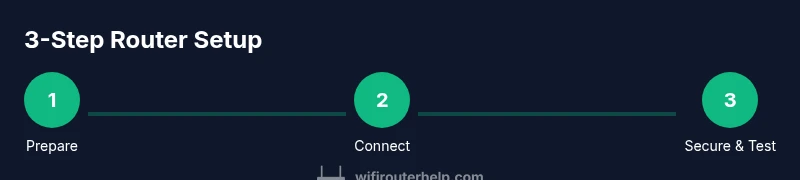
With a new Spectrum router, you will set up reliable home Wi‑Fi, optimize coverage, and secure your network. This quick answer confirms you can achieve a solid, resilient setup by following a simple sequence: prepare your gear, connect the router to your modem, then configure Wi‑Fi, security, and basic settings. Expect improved stability and easier management.
What a "new spectrum router" means for your home network
Upgrading to a new Spectrum router signals a shift toward stronger, more reliable wireless coverage across your home. A contemporary model—often supporting Wi‑Fi 6/6E, improved processing, and modern security features—can reduce dead zones and simplify network management. According to WiFi Router Help, choosing a modern router can yield noticeable gains in consistency and control, especially in busy homes with multiple devices, smart speakers, and 4K streaming. In this guide, we’ll explore what to look for, how to plan your installation, and best-practice settings to maximize performance while keeping power use reasonable. The emphasis is on practical, actionable steps you can take without specialized equipment or advanced networking knowledge.
As you consider a “new spectrum router,” think about your home layout, how many devices connect simultaneously, and where you typically use your Wi‑Fi most. This context helps decide whether you should stick with a Spectrum rental gateway or introduce a separate router that offers more features or advanced controls. You’ll also learn about bridge mode, IP passthrough, and how those options affect performance and compatibility with Spectrum services.
This section sets the stage for a practical, repeatable setup that homeowners and enthusiasts can follow, regardless of whether you’re upgrading an existing router or installing a new one for the first time.
Feature focus: what makes a modern Spectrum router worth it
A compelling Spectrum router mold typically includes several core features that improve both speed and reliability. Look for support for Wi‑Fi 6 or 6E, which introduces more efficient sharing of bandwidth among devices, better handling of multiple streams, and improved latency. MU‑MIMO and OFDMA help with dense environments, allowing many devices to connect without tripping over each other. A robust processor and ample RAM support smooth operation as your network grows.
Security aspects matter too. WPA3 encryption, automatic firmware updates, and a straightforward security dashboard are common in current models. Gigabit LAN ports and a capable WAN port help connect a modem without bottlenecks, while quality-of-service (QoS) features let you prioritize streaming or gaming traffic when needed. Finally, a user-friendly mobile app or web interface makes setup and ongoing management accessible, even for non‑techies. When evaluating options, compare not just the advertised speeds but the overall feature package, ease of use, and reliability history.
Beyond specs, consider practical details like heat management, size, and the ability to place the device in a central, elevated location for best coverage. If you’re renting from Spectrum, check whether the rental gateway performs similarly to a modern standalone router in your home. In many cases, a compatible router paired with the right settings delivers the best blend of control, speed, and compatibility.
Spectrum gateway vs standalone router: compatibility and mode options
Many homes are served by a Spectrum gateway, which combines modem and router functionality in a single device. Some users choose to replace this with a separate router to gain more advanced features, better guest network controls, or improved performance in challenging layouts. The key decision is whether to use bridge mode or IP passthrough. Bridge mode disables the gateway’s router functions so your chosen device handles all routing tasks, potentially reducing double NAT issues and improving certain types of traffic. IP passthrough exposes the public IP directly to your third‑party router, which can be ideal for advanced configurations but may require additional setup.
If you plan to keep the Spectrum gateway in place, you can often configure your setup for a single NAT environment by using DMZ or pass-through modes offered in the gateway’s web interface. Be mindful: enabling bridge mode may affect features like Spectrum TV or certain VoIP services that rely on the gateway’s routing. For most casual users, a simple IP passthrough or a paired router in standard router mode provides solid performance with less configuration complexity. This section helps you weigh these options before committing to a specific topology.
Planning your setup: placement, interference, and channel strategy
Placement matters as much as hardware specs. Position the router high on a shelf or mounted on a wall in a central location, away from thick walls and large metal objects. Elevation reduces interference and improves line-of-sight to a broad set of rooms. Avoid placement behind TVs, mirrors, or heavy furniture that could block signals. If you must place the device near other electronics, ensure some distance to minimize interference from microwaves or Bluetooth devices.
Channel strategy can improve performance, especially in dense environments. For 2.4 GHz, automatic channel selection is usually adequate, but if you notice interference from neighboring networks, I suggest manual channel selection to a clear channel (often 1, 6, or 11 depending on the region). For 5 GHz, be mindful of range differences; close devices benefit more from 5 GHz, while far devices may rely on 2.4 GHz. Use the router’s QoS tools to prioritize video calls, gaming, or streaming when needed, and consider enabling a guest network to isolate IoT devices from your main network for added security.
Finally, verify firmware status and feature availability. Keep firmware up to date to ensure you have the latest stability and security improvements. Regularly check for updates even after initial setup.
Quick start checklist: essential steps before you begin
- Confirm you have your Spectrum account credentials and any required modem compatibility information.
- Ensure you have a computer or mobile device with a web browser or the router’s companion app ready for setup.
- Gather an Ethernet cable and the power adaptor for the new router. If replacing an old device, have it powered off and unplugged first.
- Visit the router’s admin page to begin configuration, and locate the default IP address if you’re using a standalone router (check the device label).
- Prepare a strong admin password and plan your Wi‑Fi name (SSID) and password to create a secure, easily identifiable network.
- Update firmware to the latest version after the initial setup to ensure you have the most current features and security protections.
Security and access control: keep your network safe and manageable
Security should be baked into every setup from day one. Start by changing the default admin password and applying WPA3 encryption if the router supports it. Create a unique SSID for your main network and a separate guest network for visitors to protect your primary devices. Disable WPS if available, as it can introduce vulnerabilities, and enable features like automatic firmware updates to reduce risk. Consider enabling a firewall and configuring UPnP only if you need it for specific devices or services. Regularly reviewing connected devices and network logs can help you spot suspicious activity early and respond quickly.
If you’re managing a family network, leverage parental controls to limit access times or block certain content for kids. A well‑secured spectrum router balances ease of use with robust protections and simple monitoring.
Troubleshooting common setup issues: quick fixes that save time
If you can’t access the admin page, double‑check you’re using the correct gateway IP and that your device is connected to the router’s network. If there’s no internet after setup, confirm the modem is online and the WAN settings match your service type (DHCP vs PPPoE). Slow speeds or unstable connections often trace to interference, outdated firmware, or suboptimal placement. Start by moving the router to a clearer location, rebooting both modem and router, and rechecking firmware updates. If devices still won’t connect, reset the router to factory settings and reconfigure from scratch, ensuring you follow the steps in order. In most cases, these steps resolve the majority of common issues.
What to expect after installation: ongoing optimization and maintenance
A successful installation should deliver consistent coverage across your home and reliable device connections. After setup, monitor performance during peak usage and adjust channels or QoS rules if you notice congestion. Regular firmware updates will patch vulnerabilities and improve stability. Consider periodic speed tests against your ISP plan to verify you’re receiving expected throughput. For households with smart home devices or streaming, enable features like QoS to prioritize critical traffic and ensure smooth operation. With a well‑tuned Spectrum router, you’ll enjoy a more robust, manageable home network over the long term.
Tools & Materials
- Modem compatible with Spectrum service(If you’re using Spectrum’s rental gateway, this may already be provided by the service.)
- New Spectrum router or approved third-party router(Select a model with Wi‑Fi 6/6E and a modern security suite.)
- Computer or mobile device with web browser or router app(Needed to access the admin interface during setup.)
- Ethernet cable (Cat5e or better)(Used to connect the modem to the router for a stable internet connection.)
- Power adapter for the router(Keep a stable power source during setup.)
- Pen and paper or note app(Document SSIDs, passwords, and important settings for future reference.)
Steps
Estimated time: 45-75 minutes
- 1
Gather essentials
Collect your Spectrum credentials, the new router, a computer or phone, and an Ethernet cable. Confirm you have everything needed to begin without interruptions.
Tip: Having all items ready prevents mid‑setup pauses and reduces the chance of mistakes. - 2
Connect the modem to the router
Power off both devices. Connect the modem’s Ethernet cable to the router’s Internet/WAN port using a clean, direct path. Power on the modem first, then the router after the modem stabilizes.
Tip: Ensure the connector is snug; a loose cable can prevent the router from obtaining an IP address. - 3
Access the admin interface
On a connected device, open a web browser and enter the router’s default IP address or use the manufacturer’s app. If prompted, log in with the default credentials found on the device label.
Tip: If you can’t reach the interface, try a different device or reset the router to factory settings. - 4
Set a strong admin password and enable encryption
Change the default admin password to a unique, strong one. Enable WPA3 if available, or WPA2‑AES as a minimum. Save changes before proceeding.
Tip: Write down the admin password in a secure place to avoid lockouts. - 5
Configure WAN and internet settings
For most Spectrum setups, set the WAN connection to DHCP (automatic IP). If your service requires PPPoE or a specific login, enter those credentials exactly as provided by Spectrum.
Tip: Avoid using mixed NAT configurations unless you have a specific reason; they can complicate troubleshooting. - 6
Set up Wi‑Fi and security basics
Create a unique main SSID and password. Enable both 2.4 GHz and 5 GHz bands with distinct names if possible. Add a guest network for visitors and disable WPS if supported.
Tip: Choose passwords that are long, random, and unique to each network. - 7
Test connectivity and update firmware
Run a quick speed test from multiple devices and confirm internet access. Check for firmware updates and install them before finalizing the setup.
Tip: Firmware updates can improve stability and security, so don’t skip this step. - 8
Document settings and monitor performance
Record your SSIDs, passwords, and key settings. Monitor device connections and adjust QoS or channel settings if you notice interference.
Tip: Keeping a running log helps with future troubleshooting and network planning.
People Also Ask
Do I need to contact Spectrum to get a new router?
Spectrum can provide a rental gateway or support using a compatible third‑party router. Check compatibility with your plan and whether router features meet your needs. If you’re unsure, contact Spectrum support to confirm options and potential fees.
You can either rent from Spectrum or use a compatible router. Check compatibility and any rental fees with Spectrum support.
Can I use my existing router with Spectrum service?
Yes, many customers use a personal router. Depending on your service, you may need to enable bridge mode or IP passthrough on the Spectrum gateway to avoid double NAT. If you’re unsure, consult Spectrum’s setup guide.
You can use your own router, but you may need to enable bridge mode or IP passthrough to avoid issues.
What security settings should I enable on a new Spectrum router?
Enable WPA3 if available, use a strong admin password, and keep firmware up to date. Create a separate guest network if you have visitors, and disable features you don’t use, like WPS.
Turn on WPA3, use a strong password, and update firmware regularly. Consider a guest network for visitors.
How do I access the router admin page?
Connect a device to the router’s network, then enter the default IP address shown on the device label into a browser, or use the companion app. If you can’t reach it, reset the router and try again.
Connect to the router and open its admin page using the default IP or app.
What should I do if devices won’t connect after setup?
Verify the Wi‑Fi name and password, check that DHCP is enabled, and confirm devices are within range. If necessary, reboot the router and run a firmware update.
If devices won’t connect, check the password, range, and that DHCP is enabled; reboot and update if needed.
Is bridge mode necessary for my setup?
Bridge mode is useful if you want your own router to handle all routing tasks. It’s not required for most households, but it can help avoid double NAT when using a separate router.
Bridge mode lets your own router handle routing, but it isn’t required for everyone.
How often should I check for firmware updates?
Check for updates monthly or enable automatic updates to ensure security and stability over time.
Update firmware regularly or enable automatic updates.
Watch Video
What to Remember
- Choose a modern Spectrum router with Wi‑Fi 6/6E for best performance.
- Bridge mode or IP passthrough can change how your network is managed—plan accordingly.
- Place the router centrally and update firmware for reliability.
- Use strong passwords and separate guest networks for security.
- Document settings to simplify future maintenance.