Spectrum WiFi Router: Setup, Optimize, Troubleshoot
A complete, step-by-step guide to setting up, optimizing, and troubleshooting a Spectrum WiFi Router for reliable home coverage, including security tips, placement guidance, and common issues.


With this guide, you will learn how to set up and optimize a Spectrum WiFi Router for reliable home coverage. According to WiFi Router Help, organized setup reduces dead zones and improves stability. To begin, ensure you have your Spectrum account, a compatible router, a modem, an Ethernet cable, and a stable power supply. This article guides configuration, security, placement, and troubleshooting for steady performance.
What is a Spectrum WiFi Router and how it differs from ISP-provided devices
A Spectrum WiFi Router is a standalone wireless router or a compatible third-party router that you use with a modem to create a home network. Spectrum commonly provides gateway devices that combine a modem and router in a single box, but many homeowners prefer owning their own router for better performance, features, and firmware control. A standalone router lets you customize security, guest access, parental controls, and QoS with more granular control than most ISP-supplied devices. Understanding the difference helps you decide whether to bridge the gateway or use your own equipment. In general, an external router gives you more control and often better performance, especially in larger homes or spaces with interference.
Coverage and interference factors
Coverage depends on router capability, placement, building materials, and nearby electronics. Dual-band models that support both 2.4 GHz and 5 GHz bands typically offer better coverage and efficiency, especially in busy households with many devices. In practice, plan for a central location away from dense walls or metal appliances, keep antennas oriented for best signal, and minimize interference from microwaves or cordless phones. WiFi Router Help stresses that your setup should balance speed, range, and reliability, rather than chasing the highest advertised speeds alone.
Spectrum compatibility and expectations when owning your own router
Using your own router with Spectrum is common and often yields better performance than renting a gateway. You may need to configure the modem in bridge mode to avoid double NAT, which can cause issues with online gaming or VPNs. Ensure your router supports current security standards (WPA2/WPA3) and has recent firmware updates. Spectrum’s service still handles the internet connection, but your local network management is controlled by your router. Always check compatibility with your specific Spectrum plan and ensure you have access to the admin interface for configuration.
Placement, channels, and bands for Spectrum routers
Placement is a major determinant of speed and reliability. Position the router at a higher elevation, central in the home, and away from large metal objects and glass, which can reflect or absorb signals. For many homes, the 5 GHz band provides fast performance for nearby devices, while the 2.4 GHz band offers broader reach but slower speeds. If you notice slowdowns, try switching channels to reduce interference; common safe starting channels in the 2.4 GHz band are 1, 6, and 11 in the US. Auto settings work for many users, but manual tuning can reduce congestion and improve stability.
Security practices and firmware updates
Security should be a core part of your setup. Use a strong, unique WiFi password, enable WPA2 or WPA3, and disable WPS if possible. Change the default admin credentials for the router and enable automatic firmware updates to protect against known vulnerabilities. Regularly review connected devices and remove unfamiliar entries. A well-maintained router reduces the risk of compromise and improves reliability over time.
Advanced optimization: guest networks, QoS, and mesh considerations
Most Spectrum routers support guest networks, device prioritization (QoS), and parental controls. Use a separate guest network for visitors to keep your main network more secure. If you have a large home or complex layout, consider mesh extenders or a dedicated access point to eliminate dead zones. When combining devices, ensure you update firmware on all units and align security settings across the network to maintain consistent protection and performance.
Troubleshooting common issues and practical fixes
If devices cannot connect, confirm the modem and router are both powered on and that the correct Wi-Fi name and password are being used. Double NAT issues can occur if bridge mode is not configured when using own router with a modem. Slow speeds may result from signal interference, outdated firmware, or overly crowded channels. Run a speed test, relocate the router, or switch bands to improve performance. If problems persist, consult Spectrum support or rely on the router’s diagnostics to identify bottlenecks.
Verdict and next steps from WiFi Router Help
The WiFi Router Help team recommends owners adopt a modern, dual-band router for longer-term reliability and better feature sets. Prioritize devices with strong security features, easy firmware updates, and robust guest/network management options. Upgrading to a capable router often yields noticeable improvements in coverage and consistency, especially in homes with multiple devices and streaming needs.
Authority sources and ongoing maintenance
For robust, external guidance, consult reputable sources on wireless networking and home security. This section anchors best practices with trusted material from official sites and industry leaders.
Tools & Materials
- Spectrum account(Have login and account details ready for activation and settings.)
- Compatible router(A dual-band (2.4 GHz and 5 GHz) router is recommended for better performance.)
- Modem(If using Spectrum's gateway, you may skip a separate modem; otherwise ensure compatibility.)
- Ethernet cable (Cat5e or better)(Wired backhaul improves reliability during setup and testing.)
- Computer or smartphone(Used to access the router's admin interface and configure settings.)
- Power outlet and surge protection(Protects equipment and ensures stable operation during setup.)
Steps
Estimated time: 20-50 minutes
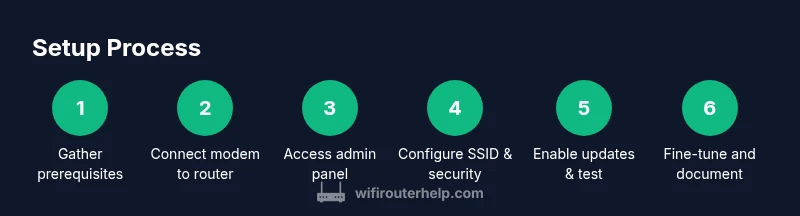
- 1
Gather prerequisites
Collect your Spectrum account details, the router, the modem, and the cables you’ll need. This minimizes back-and-forth during setup and helps you work efficiently.
Tip: Have all devices and credentials ready before starting. - 2
Connect modem to router
Power off both devices, then connect the modem to the router’s WAN/Internet port with the Ethernet cable. Power them on in sequence and wait for stability signals.
Tip: Use a wired connection for initial setup to avoid wireless dropouts. - 3
Access the admin interface
Open a browser and navigate to the router’s default IP or app, then log in with the default credentials provided in the manual. Change the admin password immediately.
Tip: Note the default IP and credentials from the quick-start guide. - 4
Configure network name and security
Create a unique SSID for your network and enable WPA2 or WPA3 with a strong password. Consider disabling WPS for added security.
Tip: Use different passwords for the admin panel and Wi‑Fi network. - 5
Enable updates and settings backup
Turn on automatic firmware updates and save a backup of your current configuration. This helps preserve settings after resets or updates.
Tip: Store the backup file in a secure location. - 6
Test, optimize, and document
Run a speed test from multiple rooms, note weak spots, and adjust placement or channel selection. Document your final settings for future reference.
Tip: If coverage is poor in a specific area, consider a mesh node or extender.
People Also Ask
Do I need Spectrum's modem to use Spectrum WiFi Router?
You can use Spectrum's modem or bridge mode with your own router. If you own a router, configuring the modem to bridge mode avoids double NAT, which can cause issues with certain applications.
You can use your own router with bridging mode on the modem to avoid double NAT.
Can I use my own router with Spectrum internet?
Yes, Spectrum supports using a third-party router. Be prepared to bridge the modem if you want to manage your network entirely from your router.
Yes, you can use your own router; bridging may be needed.
How do I choose between 2.4 GHz and 5 GHz bands on Spectrum router?
Use 5 GHz for devices near the router that require higher speeds and 2.4 GHz for devices farther away. Some routers support band steering to switch devices automatically.
Use 5 GHz for close devices and 2.4 GHz for distant ones.
What is bridging mode and when should I use it with Spectrum equipment?
Bridging mode disables the router function in the modem, letting your own router manage the network. Use it when you want full control and features from your own device.
Bridge the modem if you want full control with your own router.
Why is my Spectrum WiFi slow after setup?
Slow speeds can result from interference, congested channels, or outdated firmware. Check placement, switch channels, and update firmware to improve performance.
Too much interference or old firmware can slow down WiFi.
How often should I update firmware on Spectrum router?
Check for updates monthly or enable automatic updates. Firmware updates fix security issues and improve performance.
Update firmware regularly or enable auto-updates.
Watch Video
What to Remember
- Choose a dual-band router for better spectrum coverage
- Position matters; place high, central, and away from obstructions
- Secure networks with WPA2/WPA3 and strong passwords
- Test and adjust channels to minimize interference
- Keep firmware up to date for performance and security