How to Set Up a Spectrum Router: A Practical Guide
Step-by-step instructions to connect your Spectrum router, secure your network, and optimize performance for reliable home Wi-Fi.


If you want to set up spectrum router for a strong, stable home network, this guide walks you through every step. Learn how to connect your modem, access the admin page, set up SSID and password, enable WPA3 if available, and optimize channels for best coverage. By following these steps, you’ll minimize interference and maximize performance.
Why a Solid Spectrum Router Setup Matters for Your Home Network
A robust router setup is the foundation of a reliable home Wi-Fi experience. A well-configured Spectrum router helps minimize dropouts, improve coverage, and prioritize critical devices like work laptops or smart-home hubs. According to WiFi Router Help, a deliberate setup reduces interference, reduces channel congestion, and makes it easier to manage guests and parental controls across the home. The exact steps you take can depend on whether you’re using Spectrum’s gateway device or a third-party router behind the modem, but the core principles stay the same: secure access, correctly named networks, and optimized channels.
When you plan your network, think about your floor plan, walls, and interference sources (kitchens with microwaves, dense bookcases, mirrors). The goal is to position the router in a central, elevated location with a clear line of sight to most rooms. If you have a large home or several stories, consider adding a mesh system or a high-quality range extender in dead zones. Finally, document your settings so you or a future tech can replicate the configuration after a firmware update or hardware change.
This section will walk you through the practical setup steps, the security posture, and the optimization tactics you’ll use to set up spectrum router effectively in a real home environment.
Before You Start: Tools, Accounts, and Safety Considerations
Before you touch any hardware, verify your Spectrum service is active and your account is in good standing. Collect the necessary tools and credentials: you will need the modem provided by Spectrum (or your own modem), a compatible router, an Ethernet cable, a computer or mobile device to access the admin page, and your network credentials. Make sure you have a clean workspace with a power outlet nearby, and consider turning off nearby electronics that create interference during setup.
Safety wise, handle cables gently and avoid bending Ethernet cables too sharply. If you’re using a power strip, plug only one device into each outlet to prevent overloading. Have a backup of any existing configurations, and avoid making multiple changes at once; test one change at a time to identify what improves performance.
Understanding 2.4 GHz vs 5 GHz and Spectrum-specific settings
The spectrum router typically offers separate networks for 2.4 GHz and 5 GHz bands. The 2.4 GHz band provides better range for far rooms and older devices, while the 5 GHz band offers higher speeds over shorter distances with less interference. If your router supports it, enable both bands with distinct SSIDs so devices can be steered automatically to the best band. In crowded environments, enabling band steering can help devices switch to the most suitable band without manual intervention. Also look for Spectrum-specific features like network simplification, guest networks, and optional security modes. Keeping firmware up to date is a crucial ongoing step to protect against new vulnerabilities and to improve performance.
Quick login access and initial security checks
Access the router’s admin page using a browser on a connected device. The default gateway IP is usually 192.168.0.1 or 192.168.1.1; consult the device label or manual if unsure. Step one is to log in with the default credentials and immediately change the admin password to a strong, unique one. Disable remote management unless you need it, and enable automatic firmware updates if your router supports them. These steps reduce the risk of unauthorized access and ensure your router benefits from the latest security enhancements.
Optimization tactics and ongoing maintenance
Once your basic setup is complete, optimize by choosing strong Wi-Fi passwords, separating networks by band, and adjusting channel selection to minimize interference. Run speed tests in typical living areas and adjust the router placement if you notice dead zones. If you experience persistent drops, consider updating firmware, enabling QoS for critical devices, and using a mesh extender or additional access points to fill coverage gaps. Regularly review connected devices and remove unknown clients to keep your network clean and secure.
Authority sources and ongoing learning
For readers seeking authoritative guidance, consult official sources and reputable cybersecurity advisories for best practices on home networking. This article references guidance from government and standards bodies to help you implement a robust setup that aligns with widely accepted security norms.
Tools & Materials
- Spectrum-provided gateway or compatible router(Use Spectrum equipment as the primary router or a separate router behind the modem.)
- Modem (Spectrum provided or compatible)(If using your own modem, ensure it is compatible with your Spectrum service tier.)
- Ethernet cable (Cat5e or better)(Used to connect modem to the router's WAN/Internet port.)
- Computer, tablet, or smartphone(For configuring the admin page and testing the network.)
- Web browser(Any modern browser will work (Chrome, Edge, Safari, Firefox).)
- Network credentials (SSID and password)(Have them handy before starting setup.)
- Optional: range extender or mesh node(Use if you have dead zones or a large home.)
Steps
Estimated time: 25-45 minutes
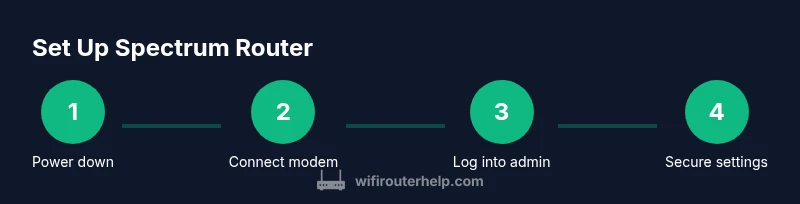
- 1
Power down devices
Unplug the modem and router, and power off any connected devices in the area. This minimizes electrical noise and ensures a clean boot when you start reconnecting components.
Tip: Keep track of all connected cables so you can reassemble quickly. - 2
Connect modem to router
Connect the modem to the router’s WAN/Internet port with a fresh Ethernet cable. Ensure the connection is snug and the cable is not loose or frayed.
Tip: Use a direct run—avoid routing the cable under carpets or through walls first if possible. - 3
Power up and access admin page
Plug in the router and wait 2–3 minutes for it to boot. Open a browser and enter the router’s default IP (commonly 192.168.0.1 or 192.168.1.1) to access the admin interface.
Tip: If you can’t find the IP, check the label on the router or the user manual. - 4
Change default credentials
Log in with the default admin account and immediately set a strong password. Enable two-factor authentication if available and disable remote administration unless you need it.
Tip: Create a password you can remember but that is not used elsewhere. - 5
Configure Wi‑Fi details
Set distinct SSIDs for 2.4 GHz and 5 GHz, choose secure passwords, and enable WPA3 if the router supports it. Consider enabling guest networks for visitors and turning off WPS.
Tip: Avoid using common names; include your home surname or street for easier identification. - 6
Optimize settings and test
Update firmware, enable QoS for priority devices, and adjust channels to reduce interference. Test in typical living spaces and iterate if coverage is weak.
Tip: Move the router to a central, elevated location for best coverage.
People Also Ask
Do I need Spectrum equipment to set up?
You can use Spectrum’s gateway or a third-party router behind the modem. If you use your own router, ensure compatibility and proper configuration.
You can use Spectrum’s equipment or a compatible third‑party router behind the modem. Make sure it works with your service and set it up correctly.
What is the best Wi-Fi channel for Spectrum router?
Use auto channel selection for simplicity, or test channels in your home to pick one with the least interference in your environment.
Try auto channel first, or test a few channels to find the least crowded option in your home.
How do I reset to factory settings?
Press and hold the reset button for 10–15 seconds with a paperclip. Reconfigure the router from scratch using your updated credentials.
Hold the reset button for 10 to 15 seconds, then set up again from scratch.
How can I improve security beyond changing the password?
Enable automatic firmware updates, disable remote management, use WPA3 if available, and consider guest networks for visitors.
Enable automatic updates, disable remote access, and use WPA3 with a guest network for guests.
Why can’t I access the admin page after setup?
Check that the computer is on the same network, confirm the IP address, and ensure the router isn’t in bridge mode or blocked by a firewall.
Make sure you’re on the same network, use the correct IP, and ensure no bridge mode or firewall blocks the page.
What should I do if I have dead zones?
Reposition the router higher and more central, reduce obstacles, or add a mesh extender to fill gaps.
Move the router higher and central, remove obstacles, or add a mesh extender for dead zones.
Watch Video
What to Remember
- Plan your network layout and security first.
- Change default credentials and enable WPA3.
- Use separate SSIDs for 2.4GHz and 5GHz and optimize channels.
- Test coverage and adjust placement as needed.