Spectrum WiFi 6 Router Setup: A Complete How-To Guide
Learn how to set up, optimize, and secure a spectrum wi fi 6 router for reliable home networking. This guide covers placement, configuration, QoS, and troubleshooting from WiFi Router Help.


To get your spectrum wi fi 6 router up and running, you’ll connect the modem, access the router’s admin interface, and configure the network name, password, and security settings. This guide covers setup, optimization, and troubleshooting to deliver fast, reliable home WiFi with modern features like QoS and WPA3.
What is a Spectrum WiFi 6 Router?
A Spectrum WiFi 6 router is a next-generation residential gateway that supports the Wi‑Fi 6 standard. It blends faster speeds, lower latency, and better performance in crowded homes. Spectrum’s equipment often includes hardware optimized for Spectrum’s network, but the same setup principles apply to third-party devices that support Wi‑Fi 6. According to WiFi Router Help, the spectrum wi fi 6 router family benefits from a clean modem connection, proper placement, and consistent power. Understanding what makes WiFi 6 different — OFDMA, MU‑MIMO, and target wake time — helps you plan for real-world improvements in streaming, gaming, and smart-home devices.
Core Features and Why They Matter
WiFi 6 introduces technologies like OFDMA, MU‑MIMO, and longer battery life for devices. For home networks, these features translate into more reliable connections for multiple devices simultaneously, better performance in interference-rich environments, and improved battery efficiency for mobile clients. When selecting or configuring a spectrum wi fi 6 router, look for support for 2.4 GHz and 5 GHz bands, WPA3 security, and a robust processor that can handle QoS rules. Kept up with firmware, these routers can maintain strong performance for years.
Preparing Your Home Network for Setup
Before you touch a single button, map out your space. Note where the modem lives, the primary living areas, and rooms with weak signals. A central location away from thick walls and metal appliances minimizes interference. If you have a mesh system or extenders, plan how they’ll link back to the main router. WiFi Router Help notes that a well-planned topology reduces dead zones and simplifies management, especially with Spectrum’s newer Wi‑Fi 6 devices.
Step-BY-STEP Setup Overview (what you’ll do and why)
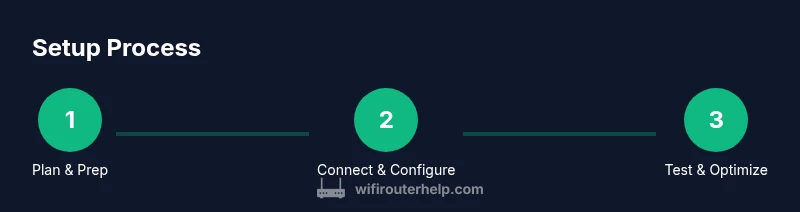
This section outlines the actions you’ll perform in the dedicated Step-by-Step section. You’ll connect hardware, customize the network, secure access, and verify performance. Expect a 30–45 minute process if you already have modem and router hardware ready. A clear plan reduces back-and-forth trips to the admin interface and minimizes mistakes.
Placement, Channel Selection, and Interference Management
Even with a Spectrum WiFi 6 router, placement matters. Elevate the device off the floor, avoid stacking with electronics that emit heat, and aim for a central position. Use the 5 GHz band for high-density tasks and keep devices on different channels when possible to minimize overlap. If you notice slowdowns in the 2.4 GHz band, switch devices to the 5 GHz network where range permits.
Security Best Practices for Spectrum WiFi 6 Router
Security should be proactive, not reactive. Change the default admin password, enable WPA3 if available, and disable remote administration unless you need it. Create a separate guest network for visitors, and consider a strong, unique SSID name to avoid easy targeting. Regularly review connected devices and disable features you don’t use, like UPnP, if you don’t need them.
Troubleshooting Common Issues
If you can’t reach the admin page, verify your PC is connected to the router, try a wired connection, and check power indicators. A factory reset is a last resort if you can’t recall credentials—keep in mind it will erase custom settings. For slow speeds, verify that your plan supports the performance you expect and test with a wired connection to rule out wireless issues.
Advanced Scenarios: Extenders and Mesh for Spectrum Compatibility
For larger homes, a mesh or extender approach helps maintain consistent coverage. Ensure any satellite or extender uses the same network name and password, and place satellites midway between the main router and dead zones. Spectrum‑certified devices generally perform best when set to compatible modes and channels. Regular firmware updates also improve compatibility and stability.
Regular Maintenance and Firmware Updates
Periodically check for firmware updates in the admin panel and apply them. Updates fix security vulnerabilities and improve stability. Set a monthly reminder to review connected devices and QoS rules, especially if you add new smart devices or players in your home network.
Tools & Materials
- Modem with active internet service(Ensure it’s powered and connected to the line.)
- Spectrum WiFi 6 router(Include power adapter and manual.)
- Ethernet cable (Cat5e or better)(One to connect modem to router WAN port.)
- Computer, tablet, or smartphone with a web browser(Needed to access the admin interface.)
- Admin credentials or account access(Have login info ready.)
- Optional: Backup configuration export(Keep a saved copy of settings.)
Steps
Estimated time: 30-45 minutes
- 1
Power down and prep
Power off the modem and the Spectrum router, unplug peripherals, and gather all cables. This prevents accidental surges and ensures a clean start. Why: starting from a known state reduces misconfigurations.
Tip: Have your admin login handy before you start. - 2
Connect the hardware
Connect the Ethernet cable from the modem’s LAN port to the router’s WAN/Internet port. Ensure the link lights indicate a solid connection. Why: a stable physical path is essential for a reliable setup.
Tip: Use a fresh cable if you notice flaky connections. - 3
Power up and access the admin page
Power on the modem first, wait for it to sync, then power on the Spectrum WiFi 6 router. Connect a device to the router’s default network and open the admin URL (e.g., http://192.168.0.1 or http://router.local). Why: accessing the admin page is the gateway to configuration.
Tip: If the default IP doesn’t load, check the router’s manual for the correct URL. - 4
Change SSID and password
In the Wireless or Internet settings, create a unique network name (SSID) and a strong password. Use WPA3 if available. Why: secure credentials prevent unauthorized access and reduce cross‑network interference.
Tip: Avoid simple names and reuse of old passwords. - 5
Enable security features
Enable firewall, disable remote admin unless needed, and enable guest network if you have visitors. Verify 5 GHz is active for supported devices. Why: these steps protect your network and improve performance.
Tip: Turn off UPnP if you don’t rely on it. - 6
Update firmware and test
Check for firmware updates and install them. After updating, reboot the router and reconnect to verify stability. Why: updates fix vulnerabilities and improve compatibility.
Tip: Back up current configuration before updating. - 7
Run a quick performance test
Use a wired device to run a speed test, then check wireless performance on multiple devices. Compare results to your plan’s expected speeds. Why: this confirms the setup is delivering the promised performance.
Tip: Document baseline speeds for future reference.
People Also Ask
What is a Spectrum WiFi 6 router?
Spectrum WiFi 6 routers support the latest Wi‑Fi 6 standard, offering faster speeds and better performance in crowded homes. They are designed to work with Spectrum’s network and may come as part of a gateway or as a standalone router.
Spectrum WiFi 6 routers support faster speeds and better performance in busy homes.
Do I need a modem to use Spectrum WiFi 6 router?
If you subscribe to Spectrum, you may receive a gateway device that combines modem and router. If you already have a compatible modem, you can connect Spectrum's router to it and configure the network.
You may get a gateway, or you can use your own modem with Spectrum’s router.
How can I improve coverage in a large house?
Place the router centrally, elevate it off the floor, and consider mesh extenders or a satellite system to eliminate dead spots. Ensure extenders use the same network name for seamless roaming.
Place the router centrally and add extenders if needed.
Which security settings should I enable?
Enable WPA3 if available, use a strong admin password, disable remote admin, and create a guest network for visitors. Regularly review connected devices.
Enable WPA3, strong password, and guest network.
What should I do if I see slow speeds?
Verify your plan matches your speed, test with a wired connection to rule out wireless issues, and check for interference or channel overlap. Reboot devices and check for firmware updates.
Check speed with wired device and update firmware.
How often should I update firmware?
Check monthly or when notifications appear. Updates fix security issues and improve reliability. Always back up settings before updating.
Update firmware regularly and back up settings.
Watch Video
What to Remember
- Plan optimal router placement for best coverage
- Change default admin credentials and SSID
- Enable WPA3 and keep firmware updated
- Test speeds on wired and wireless connections