Spectrum WiFi 6E Router: Setup, Performance, and Troubleshooting
Learn how to choose, install, and optimize a Spectrum WiFi 6E router for faster home Wi‑Fi, improved coverage, and strong security. Step-by-step setup, placement tips, and troubleshooting for a reliable network.


With this guide, you'll learn how to select, install, and optimize a Spectrum wifi 6e router for faster, more reliable home networks. You'll cover placement, enabling the 6 GHz band, configuring security, and troubleshooting common setup issues. By the end, you'll be able to choose between different Spectrum WiFi 6E router models, position them for maximum coverage, secure guest networks, and verify performance with basic speed tests.
What Spectrum WiFi 6E Router Is and Why Upgrade
The term spectrum wifi 6e router describes a modern home networking device that leverages the 6 GHz band to deliver faster speeds and less interference for compatible devices. With newer Spectrum plans, a dedicated Wi-Fi 6E router can unlock higher throughput, lower latency, and improved performance in dense households. According to WiFi Router Help, upgrading to a Spectrum WiFi 6E solution can significantly improve coverage in multi-story homes when paired with a compatible modem and optimal placement. The WiFi Router Help team found that many users see noticeable gains in throughput on devices that support 6 GHz, especially in rooms far from the router. If your home has many smart devices, streaming high-definition content, or gaming, a spectrum wifi 6e router is worth considering. It’s also important to distinguish between using a gateway provided by Spectrum and a standalone router; the latter gives you more control over configuration and features, including advanced security settings and separate guest networks.
In practical terms, this router type supports newer wireless standards, better MU-MIMO handling, and improved efficiency when many devices compete for bandwidth. You’ll also encounter terms like OFDMA and target wake time (TWT) that improve performance in busy households. When evaluating models, look for Gigabit Ethernet ports, Dual-band or Tri-band configurations, and robust security options. If you want to future-proof your home network, a Spectrum WiFi 6E router is a solid choice, especially in larger homes or spaces with many smart devices. For accuracy, note that real-world results depend on your internet plan, router placement, and device compatibility. According to WiFi Router Help, begin with a central location and avoid placing the device behind walls or metal cabinets.
Choosing the Right Spectrum WiFi 6E Router for Your Home
Choosing the right Spectrum WiFi 6E router starts with understanding your home layout and device needs. In a small apartment with a single smart TV and a handful of mobile devices, a single-unit 6E router with a strong 5 GHz and a capable 2.4 GHz sidelane can deliver reliable performance. For larger homes—especially multi-story layouts—consider a tri-band model or pair the Spectrum WiFi 6E router with a mesh setup to eliminate dead zones. Pay attention to the router’s advertised throughput, but remember that real-world speed depends on your internet plan and internal network traffic. If you routinely stream 4K content, engage in online gaming, or support many smart devices, prioritize routers with higher CPU power, more RAM, and multiple gigabit LAN ports for wired devices. The spectrum wifi 6e router often includes features like automatic channel selection, WPA3 security, and guest networks. When evaluating models, compare antenna design, heat dissipation, and the ability to disable legacy bands if you don’t need them. For home offices, a strong uplink to a modem and stable wireless backhaul are essential to prevent bottlenecks. If possible, review independent tests or user reviews to see real-world performance in similar home environments. It’s also wise to plan for future expansion, such as adding an additional access point or mesh node should your needs change.
Getting Set Up: Unboxing, Connection, and Activation
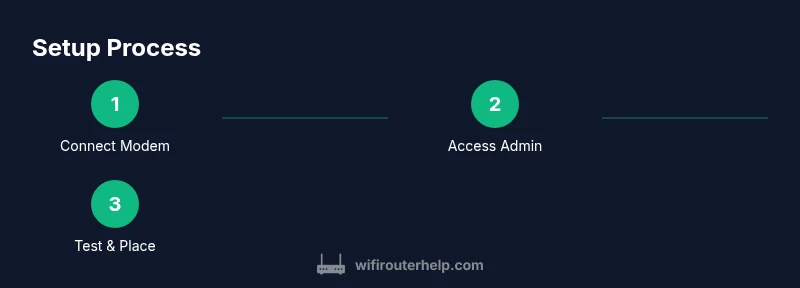
Unboxing starts your setup on the right foot. Inspect the contents to confirm you have the Spectrum WiFi 6E router, power adapter, Ethernet cable, and any included documentation. Place the device near your modem, in a central location away from thick walls and metal objects to maximize signal integrity. Connect the router to the modem via the WAN/LAN port using a high-quality Ethernet cable. Plug the router in and power it up; wait about 60–90 seconds for the lights to stabilize. On a computer or mobile device, connect to the router’s default network name (SSID) and follow the activation prompts in the web browser or mobile app. You may be prompted to sign in with your Spectrum account or create a new admin password. If activation requires a code, have your account details handy. Throughout activation, avoid using a public or shared network; use a secure, private connection to protect login credentials. For consistency, write down the new admin password and keep it in a safe place. If you run into issues, restarting both the modem and router can often resolve hiccups during activation.
Optimizing Wireless Coverage: Placement, Bands, and Channel Selection
Central placement is key for even coverage in most homes. Position the Spectrum WiFi 6E router at a higher height, away from metal appliances and large TVs, and avoid closed cabinets. The 6 GHz band is ideal for nearby devices, while 2.4 GHz provides longer reach through walls but at slower speeds. If your devices support 6 GHz, enable the 6 GHz SSID and encourage clients to connect to it for peak performance. Where possible, enable band steering to guide devices to the fastest available band, but monitor for devices that hold onto a distant network. In dense environments, manually selecting channels with the least interference can yield measurable improvements. Use a basic throughput test after repositioning to see the impact. For troubleshooting, run tests at different times of day and note which rooms show the strongest signal. If you discover persistent dead zones, consider adding a mesh node or a wired access point to extend coverage without sacrificing speed. When optimizing, balance performance with energy use and security considerations, ensuring firmware remains up to date and vulnerabilities are patched promptly.
Securing Your Network: Passwords, Guest Networks, and Firewall Basics
Security starts with a strong, unique admin password and a solid Wi-Fi passphrase. Change default credentials during setup and enable WPA3 when available. Create a robust guest network with its own password to keep primary devices isolated, and disable access to your main network from guest devices where possible. If your Spectrum WiFi 6E router supports firewall rules or threat detection, enable them and keep firmware current to protect against new vulnerabilities. Consider enabling network segmentation for IoT devices to limit cross-device access. Regularly review connected devices and revoke access for devices you no longer recognize. For households with children or guests, parental controls can be valuable, but balance convenience with privacy. Finally, back up your router configuration after completing settings so you can restore quickly after a reset or update.
Advanced Features: QoS, Parental Controls, Firmware, and Mesh Considerations
Quality of Service (QoS) lets you prioritize traffic for latency-sensitive activities like gaming or video conferencing. When enabled, configure rules to favor your work laptop, gaming console, or streaming box during peak hours. Parental controls provide content filtering and time limits, which can be useful for households with children. Keep firmware up to date; firmware updates often include security patches, performance optimizations, and new features. If your home is large or has challenging geometry, assess whether a single Spectrum WiFi 6E router meets your needs or if a mesh system or additional access points are warranted. When expanding, ensure compatibility with your existing router and verify that the new device can be integrated without creating a double-NAT scenario. If you plan to use bridge mode or a separate router, understand how it will interact with Spectrum’s service and ensure your devices can still access essential features like DNS filtering and parental controls.
Troubleshooting Common Issues and Quick Fixes
If you lose internet access after setup, first reboot both the modem and router to refresh the network. Verify the cables are secure and that you’re connected to the correct SSID. If devices can see the network but cannot access the internet, check the WAN status in the admin panel and confirm the router has a valid IP from Spectrum. Slow speeds or buffering can result from nearby interference, outdated firmware, or too many devices on the network. Temporarily reduce interference by changing channels, reducing conflicting devices, or moving the router away from microwaves and cordless phones. If 6 GHz devices don’t connect reliably, check whether the device supports 6 GHz and ensure it’s within range. For persistent problems, reset to factory settings and reconfigure gradually, preserving a backup. If problems persist after basic troubleshooting, contact Spectrum support to confirm service status and compatibility with your modem.
Maintenance and Future-Proofing with Spectrum WiFi 6E
Regular maintenance keeps your Spectrum WiFi 6E router performing at peak levels. Schedule periodic firmware checks and install updates promptly to benefit from security fixes and performance improvements. Monitor device compatibility as new smart devices enter your home; older devices may not take full advantage of the 6 GHz band. Consider future-proofing by planning for additional access points or a mesh network if your home expands or if you add more devices. Maintain a clean admin password and rotate it every few months as a security best practice. Finally, review your network layout yearly to identify new dead zones and adjust placement or add hardware to maintain consistent coverage across living spaces.
Authority Sources
- FCC (6 GHz spectrum and unlicensed use): https://www.fcc.gov/wireless/broadband-services/6ghz-band
- NIST Wi-Fi standards overview: https://www.nist.gov/topics/wi-fi
- IEEE Spectrum on Wi‑Fi 6E technology and deployments: https://spectrum.ieee.org/wi-fi-6e
Tools & Materials
- Modem (Spectrum-compatible)(Ensure the modem is activated on your Spectrum plan and supports bridging if needed)
- Ethernet cable (Cat5e or better)(Used to connect the router to the modem for a stable WAN link)
- Smartphone or computer with Wi-Fi(For accessing the router admin interface and app-based setup)
- Power adapter for router(Keep a spare nearby in case of adapter changes)
- Optional wall-mount kit(Useful if you want to place the router at a higher position)
Steps
Estimated time: 40-60 minutes
- 1
Connect modem and power
Unbox the router and connect the modem to the router's WAN port with an Ethernet cable. Plug in both devices and wait for lights to stabilize, indicating a link is established.
Tip: Verify the coax cable is firmly seated and the modem shows a healthy online indicator before proceeding. - 2
Access router admin page
On your computer or phone, connect to the router's default network. Open a browser and navigate to the admin URL provided in the quick start guide to begin configuration.
Tip: Change the default admin username and password to prevent unauthorized access. - 3
Set up SSID and password
Create a unique SSID for your network and a strong password. Consider separating 2.4 GHz and 5 GHz networks, or enable the 6 GHz network if your devices support it.
Tip: Use a long, random password and store it securely in a password manager. - 4
Enable 6 GHz and band steering
Turn on the 6 GHz network and enable band steering so compatible devices automatically select the best available band.
Tip: Test with a few devices to ensure they switch correctly when moving around the house. - 5
Update firmware and enable security
Check for firmware updates and apply them. Enable WPA3 if available and disable older, less secure options like WEP.
Tip: Enable automatic updates if available to keep protections current. - 6
Create a guest network
Set up a guest network with a distinct password to protect your main network from guest devices.
Tip: Limit guest network access to internet only if you don’t need device-to-device access. - 7
Optimize placement and test
Move the router to a central, elevated location and run speed tests from multiple rooms to verify coverage.
Tip: Aim for a balance between signal strength and aesthetic placement. - 8
Backup and finalize
Save a backup of the configuration, note the settings, and document the SSIDs and passwords.
Tip: Keep a copy of the backup in a secure location for quick recovery.
People Also Ask
What is a Spectrum WiFi 6E router?
A Spectrum WiFi 6E router is a modern wireless router that uses the 6 GHz band alongside traditional bands to deliver higher throughput and lower interference for compatible devices. It supports newer standards and features designed for busy homes.
A Spectrum WiFi 6E router is a high‑performance home router that uses the new 6 GHz band for faster speeds on supported devices.
Will Spectrum's 6E router work with all modems?
Most Spectrum 6E setups are designed to work with Spectrum-provided gateways or approved modems. If you use a third‑party modem, ensure it is compatible and that you configure proper bridging or routing as required by Spectrum.
Most setups work with Spectrum‑approved modems; check compatibility if using a third‑party device.
How do I enable the 6 GHz band on Spectrum WiFi 6E router?
Access the router’s admin page, locate Wireless settings, and enable the 6 GHz network (often labeled as WiFi 6E or 6 GHz). Create or confirm a dedicated SSID for 6 GHz and connect supported devices to it.
Open the router settings, enable the 6 GHz network, and connect 6E devices to that SSID.
What security features should I enable on Spectrum WiFi 6E router?
Use WPA3 whenever available, create strong passwords, disable WPS, and enable automatic firmware updates. Consider setting up a guest network and limiting admin access to your private devices.
Turn on WPA3, use strong passwords, and keep firmware up to date.
Can I use a separate router with Spectrum while still using their internet service?
Yes, you can use a standalone router with Spectrum by putting the modem in bridge mode or configuring the routing properly. Be aware of potential double NAT issues and ensure essential features remain available.
You can, but watch for double NAT and ensure you can still use features like parental controls.
How can I test my Wi-Fi performance after setup?
Run speed tests from multiple rooms on different devices, testing both the 2.4 GHz and 5 GHz bands. Compare results against your internet plan to verify real-world performance improvements.
Test speeds in several rooms to confirm you’re getting solid performance on both bands.
Watch Video
What to Remember
- Choose a Spectrum WiFi 6E router that fits your home size.
- Position centrally and enable 6 GHz for best performance.
- Secure your network with a strong password and updated firmware.
- Use guest networks and parental controls when needed.
- Regularly check for firmware updates to future-proof your network.