WiFi Router for Spectrum: Setup, Optimize, and Troubleshoot
A complete, step-by-step guide to selecting, configuring, and troubleshooting a wifi router for Spectrum Internet. Learn how to bridge, optimize coverage, and secure your home network with practical guidance from WiFi Router Help.


This guide shows you how to pick, set up, and optimize a wifi router for Spectrum. You’ll learn how to choose a compatible model, connect to a Spectrum modem or gateway, configure security and QoS, and troubleshoot common issues. You’ll need a compatible router, a Spectrum service, a modem or gateway, and admin access to the router’s web interface.
Why a wifi router for spectrum matters
For most homes, your internet experience hinges on the balance between your service plan and your home network equipment. A wifi router for Spectrum helps you optimize coverage, reduce latency, and manage many devices. Spectrum's network architecture often includes a gateway provided by the ISP; a third-party router can either supplement or replace the gateway in order to gain better control, stronger security, and more granular features. Using a dedicated router can help you tailor SSIDs, guest networks for visitors, and parental controls without being limited by the ISP's basic firmware. The WiFi Router Help team emphasizes that choosing the right router is essential for maximizing throughput across rooms and floors, avoiding dead zones, and keeping up with streaming and gaming demands. When you select a model, consider compatibility with Spectrum's modem or gateway, the number of devices you support, and the level of security you expect. A well-chosen router provides consistent speeds and a smoother overall experience, even during peak usage.
How Spectrum handles modem and router setup
Spectrum typically offers a gateway that combines cable modem and wireless router in one device. Some customers prefer to bridge the gateway and use their own router for better performance or advanced features. When you set up a third-party router, you may need to put the Spectrum gateway into bridge mode so that the external router handles your local network. This avoids double NAT, which can cause issues with online gaming, video conferencing, and certain streaming services. The WiFi Router Help guidance is to verify what your plan supports, then follow Spectrum's official steps for enabling bridge mode or pass-through. Remember that bridging may disable some features like Spectrum's Wi‑Fi broadcasting and stand-alone parental controls on the gateway, so plan accordingly. In addition, ensure your chosen router supports current Wi-Fi standards and security protocols your devices require. A well-coordinated modem-and-router setup can yield more reliable coverage throughout a multi-story home.
How to choose the right router for Spectrum
Selecting a router requires matching performance, features, and price to your home size and device load. Look for a router that supports the latest wireless standards, has sufficient antenna options or beamforming, and offers good coverage for typical home layouts. Consider processors and memory for smooth multitasking and firmware updates. For Spectrum users, ensure the router can operate in router mode if you plan to replace the gateway, or in AP/bridge mode if you want to keep the gateway as the fit. Check security features like WPA3, guest networks, and firewall options. Evaluate the number of Ethernet ports and the ability to connect printers, smart TVs, or gaming consoles via wired connections. Finally, compare warranties and technical support quality. The WiFi Router Help team suggests choosing a model with a firmware update history and a reasonable feature set you can use without constant tweaking.
Planning your network layout for Spectrum coverage
Map out your home in terms of wireless coverage and identify the largest rooms and high-traffic areas. Placement matters: position the router centrally, away from thick walls, metals, and large appliances that can block signals. Elevating the router on a shelf often improves reception to upper floors. If your home has hard-to-reach corners, you can consider mesh extenders or a mesh system that works with Spectrum. When you design the layout, consider how many devices need to connect simultaneously, including smartphones, tablets, streaming devices, and IoT gadgets. A clear map helps you plan SSID naming, separate networks for guests, and quality-of-service rules to prioritize video calls and gaming. The goal is a consistent experience across the home, not just blazing speed at one corner.
Setting up your Spectrum-compatible router
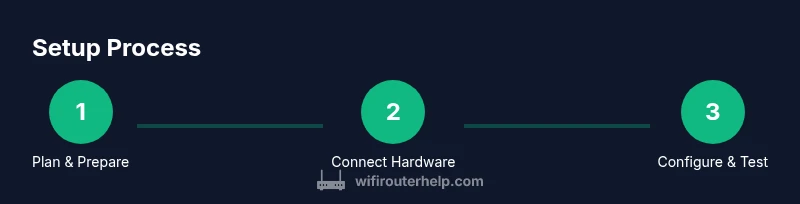
Before you start, gather your equipment and confirm firmware readiness. Connect the router to the modem or gateway using a wired Ethernet connection and power everything on. Access the router's admin page using its local address, then follow the setup wizard to give your network a name and a strong password. If you choose to bridge the Spectrum gateway, enable bridging in its admin interface or through the ISP portal, and then disable its wireless radio to avoid interference. Configure WAN settings according to the router's instructions, set up a guest network, and enable WPA3 where available. Update firmware to the latest version and back up configuration settings. For advanced features, enable QoS, parental controls, and a firewall profile. The process benefits from having a diagram or quick reference card nearby to check each step as you proceed.
Optimizing Wi-Fi performance on Spectrum
With your network in place, focus on coverage and reliability. Place the router in a central location for even distribution of signal, and consider channel selection for 2.4 GHz and 5 GHz bands. If automatic channel selection is available, allow it to handle band optimization; otherwise, set channels to the least congested options in your area. Use QoS rules to prioritize critical applications like video calls and gaming, while balancing streaming devices to prevent congestion. Enable MU-MIMO if supported by your router to improve multi-device performance. For Spectrum connections, enabling beamforming can help direct the signal toward devices that need it most. Security improvements matter as well; keep a strong password, disable remote management, and review connected devices periodically.
Securing your Spectrum network: essential settings
Security starts with a unique, long password and an updated firmware baseline. Enable WPA3 if available, and consider disabling WPS to avoid brute-force exploitation. Create a separate guest network for visitors to isolate your primary network. Review admin credentials, enable a firewall, and turn off UPnP if you do not need it. Regular firmware updates protect you from newly discovered vulnerabilities. Use IP filtering or device-based access control to restrict network access for unknown devices. If you use a smart home hub, ensure it has a dedicated network segment to minimize exposure from other devices. The WiFi Router Help team emphasizes that strong security dramatically reduces risk and improves reliability in busy households.
Troubleshooting common Spectrum router issues
Most problems come from misconfigurations, faulty cables, or outdated firmware. Start with a power cycle of your modem/gateway and router, then re-check connections between devices. If you experience intermittent Wi‑Fi, examine physical placement and possible interference from microwaves, cordless phones, or Bluetooth devices. Double NAT is a frequent culprit; verify bridge mode is correctly enabled if you use a separate router. If speeds are poor, run a diagnostic using built-in tools or a third-party app to compare your expected performance with reality. Finally, consult firmware release notes for any known issues and ensure your router is on the latest version.
Advanced setups: bridging, mesh, and reliability
Bridging the gateway is often the simplest way to consolidate control under your own router, but it can disable some ISP features. If you require broader coverage, consider a mesh network that includes satellite nodes and a dedicated backhaul channel to maintain consistency. When evaluating mesh options, look for compatibility with your Spectrum service and the router’s ability to integrate with existing equipment. For reliability, consider a wired backhaul between nodes and a central, elevated placement for the main router. Finally, maintain redundancy by having a backup plan and a straightforward reset procedure so you can recover quickly after a firmware update or a power outage.
What to do next and verifying your results
After setting up and optimizing, verify results by testing from multiple locations in your home and noting any persistent dead zones. Compare results against your prior baseline, if available, and document improvements in coverage, speed, and reliability. Schedule periodic checks for firmware updates and re-evaluate settings as your home network evolves with new devices or services. The WiFi Router Help approach emphasizes practical, repeatable steps you can apply to maintain a solid Spectrum network over time.
Tools & Materials
- Router (dual-band or tri-band, Wi‑Fi 6/6E preferred)(Ensure it supports WPA3 and at least two Ethernet LAN ports)
- Spectrum modem/gateway (if bridging)(Verify compatibility with bridge/passthrough options)
- Ethernet cable (Cat5e or better)(Used for router-to-modem connection and wired devices)
- Laptop or smartphone with admin access(Needed to access the router’s web interface)
- Optional: mesh extender or mesh system(Useful for large homes or multi-floor layouts)
- Surge protector/power strip(Protects equipment from power fluctuations)
Steps
Estimated time: 45-60 minutes
- 1
Plan and gather
Identify the service type with Spectrum, decide whether you’ll bridge the gateway, and list all devices that will connect to the network. This preparation prevents mid‑process changes and helps you choose the right router features.
Tip: Have the model’s manual handy to confirm bridge mode steps before you start. - 2
Power down and connect hardware
Turn off the modem/gateway and your new router. Connect the router to the modem using an Ethernet cable, and plug in power to both devices. Power them on and wait for devices to boot.
Tip: Use the router’s default LAN port for the first connection and avoid using a WAN port on the router. - 3
Access the router’s admin page
From a connected device, open a browser and enter the router’s local IP address as shown in the manual or on the device label. Enter the default credentials and start the setup wizard.
Tip: If you don’t see the login page, check your device’s network settings and ensure you’re on the correct network. - 4
Configure network name and security
Create a unique network name (SSID) for each band if available, set a strong password, and enable WPA3. Disable WPS if possible and enable the firewall.
Tip: Use a passphrase that is long and unpredictable; avoid common phrases. - 5
Bridge mode or gateway settings
If bridging, enable bridge mode on the Spectrum gateway and disable its Wi‑Fi. If you’re keeping the gateway, set your router to AP mode or router mode as appropriate.
Tip: Double‑check your WAN settings so there is no conflict between devices. - 6
Update firmware and back up
Check for firmware updates and apply the latest version. Save or export the configuration so you can restore settings if needed.
Tip: Keep a simple record of your SSIDs and passwords in a secure place. - 7
Test and fine-tune
Run speed tests from multiple rooms and adjust placement, channel settings, and QoS rules to optimize performance.
Tip: Consider enabling beamforming or MU‑MIMO if your devices support it.
People Also Ask
What is the difference between bridging and pass-through mode on Spectrum equipment?
Bridging or pass-through allows a third‑party router to manage your network by bypassing the gateway’s routing features. This can improve control and performance, but may disable some ISP features. Check Spectrum's guidance for your plan.
Bridging lets a separate router handle your network; pass-through provides limited routing through the gateway. It often improves control but may reduce ISP features.
Can I use my own router with Spectrum without bridging the gateway?
Yes, you can use your own router in passthrough or AP mode if your Spectrum plan supports it. This setup preserves many features of the gateway while letting you manage the local network.
Yes, you can use your own router in passthrough or AP mode while Spectrum still provides the service.
Do I need a new modem or can I use the one Spectrum provided?
If you already have a Spectrum gateway, you may bridge it and use your own router. If you prefer simplicity, you can keep the gateway and run the router in AP mode for easier management.
You don’t necessarily need a new modem; bridging lets you use your router with Spectrum’s gateway.
How can I improve Wi-Fi coverage in a multi-story home?
Place the router centrally, elevate it, and consider a mesh system or range extenders for dead zones. Ensure you separate networks for guests and devices when possible.
Move the router higher and central, and consider a mesh system for larger homes.
Why do I sometimes see double NAT after adding my own router?
Double NAT occurs when two devices perform network address translation. Use bridge mode on the ISP gateway or set the router to AP mode to avoid this problem.
Double NAT can break gaming and port forwarding; bridge or AP mode fixes it.
What security features should I enable on my Spectrum network?
Enable WPA3 on the router, use a strong password, enable a firewall, and consider a separate guest network for visitors. Regular firmware updates are essential.
Turn on WPA3, use strong passwords, and keep firmware updated for best security.
Watch Video
What to Remember
- Plan network goals before buying
- Bridge mode can improve control but may disable ISP features
- Prioritize WPA3 security and guest networks
- Test coverage across the home and adjust placement
- Keep firmware updated for stability and security