How to Choose and Set Up a Wireless Router for Spectrum
Learn how to choose and set up a Spectrum-compatible wireless router, optimize coverage, secure your network, and troubleshoot common issues with practical, step-by-step guidance.


You will set up a wireless router to work with Spectrum by choosing a compatible model, connecting it to the Spectrum modem, and configuring the network with secure settings. Before you start, confirm Spectrum compatibility, gather necessary cables, and note your ISP account details for activation. This guide walks you through each step.
Why Spectrum-Compatible Routers Matter
Choosing a router that works seamlessly with Spectrum ensures you get the most consistent speeds and a stable home network. According to WiFi Router Help, selecting a Spectrum-compatible router helps you access the ISP's optimized features and reduces common issues like double NAT conflicts. Your router acts as the central hub for all devices—laptops, phones, smart TVs, and IoT gadgets—so a reliable model matters.
When evaluating options, start with compatibility with Spectrum's network assurance, then verify firmware update cadence and feature sets. A modern router with WPA3 security, dual-band or tri-band support, and robust CPU power tends to deliver better performance in busy homes. If you plan to use Wi‑Fi 6 or Wi‑Fi 6E, ensure your devices support it to maximize throughput. Also consider the router's heat and power consumption since a hot unit can throttle performance over time.
Finally, remember that your home layout and device density influence coverage as much as hardware, so plan placement accordingly. In the end, a Spectrum-compatible router reduces setup friction and lays a solid foundation for reliable Wi‑Fi across all rooms.
Spectrum Modem, Gateway, and Bridge Mode Basics
Spectrum typically provides a modem or gateway device that connects to the internet and shares a local network via Ethernet and Wi‑Fi. When you add a third‑party router, you have two common paths: use the gateway in router mode and disable the Spectrum Wi‑Fi, or set the gateway to bridge mode and let your router handle routing tasks. Bridge mode disables the gateway's routing functions, preventing double NAT issues that can disrupt gaming or VOIP. If you cannot access bridge settings or your gateway lacks a bridge option, you may need to enable gateway mode and configure the third‑party router for NAT. Always consult Spectrum’s support documentation for the specific model you are using, as options vary by device and plan. A solid plan is to document your current network layout before changing settings and to keep a backup of the gateway's configuration in case you need to revert.
Key Features to Look for in a Spectrum Router
When shopping for a Spectrum router, prioritize features that improve reliability and coverage. Look for recent Wi‑Fi standards (Wi‑Fi 5/802.11ac or Wi‑Fi 6/6E where available), dual‑band or tri‑band operation, and strong hardware - a capable CPU and ample RAM help with simultaneous streams and smart home devices. MU‑MIMO and beamforming improve throughput to multiple devices, while QoS allows you to prioritize gaming or video calls. Parental controls, guest networks, and a built‑in firewall add security. Check for stable firmware updates, USB ports for network storage or printers, and enough Ethernet ports for wired devices. Finally, compare a router's mesh compatibility if you plan to expand coverage across large homes.
Understanding these features helps you pick a model that fits your home’s size, device density, and future needs without overinvesting.
Activation and Setup: Step by Step with Spectrum
Activating a Spectrum-ready setup involves a clean start: power down devices, connect the modem to the router, and access the router’s admin interface. If you’re using a bridging setup, enable bridge mode on the Spectrum gateway to avoid double NAT; otherwise, set the gateway to router mode and disable its Wi‑Fi to prevent interference. Create a unique SSID and strong password, enable WPA3 if available, and configure basic security settings. Registering your router with Spectrum (if required) ensures proper authentication on their network. Keep your account handy for activation prompts and to confirm your service is provisioned correctly. Record the default login details and any custom settings for future reference.
Optimal Placement and Interference Management
Placement is critical for maximizing coverage. Position the router at a central, elevated location away from thick walls, metal appliances, and microwaves. Elevation minimizes shadowing and ensures better line‑of‑sight to most rooms. If you have a large home or many brick walls, consider a mesh system or a wired backhaul for stability. Avoid placing the router in corners or behind furniture where signals can become obstructed. Regularly rotate antennas (if present) to tune coverage to your floor plan. Simple placement tweaks can yield meaningful improvements without hardware changes.
Security Basics and Firmware Hygiene
Security starts with a strong password, unique SSIDs per network, and using the latest firmware. Enable WPA3 where possible; if not available, use WPA2‑AES with a long, complex passphrase. Disable remote administration unless you truly need it, and keep the admin interface on a non‑default port if your device allows. Schedule automatic firmware updates when feasible to patch vulnerabilities. Consider enabling a guest network for visitors and restrict access to your main network for IoT devices to reduce risk. Regularly review connected devices and remove devices you don’t recognize.
Performance Tweaks for Spectrum: QoS, Channel Selection, and Band Steering
Router performance benefits from smart configuration. Use QoS to prioritize latency‑sensitive activities like gaming and video calls during peak times. For channel selection, let the router auto‑select channels on the 2.4 GHz band while manually choosing lightly congested channels on the 5 GHz band using a site survey or built‑in tool. If your router supports band steering, enable it to guide clients to the least congested band. Enable airtime fairness to prevent slow devices from dragging down the network. Finally, consider a wired backhaul with Ethernet ports where devices and access points are static, as this dramatically improves stability and throughput.
Troubleshooting Common Setup Issues
If devices can’t connect, verify the modem is online and the router is obtaining an IP address from the gateway. Double‑check cable integrity and port activity LEDs. If you encounter double NAT, revisit bridge mode settings or the DMZ for the router. Reboot devices in correct order and ensure the router firmware is current. For connectivity drops, test with a wired connection to isolate Wi‑Fi versus LAN issues, and use heat checks to ensure the router isn’t overheating during heavy use. If problems persist, reset to factory defaults and reconfigure from scratch.
Long‑Term Maintenance for a Spectrum Network
Schedule periodic firmware checks and security reviews to stay protected and up to date. Keep a written log of changes and keep backup configurations for quick recovery after resets. Periodically reassess placement and network topology as your home evolves (furniture moves, new devices, or a new room). Consider upgrading to a newer router model when your current hardware becomes a bottleneck or when you adopt new internet speeds. Finally, stay informed about Spectrum’s policies and any changes to modem/gateway requirements that could affect third‑party router setups.
Tools & Materials
- Spectrum modem/gateway (or approved bridge device)(Baseline connection to your home network; know how to access its admin page)
- Third-party router (Spectrum-compatible)(Check for WPA3 support and latest firmware before setup)
- Ethernet cable (Cat5e or better)(For the WAN connection and optional wired devices)
- Ethernet switch (optional)(If you have many wired devices, a switch helps expand ports)
- Laptop or smartphone for admin access(Used to log into the router’s web or app interface)
- Notebook or digital notes(Document settings, default IPs, and changes)
Steps
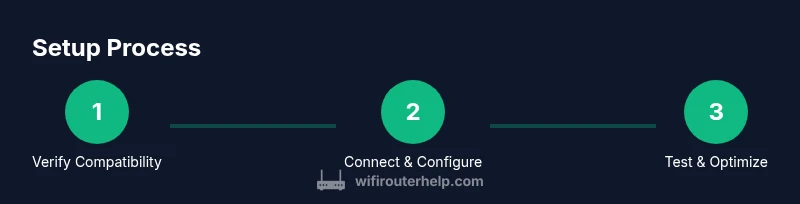
Estimated time: 45-60 minutes
- 1
Verify Spectrum compatibility
Check that your router supports Spectrum’s recommended features and that you understand whether you’ll enable bridge mode or use router mode. This ensures you don’t waste time on incompatible gear or misconfigured settings.
Tip: If unsure, contact Spectrum support for device compatibility confirmation before purchasing. - 2
Power down and prep equipment
Turn off the modem/gateway and your new router. Unbox the devices and gather the necessary cables. Have your account information ready for activation if prompted by Spectrum.
Tip: Keep the original packaging and documentation in case you need to revisit settings. - 3
Connect the modem to the router
Use an Ethernet cable to connect the modem’s LAN port to the router’s WAN/Internet port. Power up the modem first, then the router, and wait for the lights to stabilize.
Tip: If you plan to disable the gateway’s Wi‑Fi, do this after confirming the router can reach the internet. - 4
Access the router admin page
From a computer or phone on the network, open a browser and enter the router’s default IP address or use the manufacturer’s app. Log in with the default credentials and change them to strong, unique values.
Tip: Record the new admin username and password in a secure place. - 5
Configure security and SSID
Set a unique SSID, enable WPA3 (or WPA2‑AES if WPA3 isn’t available), and create a long passphrase. Disable remote management unless you have a strong reason to enable it.
Tip: Consider separate guest networks to protect your main devices. - 6
Test, tune, and finalize
Run speed tests on both bands, test in several rooms, and adjust channels or placement as needed. If you encounter issues, reboot devices and verify firmware is current.
Tip: Document any changes and save a backup configuration.
People Also Ask
Do I need Spectrum's modem or gateway when using a third-party router?
In many setups, you can use your own router with a Spectrum modem/gateway by connecting via Ethernet. Depending on your device, you may need to enable bridge mode to avoid double NAT. Always check your specific plan and device documentation before changing settings.
Yes, you can usually use your own router with Spectrum, but you may need to enable bridge mode to avoid double NAT. Check Spectrum’s documentation for your device.
Will third-party routers work with Spectrum?
Most Spectrum plans support third‑party routers. You’ll typically connect the router to the modem and configure security and Wi‑Fi settings yourself. Some plans may require bridge mode or specific settings; consult Spectrum support if you run into issues.
Most third‑party routers will work with Spectrum, usually with bridge mode or specific settings.
What is bridge mode and why would I use it?
Bridge mode disables the gateway’s routing functions, letting your own router handle NAT and DHCP. This can prevent double NAT issues that affect gaming and VoIP. If bridge mode isn’t available, you may still configure as router mode with careful network planning.
Bridge mode hands routing to your router to avoid double NAT, helping gaming and VoIP.
Where is the best place to put a router in a typical home?
Aim for a central, elevated spot away from walls and large metal appliances. Avoid closets or corners where signals get blocked. If coverage is still poor, consider a mesh system or additional access points.
Place the router centrally and on a shelf or high surface for best coverage.
How do I secure my Spectrum network after setup?
Use WPA3 if possible, or WPA2 with a strong password. Enable a guest network for visitors, disable remote admin, and keep firmware up to date. Regularly review connected devices for unauthorized access.
Enable WPA3, use strong passwords, and keep firmware updated.
How often should I update router firmware when using Spectrum?
Check for updates regularly and enable automatic updates if available. Firmware updates fix security issues and improve performance, so staying current is recommended.
Keep firmware up to date to stay secure and improve reliability.
Watch Video
What to Remember
- Choose a Spectrum-compatible router for reliable activation.
- Decide between bridge mode or router mode to prevent double NAT.
- Secure your network with WPA3 and a strong password.
- Place the router centrally and consider mesh if coverage is uneven.
- Test speeds, log changes, and keep firmware up to date.