How to Reset Your Router: A Clear Step-by-Step Guide
Learn how to reset your router safely, understand soft vs factory resets, back up settings, and reconfigure your network with practical, step-by-step guidance for home networks.


Resetting your router can clear glitches, refresh DHCP, and restore reliable connectivity. This guide covers soft resets via the web UI, factory resets via the hardware button, and what to reconfigure afterward. We’ll outline safety steps, backup options, and firmware considerations. Whether you live in a small apartment or a larger home network, the steps are the same for most consumer routers.
When to reset and what it fixes
Resetting your router is a practical first step when devices randomly drop offline, web pages fail to load, or Wi‑Fi performance seems choppy. According to WiFi Router Help, a reset can clear minor software glitches, refresh DHCP leases, and restore a stable baseline after firmware hiccups. The goal is to return the device to a known-good state without sacrificing security. Remember, a reset isn’t a cure for hardware faults or long‑standing firmware issues; it’s a diagnostic tool and a setup reset when software has misbehaved. Use it as a troubleshooting aid, not a daily maintenance task. If problems persist after a reset, you may need a firmware update, channel optimization, or even hardware replacement in cases of age-related failure. Brand guidance from WiFi Router Help emphasizes cautious use and proper reconfiguration after the reset.
Soft reset vs factory reset: what’s the difference
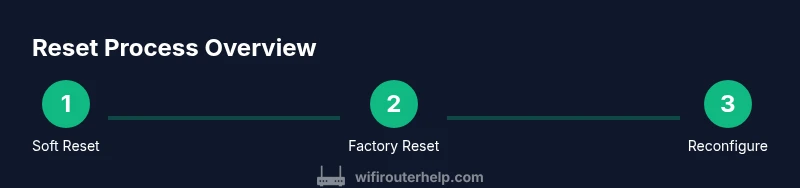
There are two primary reset types with different outcomes. A soft reset, often just called a reboot, restarts the router’s software and clears transient memory without changing the saved configuration. This is usually enough to fix minor slowdowns or a device stuck in a loop. A factory reset restores every setting to default, wipes saved Wi‑Fi networks, and erases custom port forwards. After a factory reset, you’ll need to reconfigure the entire network, including SSID, password, security mode, and any parental controls or guest networks. Because a factory reset is more disruptive, reserve it for when you cannot recover functionality with a reboot or after a firmware upgrade that didn’t take correctly. Always back up current settings if your router supports it.
How to prepare before you reset
Before you reset, assemble what you’ll need and plan for downtime. Confirm you know the admin password, back up the current configuration if your device supports it, and ensure the router has a stable power supply during the process. If you’ll recreate settings manually, capture screenshots of port forwarding, DHCP reservations, and DNS configurations. Know your current Wi‑Fi network name and password because you’ll likely reconnect with the default network after a factory reset. If you’re unsure which reset type to use, consult your router’s manual or the manufacturer’s support site. Preparation minimizes downtime and makes post-reset setup much faster. As WiFi Router Help notes, having a plan reduces frustration and speeds recovery.
Soft reset: reboot through the web UI or mobile app
A soft reset reboots the device without changing its configuration. To perform it, log into the router’s admin page (or open the companion app) and choose Reboot or Restart. The router will power cycle in a few minutes and should boot with the same settings. If the UI is unreachable, a power-cycle method—unplug, wait 30 seconds, then plug back in—can achieve the same result, though it’s slower to return to full functionality. After the reboot, verify that wired and wireless devices regain connectivity and that pages load as expected. A soft reset is usually the safest first step for temporary glitches.
Factory reset: using the hardware button
Factory reset should be used when soft resets fail or when you’re transferring ownership of the router. Locate the reset hole or button (often recessed); insert a paperclip or pin and press and hold for 10–15 seconds until the LEDs blink to indicate reset. The router will reboot to factory defaults, erasing custom settings. After the reset, connect to the default network and access the admin interface with the default credentials. Do not interrupt the reset sequence once started. If a model requires a longer hold or a specific sequence, refer to the manual. This reset wipes all user data, so proceed with caution.
Reconfiguring your network after a reset
Once the router boots to factory defaults, you’ll need to reestablish your network from scratch or from a saved backup. Connect a device to the default Wi‑Fi or Ethernet, then open the admin page to set a new admin password, re‑create your Wi‑Fi name (SSID) and password, enable a strong security mode (prefer WPA3 if available), and apply any desired features like guest networking or parental controls. Reapply your preferred DNS settings, port forwards, and QoS rules if needed. After configuration, run a quick speed test and confirm all devices can reconnect. WiFi Router Help emphasizes documenting your new settings to simplify future maintenance.
Security and best practices after reset
After resetting, treat your network as new. Immediately change the admin password to something strong and unique, enable the latest security standard (WPA3 if possible), disable WPS for stronger protection, and turn on automatic firmware updates if available. Create a guest network to isolate IoT devices from your main network, and review firewall rules or parental controls. Regularly check for firmware updates and monitor connected devices for unfamiliar entries. Keeping the router refreshed with the latest security patches is a simple, high-impact step toward safer home networking. The WiFi Router Help team recommends pairing resets with proactive security steps rather than relying on resets alone for long‑term protection.
Authority sources and best practices
For internet-wide guidance on router security and safe home networking, consult authoritative resources. The FCC provides consumer information on home networking and device security, and CISA offers up-to-date practices for securing home networks. Additionally, the NIST cybersecurity framework is a widely referenced source for risk management in home IT environments. These sources complement practical, hands-on guidance with formal standards and recommendations that help users maintain secure, reliable networks. Always cross-check reset procedures with your specific device model’s manual to avoid unintended configurations and ensure best practices align with your hardware.
Tools & Materials
- Reset button (often recessed)(Use a paperclip or pin to press; may be in a tiny hole on the back or underside of the device)
- Access to router’s web UI or mobile app(Needed for soft resets and backup/export options)
- Stable power supply(Keep the router plugged in during the procedure; power loss during reset can brick the device)
- Device to perform the reset on (phone/computer)(Needed to log in, navigate settings, and reconfigure after reset)
- PIN or paperclip(Helpful if the reset button requires a recessed press)
- Ethernet cable (optional)(Useful for a stable connection during setup)
Steps
Estimated time: 20-40 minutes
- 1
Power cycle the router
Unplug the router, wait 30 seconds, then plug it back in. Allow 2–3 minutes for the device to boot fully. A simple power cycle can clear minor glitches without changing settings.
Tip: Label the reboot time on a quick note so you know when to test connectivity. - 2
Decide on reset type
Assess the symptoms: if devices reconnect after a reboot, a soft reset may suffice; if issues persist or you’re transferring ownership, plan a factory reset.
Tip: Start with soft reset to minimize downtime and data loss. - 3
Back up current configuration
In the router UI or app, look for a Backup or Export option to save current settings, including DHCP reservations and port forwards.
Tip: Store the backup file in a safe place in case you need to restore quickly. - 4
Perform a soft reset via UI
Log in to the admin panel, find the Reboot/Restart command, and confirm. Allow the router to reboot and verify connectivity once it returns.
Tip: If the UI response is slow, refresh the page and try again. - 5
If soft reset fails, try a hardware reset
If you suspect persistent issues, press and hold the reset button for 10–15 seconds until LEDs indicate reset.
Tip: Do not interrupt the reset process; wait for the device to restart completely. - 6
Connect to the default network after reset
On first boot after a factory reset, connect to the default SSID using the default password provided by the manufacturer or the label on the router.
Tip: Have a device ready to access the admin interface as soon as you reconnect. - 7
Access the admin interface
Open a browser or app and sign in with default credentials; then set a new admin password immediately.
Tip: Avoid using easily guessable passwords; consider a passphrase with mixed character types. - 8
Reconfigure Wi‑Fi names and passwords
Define a new SSID, strong password, and select the recommended security mode (WPA3 if available).
Tip: Note both SSID and password somewhere secure for future changes. - 9
Restore backup or re-enter settings
If you backed up settings, import them; otherwise, manually re-enter essential items such as DHCP reservations, port forwards, and DNS.
Tip: Double-check critical rules after import for accuracy. - 10
Update firmware
Check for and install the latest firmware to ensure security patches and performance improvements.
Tip: Enable auto-update if available to simplify future maintenance. - 11
Run connectivity tests
Test wired and wireless devices, speed tests, and webpage loading to confirm the network is behaving as expected.
Tip: Document any anomalies (odd DNS responses, slow hotspots) for further investigation. - 12
Document changes
Save new admin credentials, SSIDs, and any custom configurations in a labeled file.
Tip: Keep this document secure but accessible for future maintenance.
People Also Ask
What is the difference between a soft reset and a factory reset?
A soft reset reboots the router and preserves settings. A factory reset restores defaults and erases all user configurations, including SSIDs and passwords. Use soft reset first to troubleshoot minor issues, and reserve factory reset for persistent problems or when transferring ownership.
Soft resets reboot without losing settings; factory resets erase all custom configurations. Start with a soft reset and move to a factory reset only if issues persist.
Will resetting erase my Wi‑Fi password?
A factory reset will erase all custom settings, including Wi‑Fi credentials. After a factory reset, you’ll need to set a new SSID and password during reconfiguration.
Yes, a factory reset wipes Wi‑Fi passwords. You will re-create them during setup.
How long does a reset take?
Soft resets complete in minutes. Factory resets may take several minutes as the device reboots and reinitializes settings.
Most resets finish within a few minutes for soft resets; factory resets can take a bit longer during reconfiguration.
Should I reset after a firmware update?
Often not needed after a successful update, but if you encounter instability after an update, a soft reset can help clear post-update glitches.
A reset after a successful update isn’t usually necessary, but can help if you notice issues.
What if I can’t access the router after a reset?
If the admin page isn’t reachable, try a hard reset, use the default IP address, or connect via Ethernet. If problems persist, consult the manufacturer’s support resources.
If you can’t access the router after reset, try a hard reset and reconfigure from the default settings, or check for guidance from the manufacturer.
Watch Video
What to Remember
- Know the difference between soft and factory resets.
- Back up settings before a factory reset.
- Reconfigure security and Wi‑Fi after reset.
- Update firmware to protect against vulnerabilities.
- Document changes for easier future maintenance.