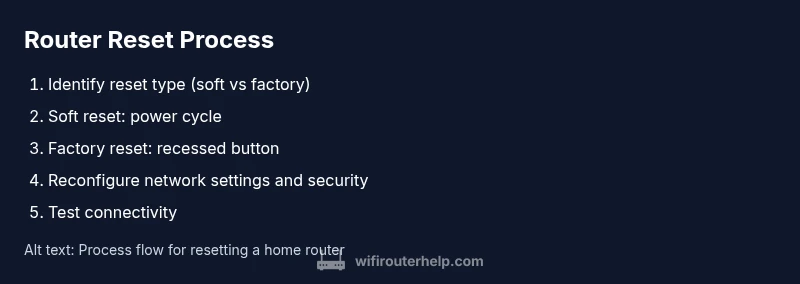
How to Reset Your Internet Router: A Complete Guide
Learn how to reset your internet router with safe, tested methods. This guide covers soft resets, factory resets, button and web-interface resets, and post-reset reconfiguration to restore fast, reliable connectivity.


Resetting your internet router can restore connectivity and clear stubborn issues. This guide covers soft resets, factory resets, and how to perform each method via the physical reset button or the router's web interface. Before you begin, back up settings and note your network name and password. After resetting, reconfigure security, reconnect devices, and verify performance.
What resetting a router actually does
A router reset is a targeted reboot or restore of factory defaults that clears temporary memory and refreshes network services. A soft reset (power cycle) restarts the device and can resolve minor glitches without changing credentials or advanced settings. A factory reset returns the router to its original out-of-the-box state, erasing custom configurations, saved networks, and port-forwarding rules. Understanding the difference helps you choose the right action for your problem: quick bounce-back versus a clean slate. After a reset, most routers will broadcast their default SSID and require you to reconfigure your Wi‑Fi name and password. Some models also reset the admin password to a default, which means you must use the default login to regain access. In any case, resets are a powerful tool, so use them judiciously and plan for the reconfiguration steps that will follow.
Soft reset vs factory reset: definitions and use cases
A soft reset is simply a reboot. It clears temporary issues in RAM, restarts services, and generally preserves your current network name (SSID) and password. A factory reset removes all customizations, returning settings to factory defaults. You would perform a factory reset if you suspect corrupted configuration, if you forgot the admin password, or if you are handing the router to someone else. Choose the method based on the scope of the problem: soft reset first, sparingly use factory reset as a last resort. Note that some ISPs lock certain settings or store credentials in the device; a factory reset may require re-entering the WAN type, username, and password if provided by your ISP.
When you should reset your router
Resetting is appropriate when you experience persistent connectivity problems that software updates did not fix, such as frequent drops, buffering, or devices not seeing each other on the network. If you recently changed router settings and things stopped working, a reset can undo misconfigurations. If you suspect a security compromise or you’ve shared your credentials with guests, a reset followed by a new, strong password is a good precaution. Also consider resetting after a power outage or when you replace the router with a new model to ensure the device boots with clean settings. Before proceeding, try a soft reset only, and if performance remains inconsistent, prepare for a factory reset and reconfiguration. Keep in mind that after a factory reset you will need to re-enter ISP details if your service relies on a login, and you may need to re-establish port forwards and parental controls.
Resetting with the power cycle (soft reset)
Power cycling is the simplest way to address many issues. Unplug the router from power, wait 30–60 seconds to clear residual energy, then plug it back in and allow 1–3 minutes for the device to fully reboot. A soft reset preserves your SSID, password, and most settings, so connected devices should reconnect automatically. If devices fail to reconnect, you can manually reconnect by selecting your network name and typing the password. This method is safe, quick, and often the first step before more aggressive actions. If you notice improvements, monitor your network for another few hours before moving to a factory reset.
Factory reset using the physical button
Locate the recessed reset button on the router’s back or bottom. With a paperclip or pin, press and hold for 10–30 seconds until the lights flash or cycle. Release and wait for the router to reboot to factory defaults, which may take 2–5 minutes. After a factory reset, the SSID and password revert to the defaults, and admin credentials reset to the factory login. You will need to reconfigure your network from scratch, including Wi‑Fi name, password, and any custom rules. A factory reset is useful when you forgot the admin password or when the device behaves erratically after a software issue.
Factory reset via the web-based admin interface
If you can access the router’s UI, log in with the current admin username and password. Navigate to the reset or restore section, choose Factory Default or Restore to Factory Settings, and confirm. The router will reboot and return to its original defaults. This method preserves only the basic hardware settings; user data and custom rules will be removed. If you cannot access the UI, you must use the physical reset button or contact support. After using the web interface, ensure you reconfigure security settings and create a new administrator password.
Post-reset: reconfiguring your network
After a reset, reconnect your devices and start with a fresh setup. Rename the Wi‑Fi network, set a strong password, and choose security mode (WPA3/WPA2). Update the router’s firmware to the latest version and apply any recommended settings such as QOS and guest networks. Re-create DHCP reservations if you rely on fixed devices, re-establish port-forwarding rules, and adjust parental controls as needed. Save and back up the new configuration for future recovery. Finally, test with a couple of devices to confirm fast, stable performance across the home.
Troubleshooting after a reset
If issues persist after a reset, verify the physical connections (modem to router, power adapter, and Ethernet cables). Check for firmware availability and install updates as needed. Confirm your ISP settings are correct; some providers require PPPoE or a specific VLAN. If the router still shows unusual behavior, consider contacting support with your model number and a brief description of symptoms. You can also try a second factory reset if the first did not fully restore defaults, but avoid repeated resets within a short period, as that can indicate a hardware fault or misconfiguration elsewhere in the network.
Tips for avoiding frequent resets and maintaining stability
Regular maintenance reduces the need for resets. Schedule firmware checks, keep a simple network, label every SSID/password, and back up configurations after a clean setup. Use a separate 2.4 GHz and 5 GHz network if your devices support it, enable QoS for bandwidth-sensitive devices, and monitor for interference from microwaves or neighbor networks. If you frequently reset due to security concerns, implement a stronger firewall and guest network segmentation. Finally, document your network topology and changes so you can reproduce settings quickly after a reset.
Common mistakes to avoid when resetting your router
Rushing a factory reset without backup can cost you time if you have ISP login info or custom rules. Never press the reset button with a device still configured to the wrong network; always perform the reset with the correct power supply connected. Avoid unplugging the modem and router in rapid succession without allowing adequate reboot time. Don’t forget to re-enter your ISP credentials if required after a reset. If you repeatedly reset your router to fix issues, the problem may lie with the modem, wiring, or interference; consider checking the cabling, testing with a wired device, or upgrading to a newer router. Finally, always back up the new configuration after reconfiguration to ease future recoveries.
Tools & Materials
- PIN or paperclip(To press recessed reset button)
- Smartphone, tablet, or computer(For accessing web UI or router setup pages)
- Current network credentials(Needed if you plan to reconnect devices quickly; optional backup)
- Owner’s manual or model-specific reset instructions(Helpful but not mandatory)
- Stable power supply and a connected Ethernet cable (optional)(Useful when performing wired setup or recovery)
Steps
Estimated time: 20-40 minutes
- 1
Identify reset type and prerequisites
Review your model's manual or online support page to confirm whether you should perform a soft reset, hard reset, or factory reset for your problem. Gather your device, a small pin or paperclip, and a connected device to access the admin interface if needed. This upfront check saves time and prevents accidental data loss.
Tip: If you’re unsure, start with a soft reset to test the waters before wiping settings. - 2
Power cycle the router (soft reset)
Unplug the router, wait 60 seconds, and plug it back in. Allow 1–3 minutes for the device to reboot fully. This action clears temporary memory and often resolves minor glitches without changing credentials.
Tip: Ensure all indicator LEDs settle into their normal pattern before testing connectivity. - 3
Perform a factory reset using the recessed button
If soft reset doesn’t fix the issue or you forgot the admin password, press and hold the reset button for 10–30 seconds with a paperclip until the lights flash. Release and let the router reboot to factory defaults (2–5 minutes).
Tip: Afterward, you’ll need to reconfigure all settings from scratch. - 4
Reset via the web-based admin interface
If you can still access the login page, sign in and locate the factory reset option under System or Administration. Confirm the reset and wait for the reboot. This preserves hardware defaults while clearing user configurations.
Tip: If you cannot access the UI, use the physical reset button as an alternative. - 5
Reconfigure network settings after reset
Set a new SSID and strong password, choose WPA3/WPA2 security, and enable essential features like guest networks if available. Update firmware to the latest version and reapply any port forwards or parental controls.
Tip: Save a backup of the new configuration to simplify future recoveries. - 6
Test connectivity and device compatibility
Reconnect multiple devices to verify consistent performance. Run speed tests and check for dropped connections across wired and wireless clients. Confirm you can access the router's UI after login with the new credentials.
Tip: Keep a spare device handy to check both 2.4 GHz and 5 GHz bands. - 7
Optional: review ISP settings and firmware
Some ISPs require specific settings (like PPPoE username/password or VLAN tags). Check for firmware updates from the manufacturer and apply any recommended safety and performance improvements.
Tip: Enable automatic firmware updates if the option is available.
People Also Ask
What is the difference between a soft reset and a hard reset?
A soft reset reboots the router and clears temporary data without altering your configured settings. A hard/factory reset restores all defaults, erasing custom names, passwords, and rules. Use soft reset first and reserve factory reset for when problems persist or you have lost access to the admin interface.
A soft reset reboots without wiping your settings; a factory reset wipes everything and returns to defaults.
Will resetting erase my network credentials?
Yes, a factory reset will erase saved credentials such as the SSID and Wi‑Fi password, and you’ll need to set them again. A soft reset preserves them in most cases. After any reset, reconfigure security settings to protect your network.
Factory reset erases credentials; soft reset usually keeps them intact.
How long does a reset take?
A soft reset takes just a few minutes, including the reboot time. A factory reset may take 2–5 minutes for the device to reboot to defaults, plus time to reconfigure settings afterward.
Soft resets are quick; factory resets take a bit longer because you must reconfigure everything.
Can I reset without internet access?
Yes. You can perform a factory reset with no internet connection. The router will revert to default settings, but you may need to re-enter ISP credentials if required once service resumes. You’ll still be able to access the UI locally after the reset.
You can reset without internet; you may need to re-enter ISP details later.
What should I do if I cannot access the admin interface after reset?
Try a soft reset first. If that fails, perform a factory reset using the physical button. If you still cannot access the UI, consult the manufacturer’s support site or your ISP for model-specific recovery steps.
If you can’t access the UI after reset, try a physical reset or contact support.
Should I update firmware after a reset?
Yes. After resetting, check for firmware updates and install them if available to improve security and stability. Keep automatic updates enabled if your device supports it.
Yes—update firmware after a reset to improve security and reliability.
Watch Video
What to Remember
- Identify reset type before acting.
- Soft reset for minor issues; factory reset for major misconfigurations.
- Back up settings before a factory reset.
- Reconfigure basics after reset: SSID, password, security.
- If problems persist, check hardware and ISP settings.