How to Reset Your Router for WiFi: A Complete Guide
Learn how to reset your router for wifi, including soft and hard resets, when to reset, and post-reset steps. Practical, safe guidance from WiFi Router Help to restore stable internet.


Correct, you will reset your router to restore wifi connectivity. You can perform a soft reset via the router's web interface or a hardware reset button if necessary. Beforehand, note your network name (SSID) and password, and be ready to re-enter them after the reset. This quick action can fix many common connectivity issues. According to WiFi Router Help, resets are a safe, effective first step for many home networks.
Understanding how to reset router for wifi
Resetting your router is a practical, safety-oriented way to recover reliable wifi when signals drop, speeds slow, or devices struggle to connect. In essence, a reset returns the router’s software to a known, stable state. There are two common reset types: a soft reset (reboot) and a hard reset (factory reset). A soft reset refreshes running software without changing configured settings, while a hard reset returns the device to factory defaults and erases custom names, passwords, and rules. According to WiFi Router Help analysis, many users resolve intermittent issues by performing a simple reset, often without additional troubleshooting. This guide will help you decide which reset to use and how to execute it safely. Keeping a calm, methodical approach minimizes downtime and preserves your network’s integrity.
Additionally, remember that resets are most effective when paired with simple checks and a plan to restore essential settings after the reset. The goal is to restore connectivity with minimal disruption and ensure your home network remains secure afterward.
Soft Reset vs Hard Reset: What's the Difference?
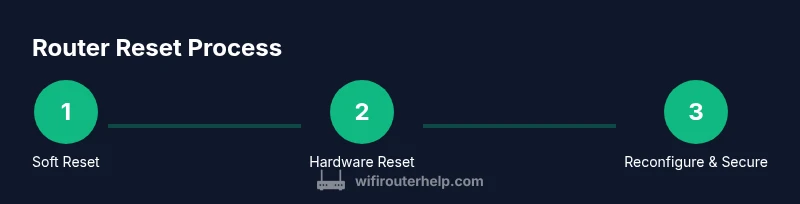
A soft reset, or reboot, restarts the router’s firmware without removing your custom configurations. It clears temporary memory issues, refreshes DHCP leases, and can resolve minor hiccups like devices failing to obtain an IP address. A hard reset, or factory reset, restores the router to its original state as shipped. It erases all personalized settings such as SSID, passwords, port forwarding rules, QoS configurations, and guest networks. This is useful when the device is unresponsive, when credentials are forgotten, or when settings have become corrupted. The key trade-off: a hard reset requires you to reconfigure the network from scratch.
From a reliability perspective, soft resets address most common problems, while hard resets are a last resort after other fixes fail. WiFi Router Help’s guidance emphasizes starting with a soft reset and only moving to a factory reset if the issue persists after rebooting and rechecking basic settings.
Before You Reset: Backups, Notes, and Safety
Before making changes, gather essential information and back up current settings. Write down your current SSID, security type (WPA2/WPA3), and password so you can recreate them after a reset. If you manage multiple devices, consider noting any custom port forwards, DNS settings, or parental controls. If you rely on ISP-provided features (such as a bridge mode or specific DNS entries), copy those details as well. Keep your admin username and password handy, and have a backup plan for devices that rely on fixed IPs. Finally, ensure your router is plugged into a stable power source and avoid resetting during important online activities that would be disrupted by a temporary outage.
How to Perform a Soft Reset via the Web Interface
To perform a soft reset, first connect a device to the router either wirelessly or with an Ethernet cable. Open a web browser and enter the router’s default IP address (commonly 192.168.0.1 or 192.168.1.1). Log in with the admin credentials. Locate the Reboot or Restart option, usually under Administration, System, or Maintenance, and confirm the action. The device will reboot in about a minute or two; during this time, avoid unplugging the router. After reboot, recheck your internet connection and re-enter any necessary credentials if prompted. This step is quick and non-destructive, making it the preferred first move for most issues.
When to Use a Hardware Reset (Factory Reset) and What to Expect
If a soft reset does not fix the problem, a hardware reset can be performed by pressing and holding the reset button for about 10-15 seconds. Use a paperclip or pin to press the recessed button. The router will reboot and restore factory defaults, erasing all customized settings. Prepare to reconfigure the network from scratch, including SSID, password, and any port forwarding or parental controls. After a factory reset, the router often performs more reliably but requires setup planning to avoid downtime. Remember, a factory reset should be your last resort for persistent issues or forgotten credentials.
After the Reset: Reconfigure, Test, and Secure Your Network
Begin by reconnecting to the router’s default network (SSID shown on the label) or your preferred SSID if you retained the name. Recreate your SSID and strong password, select modern encryption (WPA2/WPA3), and disable WPS if possible for improved security. Re-establish any guest networks, parental controls, and firewall rules you need. Check wired devices for connectivity and ensure smart devices reconnect smoothly. Finally, visit the router’s firmware update page and install any available updates to close security gaps and improve performance. This final step helps ensure long-term stability after a reset.
Authoritative sources and practical tips
For further guidance on network safety and best practices, see authoritative sources such as the FCC and NIST guidelines. These resources reinforce safe reset practices and security-first configuration. As you perform resets, consider adopting stronger passwords, unique SSIDs, and regular firmware checks to keep your home network resilient. WiFi Router Help suggests maintaining a routine for checking device firmware and router security settings to prevent future outages.
Quick Reference: Practical Reset Checklist
- Identify your router model and admin address.
- Back up network details (SSID, password, security).
- Try a soft reset through the admin interface first.
- If needed, perform a hardware reset and reconfigure from scratch.
- Update firmware and review security settings after reset.
- Test connectivity across devices and keep backups for future use.
Tools & Materials
- Router power adapter and outlet(Ensure power is stable and outlet is working)
- Smartphone, tablet, or computer with a web browser(Used to access the router admin page)
- Ethernet cable (optional but recommended)(Provides a stable connection during login)
- Pen and paper (or digital note)(Record SSID, password, and admin credentials)
- Current network details (SSID, password, security type)(Needed to restore your network after reset)
Steps
Estimated time: 45-60 minutes
- 1
Identify the router and admin access details
Locate your router model and note the default or current admin IP address (commonly 192.168.0.1 or 192.168.1.1). Confirm you know the admin username and password or plan to reset them if needed.
Tip: If credentials are forgotten, check the device label or the manufacturer’s support page. - 2
Back up current network settings
Record your SSID, security type, and password. Copy or screenshot important settings such as port forwards, DNS, and QoS rules to simplify restoration after the reset.
Tip: Keep backups in a secure place and consider labeling networks for guests vs. main devices. - 3
Reboot the router from the admin interface
Log in to the router’s admin page, navigate to the reboot option (often under Administration or System), and confirm. Give the router 60-120 seconds to complete the restart.
Tip: A wired connection during login reduces the risk of disconnects. - 4
If reboot doesn’t fix issues, perform a hardware reset
Locate the reset button, press and hold for 10-15 seconds using a paperclip, then release. The router will return to factory defaults and reboot.
Tip: Note: This erases all custom settings; you must reconfigure from scratch. - 5
Reconfigure your network basics
Set a new or original SSID, create a strong password, select WPA2/WPA3 security, and re-create guest networks if needed.
Tip: Avoid using default SSIDs or weak passwords that are easy to guess. - 6
Reconnect devices and test connectivity
Join the restored network on each device and test internet access, streaming, and online gaming. Confirm that all devices obtain IP addresses correctly.
Tip: Run a quick speed test on a few devices to verify performance. - 7
Update firmware and secure the setup
Check for firmware updates in the admin interface and install them. Review security settings, disable WPS if possible, and enable firewall protections.
Tip: A firmware update can close discovered vulnerabilities and improve stability.
People Also Ask
When should I reset my router for wifi?
Resetting is a good first step for issues like dropped connections or slow speeds. Start with a soft reboot via the admin interface, and only perform a factory reset if problems persist after reboot and reconfiguration.
Reset your router when wifi is unstable, starting with a quick reboot; proceed to a factory reset only if the issue persists after reboot.
What is the difference between a soft reset and a hard reset?
A soft reset restarts the router without changing settings, while a hard reset restores factory defaults and erases custom configurations. Use soft reset first to preserve your setup.
A soft reset restarts the router; a hard reset wipes settings and returns to factory defaults.
Will resetting erase my network password?
A factory reset will erase your customized password and network name. You can reconfigure them afterward. A soft reset typically preserves these settings.
Factory reset clears your password; soft reset keeps it intact.
Do I need to reset my modem too?
Usually not. Resetting the router often fixes most local network issues. If your modem is separate and showing issues, you can reset it as well, but start with the router.
Reset the router first; reset the modem only if issues persist on the modem side.
What should I do if the internet still doesn’t work after a reset?
Check physical connections, test with a wired device, confirm ISP service is active, and review firewall/port settings. If issues persist, contact your ISP or device support.
If issues persist, check connections and ISP status, then contact support.
Watch Video
What to Remember
- Back up settings before any reset.
- Start with a soft reset, escalate to factory reset only if needed.
- Reconfigure security first, then test all devices.
- Keep firmware up to date for ongoing stability and protection.