How to Reset WiFi on a Router: A Complete Step-by-Step Guide
Learn how to reset wifi on a router with step-by-step instructions, when to reboot versus factory reset, and tips to reconfigure securely after a reset.


This guide shows you how to reset wifi on a router, including safe soft reboots and full factory resets. You’ll learn when to reboot, how to perform a reset, and what to expect in terms of losing custom settings. Use these steps to restore connectivity quickly and securely at home.
Understanding Reset Types
According to WiFi Router Help, there are two main reset types: a soft reboot (power cycle) that restarts the device without erasing settings, and a factory reset that returns the router to its original state. Understanding the difference helps you choose the right option for the problem you're facing. A soft reboot clears temporary glitches and usually preserves your configured network names (SSIDs) and passwords, along with port forwarding rules and parental controls. A factory reset, by contrast, erases all custom settings, restores default login credentials, and returns the device to its out-of-the-box state. This is most appropriate when you cannot access the admin page, the router behaves erratically after a firmware update, or persistent issues persist after a reboot. If you have a combined modem/router device supplied by your ISP, consider whether a reset should target the modem, the router, or both. In most homes, a simple power cycle resolves minor issues, while a factory reset should be a last resort after attempting safer remedies. Keep in mind that after any reset, your network name and password may revert to defaults and your custom rules—like QoS, firewall settings, and port forwards—will require reconfiguration.
Before You Reset: Backups and Safety
Resetting a router can be a practical fix, but it comes with the risk of losing your tailored settings. Before you reset, take a moment to back up or document essential configuration. Note your current SSID (network name) and password, the admin username and password, and any custom settings you rely on (such as port forwarding, VPN passthrough, or parental controls). If you can access an identical backup from your device, save it; otherwise, take screenshots of the admin page sections where you’ve customized settings. If you use a separate modem–router combo device, decide whether you want to reset only the router settings, the modem, or both, as this affects how services like PPPoE or VLAN tagging are configured. After a reset, you’ll need to re-enter ISP credentials if required by your setup. Create a plan for reconfiguration: core network name, strong password, encryption (WPA2/WPA3), guest networks, and any guest password. Finally, ensure you have a reliable fallback method to reconnect your devices—Ethernet, if necessary—so you don’t get locked out of the admin interface during the process.
Soft Reboot (Power Cycle) Method
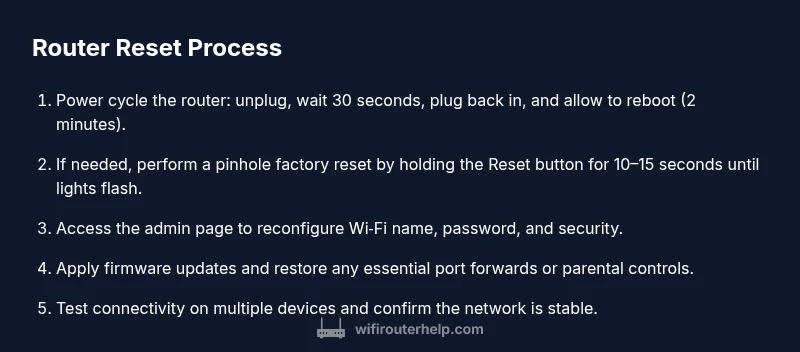
A soft reboot, or power cycle, is the first, safest step to clear temporary faults without losing settings. This is often enough to fix minor issues like dropped devices or slow response. Steps: 1) Unplug the router’s power adapter from the wall outlet. 2) Wait 30–60 seconds to allow capacitors to discharge. 3) Plug the power back in and wait 1–2 minutes for the device to reboot fully. 4) Reconnect a device and test the connection. Why this works: the reboot clears temporary memory and restarts processes that can become stuck, without altering your SSID, password, or port-forwarding rules. If you still see problems, proceed to a factory reset only after you’ve exhausted safer options.
Factory Reset: When and How
Factory resets should be considered when the device won’t respond to a reboot, you cannot log in, or the device remains unstable after safer remedies. Methods: A) Hardware reset button: locate the pinhole button usually labeled "Reset." Press and hold with a paperclip for 10–15 seconds until the indicator lights flash, then release. B) Admin interface: if you can log in, open the router’s web interface (often at 192.168.0.1 or 192.168.1.1), locate the Factory Reset option under System or Administration, and confirm. What to expect: the router will reboot and all settings revert to defaults. Important: you will likely need to reconfigure the Internet connection (PPPoE/VLAN, etc.) and re-create your Wi-Fi name and password. For some devices, you must press the reset again to factory defaults when the lights stop blinking.
Reconfiguring Your Network After Reset
After a reset, you’ll need to set up the basics first: connect to the router's default Wi‑Fi or Ethernet, access the admin page, set a strong admin password, configure your SSID, and enable encryption (WPA2 or WPA3). Then apply security features: firewall, guest network, and QoS if needed. You should update the router firmware to the latest version, either via the built-in updater or by downloading from the manufacturer site. Re-create any custom rules you had previously (port forwarding, VPN passthrough, parental controls) and note down the new credentials. Finally, reconnect your devices and test your Internet connection across wired and wireless devices. Pro tip: perform setup with a single device connected via Ethernet to avoid misconfigurations.
Troubleshooting Post-Reset Issues
If devices won’t connect after reset, verify your Wi‑Fi name and password, confirm you are using the correct security mode, and ensure DHCP is enabled on the router. Check that the router’s LAN IP address is not conflicting with an existing device and that the Internet status shows as connected. If you can’t access the admin page, try a direct Ethernet connection, use a different browser, or temporarily disable any VPNs. Sometimes, clearing browser cache helps. If problems persist, consider trying another reset or contacting your device’s support or your ISP for guidance. The goal is to restore a stable, secure baseline.
Common Brand Variations and Quick Tips
Different router brands implement resets slightly differently. Some devices require a longer hold for a factory reset; others offer a recovery mode or a mobile app-based reset. Always consult the manual for exact button sequences and default credentials, and remember that a factory reset will erase all customized settings. Quick tips: label your new network name and password, enable a strong admin password, enable automatic firmware updates, and back up settings after you complete the setup. If you don’t see the reset button or your device is an ISP gateway, you might need to reset the modem or use the admin interface to perform the reset. Pro tip: never perform a reset during a storm or power outage to avoid corrupting firmware.
Tools & Materials
- Router power adapter(Keep connected during the process; ensure it’s the correct charger for your model.)
- Computer, smartphone, or tablet(Used to access the router’s admin page or setup wizard.)
- PIN or paperclip(Use for pinhole Reset button if available.)
- Ethernet cable (optional)(Wired connection can simplify admin access if Wi‑Fi is down.)
- Pen and paper or password manager(Record new credentials after reset.)
- ISP credentials (if required)(PPPoE, VLAN tags, or other ISP-specific settings may be needed after reset.)
Steps
Estimated time: 30-60 minutes
- 1
Decide reset type
Assess whether a soft reboot will fix the issue or if a factory reset is truly needed. Start with a soft reboot to preserve settings whenever possible.
Tip: If the router is still accessible, you can confirm settings before changing anything. - 2
Prepare for reset
Back up current settings if possible; note the SSID, password, and admin login. Have a plan for ISP details that may be required after reset.
Tip: Document essential details in a single location for quick recovery. - 3
Perform a soft reboot
Unplug the router, wait 60 seconds, plug back in, and allow 2 minutes to reboot. Test connection with a device.
Tip: This is the safest first step and often resolves minor glitches. - 4
Do a factory reset (PIN or UI)
If needed, press and hold the Reset pinhole for 10–15 seconds until lights flash, or go to the admin page and trigger Factory Reset.
Tip: Avoid repeated resets; multiple resets can complicate recovery. - 5
Reconfigure basics
After reset, connect via Ethernet or default Wi‑Fi, set a strong admin password, and re-create your SSID and security (WPA2/WPA3).
Tip: Choose a new, strong password for admin access and your Wi‑Fi network. - 6
Restore or re-create advanced settings
If you had port forwards, VPN, or parental controls, re-enter them one by one and test each feature.
Tip: Test devices for both speed and stability after each change. - 7
Update firmware and finalize
Check for firmware updates and install if available; this improves security and reliability.
Tip: Enable automatic updates where possible.
People Also Ask
What is the difference between rebooting and factory resetting my router?
A reboot restarts the router without changing its settings, while a factory reset returns the device to its original, out-of-the-box state. A reboot clears temporary issues and preserves your configuration, whereas a factory reset erases all customizations. Use a reboot first, then factory reset only if problems persist.
A reboot restarts the router without changing settings; a factory reset erases all customizations.
Will resetting erase my internet provider settings?
A factory reset will erase most user-configured settings, including SSIDs and passwords, and may require re-entering ISP credentials or VLAN/PPPoE settings. If you use an ISP gateway, you may need to reconfigure after the reset.
Factory reset erases custom settings and may require ISP credentials afterward.
How long does a reset take?
Soft reboots complete in a few minutes and do not affect saved configurations. Factory resets may take several minutes as the device reboots and resets to defaults.
A soft reboot finishes in minutes; factory reset takes a few minutes more.
I can’t access the admin page after resetting. What should I do?
Try a direct Ethernet connection, use the default IP address shown on the device, and ensure the device is powered. If you still can’t reach the admin panel, perform another soft reboot or contact support for guidance.
If you can't reach the admin page, check Ethernet and power, then try again or contact support.
Should I update the firmware after resetting?
Yes. After a reset, check for and install the latest firmware to fix security issues and improve stability. Use the official update method via the router’s UI or the manufacturer site.
Yes—update firmware after a reset to improve security and stability.
Can I restore a backup after resetting?
If you saved a backup before resetting, you can restore some settings using the router’s backup/restore feature. Not all settings may transfer perfectly between models, so be prepared to re-create complex rules manually.
If you saved a backup, you may restore some settings, but some rules may need manual re-entry.
Watch Video
What to Remember
- Choose a soft reboot first to preserve settings.
- Factory reset should be a last resort after safer remedies.
- Back up your configuration before resetting.
- Reconfigure with strong passwords and updated firmware after reset.
- The WiFi Router Help team recommends a staged reset approach to minimize disruption.