How to Reset the Router: A Practical Guide
Learn how to reset the router safely to fix connectivity issues, clear errors, and restore performance. This step-by-step guide from WiFi Router Help covers soft resets, factory resets, risks, and post-reset reconfiguration.


According to WiFi Router Help, resetting the router is a safe first step for common home-network issues. This quick reset can clear glitches, renew DHCP leases, and refresh wireless settings without losing essential information. We distinguish soft resets (reboot) from hard resets (factory reset) and explain when each is appropriate, plus what to do afterward.
Why Resetting the Router Helps
A router that behaves oddly can drag down every device on the network. When you reset, you give the device a clean slate, which helps clear minor firmware glitches, refresh DHCP lease assignments, and restore default wireless transmission rules. The WiFi Router Help team has found that many problems—like dropped connections, slow speeds, or devices failing to obtain an IP address—resolve after a simple reset. Keep in mind that not all issues require a reset, and you should distinguish between routine reboots and more drastic actions. In this guide we’ll cover safe methods, what to expect, and how to maintain stability after you reset. If you rely on a smart home setup, plan for a few minutes to reconnect devices.
Soft Reset vs Factory Reset: Understanding the Difference
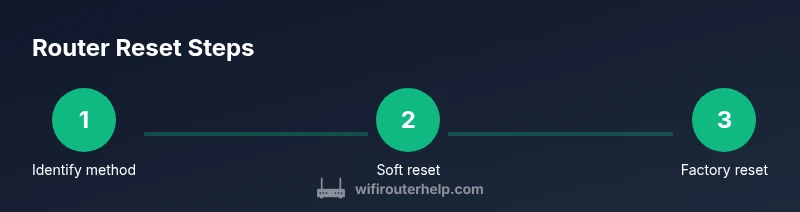
There are two broad reset strategies. A soft reset restarts the router and clears temporary cache without changing your configured network names or passwords. A factory reset returns the router to its original out-of-the-box settings and erases custom configurations. A soft reset is quick and low-risk, while a factory reset should be reserved for persistent problems or misconfigurations that block access. WiFi Router Help analysis shows that most everyday issues are fixed with a soft reset, saving time and reconfiguration effort.
When to Use a Soft Reset First
Start with a soft reset if you notice slow Wi‑Fi, devices dropping from the network, or stalled admin pages. This approach preserves your network settings while refreshing the device’s memory and processes. If you can access the router’s admin interface, soft reset from there, or simply power cycle by unplugging for about 10 seconds, can clear transient faults without altering SSIDs or security.
How to Perform a Soft Reset: Two Safe Methods
If you can access the router’s interface, use the reboot option in the admin page. If not, unplug the router from power for 10–15 seconds and plug it back in. Both methods give the router a clean restart and don’t affect your configured SSIDs or passcodes. After reboot, re-check connectivity on multiple devices.
How to Do a Factory Reset: Step-by-Step Hardware Method
A factory reset fully restores the device, erasing custom settings. Locate the recessed Reset button on the back panel, press and hold it with a paperclip for 10–15 seconds until the lights blink. Release and wait for the router to reboot. Note that you will need to re-enter Wi‑Fi name, password, and any advanced settings after this reset.
Reconfiguring After a Reset: What to Re-enter
Begin by setting a new administrator password and confirming remote management settings. Re-create your network name (SSID) and a strong wireless password, enable current security protocol (WPA3 if supported), and apply any guest networks or parental controls you need. If you use a separate modem, you may need to restart it as well.
Verify Connectivity and Security After Reset
Connect via a wired device first to confirm the internet connection is active, then connect wireless clients. Run a quick speed test and verify both 2.4 GHz and 5 GHz bands are broadcasting. Check for updated firmware in the router’s UI and enable automatic updates if available to maintain security.
Common Pitfalls and Safety Tips
Avoid performing a factory reset during a firmware update or if you’re unsure about your login details. Always back up essential settings if your router supports exporting configurations. Finally, remember that a reset doesn’t fix problems caused by the internet service provider or faulty hardware; in those cases, contact your ISP or replace the device if needed.
Tools & Materials
- Reset pin or paperclip(Use to press recessed reset button)
- Access to router admin page (laptop/phone)(Needed for soft reset or config changes)
- Web browser or router app(Navigate to the reset option in UI)
- Stable power supply(Keep router powered during the process)
- Current network credentials (SSID/password)(Helpful for reconfig after reset)
- ISP login info (optional)(If ISP requires login for management)
Steps
Estimated time: 30-45 minutes
- 1
Identify reset method
Look up your router model in the label or manual to determine whether a soft reset (reboot) or factory reset (hard reset) is recommended for your situation. This prevents unnecessary data loss and saved preferences.
Tip: Check the official manual or manufacturer site for model-specific steps. - 2
Prepare for reset
Ensure you have a stable power source and access to the router’s admin interface. Back up current settings if your device supports exporting them, so you can reapply configurations after the reset.
Tip: Use a wired connection during the reset window for reliability. - 3
Perform a soft reset
If you’re comfortable using the UI, click reboot or restart in the admin page. Alternatively, power cycle by unplugging for 10–15 seconds and plugging back in to refresh memory and processes without changing settings.
Tip: Soft resets are safer when you want to preserve SSID and passwords. - 4
Perform a factory reset
Only proceed if the soft reset didn’t resolve the issue. Press and hold the recessed Reset button for 10–15 seconds until the lights blink, then release. The router will reboot to factory defaults.
Tip: Factory reset erases custom settings—document key details before proceeding. - 5
Reconfigure network and security
Set a new admin password, re-create your SSID, and re-enter the wireless password. Enable current security standards (WPA3 if available), and configure guest networks or parental controls as needed.
Tip: Avoid using simple passwords; enable automatic firmware updates if possible. - 6
Verify connectivity
Test internet access on wired and wireless devices. Run a quick speed test and confirm both 2.4 GHz and 5 GHz networks are available and stable.
Tip: If issues persist, check cable connections and consider updating firmware. - 7
Optional: Update firmware
Check for firmware updates and install any available updates to improve performance and security after a reset.
Tip: Keep a backup of the current configuration before updating.
People Also Ask
What is the difference between a soft reset and a factory reset?
A soft reset reboots the router without changing your saved settings, while a factory reset restores default settings and erases custom configurations. Use soft reset for minor issues and factory reset for persistent problems.
A soft reset restarts the router without changing your saved settings, while a factory reset returns the router to its original defaults.
Do I lose my settings after a factory reset?
Yes. A factory reset erases custom configurations like the SSID, password, and firewall rules. You will need to reconfigure everything from scratch.
Yes, factory reset wipes your settings and you’ll need to set up again.
Will resetting fix issues caused by my internet service provider (ISP)?
Resetting can resolve device-side problems, but it won’t fix outages or service problems from your ISP. If the issue persists after a reset, contact your provider.
It can fix device-side issues, but not ISP outages; contact your provider if the problem continues.
How long does a reset take?
A soft reset is usually immediate, while a factory reset followed by reconfiguration can take 15 to 30 minutes or more, depending on your setup and number of connected devices.
Soft resets are quick; factory resets with reconfiguration can take twenty to thirty minutes.
Should I reset my modem or router first?
If you have a separate modem, try resetting the router first. If the issue remains, power cycle the modem as well since the problem may originate there.
Reset the router first, then the modem if needed.
Can I reset my router using a mobile app?
Many modern routers offer reset options in companion apps. If your router supports it, you can perform soft resets or factory resets from the app.
Yes, some routers let you reset from a mobile app.
What should I do after a reset if devices still won’t connect?
Check cable connections, verify SSID and password, ensure devices are attempting to join the correct network, and consider updating firmware or factory resetting again as a last resort.
If devices won’t connect, verify network details and firmware.
Is it safer to perform a reset while connected via Ethernet?
Yes. A wired connection reduces dropouts during setup and makes it easier to access the admin interface.
We recommend using Ethernet for stability.
Watch Video
What to Remember
- Reset first to fix many issues
- Know soft vs factory reset differences
- Back up important settings before a reset
- Reconfigure network and security after reset
- Verify connectivity and firmware after reset