How to Reset Router and Modem: A Practical Step-by-Step Guide
Learn how to reset your router and modem safely to fix connectivity issues. This guide covers soft resets, factory resets, and post-reset setup for reliable home networking.


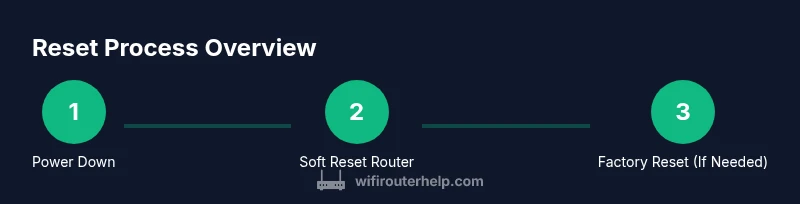
Resetting your router and modem is a quick way to restore connectivity and fix common issues. Start with a soft reset to refresh memory, then power-cycle both devices. If problems persist, proceed to a factory reset and reconfigure essential settings. This approach minimizes downtime and keeps critical configurations intact where possible.
Why Resetting Your Router and Modem Can Fix Common Issues
When home networks stumble, a reset is often the simplest, most effective first step. If you’re asking how to reset router and modem, you’re seeking a quick way to clear stuck processes, refresh IP assignments, and re-establish reliable connections. In most households, a properly timed reset can resolve intermittent drops, slow speeds, DNS hiccups, and devices that simply refuse to connect. The goal is to restore a clean state without losing critical information unless a factory reset is required. Before you dive in, remember that a reset does not replace hardware troubleshooting or service calls when the problem is hardware-related, but it often fixes misconfigurations that creep in after software updates or chaotic power cycles. As you follow this guide, you’ll learn to distinguish between soft resets that preserve settings and factory resets that reset the device to its original state.
Understanding the Difference Between Soft Reset and Factory Reset
Soft reset vs factory reset: definitions and consequences. A soft reset restarts the device and clears temporary memory but keeps your WiFi network name (SSID) and password intact in most consumer routers. A factory reset restores the device to factory defaults: all custom settings, port forwards, parental controls, and even the admin password are erased. Understanding this distinction helps you choose the right approach and minimizes downtime. In practice, you should start with a soft reset whenever you suspect a minor glitch caused by software or temporary cache. If the problem recurs after the reboot—such as flaky DNS, devices failing to obtain an IP, or inconsistent WiFi coverage—a factory reset is warranted. Note that some ISP-provided gateway devices combine both router and modem functionality into a single unit. In those cases, a factory reset may require reconfiguration of the ISP settings or connecting to their app to re-enroll the device. In short, reserve factory resets for persistent issues after softer remedies have failed.
Safety and Preparation Before You Reset
Before you reset, protect your settings and plan for downtime. A reset interrupts home Internet service for minutes, so plan around work, school, or streaming. The first safety step is to back up important router configurations if your device supports exporting a configuration file. This is especially important if you rely on custom port forwards, QoS rules, or parental controls. Make a quick inventory of essential details: your WiFi network names, passwords, guest networks, and any static IPs or VPN configurations that must be restored. If you use a modem-router combo, decide whether you will reset only the router, or both devices, and whether you should place the modem in bridge mode afterward. Gather login credentials for the admin interface, note any ISP-specific settings, and confirm you have a way to reconnect after reset (for example, an Ethernet connection or a temporary guest network). Finally, set expectations with family members about the temporary loss of network access, and consider performing resets during a low-usage period to reduce frustration.
Quick Diagnostic Checks Before Reset
Before you reset, perform a quick baseline check to avoid unnecessary resets. Run a quick speed test from a wired device to establish a reference for download and upload performance. Inspect router and modem LEDs to identify indicators such as power, internet status, and data activity. Verify cabling: ensure the Ethernet cable between the modem and router is snug and undamaged, and that the coax/phone line is properly connected if using a cable or DSL provider. If you have multiple devices, test a single device at a time to isolate issues. Also, note any recent changes (new devices, app updates, firewall rules) that might contribute to instability. These checks help you decide whether a reset is the right tool and prevent unnecessary downtime.
Soft Reset: How to Do It Correctly
A soft reset is your first line of defense for a minor glitch. Locate the reset button on your router (usually recessed). Use a paperclip or pin to press and hold for 5-10 seconds, then release. The device will reboot with most settings intact, preserving your SSID and password in many models. After the router restarts, power cycle the modem to ensure both devices come back online cleanly. This approach minimizes disruption while refreshing memory and routes.
Factory Reset: When and How to Do It
Factory resets should be reserved for persistent issues after softer remedies fail. To perform a factory reset on the router, press and hold the reset button for 10-15 seconds until the LED indicators flash, then release. The router will return to its original factory defaults, erasing custom settings such as SSID, password, port forwards, and parental controls. If you also reset a separate modem, do so with caution as provider-dependent settings may be wiped. After a factory reset, you will need to reconfigure your network from scratch or restore a saved backup. Always stay prepared with your essential credentials and preferences.
Reconfiguring Your Network After a Reset
Post-reset, reconfigure your network to restore secure access. Start by setting a strong admin password and updating firmware if prompted. Re-create your WiFi name (SSID) and a strong password, enable WPA3 if available, and configure guest networks and parental controls as needed. Re-enter any custom port forwards, DNS settings, and VPNs. If you previously used bridge mode, re-establish that setting according to your ISP guidance. Save a backup of the new configuration if your router supports exporting a file. Finally, reconnect your devices and verify performance with speed tests and streaming checks.
Post-Reset Testing and Troubleshooting
With your network back online, conduct a final series of checks to confirm stability. Test multiple devices, run a few speed tests, and ensure streaming and gaming performance matches your expectations. If you notice persistent latency or intermittent disconnects, review your QoS rules, firewall settings, and hardware health. Update firmware to the latest version, and consider enabling features like failover or mesh extenders if coverage remains weak. If problems persist beyond normal troubleshooting, contact your ISP or consult WiFi Router Help for tailored guidance on your specific gear.
Common Pitfalls and Troubleshooting Resources
Common mistakes include rushing a factory reset without backing up settings, failing to reconfigure after reset, and ignoring firmware updates. Always verify settings after reset and avoid overwriting backups with incomplete configurations. For more expert tips and model-specific steps, visit reputable resources such as your device manufacturer support pages, the FCC’s consumer information site, and university IT guidance for reliable, up-to-date advice.
Tools & Materials
- Paperclip or pin for resets(A straightened paperclip works best for recessed reset buttons)
- Access to admin interface (web portal)(Have admin login credentials ready; default may be admin/password unless changed)
- Ethernet cable (optional but helpful)(Use for direct connection during reset or reconfiguration)
- List of current network settings (SSID, password, guest networks)(Helps quickly restore your network after reset)
- Device manual or model number(Useful if you need model-specific reset steps or firmware guidance)
- Backup power source or power strip(Ensure devices don't lose power during reset)
Steps
Estimated time: 30-60 minutes
- 1
Power down and unplug both devices
Power off the router and modem, then unplug them from the electrical outlet. This ensures a clean reset without residual power interfering with the process. Waiting 30-60 seconds helps discharge capacitors and resets internal states.
Tip: Starting from a complete shutdown reduces the chance of corrupted boot sequences. - 2
Perform a soft reset on the router
Find the recessed reset button on the router, insert a paperclip, and hold for 5-10 seconds. Release and wait for the router to reboot. Soft resets refresh memory and apply recent changes without wiping your network details.
Tip: A soft reset preserves your SSID and password in most cases. - 3
Power cycle the modem
Plug the modem back in after a short pause (about 60 seconds). Wait for the broadband lights to stabilize, indicating a healthy link to your ISP. This step refreshes the connection between your modem and the internet.
Tip: If you have a combined gateway, you may need to perform this step together with the router. - 4
Test connectivity after soft reset
Once both devices are powered up, connect a device via Ethernet or Wi‑Fi and verify whether internet access is restored. Run a quick speed test to confirm baseline performance.
Tip: Document any changes in speed to compare with post-reset results. - 5
If issues persist, perform a factory reset on the router
If the problem remains, perform a factory reset: hold the router’s reset button for 10-15 seconds until LEDs flash. Note that this erases custom settings and returns the device to defaults.
Tip: Back up your configuration if your device supports it before proceeding. - 6
Factory reset the modem if needed
If your modem is separate from your router, perform a factory reset on the modem following the same button-hold method. Some providers require reactivation or re-enrollment after a reset.
Tip: Check with your ISP if the gateway settings need reactivation after reset. - 7
Reconfigure and test your network
Re-enter your SSID, password, and any custom settings (port forwards, QoS, firewall rules) as needed. Update firmware if available and verify stability by testing multiple devices and services.
Tip: Update firmware to the latest version to reduce future issues.
People Also Ask
Should I reset both my router and modem at the same time?
In many setups, restarting or resetting both devices in sequence can resolve issues that involve the path from the ISP to your home network. Start with a soft reset on the router, then power-cycle the modem. If problems persist, a factory reset may be necessary for the router only, or for both devices if you rely on a combined gateway.
Yes—start with the router reset and check connectivity; power-cycle the modem as needed, and consider resetting both if issues continue.
What is the difference between a soft reset and a factory reset?
A soft reset restarts the device and clears temporary memory, preserving SSID and passwords in most cases. A factory reset returns the device to its original settings, erasing custom configurations like port forwards and parental controls.
Soft resets refresh memory; factory resets wipe settings. Use soft reset first, factory reset only if needed.
Will resetting erase my WiFi password or custom settings?
A soft reset typically preserves your WiFi password and most settings. A factory reset will erase custom settings, including your SSID, password, port forwards, and parental controls, requiring you to reconfigure them from scratch.
Only a factory reset clears saved settings; soft resets usually keep your password and network name.
How long should I wait after a reset before testing connectivity?
Give the devices a few minutes to reboot and re-establish connections. After a soft reset, test within 5-10 minutes. After a factory reset, plan for 15-20 minutes for full reconfiguration and stabilization.
Wait a few minutes for reboot, then test your connection.
What if reset doesn’t fix the problem?
If resets don’t fix the issue, check for hardware problems, service outages, or ISP-specific settings. Contact your provider or a support resource like WiFi Router Help for targeted troubleshooting based on your gear.
If it still doesn’t work, there might be a hardware or service issue; consider professional help.
Can I reset a gateway device provided by my ISP in bridge mode safely?
Bridge mode changes how your devices route traffic and may require reconfiguration with your ISP or in your router’s settings. A factory reset on a gateway can wipe bridge configurations, so confirm whether you should reset and how to reconnect in bridge mode with your ISP.
Bridge mode needs careful handling; verify settings before and after a reset.
Watch Video
What to Remember
- Reset first with a soft reset to minimize downtime
- Factory reset only if issues persist after soft remedies
- Back up important settings before a reset
- Reconfigure and test connectivity after each reset
- Document firmware versions and settings for future troubleshooting