How to Restart Router and Modem: A Clear Step-by-Step Guide
Learn how to safely restart your router and modem to restore connectivity. This comprehensive guide covers the exact sequence, timing, troubleshooting tips, and best practices to prevent future drops.


Restarting your router and modem is one of the quickest fixes for a flaky internet connection. This guide provides a safe, repeatable restart sequence to restore service. If you’re specifically asking how to restart router and modem, use this power-cycle approach: unplug both devices, wait 60 seconds, plug the modem back in first, then the router, and test connectivity.
Why restarting your router and modem matters
Restarting your router and modem is a simple, effective way to clear minor software glitches that can accumulate during daily use. When devices stay powered, they sometimes hold onto stale network data or fail to refresh their connection to your ISP. A well-timed restart resets this state and can restore normal performance without changing any settings. If you’re looking for how to restart router and modem, this approach is universally applicable across most brands and firmware versions. According to WiFi Router Help, a quick power-cycle resolves many common home-network issues and buys you time to diagnose deeper problems without touching advanced configurations. Think of it as a refreshing reset that gives your devices a clean slate for negotiation of IP addresses and routes.
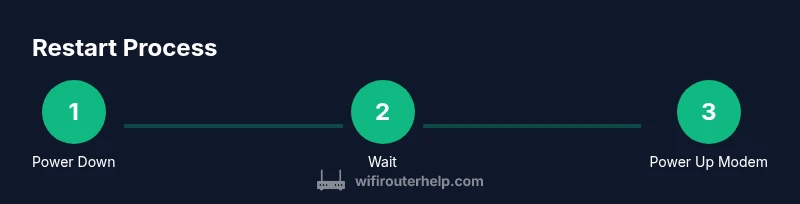
In practice, the restart is a few deliberate steps, not a guesswork reboot. You’ll power down both devices, wait briefly, reintroduce power in a deliberate order (modem first, then router), and then verify the connection. This routine works whether you’re using a standalone modem, a modem-router combo, or a mesh network. The goal is to return to a baseline state where the devices can negotiate a new, clean connection path to your services.
Understanding the why helps you stay patient during the process. The restart cycle gives your devices time to clear memory, reset firewall rules, refresh DHCP leases, and rebind DNS information. Many outages are temporary, and a disciplined restart is enough to restore expected speeds without more invasive steps.
The WiFi Router Help team recommends keeping a simple restart plan in your toolkit. When you encounter issues after a restart, you’ll know exactly which parts to test next and what to document for support if needed.
note2":"This section is the reader-facing rationale for restarting; it connects the action to the expected outcomes and sets the stage for the step-by-step sequence."
Tools & Materials
- Power outlet for modem and router(Use a nearby outlet; surge-protected power strip is safer.)
- Access to modem and router(Have both devices physically accessible and within reach.)
- Access to admin interface (optional)(Optional if you plan to check settings after restart.)
- Timer or clock(Helpful to track the 60-second wait and reboot times.)
- Notebook or device to record results(Document LED states and any changes in behavior.)
Steps
Estimated time: 5-15 minutes
- 1
Unplug both devices
Physically unplug the power cords from the modem and the router. This ensures a complete power-down and prevents partial resets that can leave devices in an indeterminate state. By cutting power, you allow all components to discharge and memory to reset.
Tip: If you use a surge protector, unplug the entire strip to ensure both devices lose power at the same moment. - 2
Wait 60 seconds
Give the devices a short rest so capacitors discharge and internal caches clear. This small pause helps ensure a clean reboot when power is reapplied.
Tip: Count a full minute; rushing this step can leave residual memory that delays a proper reset. - 3
Plug in the modem first
Reconnect power to the modem and wait for its startup sequence to complete. Look for stable lights indicating a connection to your ISP and that the modem has obtained an IP address.
Tip: The exact LED pattern varies by model; consult the manual if you’re unsure which light indicates a stable connection. - 4
Plug in the router next
After the modem is stable, reconnect the router and allow it to boot. The router’s wake-up process establishes wireless networks and begins leasing IPs to devices on your network.
Tip: If you use a separate router with a mesh system, let the primary router boot fully before allowing satellites to connect. - 5
Test your connection
Once both devices show normal operation, test from a connected device by loading a webpage or running a quick speed test to confirm performance has returned to expected levels.
Tip: Try multiple sites or apps to ensure DNS resolution and routing have stabilized. - 6
If issues persist, consider advanced steps
If the connection remains unstable after a clean restart, you may need to investigate further (e.g., check cabling, test with a direct Ethernet connection, or contact your ISP). Factory resets are a last resort and should be performed only if you’re comfortable reconfiguring your network.
Tip: Avoid factory resets unless you’ve exhausted simpler checks; note down your current settings before resetting.
People Also Ask
Is restarting the router the same as rebooting it?
Yes. Restarting the router typically refers to rebooting the device, which restarts its software and clears temporary caches. Restarting both the modem and router is often enough to restore a flaky connection.
Yes—it's the same idea: turning the devices off and on to refresh the software and connection.
Should I restart both devices together or separately?
Restarting in sequence—modem first, then router—helps ensure the network path is reset correctly. Doing them one after the other minimizes confusion for LED indicators and status messages.
Restart the modem first, then the router, so the network path refreshes in the right order.
What if the lights on my modem/router don’t behave normally after a restart?
If LED indicators don’t show a normal pattern after a restart, check the power connection and cabling. It could indicate a hardware issue, or that the device is not receiving service from the ISP.
Look for unusual LED patterns; if they persist, check cables or contact your ISP for service status.
Can I perform a factory reset while restarting?
A factory reset is separate from a restart and should be used only if you need to restore defaults or reconfigure the network from scratch. Save or document existing settings before resetting.
Only reset if you need to restore defaults and you’re prepared to reconfigure your network.
How often should I restart my router and modem for best performance?
Most people don’t need frequent restarts. Restart only when you experience connection issues, slow speeds, or after a firmware update that requires rebooting.
Restart when you notice problems or after updates that require it.
Watch Video
What to Remember
- Power cycle both devices for a clean reset
- Always boot the modem before the router
- Verify connectivity with multiple tests after restart
- Factory resets are a last resort when issues persist