When Rebooting Router and Modem: A Step-by-Step Guide
Learn the best times to reboot your router and modem, how to do it safely, and how rebooting impacts performance and stability. This step-by-step guide covers prerequisites, order of operations, and post-reboot testing for a healthier home network.


You’ll learn when to reboot your router and modem, and how to do it safely without losing essential settings. This quick guide covers the best moments to restart, what to check before rebooting, and a fast 3-step procedure you can follow to restore stability and improve performance in common home networks.
Why rebooting router and modem matters
Rebooting your router and modem is a basic, often overlooked maintenance action that can fix many connectivity problems. According to WiFi Router Help, a short power cycle can clear memory leaks, reset routing tables, and re-establish stable connections between devices and your ISP. This is particularly helpful when you notice slow speeds, buffering, or devices that struggle to obtain an IP address. A reboot briefly interrupts network services, which forces hardware to reinitialize DHCP, NAT, and firewall rules, often restoring performance without needing more invasive changes. Because home networks rely on a chain of devices from the modem to the router to individual Wi‑Fi access points, a bounce can resolve issues that software tweaks alone cannot. In short, rebooting is a powerful first step before diving into more complex troubleshooting.
When to reboot: timing and scenarios
Times to reboot should be guided by symptoms rather than a rigid schedule. Start with rebooting if you notice intermittent drops, slow page loads, or devices that won’t connect. If you recently installed a new device, changed Wi‑Fi channels, or updated firmware, a reboot helps ensure all changes take effect cleanly. If a modem firmware update completes, you may want to reboot to complete the update cycle. Avoid rebooting during firmware updates and immediately after a power outage while the device is still stabilizing. For most households a monthly reboot combined with occasional mid-session restarts during outages or outages is sufficient to maintain stability. In practice, patch days from ISPs often begin with a reset to re-synchronize connection states.
Preparation: prerequisites before reboot
Before you press power, gather the basics: know your router admin password, confirm you have a way to re-enter Wi‑Fi credentials if needed, and have a list of devices that rely on the network for critical tasks. Check for firmware updates and note the current channel and security settings so you can restore them if the reset changes them. If you have a guest network, verify its password as well. Consider saving a quick status image of your current network map or connected devices. If you have an ISP-provided gateway, decide whether to reboot in bridge mode or as a combined gateway, and whether you should reboot both devices together or in sequence. Finally, ensure you’re plugged into a surge-protected outlet to prevent equipment damage during power fluctuations.
Step-by-step reboot procedure (modem first)
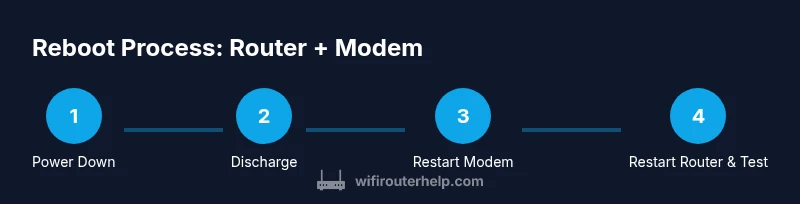
- Power down the modem and the router, then unplug both from power outlets. 2) Wait 30-60 seconds to allow hardware capacitors to discharge. 3) Plug the modem back in and let it restart fully (2-5 minutes); watch the lights for a stable pattern. 4) Power on the router and wait for its lights to stabilize (1-2 minutes). 5) Reconnect devices and test your connection. 6) If you use a VPN or custom DNS, verify those services resume correctly. Pro tip: avoid touch-ups during reboot; keep cables secure to prevent accidental unplugging. Timing may vary by model, so refer to LED indicators for progress.
Cold vs warm reboot: what to choose
A cold reboot means completely cutting power and starting fresh, while a warm reboot relies on a quick power cycle or soft reset. In most home networks, a cold reboot (power down, wait, power up) provides the most reliable reset of network state. Warm reboots are faster but may leave transient issues if memory was previously corrupted. If you’re addressing persistent problems, a full cold reboot is usually the better first step.
Troubleshooting after reboot
After rebooting, validate that all devices can connect and reach the internet. Run a quick speed test, check streaming performance, and ensure local devices (printers, smart speakers, IoT hubs) reconnect smoothly. If issues persist, investigate DNS settings, check for stale IP leases, and confirm DHCP is assigning addresses correctly. If you still experience drops, test with a wired connection to isolate wireless issues, and consider updating firmware to the latest stable version.
Common mistakes to avoid
Avoid rebooting during a firmware update, as this can corrupt the update process. Don’t unplug devices abruptly or repeatedly power cycle in quick succession, which can confuse boot logic. Don’t skip documenting credentials or network changes; you may need to re-enter SSIDs and passwords after boot. Finally, don’t treat rebooting as a cure-all—some faults require configuration changes or service calls.
Schedule and cadence: hot to maintain network health
Create a simple reboot cadence: a monthly basic reboot plus a quarterly deep reboot during maintenance windows. If you notice performance degradation, run a mid-month reboot as a diagnostic step. Consider pairing reboots with firmware checks and channel optimization to prevent repeat issues. A stable cadence reduces surprise outages and helps you avoid reactive fixes.
Optimizing after reboot: firmware updates and channel settings
After reboot, check for firmware updates and apply them if available. Review your wireless channel settings; in dense environments auto-channel selection may choose a crowded channel. If you’re using 2.4 GHz and 5 GHz, examine interference sources and adjust as needed. Enable features like QoS if you have multiple devices or latency-sensitive activities, and verify DNS settings are correct for fast name resolution.
Safety and security considerations
Always reboot using a safe power source, ideally a surge-protected outlet. Do not reboot devices during hazardous weather if you’re relying on uninterruptible power. Ensure your admin credentials are strong and up to date. After reboot, review firewall and parental controls settings to maintain your preferred security posture.
How rebooting interacts with ISP services
Some ISPs require a modem reset to re-authenticate a service or to re-establish a PPPoE or DHCP lease. If your service stalls after a reboot, contact your ISP to verify service status or outages in your area. Rebooting can help local device states, but the ISP network may still require backend re-synchronization.
Additional tools and utilities
Utilize built-in network monitoring tools, speed tests, and device status dashboards to gauge reboot effectiveness. If available, enable logs or diagnostic modes on your modem and router to capture post-reboot events for future troubleshooting. Keep handy a list of default login URLs and admin passwords for quick access if you need to adjust settings after reboot.
Tools & Materials
- Power outlet with surge protection(Plug devices into a surge-protected power strip to guard against surges.)
- Smartphone or computer with a browser(Needed to access the admin pages and verify settings.)
- Paper and pen(Document current SSID, passwords, and custom DNS or VPN settings.)
- Ethernet cable (optional)(Wired testing can help isolate issues during troubleshooting.)
- ISP login information(Needed if the gateway is managed by your ISP or you access a separate portal.)
- Surge-protected power backup (UPS) (optional)(Provides graceful shutdown during outages.)
- Device manuals/model numbers(Useful for model-specific steps and LED indicators.)
- Coax/DSL cables and spare adapters(Have on hand in case you need to reseat connections.)
Steps
Estimated time: 10-15 minutes
- 1
Power down both devices
Turn off the modem and the router, then unplug from power outlets. This ensures a clean reset of hardware state.
Tip: If a device has a dedicated switch, use it; otherwise unplug the power cord directly. - 2
Pause to discharge power
Wait 60 seconds to allow capacitors to discharge and memory to clear. This helps prevent startup glitches.
Tip: A longer pause (90 seconds) can be helpful on older hardware. - 3
Power modem first
Plug the modem back in and wait until it fully restarts (2-5 minutes). Look for a stable downstream and online indicator.
Tip: If you see blinking LEDs, wait a bit longer before proceeding. - 4
Power router second
Plug in the router and wait for the WAN/Internet light to stabilize. This ensures your LAN devices can connect cleanly.
Tip: Give extra time for mesh nodes to rejoin the network if you use a multi-node setup. - 5
Test connectivity
Connect a device and verify basic access by loading several websites; run a quick speed test to confirm throughput.
Tip: Try both wired and wireless tests to identify potential interface-specific issues. - 6
Restore credentials and settings
Re-enter SSID, password, and any custom DNS or VPN settings if they were reset during reboot. Recheck security features.
Tip: Document credentials in a safe place for future use.
People Also Ask
Do I need to reboot the modem and router every time I have a slow connection?
Not every time. Start with quick checks like cables and device lights, then reboot if the issue persists. Rebooting both devices is a common first step for many connectivity problems.
Not every time, but rebooting both can fix many issues when slow Wi‑Fi persists after basic checks.
Should I reboot after updating firmware or changing settings?
Yes. Reboot after updates to ensure the new firmware and settings apply correctly and to re-establish stable connections.
Yes, reboot after updates to make sure changes take effect.
What is the safe order for rebooting?
Power down both devices, wait, then reboot the modem first, followed by the router. This sequence helps re‑establish the connection cleanly.
Turn both off, then restart the modem first, then the router.
Can rebooting cause data loss?
A normal reboot does not erase settings. However, avoid rebooting during firmware updates or factory resets that can impact saved configurations.
No data loss from a routine reboot, but don’t reboot during updates.
What if the devices won’t come back online after reboot?
Check power, cables, and indicators again. If there’s no connection after reboots, contact your ISP or check for service outages in your area.
If nothing comes back online, verify power and connections and contact support if needed.
Is factory reset necessary after reboot?
Only if you’re sure a configuration issue requires it. A standard reboot should not erase user credentials, but factory reset is a last resort if problems persist.
Only use a factory reset if other fixes fail and you’re sure it’s needed.
Watch Video
What to Remember
- Reboot in the correct order: modem first, then router.
- Allow proper wait times for each device to boot.
- Verify connectivity with tests after reboot.
- Avoid reboot during firmware updates.
- Document network credentials for quick recovery.