Power Cycle Modem and Router: A Safe Reset Guide 2026
Learn how to power cycle your modem and router safely to fix outages, refresh connections, and improve performance. This step-by-step guide from WiFi Router Help covers timing, safety, and verification for a stable home network.


Power cycling your modem and router resets the network by cycling power, refreshing IP leases, and clearing minor glitches. This quick reset often fixes slow speeds, dropped connections, and flaky Wi-Fi. You’ll complete a controlled unplug/plug sequence for both devices and verify connectivity afterward.
Why power cycle modem and router matters
According to WiFi Router Help, power cycle modem and router is a simple reset that clears temporary faults in the device software and re-establishes a fresh connection to your ISP. This process can resolve slow speeds, dropped connections, and IP address hiccups without touching settings. By power cycling, you interrupt current sessions and allow devices to renegotiate a clean handshake with your network. WiFi Router Help analysis shows that most connectivity problems stem from minor firmware or cache issues rather than hardware failure. A timed unplug-replug routine helps flush DNS caches, renew DHCP leases, and refresh NAT mappings. This method tends to be safer and more repeatable than ad-hoc restarts, especially on homes with mixed devices and smart-home gear.
How modem and router interact
A typical home network relies on a modem to connect to the internet and a router to distribute signal inside the home. The modem handles the public connection to your ISP, while the router creates the private local network and assigns IP addresses. When you power cycle both devices, you reset the entire chain from the source to wireless devices. This can resolve issues where devices cannot obtain an IP address, where DHCP leases become stuck, or where the router’s translation tables lose track of active connections.
When a reset is the right move
Power cycling is a good first step for many connectivity problems, including slow Wi‑Fi, devices dropping offline, or pages failing to load intermittently. It’s also a reasonable troubleshooting step before more drastic measures like firmware updates or factory resets. If you recently changed ISP settings, installed a new router, or added a mesh system, a cycle can help ensure all components re‑synchronize cleanly.
Signs the network needs a cycle
Look for slow download speeds, frequent DNS lookups delays, devices failing to obtain an IP address, or resets of the public IP address leading to momentary outages. If your devices report “offline” or you notice the router’s status lights blinking unusually, a powered reset often resolves the issue without further interventions. In most cases, a single cycle will restore normal operation; if not, you may need to investigate physical cabling or firmware updates.
Safety first: prerequisites and precautions
Before you start, locate a stable power outlet for both devices and avoid using a power strip that has other high-current loads. Do not power cycle equipment during active firmware updates or when the ISP is performing maintenance, as interruptions can corrupt the update process. Keep children and pets away from the devices during the reset, and do not touch the connectors while unplugged to minimize static damage.
Step-by-step overview of the cycle (high level)
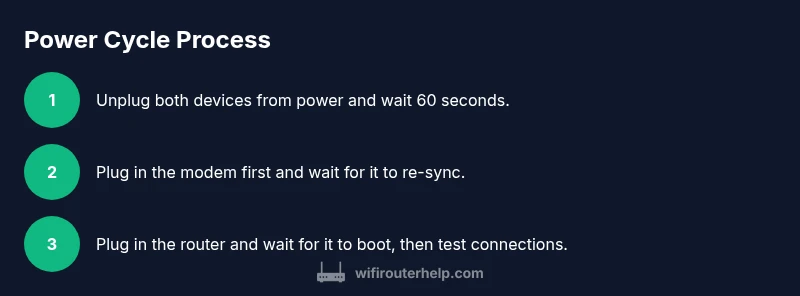
The general approach is to unplug the modem and router, wait, then plug them back in in a specific order. Waiting periods (commonly 60 seconds) allow residual power to drain and caches to clear. Start by powering down the devices, then reintroduce power to the modem first, followed by the router. After both are booted, test a wired device for internet access and then test wireless devices. This sequence helps ensure a clean reset path from the internet edge to the home network.
Common mistakes and how to avoid them
Avoid unplugging devices in rapid succession without waiting. Do not unplug the wrong device first if you are unsure of the sequence, and never disconnect the power while updating firmware. Always give the modem time to re‑establish a connection before the router boots. If you have a mesh network, cycle the primary gateway first, then allow satellite nodes a minute to re-sync.
Verifying success after the cycle
Once the devices are powered back on, verify connectivity by testing a wired computer, then a smartphone on Wi‑Fi. Check that you can reach a website, stream video, and run a speed test. If issues persist, re‑test with a different Ethernet cable, reboot the network in a controlled second cycle, or contact your ISP for guidance. Document the results for future reference.
Tools & Materials
- Power outlet(A stable outlet not controlled by a wall switch; keep cords untangled.)
- Timer or clock(Use a timer to track the 60-second wait intervals accurately.)
- Router and modem (and any mesh nodes)(Have the devices accessible and within reach.)
- Ethernet cable (optional)(Useful for wired testing and verifying stable links.)
- Surge-protected power strip (optional)(If you use a strip, ensure it’s rated for your devices and not overloaded.)
Steps
Estimated time: 10-15 minutes
- 1
Power down both devices
Unplug the modem and router from power. If you use a surge protector, unplug from the strip rather than pulling the device from a wall outlet. This breaks the power path and ensures a true reset of internal caches.
Tip: Label cables or take a photo beforehand so you can reconnect correctly. - 2
Wait at least 60 seconds
Allow capacitors to discharge and any residual power to fade. This pause helps ensure a clean reset and reduces the chance of ‘ghost’ faults carrying over.
Tip: Use a timer to avoid guessing the wait time. - 3
Reconnect the modem first
Plug the modem back in and give it time to re-establish the internet signal. Observe the status lights to confirm it has synced with the ISP.
Tip: If the link light stays red or unsteady, contact your ISP before moving on. - 4
Reconnect the router second
Plug the router back in after the modem shows a stable connection. Allow 1–2 minutes for the router to boot and re‑establish routes.
Tip: Avoid powering on devices in quick succession to reduce boot conflicts. - 5
Test a wired connection
Connect a computer directly to the router with an Ethernet cable and verify basic connectivity to the internet. This confirms the core edge device is functioning.
Tip: If wired access fails, try a different Ethernet port or a different cable. - 6
Test wireless connectivity
Use a mobile device to connect to Wi‑Fi and load a few pages or apps. Check both speed and stability across multiple rooms if possible.
Tip: If you use a guest network, ensure you’re testing on the main SSID. - 7
If problems persist, perform a second cycle
If the issue remains after the first cycle, repeat the unplug/wait/reconnect sequence. Some setups benefit from a second, shorter cycle to fully refresh DHCP leases.
Tip: Avoid multiple cycles in quick succession; give devices a minute to settle between attempts. - 8
Document results and consider next steps
Record what tests succeeded and what did not. If issues persist, check cabling, review firmware versions, or contact your ISP for further diagnostics.
Tip: Note model numbers and firmware versions for faster support if needed.
People Also Ask
Should I power cycle both devices if only one is experiencing issues?
If one device shows trouble, start with the one closest to the issue. If problems persist, power cycle both devices to re-establish the entire network path.
If one device is acting up, try rebooting that device first, and then the other one if needed.
Can I power cycle during firmware updates?
No. Power cycling during an update can corrupt firmware. Wait for updates to complete before performing a cycle.
Avoid rebooting when firmware updates are in progress.
Will power cycling reset my Wi-Fi name or password?
No. A power cycle resets the devices, not the network credentials. A factory reset would be required to change settings.
Resetting hardware doesn’t change your Wi‑Fi name or password unless you perform a factory reset.
What if the internet still doesn’t come back after the cycle?
Check physical cables, verify you’re on the correct network, and test with a wired device. If unresolved, contact your ISP or device manufacturer for diagnostics.
If it still fails, inspect cables and contact support for help.
Is power cycling safe for all network types (including mesh)?
Yes, but cycle the main node first and allow satellites to re-sync afterward to maintain network performance.
It's safe for mesh networks; just follow the main node then satellites sequence.
Watch Video
What to Remember
- Power cycle modem and router to reset the network stack
- Wait 60 seconds between power cuts to ensure a full reset
- Test both wired and wireless connectivity after reboot
- If issues persist, repeat cycle or contact ISP