What to Do When You Reset Your Router: A Practical Guide
A comprehensive, practical guide on what to do when you reset your router, from soft reboots to factory resets, reconfiguring networks, securing your device, and troubleshooting for a stable home connection.


Here’s what to do when you reset your router: choose a safe reset method, locate the reset button, and reconfigure your network promptly. Before you begin, have your admin login details and Wi‑Fi credentials ready. Start with a soft power cycle, and only perform a factory reset if problems persist.
Understanding what to do when you reset your router
A router reset is a common first step when you’re facing slow speeds, dropped connections, or access problems. The goal is to restore a clean slate without losing essential network knowledge. When you reset, you return settings to their defaults, which can resolve misconfigurations, firmware hiccups, or conflicting rules. The key is to choose the right reset type and then reconfigure your network carefully. Remember that a reset should be a deliberate step, not a reflex. By understanding the difference between a soft reset and a factory reset, you can save time and avoid unnecessary downtime. If you’re unsure, start with a soft reboot and escalate to a factory reset only if issues persist.
The WiFi Router Help team emphasizes a structured approach: plan, execute, verify, and secure. Begin by confirming you have the necessary admin credentials and your Wi‑Fi credentials handy. Practically, this means writing down your current SSID and password so you can recreate your network quickly after the reset. If you manage a mesh network or guest networks, note any special settings so they can be restored properly. A reset affects all connected devices until you reconfigure, so plan for the moment your devices will reconnect.
Before you reset: gather information and plan
Before you press any buttons, take a few minutes to prepare. Identify your router’s model and firmware version; this helps you follow the correct reset procedure and locate the default IP address, username, and password if you need them. Gather your admin login details, backup of any custom settings if your router offers export, and your Wi‑Fi credentials. It’s also wise to note whether you have a separate modem or gateway supplied by your ISP, since resetting a gateway can affect service provisioning. Finally, ensure you have a stable power source and avoid resetting during a firmware update window to prevent bricking the device.
Step-by-step guide: soft reset vs factory reset
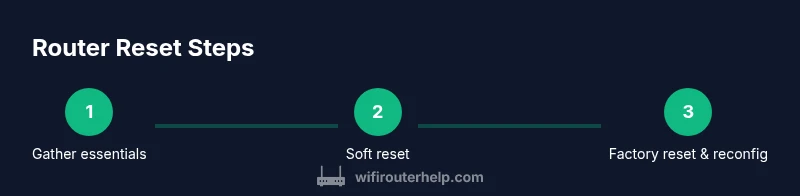
There are two primary reset methods: a soft reset (or reboot) and a factory reset. A soft reset reboots the router and clears minor glitches without removing your configured network name or password. A factory reset restores default settings and erases customized configurations, including the Wi‑Fi name and password. If you’re troubleshooting connectivity or sluggish performance, a soft reset is the first course of action. However, if problems persist after the soft reset, a factory reset may be necessary to clear deeper software conflicts or misconfigurations. Always back up important settings if your router supports configuration export before performing a factory reset.
After the reset: reconnecting, testing, and securing your network
Once the router finishes resetting, you’ll need to reconnect devices and reconfigure settings. Start by connecting a computer or phone to the router’s default network or via Ethernet if possible. Access the admin page using the default IP address and credentials provided in your manual. Recreate your Wi‑Fi network with a strong password, enable current security standards (WPA2‑WPA3), and optionally set up a guest network for visitors. Check for firmware updates and enable automatic updates if available. Finally, run basic speed tests and verify that all devices reconnect reliably.
Common mistakes and troubleshooting after a reset
Common mistakes include using the wrong reset button (or procedure), not backing up settings, and attempting to reconfigure the network with old credentials. Others forget to change the default admin password, which leaves the network vulnerable. If devices still won’t connect, try forgetting and reconnecting to the network on each device, ensure DHCP is enabled, and confirm that the router is providing a valid IP address. If problems persist after a factory reset, check for ISP issues, a faulty modem, or compatibility problems with connected devices. Consulting the router’s support resources can provide model-specific guidance.
Security, privacy, and best practices after a reset
After reset, security should be a top priority. Update the firmware to the latest version, enable automatic updates if offered, and disable remote access unless you need it. Use a strong admin password and separate it from your Wi‑Fi password. For families with kids or guests, consider enabling a guest network to isolate devices. Regularly review firewall settings and port forwarding rules, and keep a log of changes for future reference. Finally, document the new SSID and password in a safe place so you can quickly reconnect devices if you reset again.
Tools & Materials
- Device with a web browser (phone, tablet, or computer)(Used to log into the router admin page and run resets)
- Router power supply and outlet(Keep the router plugged in during resets)
- Router manual or model data (default IP, login credentials)(Helpful to locate default credentials and reset procedure)
- Wi‑Fi credentials written down(Have SSID and password handy to recreate network after reset)
- Ethernet cable (optional)(Useful for direct admin access if wireless is unstable)
Steps
Estimated time: Estimated total time: 45-60 minutes
- 1
Gather tools and credentials
Collect the items listed in your Tools Materials. Write down your current Wi‑Fi SSID and password so you can recreate the network after the reset. Confirm you have the admin login details handy before proceeding.
Tip: Keep credentials in a secure location during the process. - 2
Locate the reset button or option
Find the reset button on the router’s back or bottom. If your model supports a software reset via the admin page, be prepared to log in there as well. Use the physical button only if you cannot access the interface.
Tip: If you can’t locate it, consult the model manual or manufacturer support. - 3
Try a soft reset first (power cycle)
Unplug the router for 15–30 seconds, then plug it back in and wait 2–5 minutes for it to reboot fully. This often resolves minor glitches without erasing settings.
Tip: Soft resets usually preserve your Wi‑Fi name and password. - 4
Perform a factory reset if needed
Press and hold the reset button for 10–15 seconds (or follow the model’s procedure) until the lights flash. This returns the device to defaults and erases custom configurations.
Tip: Factory reset erases the Wi‑Fi name/password and admin credentials; back up any important settings first. - 5
Reconnect to the admin page using defaults
Connect to the router via its default network or Ethernet, open the default IP (commonly 192.168.0.1 or 192.168.1.1), and sign in with the default credentials from the manual.
Tip: If you previously changed the login, use your remembered credentials or the reset to regain access. - 6
Reconfigure your Wi‑Fi network
Create a new SSID, set a strong password, choose WPA2 or WPA3, and adjust the admin password. Consider using a unique name that avoids broadcasting personal info.
Tip: Avoid using easily guessable defaults; pair a strong admin password with MFA if available. - 7
Update firmware and security settings
Check for firmware updates, enable automatic updates if offered, and review firewall and guest network settings for enhanced defense.
Tip: Firmware updates often fix security vulnerabilities and improve stability. - 8
Test the network and finalize
Test connectivity across multiple devices, run a speed test, and verify all devices reconnect. Save the new configuration safely.
Tip: Document the new credentials and settings for future resets.
People Also Ask
What is the difference between a soft reset and a factory reset?
A soft reset reboots the router to clear minor glitches without erasing settings. A factory reset restores defaults and erases all custom configurations, including Wi‑Fi names and passwords. Start with a soft reset and only use a factory reset if problems persist.
A soft reset reboots the router to fix small issues. If that doesn’t help, perform a factory reset to restore defaults and reconfigure from scratch.
Will resetting delete all my data on the router?
A factory reset will erase custom configurations, including your SSID, password, and admin credentials. Personal data stored on your devices remains unaffected. Back up settings when possible before performing a factory reset.
Yes, a factory reset wipes custom settings from the router. Your personal files stay on your devices.
How long does a router reset take?
Soft resets are usually quick, often just a few minutes. A factory reset plus reconfiguration can take 30–60 minutes depending on how many networks and devices you need to restore.
Soft resets finish in minutes; a factory reset and reconfiguration may take half an hour to an hour.
Do I need to reconfigure after a reset if I have an ISP gateway?
If you’re using an ISP gateway, resetting may restore default credentials and settings from the ISP. You’ll typically reconfigure your local Wi‑Fi and any port rules after reset. Check with your ISP support if you’re unsure.
Yes, you’ll usually reconfigure your home Wi‑Fi after resetting an ISP gateway.
How can I recover a forgotten default admin password after a reset?
If you forget the admin password after a reset, you may need to perform another reset to restore default login credentials, or consult the model’s support page for recovery options. In many cases, a factory reset is required to regain access.
If you forget the login after a reset, you may need to perform a reset again or check the model's recovery options.
Can I reset a router remotely or via the cloud?
Remote resets are uncommon and depend on the router’s features. Most resets require physical access or a local admin login. Refer to your model’s documentation for remote management options.
Remote resets aren’t always available; check your router’s documentation for remote options.
Watch Video
What to Remember
- Prepare in advance with credentials and manuals.
- Know the difference between soft reset and factory reset.
- Reconfigure Wi‑Fi and admin passwords immediately after reset.
- Update firmware to improve security and stability.
- Test connectivity on multiple devices and document new settings.