Reset a Router: Soft vs Factory Reset Guide
Learn how to reset a router with clear soft and factory reset steps. This guide covers when to reset, post-reset setup, and best practices for restoring security and performance.


By following this guide, you will reset a router using either a soft reset or a factory reset, depending on your goal. You’ll learn how to safely power-cycle, locate the reset button, and reconfigure your network after a reset. This process fixes common connectivity issues and restores access to the admin page.
Why Resetting a Router Matters
According to WiFi Router Help, resetting a router is a safe, first-step approach to diagnose problems without involving hardware changes. A reset can clear stuck processes, refresh the router's memory, and renew DHCP leases, potentially restoring a stagnant connection. This section explains when resetting helps, what it does behind the scenes, and how to decide between a soft reset and a factory reset. By understanding the underlying mechanisms— RAM clearing, cache flush, and configuration reload—homeowners can approach resets with confidence, avoiding unnecessary downtime and loss of important settings. The goal is to achieve a stable, reliable network after the reset, while preserving essential features such as parental controls and guest networks whenever possible.
Soft Reset vs Factory Reset
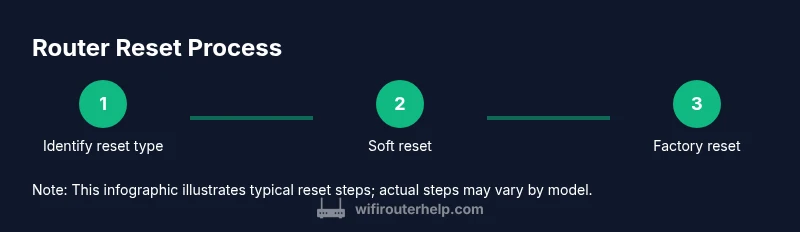
There are two common reset approaches, each with different consequences. A soft reset restarts the router's software, similar to rebooting a computer, and generally preserves your customized settings while clearing temporary glitches. A factory reset returns the device to its original defaults, wiping all custom networks, passwords, and forwarded ports. Use a soft reset for routine fixes like prolonged lag, odd connection drops, or slow pages. Reserve a factory reset for scenarios where security concerns require wiping credentials, when you cannot access the admin interface, or after you suspect corrupted firmware. After a factory reset, you will need to reconfigure network names, passwords, and any port-forward rules you previously created. Always back up or note critical settings before performing a factory reset.
How to Soft Reset a Router
A soft reset is often the quickest way to refresh a router without losing custom configurations. The typical method is a simple power cycle: unplug the power, wait about 10-30 seconds, plug back in, and allow the device to reboot. Some routers support a reboot option from the admin interface as an alternative, especially if you can access the page after login. This section covers the reasoning behind the soft reset, what it changes, and how to recognize when it has resolved the issue. If you still see problems after a soft reset, proceed to a factory reset as described later. Remember to verify that all connected devices reconnect automatically after the reboot and that internet access returns reliably.
How to Factory Reset a Router
A factory reset erases all personalized settings and returns the device to its original state. Before you proceed, ensure you have the admin login credentials, and consider backing up any custom configurations if your router supports it. The common hardware method is to press and hold the recessed reset button for 10-30 seconds with a paperclip until the LEDs flash, indicating the reset. If your router provides a software option, you can initiate the reset from the admin interface; this is often safer when you can still log in. After the reset finishes, you will need to reconfigure the network name (SSID), security type (prefer WPA3 or WPA2), and the admin password. Re-applying the latest firmware after setup is strongly recommended to improve stability and security.
Aftercare: Reconnecting and Securing Your Network
Once the reset completes, the router will broadcast its default SSID. Connect a device to the network using the default credentials printed on the device or in the quick-start guide. Open the router’s admin page and create a strong, unique password for the admin account, switch the Wi‑Fi security to at least WPA2 with a modern protocol, enable automatic firmware updates, and consider enabling features such as guest networks and firewall rules. Take a moment to check DNS settings, IP addressing (DHCP range), and any parental controls you rely on. If you previously used a VPN or port forwarding, set those up again carefully. If you had your network segmented, re-establish the segmentation or update your mesh or extender configuration as needed.
Troubleshooting After Reset
If the reset does not solve the issue, verify that you can reach the admin page and that your internet service is functioning externally. Ensure you are using the correct default gateway address and that your device is on the same local network. If you cannot access the admin interface, try a secondary method such as using a direct ethernet connection or restoring the firmware via the vendor's recovery tool. For persistent problems, contacting your ISP or router vendor support is advisable. Finally, keep in mind that frequent resets can indicate a deeper hardware or firmware problem that might require a replacement or advanced troubleshooting.
Tools & Materials
- Paperclip or pin(To press recessed reset button on some models)
- Device with browser or app(Phone, tablet, or laptop connected to the router)
- Stable power supply(Keep router powered during reset)
- Admin login credentials(Username/password; default if not changed)
- Backup notes or config(Optional: note existing settings or back up config)
Steps
Estimated time: 15-30 minutes
- 1
Identify reset type
Decide whether a soft reset or a factory reset is appropriate. A soft reset restarts the device to clear temporary errors while preserving your current network and admin credentials. Use it first for minor issues; reserve factory reset for persistent problems or security concerns.
Tip: This step helps you avoid losing custom configurations; if the issue persists, move to the next step. - 2
Prepare tools and access
Gather the items from your tools list and ensure you can reach the router's admin interface. If possible, use a device that’s already connected to the network to minimize setup time.
Tip: Having everything ready reduces downtime and prevents repeated reboots. - 3
Perform soft reset (power cycle)
Unplug the router’s power, wait 15-30 seconds, plug it back in, and allow the device to boot fully. This refreshes memory and clears temporary glitches without losing custom settings.
Tip: Avoid repeated power cycles; a single reset is usually enough to clear minor issues. - 4
Consider factory reset
If issues persist after a soft reset or you suspect a configuration problem or security concern, perform a factory reset. This will erase all personal settings and restore defaults.
Tip: Back up important settings before wiping to simplify reconfiguration. - 5
Reconfigure the router
Access the admin page, set a strong admin password, rename the network if desired, and enable modern security (WPA3 if available). Reapply firmware updates and recreate essential rules like port forwarding as needed.
Tip: Record new credentials in a safe place; do not rely on browser auto-fill. - 6
Test connectivity and finalize
Connect multiple devices, run a quick speed test, and verify online services. Confirm that all security features are active and that the admin interface remains accessible.
Tip: Keep firmware up to date to maximize stability and security.
People Also Ask
What is the difference between a soft reset and a factory reset?
A soft reset restarts the router’s software and clears temporary glitches while keeping your configured networks and passwords intact. A factory reset returns the device to its original defaults, erasing all custom settings. Use soft reset first for routine issues; factory reset only when security concerns or login access problems persist.
A soft reset restarts the device and keeps your settings, while a factory reset wipes everything and starts fresh.
When should I reset my router?
Resetting is useful for lingering connectivity issues, slow performance, or after changing network credentials. Start with a soft reset; proceed to a factory reset only if problems persist or you suspect firmware issues.
Try a soft reset first for quick fixes, then move to a factory reset if problems persist.
Will resetting delete my ISP settings or login credentials?
A factory reset can remove your customized settings and saved network credentials, but the ISP-provided login information for your admin interface will typically be reset as well. You will need to reconfigure your network and re-enter credentials.
A factory reset resets admin credentials and network settings; you’ll need to set them up again.
I can’t access the admin login after reset—what now?
Connect a device via Ethernet or use the default Wi‑Fi credentials to reconnect. If still blocked, perform a hard reset again and verify you’re using the correct gateway address. If problems persist, contact the router vendor for recovery options.
If you can’t log in, try a direct connection and check the gateway address, then consider vendor support.
Does resetting affect my modem or mesh network?
Resetting a router does not reset an external modem, but it may affect how a mesh system reconnects. After a reset, re-sync your mesh nodes and ensure the entire network uses the intended settings.
Resetting the router won’t reset your modem, but mesh nodes may need re-syncing.
Is there a safe way to reset if I forget the admin password?
If you forget the admin password, a factory reset is typically needed to regain access. After the reset, choose a new password and store it securely.
If you forget the login, you usually need a factory reset to recover access.
Watch Video
What to Remember
- Reset a router to resolve common issues quickly
- Soft reset preserves settings; factory reset wipes custom data
- Back up settings before factory reset
- Reconfigure securely after reset with updated firmware
- Test connectivity and keep admin access secure