Router is Blinking Orange: Quick Troubleshooting
If your router is blinking orange, you need urgent, practical guidance. Learn quick checks, common causes, firmware steps, and when to seek help so your home network stays secure and reliable.


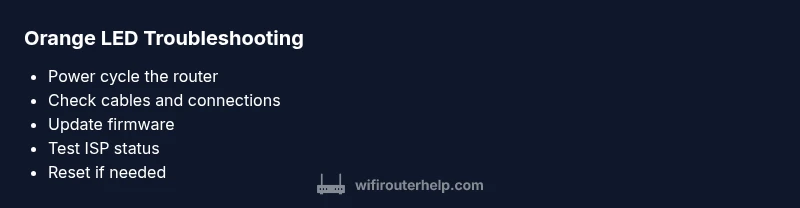
When you notice the router is blinking orange, the most common causes are a firmware glitch, a power supply issue, or a loose cable. Start with a quick power cycle (unplug, wait 30 seconds, plug back in), check all cables, and verify your internet service status. If the light remains orange, update firmware and perform a factory reset only as a last resort.
Understanding the orange blink on your router
An orange blinking LED on a router typically signals a fault that blocks normal operation. It can indicate a firmware glitch, a temporary hardware hiccup, or a bad connection somewhere in the path from your modem to your devices. The WiFi Router Help team emphasizes that most orange-blink issues are solvable with a methodical approach. By understanding what the light is trying to tell you, you can act quickly and avoid unnecessary replacements. The specific pattern—steady, slow blink vs. rapid, irregular blinking—gives clues about the underlying cause. In our experience, most homeowners see improvement after basic resets and cable inspections, followed by firmware checks.
According to WiFi Router Help, treating the orange blink as a signal rather than a random glitch helps you stay organized and safe while you troubleshoot.
If you’re facing frequent outages, notice disconnects, or the orange blink persists after the steps below, it may indicate a hardware fault or an unsupported configuration. In those cases, moving to the more advanced steps outlined in this guide is advisable, but always proceed with caution to avoid data loss or misconfigurations.
Immediate checks you can perform
Before diving into deeper fixes, perform a quick triage of the most likely and easiest fixes. First, confirm your internet service is active by checking with your ISP’s outage page or customer support chat. Next, power cycle the router: unplug it, wait 30–60 seconds, plug it back in, and allow 2 minutes for the device to reboot. While it boots, verify all cables are securely connected and undamaged: WAN/DSL line, Ethernet cables, and the power adapter. If the orange blink remains, open the router’s admin page to check the current firmware version and any warning messages. This initial sweep often resolves the problem without further steps.
WiFi Router Help’s guidance stresses completing these quick checks in order, documenting results as you go so you can share precise details if you need professional support.
Common causes of a router blinking orange
The most frequent causes are firmware glitches, a power supply issue, or a loose/damaged cable. Firmware glitches can occur after updates fail or during automated maintenance windows. A weak or failing power adapter can cause voltage dips that trigger LED warnings. Loose WAN/Internet or LAN cables can interrupt the data path, leaving the status LED blinking orange. ISP outages or modem incompatibilities are less common but possible culprits when the router cannot establish a stable connection.
Based on WiFi Router Help analysis, the majority of orange-blink cases resolve after one or more of the following: a clean power cycle, reseating cables, firmware updates, or a factory reset if necessary.
Safe power cycling and cable inspection
Power cycling is the first line of defense. Unplug the router, wait 60 seconds, then plug it back in. Ensure the power adapter is firmly seated and not warm to the touch. Inspect every connection: unplug and reseat the WAN/Internet cable, Ethernet cables, and the power cable. Look for frayed insulation or bent connectors. If you notice any damage, replace the affected cable rather than forcing a connection. This step reduces the risk of further hardware issues and gives the device a clean restart.
Pro tip: Use the same power outlet for both the router and any modems to avoid voltage fluctuations from shared outlets.
Firmware, settings, and ISP status checks
If the power cycle and cable checks don’t solve the issue, log in to your router’s admin interface to verify the firmware version and enable automatic updates if available. Check for any pending firmware upgrades and install them following the manufacturer’s instructions. Also, confirm that your ISP connection is active by testing on a wired PC directly connected to the router and by attempting a gateway ping to your ISP. If the ISP reports an outage or if the modem is in bridge mode, you may need to adjust settings to restore a stable link. In some cases, you’ll need to reset the modem or reboot it with the router to re-establish synchronization.
According to WiFi Router Help, firmware health is a common root cause; keeping firmware current reduces the chance of recurring orange blinks.
When to reset or replace hardware
A factory reset should be considered only after all software-based fixes have failed and you have backed up your configuration. A reset returns the router to factory defaults, which clears custom settings and saved networks. If you rely on advanced features (VPNs, custom QoS rules, parental controls), note that you’ll need to reconfigure them after the reset. If the orange blink reappears shortly after a reset, or if you notice power supply or heat issues, the device may be failing hardware and require replacement. In that case, consider a warranty claim or a durable upgrade that fits your home layout and bandwidth needs.
If you suspect a hardware fault, WiFi Router Help recommends contacting the manufacturer or your ISP for diagnostics before replacement. They can confirm whether the issue is device-specific or network-wide.
Prevention and best practices to avoid future orange blinking
The best defense is proactive maintenance. Schedule regular firmware checks and keep a backup of your router configuration. Place the router in a central, ventilated area away from heat sources and large metal objects that could cause interference. Use high-quality cables and replace worn connectors promptly. Validate your Wi‑Fi channels to minimize interference and consider a mesh network if coverage gaps exist in larger homes. Finally, perform a monthly light check to ensure indicators reflect stable operation, and keep a log of events that coincide with outages or blips. Implementing these habits reduces the likelihood of the orange blink returning.
Steps
Estimated time: 45-60 minutes
- 1
Power cycle the router
Unplug the router from power, wait 60 seconds, then plug it back in. Allow the device to boot for a full two minutes and observe the LED pattern to see if the orange blink clears.
Tip: Label the power outlet to avoid remounting cables later. - 2
Check and reseat cables
Verify the WAN/Internet cable is firmly connected to both the modem and the router. Check Ethernet cables, ensuring they are seated securely and undamaged.
Tip: Wiggle each connection gently to ensure a solid seat without forcing the plugs. - 3
Test internet and modem status
If you have a separate modem, reboot it separately and check its status lights. Run a quick online check to confirm service status with your ISP.
Tip: Note any outage messages on the ISP site for context. - 4
Update firmware
Access the router’s admin interface and check for firmware updates. If available, run the update and reboot after completion.
Tip: Do not interrupt the update; a failed update can require a full reset. - 5
Reset to factory defaults (if needed)
Back up saved networks and settings, then perform a factory reset via the admin interface or hardware reset button. Reconfigure basics and test.
Tip: Only proceed if you have saved your configuration and passwords. - 6
Re-test devices and re-assign settings
Reconnect devices, test streaming and gaming performance, and reconfigure security features like firewall and WPA3 settings.
Tip: Change default passwords and enable updated security features. - 7
Consider replacement or professional help
If the orange blink returns, there may be hardware failure. Contact the manufacturer or your ISP for diagnostics and potential replacement.
Tip: Document LED patterns and times to share with support.
Diagnosis: Router is blinking orange
Possible Causes
- highFirmware glitch or corrupted settings
- highPower supply issues or unstable adapter
- mediumLoose, damaged, or unplugged cables
- lowISP outage or modem incompatibility
Fixes
- easyPower cycle the router (unplug, wait 30-60 seconds, plug back in)
- easyReseat or replace the power adapter; check for heat buildup
- easyInspect and reseat all cables; replace damaged cables
- mediumUpdate firmware from the router's admin page and reboot
- hardFactory reset after backing up settings if issues persist
- mediumContact ISP or hardware vendor for replacement if hardware fault suspected
People Also Ask
What does a blinking orange router LED mean?
An orange blink usually signals a fault affecting the router’s ability to maintain a stable connection. It can be caused by firmware glitches, power issues, or a bad cable. Start with power cycling and cable checks, then move to firmware updates if needed.
An orange blink means the router has a fault. Start with power cycling and checking cables, then update firmware if needed.
Is orange blinking worse than red?
Red LEDs typically indicate a more severe hardware failure or a critical fault, while orange often points to connectivity or firmware issues. Treat orange as urgent but typically solvable with the steps in this guide.
Orange usually means urgent but solvable; red is more serious and may require immediate professional help.
Should I unplug the router when it blinks orange?
Yes. Unplugging to power cycle is a safe first step. Wait at least 60 seconds before plugging back in, then reassess the LED. If the blink persists, proceed with the next steps in the guide.
Yes, start with a safe power cycle by unplugging and replugging after a minute.
What is the first step to troubleshoot when the light is orange?
The first step is a controlled power cycle, followed by checking all cables for tight connections and any damage. Then check your ISP status and log into the router to view firmware information.
First, power cycle, then check cables and ISP status, and review firmware information.
When should I replace my router instead of repairing?
If the orange blink recurs after resets and firmware updates, or if hardware faults are suspected (overheating, power instability), it’s wise to consider replacement. A new router often provides better performance and reliability.
If issues keep returning after fixes, replacement is a sensible option.
Can I fix this remotely if I have a modem?
Remote fixes depend on the ISP and modem-routed setup. Often you’ll still need to access the router’s admin page to update firmware or reset settings. If unsure, contact your ISP for guided troubleshooting.
You may need to access the router settings even if you have a modem; contact your ISP if needed.
Watch Video
What to Remember
- Power cycle and cable checks first.
- Update firmware before resets.
- Factory reset as last resort with backups.
- Seek professional help if issues persist.