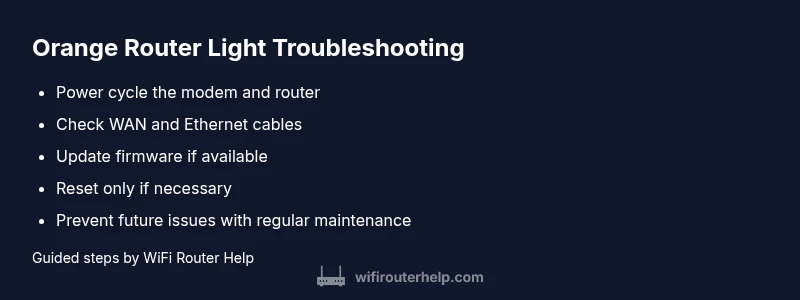
Why is Router Flashing Orange? Quick Troubleshooting Guide
Explore why routers flash orange and how to diagnose fast. Practical, step-by-step checks, firmware tips, and when to seek help to restore stable Wi‑Fi.


A flashing orange light on your router usually signals a fault or ongoing operation that needs attention. Start with the simplest checks: verify power and cables, unplug/replug, and confirm your modem is online. If the light keeps flashing, perform a soft reset and check for a firmware update or factory reset as a last resort.
What the orange light means and why is router flashing orange
If you’ve ever asked yourself why is router flashing orange, you’re not alone. In many home networks, an orange LED is a prompt from the device that something in the setup, firmware, or power path needs attention. The exact meaning can vary by model, but there are common patterns you can rely on to triage quickly. A steady orange light often signals a device state that requires user action, while a blinking orange light can indicate a process in progress or an error that needs correction. The WiFi Router Help team has analyzed thousands of home networks and found that most orange-flashing cases stem from power, cabling, or firmware issues rather than an active security breach. Understanding these signals helps you respond fast without guessing. In this guide we’ll walk you through the likely causes, the simplest fixes you can try today, and when to escalate to professional support. The goal is to restore stable internet with minimal downtime while avoiding risky pauses that could make the problem worse.
Immediate checks you can perform now
Start with the basics, because these inexpensive steps fix many orange-light scenarios. First, verify the power supply: make sure the router is plugged into a reliable outlet on a known-working strip or surge protector. If the device feels unusually warm, unplug it, let it cool, and re-seat the power connector firmly. Next, inspect every cable: the WAN/Internet cable from the modem to the router, the power adapter, and any Ethernet cables connecting devices. Re-seat or replace damaged cables. Reboot in the right order: unplug the modem, wait 10–15 seconds, plug in the modem and allow it to sync, then plug in the router and wait for it to boot. During boot, watch the LED sequence; some models show a temporary orange phase before returning to normal. If you have access to a mobile hotspot, test whether your internet service is reachable to determine if the issue is local or provider-side. Finally, check for any ongoing outages announced by your ISP and verify that your router’s firmware isn’t stuck in a failed update.
Interpreting LED patterns and model differences
LED indicators aren’t universal. Your model’s user manual is the best reference for what orange means, but there are general patterns you can recognize. A blinking orange light during startup often indicates the device is loading, negotiating a feature (such as QoS or VPN passthrough), or awaiting a successful connection with the modem. A solid orange light may point to a non-urgent fault that requires configuration changes, such as a cached DNS issue or a misconfigured WAN settings. If the orange is accompanied by a separate Wi-Fi indicator or by status lights on the modem, you’ll have more clues about where the fault originates. In some systems, an orange light signals a reboot in progress after a manual update, which should resolve once the firmware is fully applied. If you can access the admin panel, you can verify the current firmware version and compare it to the latest one on the manufacturer’s site. Always note the exact light pattern and color sequence, because it helps you communicate the issue clearly to support.
When to reset or update firmware (and how to do it safely)
Resetting the router is a powerful tool, but it should be your last resort because it erases custom settings, network names, passwords, and port-forwarding rules. Before you reset, document your current configuration if possible, including the Wi‑Fi name (SSID), password, and any guest networks. To update firmware, log into the router’s admin interface usually via a browser at 192.168.0.1 or 192.168.1.1, depending on the model. Check for a Firmware Update section and apply the latest version from the official site. Do not interrupt the update once it begins; an incomplete update can brick the device. If the update stalls or the orange light persists after a successful update, perform a soft reset, clear the browser cache for the admin page, and try again. If you’re not comfortable with manual updates or if the device is under warranty, use the auto-update feature if available. If problems continue, a factory reset followed by reconfiguration is a last resort. After a reset, reapply your settings from the saved backup and test connectivity.
Preventive steps to avoid orange lights in the future
Prevention is simpler than repair. Place the router in a cool, well-ventilated area away from heat sources and direct sunlight. Keep the firmware up to date and enable automatic updates if your device supports them, so you don’t miss critical fixes. Use a reliable power strip or surge protector to avoid voltage drops that can trigger a fault light. Inspect cables periodically for wear, particularly at the plug ends and near the connectors. Maintain a simple, backup-ready configuration file so you can restore quickly after a reset. If you run multiple devices, consider splitting traffic with QoS settings to prevent firmware or hardware from being overwhelmed. Finally, schedule periodic reboots (e.g., weekly) to clear caches and maintain smooth operation, especially if you notice intermittent connectivity symptoms alongside the orange light.
If the orange light persists after all steps
If the light continues to flash orange after you’ve tried the steps above, it’s time to escalate. Start by collecting details: model number, firmware version, recent changes, and the exact light sequence. Reach out to the router manufacturer’s support line or your ISP’s tech support with this information. If your device is under warranty, request a repair or replacement, as persistent faults can indicate a hardware defect. A technician might check power rails, internal capacitors, and port connections that aren’t visible externally. If the problem is beyond consumer repair, you may need professional diagnostics or a replacement device. While awaiting help, avoid attempting risky disassembly or using damaged cables, which could create safety hazards or void warranties. WiFi Router Help recommends sticking to the documented troubleshooting flow and documenting every step you take to share with support efficiently.
Steps
Estimated time: 20-30 minutes
- 1
Power cycle the network hardware
Unplug the router and modem, wait 15–20 seconds, plug the modem back in, wait for it to fully boot, then reconnect the router and allow it to boot. This clears temporary faults that can trigger orange indicators.
Tip: Label the power cords so you can reproduce the setup later. - 2
Check cables and connections
Ensure the WAN/Internet cable is secure, the Ethernet cables are intact, and the router is receiving stable power. Replace any damaged cables and reseat every connector.
Tip: A loose cable is a common cause of LED instability. - 3
Update firmware and verify settings
Log into the router admin page, check for firmware updates, and apply them if available. After updating, verify WAN, DNS, and Wi-Fi settings to ensure they reflect your current network needs.
Tip: Do not interrupt an active firmware update. - 4
Reset to factory settings if needed
If the orange light persists after updates, perform a factory reset and reconfigure from scratch. Back up your current settings if possible before resetting.
Tip: Only use a factory reset when all other steps fail.
Diagnosis: Router flashing orange light
Possible Causes
- highPower supply issue or unstable voltage
- mediumFirmware update in progress or failed update
- lowOverheating or environmental trigger
- lowHardware fault (port, board, or flash memory)
Fixes
- easyCheck the power cable and outlet; try a different outlet or power brick
- easyPower cycle the router and modem in sequence
- mediumUpdate firmware via the admin interface; if update fails, attempt a factory reset with back-up
- hardIf the orange light persists after steps, contact support for hardware diagnostics
People Also Ask
What does an orange blinking light usually indicate on a router?
An orange blinking light commonly signals a transition or fault during startup or a processing state. It’s not a universal indicator of a security breach. Start with basic checks and then move to firmware updates or a reset if needed.
An orange blinking light usually means a process or fault during startup. Try basic checks first.
Can I be hacked if my router is flashing orange?
Orange usually points to hardware or firmware states rather than a direct security breach. It’s best to verify connections and resets before assuming a compromise.
Orange light doesn’t typically mean a hack; check connections and firmware first.
Is it safe to reset my router if the orange light is flashing?
Resetting is safe but will erase customized settings like Wi‑Fi names and passwords. Back up configurations if possible before resetting.
Resetting is safe but back up settings first.
How long should a firmware update take if the light is orange?
Follow the update prompts and avoid powering off. If the update stalls, try a reboot and retry or seek official guidance.
Let the update complete; don’t power off during the process.
When should I contact support?
If the orange light persists after all standard steps, contact support with model, firmware, and steps tried for diagnostics.
If it persists after steps, contact support with details.
Watch Video
What to Remember
- Identify orange light quickly and act fast
- Power cycle and cables first, then firmware checks
- Firmware updates can change LED patterns—wait for completion
- Seek professional help if the orange light persists