Why Is Your Router Flashing Blue? Troubleshooting Guide
Discover why a blue flashing router LED appears and how to fix it fast. This urgent, step-by-step guide covers common causes, safe checks, a diagnostic flow, and when to call a pro.


A blue flashing router LED usually signals a firmware update, a boot issue, or a temporary network error. Start by power cycling the device, checking for any pending firmware update, and verifying the power supply is stable. If the light keeps flashing blue, back up your settings and perform a factory reset as a last resort.
What the Blue Flash Says About Your Network
According to WiFi Router Help, a blue flashing LED is typically a signal that your router is updating firmware, booting up after a reset, or facing a temporary network error. The WiFi Router Help team found that many blue-flash issues are transient and resolve with a few common steps. This section explains how to interpret the LED behavior and what to do first. In most homes, a brief blue blink during a firmware update is expected and non-harmful. However, a persistent, rapid, or irregular flash usually signals a stall or miscommunication with the device or the internet access point. Understanding the pattern—steady, pulsing, or blinking in a specific rhythm—helps you pick the right action and avoid unnecessary resets that could erase custom settings. By framing the problem this way, homeowners can stay in control and minimize downtime during network hiccups.
Common Causes Behind a Blue Flashing LED
There are several frequent culprits, but most blue flashes fall into a few clear categories. The first and most common is a firmware update in progress or a stuck update. If the router had recent power interruptions, it may boot into a recovery state, causing a blue blink. Another frequent cause is a brief but unresolved network error, often stemming from a modem restart, IP address conflicts, or a misconfiguration after a reset. Finally, hardware stress, overheating, or a failing power supply can manifest as a blue LED that won’t settle. The key is to look for consistent patterns: is the blink tempo constant or irregular? Does it occur after a reboot, or during a specific operation like streaming or gaming? These clues guide your next steps.
Quick Checks You Can Do Safely
You don’t need specialized tools to begin troubleshooting. Start with safe, non-destructive checks:
Understanding LED Codes and Router Interfaces
LED indicators are not universal, but many modern routers use blue to signal firmware activity, boot sequences, or a fundamental link issue. If your model has a status page, log in from a computer connected to the LAN, then navigate to System or Status to view the update progress, current firmware version, and connected devices. Some models also display a specific blink pattern for errors (for example, a rapid double blink might indicate a boot issue, while a slow pulsing could mean updating). Familiarize yourself with your device’s manual, but assume the blue LED is a call to verify software health and power stability first.
Diagnostic Flow Overview
A structured diagnostic flow helps you differentiate between update-related LEDs and hardware faults. Start with the simplest checks, then move to targeted actions. By following the sequence below, you’ll quickly converge on the root cause and apply the appropriate fix without unnecessary steps. The goal is to restore normal operation while preserving your settings whenever possible.
Step-by-Step Fixes: Easy to Hard
Following logical order from least invasive to more involved actions minimizes risk and downtime. Begin with quick wins and only escalate when necessary. This section outlines a practical roadmap, including what to backup, how to perform a safe reset, and how to reconfigure equipment after a fix. If you reach a point where the LED remains blue after all standard steps, it’s time to escalate to professional support to avoid hardware damage or service interruptions.
Safety Tips and Common Pitfalls
When dealing with electrical devices, safety comes first. Always unplug from the wall before inspecting cables if you notice warmth or smell burning. Do not power off the router during a firmware update unless the device explicitly instructs you to. Avoid multiple resets in quick succession, as this can corrupt stored configurations. If you’re unsure about any step, pause and seek guidance to prevent data loss or hardware damage.
Prevention Strategies to Avoid Future Blue Flashes
Preventive steps reduce the likelihood of future blue LED issues. Keep firmware up to date with automatic updates enabled, use a stable power supply (prefer a regulated adapter), and place the router in a cool, ventilated area to prevent overheating. Regularly back up your router configuration, document your settings, and maintain a clean network map. These practices shorten recovery time and keep downtime minimal when LEDs blink blue.
When to Seek Professional Help and What to Expect
If the blue flashing persists despite all standard steps, professional support is warranted. A technician can diagnose potential hardware faults, perform advanced firmware recovery, or replace the device if necessary. Prepare your purchase date, model number, and a log of what you’ve tried so far to speed up the process. The goal is to restore reliable connectivity with minimal disruption to your home network.
Steps
Estimated time: 45-60 minutes
- 1
Power cycle the router
Unplug the router from power, wait 60 seconds, then plug it back in. Allow 2–3 minutes for the device to reboot completely and observe the LED pattern.
Tip: Use a surge-protected outlet to avoid power glitches. - 2
Check for a firmware update
Log into the router's admin page and look for a Firmware Update option. If an update is available, install it and let the router reboot.
Tip: Do not interrupt the update once it begins. - 3
Verify the power supply and outlet
If the LED behavior remains erratic, try a different compatible power adapter and a different outlet to rule out power issues.
Tip: Ensure the adapter matches voltage and current specs. - 4
Back up settings and perform a reset if needed
If the LED is still flashing blue after updates, back up your configuration and perform a factory reset. Reconfigure from scratch to verify stability.
Tip: Keep a record of Wi‑Fi names and passwords. - 5
Re-flash firmware or contact support
If the reset doesn’t resolve the issue, re-flash the firmware via a recovery method or contact the manufacturer for guided recovery steps.
Tip: Document serial numbers and error codes. - 6
Assess hardware health
If issues persist after all steps, hardware faults may be present. Consider RMA or professional inspection.
Tip: A failing power port is a common hardware culprit.
Diagnosis: Blue LED on router flashing in a regular pattern during startup or while idle
Possible Causes
- highFirmware update in progress or stuck
- mediumPower instability or faulty adapter
- lowBoot loop after a reset or misconfiguration
Fixes
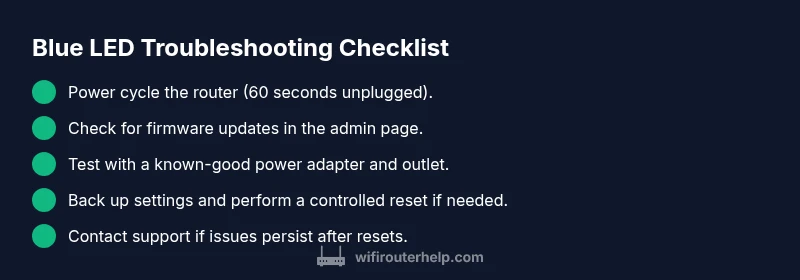
- easyPower cycle the router (unplug for 60 seconds, plug back in)
- easyCheck for and apply a firmware update from the admin UI
- easyTest with the original or a known-good power adapter and outlet
- mediumBack up settings and perform a controlled factory reset if updates are stuck
- hardIf issues persist, contact the ISP or router manufacturer for support or replacement
People Also Ask
What does a blue flashing LED mean on my router?
A blue flash often signals firmware activity, a boot sequence, or a temporary network error. Use the diagnostic flow to determine whether it’s a normal update or a sign of a deeper issue.
A blue flash usually means firmware activity or boot status. Start with a simple reboot and check for updates.
Is it safe to reset my router when the LED is flashing blue?
Resetting erases custom settings, so back up first. If updates are in progress, wait for them to finish before resetting to avoid corrupting firmware.
Reset only if necessary and after backing up settings.
Could a blue LED indicate a security issue?
A blue LED alone does not indicate a security breach. Ensure firmware is up to date and review firewall and access settings.
It’s unlikely a security breach solely based on blue LED; verify updates and protections.
How long should a firmware update take?
Firmware updates typically take several minutes. Do not power off the router during the update and allow it to reboot fully.
Updates can take a few minutes; don’t unplug during the process.
What should I do if multiple LEDs act oddly after a power outage?
Power outages can corrupt settings. Power cycle, verify settings, and reconfigure if needed. If instability remains, seek support.
Power issues can cause odd behavior; reset and reconfigure as needed.
When should I contact my ISP or manufacturer?
If the blue LED remains after all steps or the internet won’t connect, contact support for guided recovery or replacement.
If unresolved after steps, contact support.
Watch Video
What to Remember
- Back up settings before major changes
- Start with power cycle and updates first
- Factory reset as a last resort
- Preserve uptime with UPS if possible
- Seek professional help when hardware faults are suspected