Netgear Router Trouble: Quick Fixes and Troubleshooting
Urgent, practical guide for diagnosing and fixing netgear router trouble. Learn common causes, quick checks, firmware updates, resets, and when to seek professional help.


Most netgear router trouble stems from outdated firmware, misconfigured settings, or weak connections. Start by updating firmware, then test with a clean reboot and minimal changes. If issues persist, reset to factory defaults, reconfigure the network, and validate ISP status. This quick path often restores stability without professional help. Try on a wired device first to confirm the issue.
Why netgear router trouble happens
Netgear router trouble is rarely caused by a single broken component. In many homes, underlying causes include firmware that hasn’t been updated, conflicting network settings, interference from nearby networks, and imperfect cabling. According to WiFi Router Help, the most persistent netgear router trouble often starts with outdated firmware that leaves bugs or compatibility gaps unpatched. The WiFi Router Help team found that even small changes—like a password reset or a channel selection—can ripple through your devices and degrade performance across the entire home network. Before assuming a hardware defect, walk through a simple triage: check the power supply, verify cables are secure, and run a quick speed test on multiple devices. If you can reproduce the problem on a wired connection, you can rule out wireless interference; if it only happens on WiFi, focus on settings, channel width, and guest networks. A calm, methodical approach reduces frustration and speeds up a fix.
Quick checks you can do before diving in
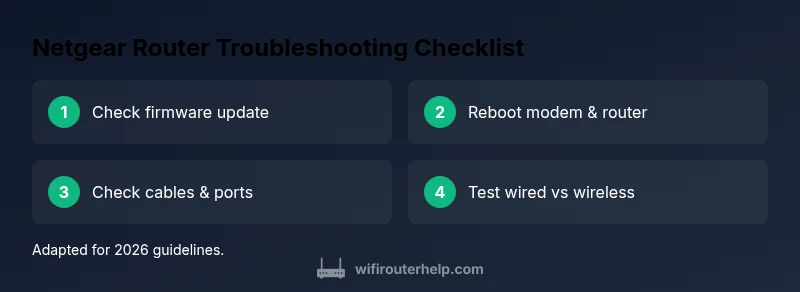
Start with the simplest checks that resolve many cases of netgear router trouble. Move from low effort to higher effort: 1) verify power stability; 2) confirm all cables are snug and free of visible damage; 3) ensure the router is connected to the modem and ISP service is up; 4) reboot the router and modem; 5) test a wired connection to gauge whether the issue is wireless. Document the symptoms and times you observe changes so you can compare before/after results. If you still experience issues after these steps, proceed to targeted actions like firmware updates or factory resets. The goal is to confirm whether the problem is environmental, a misconfiguration, or a hardware fault, so you can choose the right next step quickly.
Common culprits and how to spot them
Several frequent culprits appear in netgear router trouble cases. Firmware that is out of date can prevent features from working and can even cause intermittent disconnects. Channel interference occurs when many networks broadcast on crowded channels; verify your 2.4 GHz and 5 GHz settings. Loose cables or a dying modem can look like latency or dropouts; inspect every connection from wall outlet to router port. Power supply quality matters: a weak or fluctuating power adapter can trigger instability. If you use a mesh or extender, check your backhaul and placement. By noting when the problem happens (time of day, device type, or app usage), you can often zero in on the root cause without replacing hardware.
How to safely update firmware and reset settings
Firmware updates are essential, but they should be performed carefully. Always back up current settings if possible, then navigate to the Netgear admin interface or the official app to check for updates. Apply any available firmware, then reboot and test. If problems persist, consider a factory reset as a last resort. A reset restores the router to factory defaults, but you will need to re-enter your ISP credentials, network name (SSID), and password. After reset, reconfigure in a structured way: start with the guest network off, set a strong admin password, update firmware again, and re-test. Avoid updating during a storm or other outages to prevent interrupted installs.
Diagnostic mindset: symptom-to-diagnosis workflow
Think of troubleshooters as a funnel: start wide and narrow down to a specific cause. Begin with symptoms: slowed speeds, dropped connections, or no internet at all. Map symptoms to likely causes: power/cabling, firmware, WiFi interference, or ISP/modem issues. For each potential cause, apply a corresponding fix in order of simplicity. After each fix, retest to see if the symptom improves. If the symptom changes in an unexpected way, revisit earlier steps. This workflow helps you stay organized, avoid redundant steps, and minimize guesswork when netgear router trouble arises.
When to seek professional help and how to prepare
If you’ve exhausted the common fixes and continue to experience netgear router trouble, it may be time to involve a professional. Prepare by collecting details: model number, firmware version, current network topology, device types, and the exact symptoms with timestamps. A technician can test hardware health, verify modem status, and check line stability. Before scheduling, tighten the scope: confirm you’ve performed all basic checks, including power cycling and a firmware update. Professional support is especially recommended when you suspect a failing hardware component or persistent outages behind the modem or line.
Preventive habits to minimize future netgear router trouble
Prevention reduces downtime and improves reliability. Schedule periodic firmware checks and enable automatic updates if you prefer. Place the router in a central, elevated location to reduce dead zones, away from microwaves and other interference sources. Use strong, unique passwords for admin access and your WiFi networks, and document your setup so you can quickly restore configurations after resets. Finally, keep a simple health log: track uptime, reboot times, and any changes you’ve made to settings. With routine maintenance, netgear router trouble becomes far less frequent and easier to resolve.
Steps
Estimated time: 60-90 minutes
- 1
Identify symptoms and scope
Record what isn’t working, when it started, and which devices are affected. Note wired vs wireless behavior and whether issues occur at specific times.
Tip: Create a symptom log with timestamps. - 2
Check hardware basics
Inspect power supply, verify all cables are secure, and ensure the modem is functioning. Replace damaged cables if found.
Tip: Unplug and reseat cables firmly. - 3
Power-cycle the network
Power off all devices (modem, router, extenders) for at least 30 seconds, then power back on from the modem first, followed by the router.
Tip: Wait for full boot of each device before testing. - 4
Update firmware
Check for firmware updates in the Netgear dashboard or app, install, and reboot. Verify whether the issue persists after update.
Tip: Use a wired connection to perform updates if possible. - 5
Test network configurations
Try a simple SSID change and restore to default security settings. Disable guest networks temporarily to isolate the issue.
Tip: Document current settings before changes. - 6
Factory reset if needed
If problems continue after updates, perform a factory reset. Re-enter ISP credentials and reconfigure from scratch.
Tip: Back up settings beforehand; a reset clears custom configs. - 7
Reconfigure and verify
Set up the network anew: SSID, password, security, and admin access. Re-test across multiple devices and monitor for stability.
Tip: Enable automatic firmware updates. - 8
Escalate if unresolved
If the issue remains, contact your ISP or a qualified technician with the symptom log and steps tried.
Tip: Provide a concise problem summary and tests performed.
Diagnosis: User reports intermittent WiFi, slow speeds, or no connectivity on a Netgear router.
Possible Causes
- highOutdated firmware or failed updates
- mediumIncorrect network settings or channel interference
- mediumLoose cables or failing ethernet/modem connections
- mediumISP outage or modem issues
Fixes
- easyUpdate firmware via the router admin page or Netgear app
- easyReset network settings to default and reconfigure
- easyCheck all cables, reseat ports, and power cycle equipment
- easyContact ISP if outage or modem problem is suspected
People Also Ask
What is the first step to diagnose netgear router trouble?
Begin with a quick power cycle and check for firmware updates. Document symptoms and test both wired and wireless connections.
Start with a power cycle and check for firmware updates, then test wired vs wireless.
Why won't my Netgear router connect to the internet after a power cycle?
Check the modem connection, confirm ISP status, and verify that all cables are secure and correctly seated.
Check your modem, ISP status, and cable connections.
How do I reset my Netgear router safely without losing data?
Use the reset button for a soft reset first; back up settings if possible. A factory reset should be a last resort.
Use reset first and back up settings; factory reset if needed.
Should I contact my ISP for netgear router trouble?
Yes if the problem appears to involve the modem or service outage. They can run line tests and confirm outages.
If it looks like an outage, contact your ISP.
What are common signs of a failing router hardware?
Frequent crashes, overheating, or blinking LEDs can indicate hardware health problems; check ports for damage.
Watch for crashes, heat, or odd LEDs, and inspect ports.
Is a factory reset always necessary?
Not always; try updates and config tweaks first before resorting to a factory reset.
Usually not; try updates first.
Watch Video
What to Remember
- Update firmware first to fix common issues
- Check cables and power cycle before changing settings
- Isolate issues using wired connections when possible
- Use a structured diagnostic flow rather than guessing
- Document settings for quick recovery after changes