Firmware Update Netgear Router: A Step-by-Step Guide
Learn how to safely update your Netgear router firmware, verify the update, and troubleshoot issues. This comprehensive guide covers preparation, update methods, verification, and post-update maintenance for a secure home network.


You will learn how to safely perform a firmware update netgear router, verify the installation, and troubleshoot common problems. This quick guide outlines essential prerequisites, the two main update paths, and what to check afterward to ensure your network remains secure and stable.
Why firmware updates matter for Netgear routers
According to WiFi Router Help, firmware updates aren’t mere cosmetic changes; they are a crucial component of keeping your home network secure, fast, and reliable. For a Netgear router, the firmware governs security features, NAT behavior, firewall rules, and the way devices discover and connect to the network. A firmware update netgear router is more than a version bump — it includes security patches, bug fixes, and performance enhancements that address new threats and modern devices. Delaying updates can leave vulnerabilities that attackers may exploit and can result in compatibility issues with smartphones, smart home sensors, and streaming devices. In practice, timely updates have been shown to reduce unexplained disconnects, improve stability during peak usage, and enhance VPN performance. This section sets the foundation: understanding what’s changing, why it matters, and how a well-timed update translates into a safer, smoother network experience for households and tech enthusiasts alike.
How Netgear firmware updates are delivered
Netgear provides firmware updates through two primary channels: automatic over-the-air (OTA) updates and manual updates via the Netgear website or the router’s admin interface. OTA updates install silently when the router is idle, while manual updates require you to download a firmware file and apply it through the admin panel. In both cases, the update process replaces the router’s operating software with a newer, patched version that fixes known issues and sometimes adds features like improved QoS, better device prioritization, or expanded parental controls. The Netgear ecosystem often bundles security enhancements with feature tweaks, so even if you don’t notice a user-facing change, the underlying protections are stronger after a firmware update. To avoid surprises, check the release notes before applying an update and ensure you’re on a supported model revision. For many households, enabling automatic updates is the simplest path to stay current without manual intervention.
Preparation before updating
Before you update, establish a safe baseline. Identify your exact Netgear router model (often printed on the device label), confirm the current firmware version, and back up settings if the interface offers a backup option. Make sure you have a reliable power source or a UPS to prevent outages during the update, and connect a computer or mobile device to the router via Ethernet when possible to avoid wireless interruptions. Write down essential details such as the Wi‑Fi name (SSID), password, and any customized settings like port forwarding rules or VPN configurations. If you manage multiple devices, make a note of their connection methods and any devices that rely on special QoS rules. This preparation minimizes risk and ensures you can restore services quickly if something goes awry.
Update methods: auto vs manual
Choosing between automatic and manual updates depends on your preferences and network environment. Auto updates run in the background and apply patched firmware when the router is idle, reducing hands-on steps but offering less control over timing. Manual updates give you full control: you download the exact firmware file from Netgear’s official site and apply it through the router’s admin panel. Manual updates are useful if you want to review release notes, save a copy of the current firmware, or perform updates during a maintenance window. Regardless of method, ensure you’re downloading the correct file for your exact model and hardware version. Mismatched firmware is a common source of update failures and can brick devices if applied incorrectly.
Step-by-step update process (overview)
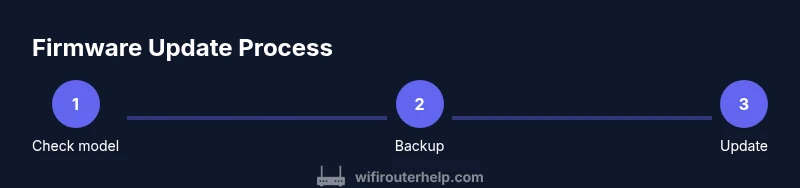
This overview explains the core sequence you’ll follow, whether you choose auto or manual updates. First, verify model compatibility and current firmware age. Next, back up your configuration and confirm you won’t lose key settings. Then, initiate the update via the administrator interface or Netgear’s portal. Allow the router to reboot and reconnect. Finally, re-check firmware version, run quick connectivity tests, and re-enable any custom rules if needed. If the update introduces new security features, take a moment to configure them (for example, enabling automatic updates or adjusting firewall settings).
Troubleshooting common update issues
Update failures happen for several reasons: network interruptions, power loss, or using an incorrect firmware file. If an OTA update stalls, pause and retry after ensuring a stable connection. For manual updates, re-download the correct file from Netgear’s official site and reapply. If the router becomes unresponsive after an update, perform a soft reset (reboot) or, as a last resort, a factory reset and then reconfigure from scratch using a recent backup. If you encounter DNS issues or devices fail to connect post-update, re-check DHCP settings, SSID, and security mode (WPA3 is preferred where supported). Always verify you’re on the latest available version after any reboot, and consider temporarily disabling features you don’t need during the initial post-update period.
Post-update security and maintenance
After updating, review security settings and ensure features like the firewall, UPnP, and remote management are configured according to your needs. Enable automatic firmware updates if you want ongoing protection without manual checks. Periodically audit connected devices and update passwords for management interfaces. For added resilience, consider segmenting guest networks and enabling strong encryption (WPA3 if available). Regularly review event logs for unusual activity and keep a simple changelog of updates and changes for quick reference. This practice helps you maintain a clean, secure, and stable network over time.
Keeping firmware current: a maintenance plan
Develop a lightweight maintenance cadence to stay on top of firmware updates. Check for updates quarterly, or enable auto-updates for critical patches. Keep a log of installed versions and monitor Netgear’s support pages for model-specific notices. If you rely on smart home ecosystems, coordinate firmware maintenance with those devices to avoid compatibility hiccups. Finally, consider testing the network after each major firmware change to ensure all services behave as expected, especially VPNs, port-forwarded devices, and gaming setups.
Tools & Materials
- Netgear router(Model and hardware version clearly identified on device label)
- Computer or smartphone with internet access(Used to access admin interface or Netgear portal)
- Ethernet cable (optional but recommended for stability)(Preferred for performing updates to avoid wireless interruptions)
- Stable power source or UPS(Prevents power loss during firmware installation)
- Backup of router settings(Use built-in backup/restore if available before updating)
Steps
Estimated time: 30-45 minutes
- 1
Identify model and current firmware
Access the router admin page and locate the model number and current firmware version. This ensures you download the correct update and prevents applying the wrong file.
Tip: Keep the model/version handy; misidentifying the device is the most common update error. - 2
Back up configuration
If the router interface offers a backup option, save a copy of your current settings. This makes it easy to recover if something goes wrong during the update.
Tip: Store the backup on a computer or USB drive in a safe location. - 3
Choose update path (auto or manual)
Decide whether to enable automatic updates or perform a manual download from Netgear’s official site and upload via the admin panel.
Tip: Manual updates give you more control and the opportunity to review release notes first. - 4
Apply the firmware update
Initiate the update through the router’s admin interface or Netgear portal. Do not power off the device during the process.
Tip: If the interface slows, wait patiently; abrupt power loss is a common cause of bricking. - 5
Reboot and verify
Let the router reboot and then verify the new firmware version. Test essential services like Wi‑Fi connectivity and wired devices.
Tip: Check that the SSID, password, and security settings are intact after reboot. - 6
Restore settings if needed
If you backed up, restore previously configured rules and port forwards after the update, ensuring everything returns to its prior state.
Tip: Compare post-update behavior to pre-update baselines to detect any changes. - 7
Monitor and maintain
Schedule future checks for firmware releases and keep a short changelog to track what changed with each update.
Tip: Enable auto-updates only if you’re comfortable with automatic maintenance.
People Also Ask
Do I need to connect my computer to the router with a cable to update?
A wired connection is recommended for updates to minimize interference and disconnections. However, many updates can be completed over Wi‑Fi if the connection is stable. Always aim for a reliable link during the update window.
Use a wired connection if you can; it reduces the risk of dropouts during the update.
What should I do if the update fails or the router won’t boot after updating?
If an update fails, retry after ensuring a stable power and network connection. If the router won’t boot, perform a soft reset first, then a factory reset only if needed, and reconfigure from backup. Avoid repeated fast retries that could worsen the issue.
Retry with a steady setup, and consult backup configurations if problems persist.
Can I downgrade firmware if problems appear after update?
Downgrading firmware is not always supported by Netgear and varies by model. If available, follow Netgear’s official downgrade instructions carefully to avoid bricking. In most cases, you should seek a fix via the next official release.
Downgrading isn’t always possible; follow official guidance if you must address post-update issues.
Is automatic updates safe for a home network with smart devices?
Auto updates are convenient and generally safe, especially for security patches. If you rely on custom port forwards or VPN settings, monitor after updates to ensure those rules continue to work.
Auto updates are usually fine, just verify your rules after the update.
What security benefits come with Netgear firmware updates?
Firmware updates fix known vulnerabilities and often add strengthened defaults. Keeping firmware current reduces exposure to exploits and improves overall defense in depth for your home network.
Updates patch vulnerabilities; staying current strengthens security.
Watch Video
What to Remember
- Back up settings before updating.
- Verify model and firmware compatibility prior to install.
- Choose auto or manual updates based on control needs.
- Do not interrupt the update process.
- Post-update verify and secure default settings