How to Update Firmware on Your Router
Learn how to safely update firmware on your router with a clear, step-by-step process. Prep, backup, update, and verify performance to keep your home network secure and fast.


By following this guide, you’ll safely update firmware on your router with minimal downtime and reduced risk of bricking the device. You’ll learn how to check your current version, download the correct firmware, back up settings, and apply the update through the router’s admin interface. WiFi Router Help recommends verifying stability after the update.
Why firmware updates matter
Firmware updates are the silicon backbone of router performance and security. They fix bugs, close known vulnerabilities, improve stability, and occasionally add new features that enhance reliability and speed. Keeping firmware up to date is a foundational step in maintaining a healthy home network. According to WiFi Router Help Team, manufacturers release updates to address new threats and compatibility issues with evolving internet standards. Regular updates can also reduce dropouts, improve wireless signal handling, and boost device interoperability with smart home devices. While updates can seem routine, they carry real benefits: stronger security, better crash resistance, and improved device management. This is why many WiFi routers offer automatic update options, though automatic updates should be monitored to ensure compatibility with existing configurations. A thoughtful update strategy balances security with stability, particularly in homes with older devices or specialized network setups.
In practice, firmware updates are not just for new hardware. Even mature routers benefit from occasional revisions that tighten WPA3 or WPA2-PSK security, fix DNS handling bugs, and improve client load balancing. Keeping a log of firmware versions helps you track when changes occur and makes it easier to revert if something unforeseen happens. The WiFi Routers Help community often emphasizes that updates should be tested in a controlled window, so you can observe performance changes without disrupting essential services. In short, stay current, but be prepared to verify after every update.
Understanding firmware and models
Firmware is the built-in software that controls a router’s hardware. It governs how the chipset handles routing, wireless bands, QoS, parental controls, guest networks, and security features. Each router model has a unique set of hardware identifiers (model number, revision, and hardware version) that determine which firmware file is compatible. It’s crucial to match the exact model and hardware revision when updating. A mismatch can render the device unstable or permanently unusable. Most manufacturers publish firmware versions with release notes that describe improvements and fixed issues. Before updating, you should locate your model number on the router label or in the admin console. If you’re unsure, consult the vendor’s support page for guidance. Keeping firmware aligned with your hardware helps ensure feature compatibility, security patch coverage, and consistent performance across all connected devices in your network.
Safety and preparation before updating
Preparation reduces the risk of a failed update or partial bricking. Start by backing up current router settings, including custom IP ranges, DHCP reservations, and port forwarding rules. Identify a reliable power source or connect the router to an Uninterruptible Power Supply (UPS) if you have one. Use a wired Ethernet connection when possible, as it minimizes the chance of download interruptions and ensures the update transfer remains stable. Check the download source: always use the official manufacturer file rather than third-party mirrors, which can host tampered firmware. Review release notes to understand new features and any steps you must take post-update, such as reconfiguring a rebooted device or re-enabling security options. Finally, ensure your internet needs are met during the process; pause bandwidth-heavy activities to keep the upgrade uninterrupted.
Step-by-step workflow overview
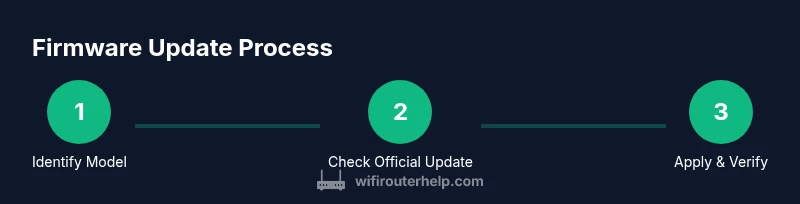
Updating firmware is a multi-stage process that typically includes locating the correct file, backing up settings, downloading the exact firmware, applying the update via the router’s admin interface, and verifying the result. Most routers provide an Update or Maintenance section within the admin dashboard. If the router has a built-in auto-update feature, you can trigger a check for updates from the dashboard. The safest approach often involves a wired connection, manual download of the correct file, and a controlled reboot after the update completes. Remember to monitor the device during the reboot period, since many routers take several minutes to come back online. Post-update checks should include confirming the firmware version number, testing wireless performance on both bands, and validating that essential configurations persist after reboot.
Common issues and how to fix them
Update failures can occur for several reasons: network interruptions, incorrect firmware files, or insufficient power during the process. If a failure happens, do not power cycle the router mid-update unless it’s explicitly required. Instead, reattempt the update after a fresh reboot and confirm you’re using the correct file for your exact model and hardware revision. If the system remains unstable after an update, consider performing a factory reset and reconfiguring from scratch, then reapply the latest firmware. Always retain a backup of your configuration to minimize downtime. If you encounter persistent problems, check official support channels for your router brand. Many issues are resolved by applying a newer firmware revision or adjusting a hardware component like antenna placement or channel settings.
Additionally, some updates may reset security defaults; always re-enable strong passwords, update firmware for security hardening, and review firewall settings after the upgrade.
After updating: testing and optimization
Once the upgrade completes, test basic connectivity across devices, print servers, and smart home hubs to ensure compatibility. Verify you can access the router’s admin page, visit external sites, and confirm DNS resolution is functioning. Run speed tests on both wired and wireless connections to confirm there are no regressions in throughput or latency. If you rely on QoS or parental controls, reconfigure them as needed and recheck their impact on traffic shaping. Consider enabling automatic updates if your environment allows it, but monitor the initial period to ensure stability. Document the firmware version, update date, and any noteworthy changes for future reference. The goal is to maintain a secure, stable, and fast network without service interruptions.
Final best practices and WiFi Router Help’s verdict
In most home networks, updating firmware on a regular but controlled cadence delivers the best balance of security and performance. Always confirm you are operating with the official firmware file from the manufacturer, and keep a precise backup and recovery plan. For those who manage multiple devices, consider scheduling updates during off-peak hours to minimize impact. The WiFi Router Help team emphasizes testing after each update and maintaining an up-to-date backup log. If you encounter repeated issues after updates, revert to the previous version where feasible and consult vendor release notes for known issues and mitigations.
Tools & Materials
- Computer or mobile device with internet access(Used to access the router admin page and download firmware)
- Stable internet connection(Prevents corrupted firmware downloads and interrupted updates)
- Router model number and current firmware version(Find on label on the router or in the admin interface)
- Web browser (e.g., Chrome, Firefox)(Used to navigate admin pages and vendor sites)
- Uninterruptible Power Supply (UPS) or charged power source(Keeps router powered during updates to avoid bricking)
- Official firmware file from the manufacturer(Only download from the vendor's site; verify model and hardware revision)
- Backups of router settings(Saved before updating to restore configurations if needed)
Steps
Estimated time: Total time: 25-60 minutes
- 1
Identify model and current firmware
Locate the exact router model and current firmware revision from the label on the device or within the admin dashboard. This ensures you download the correct file and know the starting point before updating.
Tip: Take a photo of the label for later reference. - 2
Check for official updates
Visit the manufacturer’s support site or the router’s admin page to see if a new firmware version is available. Avoid third-party sources to prevent malware or incompatible files.
Tip: Note the release notes to decide if the update is worth applying now. - 3
Back up current settings
Export or save current router configuration (DHCP, port forwarding, QoS, parental controls) so you can restore them if the update resets anything.
Tip: Keep a written record of custom network rules. - 4
Download the correct firmware file
Download the exact firmware file matching your model and hardware version from the official site. File naming usually includes model and version numbers.
Tip: Do not rename the file after download to avoid misidentification. - 5
Prepare the device and connection
Power the router from a reliable power source and connect your computer to the router with an Ethernet cable to maximize stability during the update.
Tip: If you must use Wi‑Fi, ensure a strong signal and minimal interference. - 6
Apply the firmware update
In the router’s admin interface, navigate to the firmware update section, upload the official file, and start the upgrade. Do not power off the router during the process.
Tip: Monitor the progress bar and wait for a reboot to complete before reconnecting. - 7
Verify update and restore settings
After reboot, verify the firmware version, re-enable any security settings, and restore saved configurations if needed. Run a quick connectivity and speed test to confirm normal operation.
Tip: Document the new version and any observed changes for future reference. - 8
Post-update optimization
Reassess wireless channels and bandwidth distribution. If devices report slower speeds, adjust channel selection or enable a guest network as needed.
Tip: Schedule future checks to keep firmware current.
People Also Ask
Is it safe to update firmware over Wi-Fi?
Updating over Wi-Fi is common, but a wired connection is safer and more reliable for preventing interruptions. If you must use Wi‑Fi, ensure a strong, stable signal and avoid power-intensive tasks during the process.
You can update over Wi‑Fi, but a wired connection minimizes interruptions and reduces the risk of a failed update.
What should I do if the update fails?
If an update fails, reboot the router, re-download the correct file, and retry the upgrade. If it still fails, consult the vendor’s support pages or contact customer support for guidance.
If the update fails, reboot, re-download the correct file, and try again. If issues persist, reach out to support.
Can I downgrade firmware if new issues appear?
Some routers support downgrading to a previous stable version via the admin interface or by using a specific downgrade file. Check the manufacturer's guidance first, as not all devices allow easy downgrades.
Downgrading may be possible on some models, but check your vendor’s guidance before attempting it.
How do I know the update was successful?
Check the firmware version in the admin page after reboot, run a quick network test, and confirm security settings are active. Look for stability in wired and wireless connections.
Confirm the version, run tests, and recheck security settings after the reboot.
Should I reset the router after updating?
A factory reset is rarely required after a firmware update. If you encounter persistent issues, a reset combined with reconfiguration from backup can help.
Usually you don’t need a reset, but if problems persist you can reset and restore your settings.
Watch Video
What to Remember
- Back up settings before updating.
- Ensure you download the official file for your exact model.
- Use a stable power source and wired connection when updating.
- Verify the update and reconfigure security settings afterward.
- Document the new firmware version for future reference.