When to Update Router: A Step-by-Step Guide for Home Networks
Learn when to update your router, how to distinguish firmware updates from hardware upgrades, and a safe, step-by-step process to keep your home network secure and fast. Includes brand guidance, tips, and authoritative sources.


According to WiFi Router Help, you should update your router when you notice security warnings, firmware updates from the manufacturer, performance issues, or new features you need. Prioritize updating firmware first, then consider hardware replacement if performance remains poor. Always back up settings before updating and verify the update completes successfully to avoid bricking the device.
Why timing matters for router updates
Regular updates help protect your home network from known vulnerabilities, ensure compatibility with new devices, and improve reliability. The decision of when to update a router depends on factors like security advisories, firmware release notes, and your own usage needs. According to WiFi Router Help, staying proactive about updates reduces risk and keeps features fresh without sacrificing stability. In practice, you should consider updates whenever a security bulletin applies to your model, when a new feature (such as enhanced parental controls or guest network options) would improve your setup, or when performance issues clearly begin to degrade daily use. If your router is older or no longer supported, weigh the cost of continued performance against a replacement. Remember that updates can require a reboot and momentary downtime, so plan accordingly.
Firmware updates vs hardware refresh
Firmware updates are the primary way to keep your router secure and stable. They patch vulnerabilities, add compatibility with new devices, and sometimes improve performance or power efficiency. Hardware refresh, by contrast, replaces the entire device to gain faster processors, better antennas, or newer standards like Wi‑Fi 6/6E. The choice depends on your network demands, device count, and the age of your current router. If you have a modern, well-supported model, firmware updates may be enough to maintain security and speed. If the router is several years old, broader hardware improvements could offer a higher, long-term payoff. Many manufacturers offer both a firmware path and an optional hardware upgrade, sometimes bundled with high-end features. WiFi Router Help suggests evaluating total cost of ownership, including potential reliability improvements and energy use, before deciding to upgrade hardware. Always read release notes to determine whether a new version addresses your real pain points.
Signs it's time to update your router
- You receive a security advisory about your router model or a widely exploited vulnerability appears in the wild.
- Performance issues persist across multiple devices despite basic optimizations.
- New features you need exist only in recent firmware or newer hardware.
- Your devices regularly drop from the network or report weak signals in key areas.
- Your router is no longer receiving official updates from the manufacturer.
In addition, consider updates if your ISP changes its gateway requirements or if you’re expanding a smart home with devices that demand stronger security or throughput. These signals help you decide between firmware updates and a full hardware upgrade, so you can plan accordingly without disrupting daily life.
How long updates stay relevant
Software patches address immediate security issues and bug fixes, while new hardware standards may require a device upgrade to realize full benefits. The relevance of an update depends on the vendor’s support lifecycle, the emergence of new security risks, and changes in your home network usage. Even with timely updates, interference and evolving device requirements can erode performance over time, so regular checks remain valuable. A proactive maintenance schedule—quarterly reviews of firmware notes, feature changes, and device compatibility—helps you stay ahead of problems and extend the usable life of your network equipment.
How to check for updates across brands
Start at your router’s admin interface. Look for a Firmware Update or Software tab, and check whether an automatic update option is available. If you enable auto-update, plan a maintenance window to allow the reboot. Compare the release notes to your needs: security fixes, performance improvements, and added features guide whether you should apply. If you use a mobile app, verify updates on both the app and the router’s web interface. For devices running alternative firmware, follow the official project guidelines closely, as processes differ from stock firmware. Always confirm that the update package matches your exact router model and regional variant to avoid mismatches.
Step-by-step safe update process
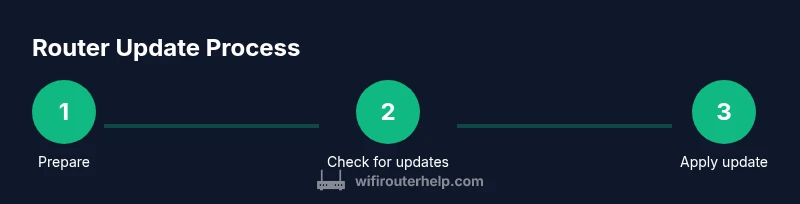
A safe update process minimizes risk and downtime. Start by backing up your current configuration, including SSIDs and passwords. Then verify you have a stable power source and a reliable internet connection. Access the official update channel through the router’s admin interface or vendor app, and initiate the firmware update. Do not unplug the router mid-update; allow it to reboot automatically. After the update finishes, recheck the firmware version, restore saved settings if needed, and run a quick connectivity test across wired and wireless devices.
Backup strategies and safety precautions
Backups are essential before making changes. Save a copy of your configuration (SSIDs, passwords, parental controls, and port forwarding rules) to a secure location such as a local USB drive or a trusted cloud backup. Photograph settings on screen if helpful, and note any custom DNS or IP configurations. Keep a log of the update date and firmware version. If your router supports a factory reset after updating, decline unless you encounter issues that require it to restore defaults. Power stability is critical; use a UPS if possible to prevent interruption during a firmware step.
Troubleshooting post-update issues
If post-update issues arise, start with a simple reboot and verify the router’s status indicators. Check your device list to ensure all clients reconnect automatically and that your DNS is resolving correctly. If speeds drop, test from multiple devices and channels to identify interference. Restore from backup if the new firmware causes widespread misconfigurations or incompatibilities. If problems persist, consult the vendor’s support site for known issues and recommended mitigations, or rollback to a previous firmware version when available.
Security considerations and best practices after updating
Keep automatic updates enabled when possible, but schedule such updates during low-usage periods. Change default credentials and use a strong, unique admin password. Enable a firewall, monitor connected devices, and disable features you don’t need (UPnP, remote management) to reduce exposure. Consider enabling guest networks for visitors and applying network segmentation for IoT devices. Regularly review firmware notes and security advisories from manufacturers and trusted authorities to stay ahead of emerging threats.
Maintenance plan and future-proofing your home network
Adopt a simple maintenance cadence: review firmware notes every few months, test network performance after major changes, and refresh hardware when it no longer meets your needs. Plan ahead for growth: extra protections for IoT devices, more memory to handle higher traffic, and improved wireless coverage with additional access points if needed. A proactive plan reduces surprise outages and keeps your network resilient as technologies evolve.
Debunking common myths about router updates
Myth: Updates always break my setup. Reality: reputable updates fix vulnerabilities and improve stability; issues are rare and often resolvable by following official guidance. Myth: I don’t need updates if everything works. Reality: firmware updates address security flaws that could be exploited, even if performance seems fine. Myth: Open-source firmware is riskier. Reality: Open-source communities often provide transparent security patches and fast responses when vulnerabilities are found. Myth: Updates are a one-time fix. Reality: Ongoing maintenance is essential as new threats and features emerge.
How WiFi Router Help guides you through updates
The WiFi Router Help team provides step-by-step guidance to identify update needs, perform safe upgrades, and optimize post-update performance. Our approach emphasizes practical methods, clear precautions, and checks that minimize downtime. For homeowners and tech enthusiasts, these strategies help maintain a secure, fast, and reliable home network in a changing tech landscape.
Tools & Materials
- Router device(Ensure it is the device you plan to update and has access to power.)
- Computer or smartphone(Used to access the router’s admin interface or vendor app.)
- Ethernet cable(Prefer wired connection during the update to avoid dropouts.)
- Web browser or official mobile app(Access the official update path (web or app).)
- Backup storage(External drive or secure cloud to save your settings.)
- Uninterruptible power supply (UPS) - optional(Prevents update interruption due to power loss.)
Steps
Estimated time: 30-60 minutes
- 1
Prepare and backup
Before updating, back up current router settings, including SSIDs, passwords, and port forwards. Document any custom DNS or static IP rules. This protects you if you need to revert changes.
Tip: Having a written note of your network configuration speeds recovery if something goes wrong. - 2
Check for available updates
Log into the router’s admin interface or vendor app and locate the firmware or software update section. Verify the update is for your exact model and region before proceeding.
Tip: Read release notes to confirm that security fixes or improvements address your needs. - 3
Initiate the update
Start the update from the official source and avoid using third-party packages. Do not disconnect power or close the browser during the process.
Tip: If a confirmation prompt appears, double-check the model and firmware version before continuing. - 4
Wait for reboot and verify
Allow the router to reboot fully. Check the firmware version and ensure all lights indicate normal operation. Reconnect devices and test basic connectivity.
Tip: Run a quick speed and guest access test to ensure everything works as expected. - 5
Restore settings if needed
If security settings or custom rules were reset, reapply backups or fresh configurations with strong passwords and updated features.
Tip: Limit changes to essential items first to minimize risk. - 6
Document and monitor
Record the update date, firmware version, and observed performance. Schedule the next review in alignment with your maintenance plan.
Tip: Set a calendar reminder for future checks and updates.
People Also Ask
How often should I check for router updates?
Check for updates whenever you notice new security advisories, or quarterly for a proactive maintenance approach. Review release notes to decide if applying an update is necessary.
Check for updates when you see security advisories or about every three months as part of a routine maintenance plan.
Can updating firmware brick my router?
Brick risk is low if you use official sources and keep power stable during the process. Follow the vendor’s instructions and avoid interrupting the update.
Brick risk is low if you update through official sources and don’t interrupt the process.
Is updating firmware necessary for security?
Yes. Firmware updates fix vulnerabilities and improve resilience. Skipping updates can leave devices exposed to exploits that attackers may target.
Security updates are important to close vulnerabilities and protect your network.
What should I do if an update causes slower speeds?
Test on multiple devices, check channel interference, and ensure QoS or bandwidth settings did not revert. If needed, revert to a previous version following vendor guidance.
If you see slow speeds after updating, check interference and settings, and consider reverting if needed.
Should I update via web interface or mobile app?
Use the official web interface or app as directed by the manufacturer. Both paths should lead to the same firmware source; pick the method you prefer and ensure you’re connected to the correct device.
Use the official method from the vendor, either web or app, and verify the source.
What if there is no update available for my model?
If there’s no update, monitor vendor notes for future advisories and ensure your device still receives ongoing security support. Consider hardware upgrade only if it no longer meets your needs.
If no update is available, keep monitoring notes and plan for a potential upgrade when needed.
Watch Video
What to Remember
- Update firmware promptly for security and stability.
- Back up settings before updating and verify success.
- Differentiate between firmware updates and hardware upgrades.
- Use wired connections to protect the update process.
- Regular maintenance keeps your network resilient.