How to Update Router: A Step-by-Step Guide
Learn how to update your router safely, with a clear, step-by-step process, tips to avoid common pitfalls, and verification steps to ensure continued security and performance for your home network.


Today you will learn how to safely update your router’s firmware to improve security and performance. According to WiFi Router Help, start by using the official vendor site or your router’s admin interface, and back up current settings before you proceed. This guide covers preparation, step-by-step updating, verification, and common troubleshooting tips.
Why Updating Your Router Matters
Keeping firmware up to date is one of the most effective ways to protect your home network from vulnerabilities, improve stability, and unlock new features. Outdated firmware can leave routers open to exploits that target common weaknesses in networking stacks and services. By staying current, you reduce exposure to bugs, improve compatibility with modern devices, and often gain performance enhancements such as steadier connections and better QoS. According to WiFi Router Help, regular updates should be treated as routine maintenance, not a one-off event. In practice, many households experience fewer disconnects and smoother streaming after a thoughtful update. The update process itself is usually straightforward, but skipping prerequisites (like backups) can lead to lost settings or network downtime. Reading the release notes from the manufacturer helps you understand what changes to expect and whether a reboot is required.
Quick Clarification: Firmware vs Software Updates
Firmware is the low-level software that runs the router’s core functions, including its networking stack, radios, and security features. Software updates, on the other hand, may refer to the router’s companion apps or web interfaces that modify settings but do not replace the firmware itself. When people say “update,” they usually mean firmware updates, since these fix security flaws and add stability. Always rely on official sources for firmware and avoid third-party files unless explicitly supported by the vendor. Understanding this distinction helps you plan the update workflow without accidentally installing incompatible components.
Preparation and Safety Considerations
Before you begin, gather all essentials and create a safety buffer. Ensure the router is plugged into a reliable power source or an uninterrupted power supply (UPS) to prevent mid-update shutdowns. Write down current network credentials (SSID and password) and note any custom settings like port forwarding rules, DHCP reservations, and parental controls. Attach a device you can use to access the router’s admin interface—prefer a wired connection during critical steps to avoid wireless dropouts. If you travel often, schedule updates for a time when bandwidth is stable. This phase reduces the risk of configuration loss and makes troubleshooting easier if something goes wrong.
Step-by-Step Update Process (Overview)
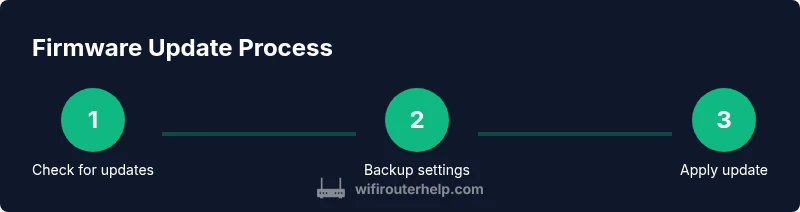
A successful firmware update generally follows four phases: check for official updates, prepare your device, apply the update, and verify post-update operation. Start by confirming your exact router model and current firmware version. Then, navigate to the vendor’s support page or the router’s admin panel to locate the update file or update button. After applying the update, reboot the device and recheck your settings. This overview underscores the importance of using official sources and maintaining a backup plan so you can recover quickly if the update introduces unexpected changes.
Back Up and Document Your Settings
Backing up saves you from having to recreate complex rules and custom settings after an update. Use the export option in the router’s admin interface if available, or save a screenshot of the current configuration. Document things like: SSID, Wi‑Fi password, connected devices, port forwarding rules, dynamic DNS settings, and QoS rules. Some routers offer a cloud-based restore, which can simplify recovery on multiple devices. If you have multiple subnets or a guest network, ensure you capture those details as well. A thorough backup reduces downtime and preserves your preferred network layout.
Update Methods: Web Interface vs App vs Advanced Options
Most home routers support firmware updates via a web interface or a vendor mobile app. The web interface generally provides the most control and is easiest to audit. Some enterprise-grade or ISP-provided gateways require a manufacturer app or a recovery mode if the web interface is unavailable. For advanced users, certain models offer manual update methods (e.g., TFTP/SSH) for recovery or edge cases, but these carry higher risk and should be attempted only with official guidance. Always start with the simplest path first and avoid using third-party firmware unless it’s explicitly supported.
Verifying the Update and Post-Update Best Practices
After the update completes, reboot the router and reconnect your devices. Check the firmware version displayed in the admin panel to confirm the update installed correctly. Re-run essential tests: verify internet connectivity, test streaming quality, and ensure your VPN or firewall rules still function as expected. If problems arise, compare current settings with your backup and restore if needed. Keep an eye on log files for any unusual activity and monitor device performance for 24–72 hours to validate stability.
Common Pitfalls and Troubleshooting
Common issues include update failures due to interrupted power, incompatible firmware versions, or incorrect regional settings. If the device won’t boot after an update, consult recovery procedures in the vendor’s docs; many routers support safe recovery modes. Avoid updating during times of heavy network use or when you have critical sessions dependent on network uptime. If you must pause, stop the update, first save a backup, and retry after confirming the device is healthy. When in doubt, revert to a known-good backup and retry with careful monitoring.
Security Implications and Future-Proofing
Firmware updates often close security gaps that criminals exploit. Enabling automatic updates, if available, is a practical way to maintain ongoing protection. Consider enabling features like firewall rules, intrusion prevention, and guest-network isolation to reduce risk exposure. Regularly review your router’s security settings, disable unnecessary remote management, and update connected devices to ensure end-to-end protection. These practices, combined with timely firmware updates, significantly strengthen home network resilience.
Router Types and Special Cases: ISP Gateways, Standalone Routers, and Mesh
ISP-provided gateways differ from standalone routers; their firmware is often controlled by the ISP, with update timing and options varying by provider. Standalone routers give you direct control over firmware, with frequent minor or major updates. Mesh systems add another layer: update each node and verify seamless handoffs between units. In all cases, use official firmware sources and follow vendor-recommended procedures to maintain mesh stability and consistent network performance.
Tools & Materials
- Your router model manual or web interface login(Have admin credentials ready and know the exact model number)
- Stable internet connection(Prefer a wired Ethernet link during the update if possible)
- Computer or mobile device(Used to access the admin interface and download firmware)
- Backup power source(UPS or power adaptor with reliable supply to prevent interruption)
- Current network documentation(SSID, password, port forwards, QoS rules, and guest networks)
Steps
Estimated time: 20-40 minutes
- 1
Check for official updates
Access the router’s admin interface or vendor support page to see if a new firmware version is available for your exact model. Verify model number and current firmware to avoid installing an incompatible file.
Tip: If you’re unsure of the model, pull the device off the wall and read the label on the bottom or back. - 2
Back up current settings
Export the configuration or take screenshots of critical settings like SSID, password, port forwards, and QoS rules. This creates a safe restore point if the update changes or resets anything.
Tip: Store backups in a separate device or cloud note for quick access. - 3
Download and prepare the update
Download the firmware file from the official vendor site or initiate the update through the admin panel. Do not use third-party firmware unless explicitly supported by the manufacturer.
Tip: Compare the file size and version with the release notes to ensure compatibility. - 4
Apply the update
Start the update from the admin page, connect via Ethernet if possible, and avoid unplugging the device. Do not multitask on other devices that could congest the network during installation.
Tip: If your router offers a pause option, avoid interrupting the process once it starts. - 5
Reboot and verify
After the update completes, reboot the router and rejoin the network. Confirm the firmware version, test internet access, and verify major settings are intact.
Tip: If any settings are missing, restore from the backup and reconfigure only the changed items. - 6
Monitor performance
Over the next 24-72 hours, monitor stability, throughput, and wireless range. Note any devices that disconnect or experience reduced speed and adjust QoS or channel selection if needed.
Tip: Document issues and consult vendor docs if problems persist beyond a few hours.
People Also Ask
Is it safe to update my router's firmware?
Yes, as long as you use official sources and back up your settings beforehand. Firmware updates patch security flaws and improve stability.
Yes, it's safe when you use official sources and back up first.
What if the update fails or the router won't boot?
If an update fails, try a safe recovery mode or revert to a backup. Consult the vendor’s support site for model-specific recovery steps.
If it fails, use recovery mode and check vendor steps.
Will my custom settings be erased after updating?
Usually not, but some settings may reset to defaults. Always restore from your backup after updating and reapply critical rules.
Usually not, but some settings may reset. Restore from backup if needed.
Can I enable automatic firmware updates?
If your router supports it, enabling automatic updates can improve security with minimal effort. Review update logs to stay informed about changes.
Yes, enable auto updates if available and review logs.
How often should I update firmware?
Check for updates monthly or when the vendor issues a security advisory. Avoid unnecessary updates that could destabilize the network.
Check monthly or after security advisories.
Watch Video
What to Remember
- Back up settings before updating.
- Only use official firmware sources.
- Verify update success and functionality after reboot.
- Enable automatic updates where available to stay protected.