How to Check Router Firmware: A Step-by-Step Guide
Learn how to check your router firmware, why it matters for security and performance, and how to update it safely with practical, brand-agnostic steps.


You will learn how to check your router firmware, confirm the current version, and apply updates safely. This guide covers built-in admin interfaces, mobile apps, and manual checks for major brands.
Why firmware matters
Firmware is the low-level software that runs your router. It controls how your device processes data, protects your network, and supports features like QoS and parental controls. Keeping firmware current is essential for security, performance, and compatibility with newer devices. Keeping firmware current helps reduce exposure to known exploits and improves reliability in home networks. According to WiFi Router Help, timely firmware updates reduce exposure to known exploits and improve reliability in home networks. In this section, you’ll understand the role of firmware and how to assess its importance in practical terms. You’ll also see how to schedule regular checks so you stay ahead of issues rather than reacting to outages. The information here applies to a wide range of router brands and setups, from single-story homes to multi-device networks. By mastering these checks, you’ll gain confidence that your network remains secure and fast as your household grows.
Where to find firmware version (quick overview)
Most routers expose the firmware version on their status or maintenance pages. In many models, you’ll see it under Administration > Firmware Version, System > Status, or similar labels. Some mobile apps display the version on the device overview screen. For newer devices, a dedicated section in the app might show both current and available versions. The exact path varies by brand, but the principle is the same: locate the version number and note it before updating.
How to read the version string and what it means
Firmware versions are typically a numeric string with a date or build tag, such as 1.2.3_202603. The important detail is not the specific numbers themselves but whether a newer release exists and what it fixes or improves. Release notes describe security fixes, bug fixes, performance enhancements, and feature changes. When you read version strings, look for the date, the build number, and any listed changes that affect your setup. If you’re unsure how to interpret the notes, start with the security and stability items, then review user-facing feature changes. The WiFi Router Help team emphasizes that understanding the notes helps you decide if an update is important for your network.
Understanding release notes and update cadence
Release notes can vary in detail. Some manufacturers publish comprehensive changelogs; others provide brief summaries. When evaluating updates, prioritize items related to security patches, reliability fixes, and compatibility with your connected devices. If you rely on specific features (like VPN passthrough or enhanced parental controls), check whether those features are mentioned in the notes. If the notes are unclear, you can search for model-specific discussions in user forums or the vendor’s official support pages. Keeping a basic log of firmware versions and update dates will help you track changes over time and troubleshoot if something behaves differently after an update.
Brand-agnostic approach to checks and updates
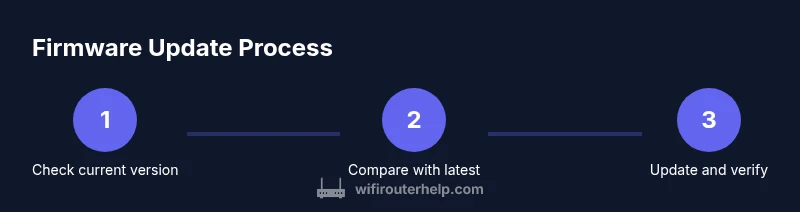
Regardless of brand, the core steps are the same: locate the current version, compare it with the latest release notes, and decide whether to update. This approach applies to typical home routers from most manufacturers. The goal is to maintain security, improve performance, and prevent feature gaps. Regularly checking for updates, especially after major software disclosures or new device purchases, helps ensure your network remains protected and stable.
Preparing for an update: safety and backups
Before updating, ensure you have a stable power source and a reliable network connection. Some routers offer backup/export of settings; if yours does, enable this option so you can restore preferences if needed. If your router supports a rollback or factory reset option, familiarize yourself with it in case the update causes issues. It’s also a good idea to keep a log of the current version, the date, and what changed, so you have a reference point if you need to diagnose post-update behavior.
Tools & Materials
- Access to router admin interface (web browser or mobile app)(Know the login credentials; use a device on the same network)
- Stable power source(Avoid updates during storms or outages)
- Computer or mobile device on the same network(Wired connection can improve update reliability)
- Backup/export feature (optional)(Use to save current settings before updating)
- Access to the latest firmware release notes(Check vendor site or support forums for details)
Steps
Estimated time: 15-40 minutes
- 1
Prepare your environment
Ensure power stability, close unnecessary apps, and gather your login credentials. If possible, enable a backup of current settings and note the current firmware version.
Tip: Allocate a maintenance window; firmware updates can take 5-15 minutes. - 2
Open the router admin UI
Connect to the router via a web browser or the manufacturer’s app and sign in with admin credentials. If you don’t know the IP, search for it in the manual or try common defaults like 192.168.1.1.
Tip: For stability, use a wired device when updating. - 3
Find the firmware version
Navigate to the status or maintenance page and locate the firmware version string. Record this value for reference and comparison.
Tip: If you cannot find it, use the vendor’s help article or support search for 'check firmware version' plus your model. - 4
Check for the latest release
Look for a ‘Check for updates’ button or an equivalent option. If an update is shown, review the release notes before proceeding.
Tip: Read notes for security fixes and feature changes that impact your setup. - 5
Initiate the update
If an update is available, start the installation. Do not disconnect power or close the UI during the process.
Tip: If you must wait during the update, monitor progress and prepare for a reboot. - 6
Verify post-update status
After the router reboots, re-enter the admin UI and confirm the firmware version reflects the update. Check basic network functions (Wi-Fi, wired devices, and guest networks).
Tip: Take note of any new prompts or changes in the UI layout. - 7
Troubleshooting if issues arise
If the update fails or you notice new problems, try a soft reboot, reset to factory defaults only if necessary, and restore from a backup if available.
Tip: Consult vendor support or forums before attempting a second update.
People Also Ask
How do I know if my firmware is outdated?
Compare your current version to the latest release notes on the vendor site. If there are security fixes or major bug fixes listed, update is recommended. If no update is available, monitor for future releases.
Check the current version against the latest notes, and update when security fixes or major bugs are mentioned.
Can I update firmware without internet access?
Some routers support offline updates via a downloaded file. Check the vendor’s instructions for your model. Most consumer routers require an internet connection to fetch the update.
If offline updates are available for your model, follow that method; otherwise you’ll need internet access to update.
What happens if a firmware update fails?
If an update fails, reboot the router and retry. If it continues to fail, restore from a backup or contact support. Do not force a second update mid-failure cycle.
Restart, retry, and consider a rollback if the second attempt fails.
Should I update if the version difference is minor?
Minor updates can still fix security vulnerabilities or stability issues. Review the notes; if they include critical fixes or feature enhancements you need, proceed.
Even small updates can matter for security and stability; review notes before deciding.
How often should I check for firmware updates?
Check at least quarterly, and after major vulnerabilities are disclosed or new devices are introduced to your network.
Check every few months, plus after big security notices.
Is updating firmware risky for my network?
Firmware updates are generally safe when performed correctly, but interruptions can cause issues. Always back up settings and use a reliable power source.
Risks exist mainly if the update is interrupted; prepare with power and backups.
Watch Video
What to Remember
- Regularly check firmware to protect security.
- Back up settings before updating.
- Verify the update completed with the new version.
- Use a stable, wired connection for updates.