How to Update Your Router Firmware: A Complete Guide
Learn to update your router firmware safely with auto or manual methods. This guide covers preparation, step-by-step updates, troubleshooting, and post-update best practices to improve security and performance.


By the end of this guide, you will update your router firmware safely and successfully, understanding when updates are needed and how to apply them without losing settings. You can choose auto-update or manual methods, ensure a stable power supply, back up configurations, and verify the new version after reboot. The steps reduce downtime and boost security and reliability.
Understanding firmware updates and why they matter
Firmware is the built-in software that powers your router’s hardware. It controls how your device handles traffic, wireless standards, and security features. Like any software, firmware has bugs and vulnerabilities that emerge over time. Regular updates patch vulnerabilities, fix bugs, and improve performance, reliability, and compatibility with connected devices. Keeping firmware current reduces the risk of remote exploitation and helps your network stay resilient against new threats. When you search for how do i update my firmware on my router, you’re looking for a safe, reliable process that preserves your settings while minimizing downtime. The WiFi Router Help team emphasizes that model differences matter, so always start with your exact router model’s official documentation and update notices.
Key takeaway: firmware updates matter for security, stability, and feature enhancements. You should plan updates as part of routine network maintenance, not as a one-off event.
Pre-update preparation: backups, prerequisites, and safety
Before you touch any firmware, gather your essentials and set up a safe environment. Confirm you have the admin credentials for the router, a stable power source, and a backup plan in case something goes wrong. Check the router’s current firmware version and note any recent issues from the vendor’s release notes. If you’re unsure, visit the official manufacturer page for your model to verify compatibility and the exact update filename or package.
Back up your current settings where possible. Many routers offer an export option in the administration panel; saving this file lets you restore your configuration if the update resets settings. If your router supports a rollback feature, locate it in the admin interface in advance. Ensure you have a wired Ethernet connection available during updates to maximize reliability and minimize interference from wireless signals.
Pro tip: perform updates during a low-usage window (e.g., daytime) to reduce potential disruption to connected devices.
Auto-update vs manual update: choosing the best method
Auto-update is convenient and keeps you current without manual intervention. It’s ideal for home networks with multiple devices or limited time for maintenance. However, auto-updating can occur at inconvenient times or cause unexpected reboots, which might disrupt critical tasks. Manual updates give you greater control: you can review release notes, verify compatibility, and choose an exact update time. Manual updates are preferable when you’re updating a router in a business-critical environment or when you’re cautious about changes to advanced settings.
Both methods require you to be logged into the router’s admin page and to confirm the update before it starts. If you’re unsure which method your device supports, consult the vendor’s documentation or support site.
Important note: some consumer routers automatically retry updates after a failure; if you’re using auto-update, monitor the update status in the router interface for success confirmation.
The update process overview: steps from start to finish
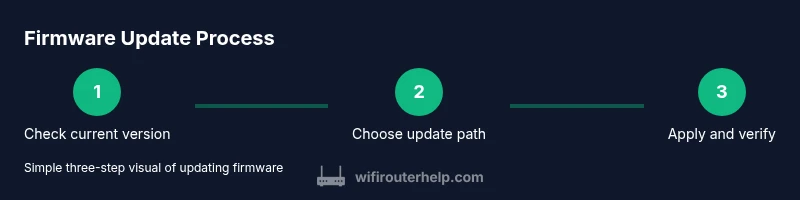
In brief, updating firmware involves locating the correct update, backing up current settings, applying the new software, and rebooting the device. After the install, verify the firmware version, check that connectivity remains stable, and re-check your security settings (like firewall and guest-network options). If the update changes the user interface, take time to re-familiarize yourself with essential controls such as QoS, parental controls, and DHCP behavior. Always follow vendor-specific instructions, as steps, file formats, and safety checks vary by model.
Pro tip: keep a device checklist handy during updates to ensure you don’t miss critical steps like backups or verifications.
Troubleshooting update issues and rollback options
Sometimes updates don’t install cleanly. If the firmware update fails, avoid powering off the device mid-process and reattempt the update after a short delay. Confirm you’re connected through Ethernet if possible and recheck the update file integrity or download source. If a problem persists, use the rollback option if available, or restore from a previously saved configuration backup. In some cases, you may need to perform a factory reset and reconfigure the router from scratch, then apply the update again.
If you’re unable to update due to compatibility or vendor limitations, consider whether a newer model is required to achieve the desired security posture or performance. Regularly review security advisories and firmware notices from the manufacturer to stay informed about critical fixes.
Warning: never interrupt a firmware update with a power loss or unplugging the router; this can render the device unrecoverable.
Security and ongoing maintenance after updates
Post-update maintenance helps ensure long-term stability and protection. Recheck that your network security settings remained intact, re-enable any features you turn off temporarily, and test your internet connection to confirm it’s functioning as expected. Consider enabling automatic security updates if supported, and maintain a routine to check for new firmware periodically—at least every few months or after major software advisories.
Your home network benefits from a proactive stance: monitor connected device lists for unfamiliar items, enable a strong administrator password, and keep a secondary backup method for configuration in case of future issues. Keeping firmware current is a foundational step in protecting your devices and data.
toolsMaterialsNamePlaceholderOnlyForFormattingRemovedForClarityButKeyIsInBlock
toolsMaterialsNotePlaceholderRemovedForClarityButKeyIsInBlockRemoved
Tools & Materials
- A computer or mobile device with internet access(Used to access the router's admin interface and download updates.)
- Stable power source(Prefer an uninterrupted power supply during the update window.)
- Ethernet cable (preferred) or stable Wi‑Fi(Ethernet minimizes update interruptions; Wi‑Fi is acceptable if Ethernet is not available.)
- Router admin credentials (username/password)(Needed to login and apply the firmware update.)
- Backup of router settings (export/config file)(Safeguards against data loss if the update resets settings.)
- Firmware file or firmware URL (manual update only)(Obtain from the vendor's official site if performing a manual update.)
Steps
Estimated time: 25-45 minutes
- 1
Login to the router admin page
Open a browser and navigate to your router’s IP address. Enter your admin credentials and locate the status or firmware section to confirm your current version. This initial check ensures you know what’s installed before proceeding.
Tip: Take a screenshot of the status page for quick reference. - 2
Check for available updates
In the firmware or update tab, look for a “Check for updates” option or a recent release list. Compare the available version with your current version and review the release notes for security fixes or major changes.
Tip: If you’re unsure about a listed update, search the model number plus “firmware notes” on the vendor site. - 3
Back up current settings
Export or save the current configuration so you can restore it if something goes wrong. This should include your SSID, password, guest network settings, and any port-forward or QoS rules you use.
Tip: Store the backup in a known location on your computer. - 4
Choose update method
Decide between auto-update or manual update based on your situation. Auto-update is hands-off but may reboot unexpectedly; manual gives you control and a chance to review notes before installing.
Tip: If you choose manual, download the exact file for your model. - 5
Apply the update
Start the update from the admin page and let it complete without interruption. Do not unplug the router during the process. Once finished, the device will typically reboot automatically.
Tip: Monitor the progress indicator and avoid closing the browser window. - 6
Verify and reconnect
After reboot, log back in and confirm the firmware version reflects the update. Reconnect all devices and test basic internet connectivity, printing, and smart-home routines.
Tip: Run a quick speed test to confirm stable performance. - 7
Test security features and restore as needed
Re-check security settings (firewall, WPA3, guest network) and restore any backed-up configurations if you notice changes. Verify devices reconnect and that parental controls or QoS behave as expected.
Tip: Document any changes you make during verification.
People Also Ask
Is updating firmware always necessary?
Firmware updates fix security vulnerabilities, improve stability, and may add features. If you’re not experiencing issues, updating is still recommended to maintain protection.
Firmware updates fix security issues and improve stability, so updating is generally a good idea even if things seem fine.
Will updating firmware erase my settings?
Most updates preserve settings, but it’s safest to back up configurations beforehand. A backup lets you restore if anything is reset during the update.
Usually settings stay the same, but back up first to be safe.
What should I do if the update fails?
If an update fails, wait a bit and try again, verify power stability, and ensure you downloaded the correct file. If it still fails, use the rollback or restore from your backup.
If it fails, retry with a stable connection and correct file, or restore from backup.
Should I use auto-update or manual?
Auto-update is convenient for routine maintenance, but manual updates give you control and allow review of release notes before install.
Auto is convenient, but manual gives you control and insight into changes.
Can I update firmware over Wi‑Fi or should I use Ethernet?
Ethernet is preferred for reliability and speed during updates. If you must use Wi‑Fi, ensure a strong signal and minimal interference.
Ethernet is best for updates, but Wi‑Fi can work if the signal is solid.
What if there’s no newer firmware available?
If there’s no update, maintain current firmware and monitor vendor advisories. Practice good security hygiene and back up regularly.
If there’s nothing new, keep your current version and watch for future advisories.
Watch Video
What to Remember
- Back up before updating.
- Choose the update path (auto vs manual) that fits your situation.
- Verify the version and connectivity after update.
- Avoid power interruptions during the update.