How to Upgrade Your Router: A Practical Guide
Learn how to upgrade your router with clear steps for firmware updates, safety checks, and optional hardware upgrades to boost speed, coverage, and security.


This guide shows you how to upgrade your router, including firmware updates and optional hardware considerations. You’ll learn how to safely update, verify compatibility, and migrate settings with minimal downtime. You’ll need admin access to the router, a stable internet connection, and a device (phone, tablet, or computer) to access the admin interface.
Why upgrading your router matters
According to WiFi Router Help, upgrading your router can deliver improved speeds, stronger coverage, and better security. When you learn how to upgrade your router, you address common bottlenecks, patch known vulnerabilities, and ensure compatibility with newer devices. A well-timed upgrade can reduce buffering in busy kitchens, improve signal reach in dead zones, and support higher internet plans from providers. The WiFi Router Help team found that many households see noticeable gains after a firmware refresh or a modest hardware refresh, especially when their current device is several years old. As you read, keep in mind that the goal is a safer, faster, and more reliable home network.
Key takeaway: upgrades aren’t just about speed; they’re about stability, security, and long-term support for your devices.
Prerequisites before you start
Before you begin the upgrade process, gather essential information and plan for a small downtime window. You will need administrative access to the router’s web interface, a device with a browser or app, and a stable power source. Have your current network topology on hand—modem model, current router model, and any mesh nodes if you use a multi-unit system. WiFi Router Help analysis shows that successful upgrades hinge on a clean backup of settings and a plan for reconfiguration after the upgrade completes. If you’re upgrading firmware, locate the official firmware version from the manufacturer’s site and verify compatibility with your model.
Tip: write down or export your current Wi‑Fi name (SSID) and password, plus any custom DNS or port-forward rules you’ve configured, so you can re-enter them quickly if needed.
Firmware upgrade vs hardware upgrade: making the right choice
Upgrading a router can mean refreshing the firmware to fix bugs and improve security, or replacing the hardware with a newer model that supports faster speeds and newer standards. Firmware upgrades are typically cheaper and safer, and they often suffice to improve performance. Hardware upgrades, on the other hand, may be necessary if your current device lacks support for new Wi‑Fi standards, has aged beyond the typical support window, or cannot handle your internet plan’s speed. The decision depends on your current device age, feature needs (like MU-MiMO, Wi‑Fi 6/6E), and whether you rely on advanced features such as parental controls or guest networks. As you decide, consider the total cost of ownership, the complexity of migrating settings, and the compatibility of any mesh nodes.
Note: If you’re using a mesh network, confirm that new hardware is compatible with existing nodes and that you can preserve the mesh topology if desired.
Safe upgrade workflow: overview
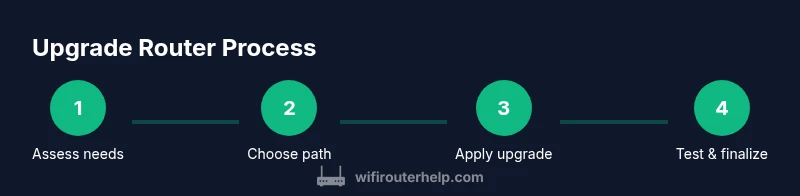
A safe upgrade workflow minimizes downtime and preserves your settings. Start with a full backup of configuration, then verify compatibility, obtain the correct firmware version, and prepare for the upgrade during a low-usage period. If you choose hardware, plan the replacement to minimize interruptions and ensure all devices reconnect smoothly. After upgrading, reconfigure essential settings, test connectivity, and monitor performance for at least a few hours. Following a structured approach reduces the risk of bricked devices and post-upgrade issues.
Key idea: treat firmware upgrades as a structured maintenance task, and hardware upgrades as a planned refresh with potential disruption.
How to verify compatibility before upgrading
Before initiating any upgrade, confirm that the firmware version supports your router hardware revision and current features. Check the manufacturer’s release notes for bug fixes and security patches, and review whether your current features (VPN, QoS, parental controls) will remain functional after the upgrade. If you run a custom firmware or a third-party add-on, verify it remains compatible or determine whether you should revert to stock firmware first. If your router is part of a managed network (ISP-provided), consult their support resources to avoid voiding warranties.
Practical tip: keep a copy of current bridge and routing settings, such as static routes, port forwarding rules, and DNS configurations, so you can re-create them if something goes missing after the upgrade.
How to perform a safe firmware upgrade (remote vs manual)
Most modern routers offer a firmware upgrade path directly within the admin interface. If an automatic update is available, you can trigger it with a single click; if not, download the correct file from the manufacturer’s site and upload it manually. In all cases, ensure the device remains powered during the process. A power interruption during a firmware update can corrupt the router’s firmware and render it inoperable. After the upgrade, verify the firmware version in the admin panel and run a quick network test to confirm connectivity.
Important: only download firmware from the official vendor site and verify the file cryptographic hash if provided.
If hardware upgrade is necessary: when and how
When your router is several years old, or if you need new standards (for example, Wi‑Fi 6E) to match your internet plan, consider a hardware upgrade. Choose a model that supports the latest wireless standards and features you need, such as mesh compatibility, QoS, and robust security. Prepare for a short downtime window and plan the migration path: will you preserve existing network names or create a fresh network? Ensure compatibility with your internet modem and any existing network devices. After installation, reconfigure your settings and test your network thoroughly.
Warning: keep power connected during swap-out and avoid connecting devices until you’ve confirmed the new router is online and functional.
Migrate settings and test your network after upgrade
Once the upgrade is complete, re-enter your network name, password, and any custom settings (DNS, port forwarding, IP reservations). Reconnect devices and run speed tests in multiple rooms to confirm stable performance. Check for firmware updates on other network devices (extenders, access points) to maintain compatibility and security across the whole network. Monitor the network for anomalies like dropped connections or inconsistent speeds for the first 24 hours.
Pro tip: document the new firmware version, model, and settings for future maintenance.
Troubleshooting common upgrade issues
If the upgrade doesn’t go as planned, start with the basics: power cycle the router, verify the upgrade file integrity, and ensure you are connected to the correct network during setup. If the device is unresponsive after an upgrade, try a factory reset and reconfigure from scratch using a saved backup. In mesh environments, re-run the setup for each node.
Note: not all devices respond the same way to updates; patience and a methodical approach reduce frustration and protect your home network.
Best practices and security after upgrade
Post-upgrade, enable automatic security updates, keep a strong unique password for the admin interface, and review firewall and UPnP settings. Regularly check for new firmware releases and apply critical updates promptly. Consider setting up a separate guest network and enabling encryption (WPA3 where available). By maintaining a disciplined upgrade schedule, you reduce vulnerability exposure and preserve network performance over time.
Tools & Materials
- Web-enabled computer or mobile device(Used to access the router’s admin page and perform updates.)
- Router admin username and password(Typically on the router label or original documentation.)
- Active internet connection(Needed to download firmware or access remote update servers.)
- Ethernet cable(Use a wired connection for reliability during updates.)
- Power supply or UPS(Prevent power loss during upgrade to avoid device bricking.)
- Official firmware file (manual update)(Only if remote update isn’t available.)
- Backup/export of router settings(Preserve current configurations for quick restoration.)
Steps
Estimated time: 60-90 minutes
- 1
Access the router admin interface
Open a web browser and enter the router’s IP address (commonly 192.168.0.1 or 192.168.1.1). Log in with your admin credentials. This login grants you access to upgrade options and security settings.
Tip: If you can’t reach the login page, check your device’s IP address in network settings or try a different browser. - 2
Back up current settings
Navigate to the backup/export section and save a copy of the current configuration. This ensures you can restore your setup if something goes wrong during the upgrade.
Tip: Store the backup file in a safe location and also note down critical settings like DNS and port-forward rules. - 3
Check firmware availability and compatibility
Review the current router model and verify the latest firmware version on the manufacturer’s site. Read release notes for fixes and feature changes to ensure compatibility with your hardware revision.
Tip: Only download firmware from the official site and verify checksums if provided. - 4
Choose upgrade path: firmware vs hardware
Decide whether a firmware update will meet your needs or if a hardware upgrade (new model) is warranted. Consider planned internet speeds, device compatibility, and feature requirements.
Tip: If your device is several years old, a hardware upgrade may offer better long-term value. - 5
Apply the firmware update
If updating via the admin interface, choose the downloaded file or initiate the automatic update. Do not interrupt the process and keep the device plugged in.
Tip: Use a wired connection when possible to avoid interruptions. - 6
Reset and reconfigure after upgrade
If required by the upgrade, perform a factory reset and re-enter your saved settings. Reconfigure Wi‑Fi name, password, DNS, and any custom rules.
Tip: Document changes during reconfiguration to simplify future maintenance. - 7
Test connectivity and security features
Test internet access from multiple devices, run speed tests, and verify security features such as firewall and VPN if used.
Tip: Check for new firmware updates on connected devices to maintain compatibility. - 8
Document and monitor the upgrade
Record firmware version, hardware model, and key settings for future maintenance. Monitor network stability for 24–48 hours and address any issues promptly.
Tip: Keep a short log to track when upgrades occur and any observed issues.
People Also Ask
What does upgrading a router firmware do?
Firmware upgrades fix bugs, patch security vulnerabilities, and sometimes improve performance and features. They are an important part of router maintenance and can extend the device’s useful life.
Firmware upgrades fix bugs and security gaps, and can add features or improve performance.
Can I upgrade hardware instead of firmware?
Yes, if your router is old or lacks current standards. A new model often offers better speed, coverage, and future-proofing. Check compatibility with your modem and mesh nodes before buying.
Yes. If your device is old, a new model may be a better long-term choice.
What if the upgrade fails or bricks my router?
If the upgrade fails, power down and attempt to revert if a recovery option exists. If unresponsive, perform a factory reset and reconfigure from a backup. Contact support if needed.
If it fails, try recovery options or a factory reset and restore from backup.
Do I need to reset after upgrading firmware?
A reset is sometimes required to finalize settings or when advised by the manufacturer. If you reset, you’ll need to re-enter network details and custom rules.
Sometimes you need to reset to apply changes; check the update notes.
How can I verify the upgrade was successful?
Check the firmware version in the router admin page, test internet connectivity on multiple devices, and run a basic security check (firewall status, VPN if used).
Check version and run quick tests to confirm the upgrade worked.
Is an upgrade safe for a mesh network?
Mesh systems can be upgraded stepwise. Be sure each node gets updated and reboots properly to restore full network functionality.
Yes, but update each node and test mesh stability afterward.
Watch Video
What to Remember
- Upgrade firmware regularly to fix bugs and improve security
- Back up settings before upgrading to enable quick restoration
- Choose firmware vs hardware upgrade based on age and needs
- Verify compatibility and use official firmware sources
- Test connectivity and security features after upgrade