Troubleshooting Router: Your Quick-Start Guide to Fixing Home Network Issues
Urgent, step-by-step troubleshooting router guidance to diagnose and fix common home network issues—power, cabling, firmware, wireless settings, and ISP status.


Troubleshooting router problems typically starts with simple power and connection checks. Confirm the router is powered on, the power adapter is secure, and all Ethernet cables are firmly connected. Reboot in the correct sequence (modem first, then router). If issues persist, verify firmware, network settings, and service status with your ISP, then proceed with targeted steps.
The Reality of Router Troubles
In a typical home network, a slow or dropping connection interrupts work, streaming, and smart-home routines. Troubleshooting router skills empower you to restore reliability quickly and avoid unnecessary service calls. According to WiFi Router Help, most issues come from a few repeatable causes that you can diagnose with a simple, systematic approach. Starting with the basics helps you preserve your time, protect your equipment, and keep your family online. This guide focuses on practical, step-by-step methods you can perform safely at home, with clear safety notes and a plan to escalate when needed.
These methods apply to most consumer routers and mesh kits. You’ll learn to isolate the fault, validate with wired tests, and apply fixes that minimize downtime. Laying out a repeatable process makes future troubleshooting faster and less frustrating for homeowners and tech enthusiasts alike, so you can stay productive and enjoy stable Wi‑Fi across rooms.
WiFi Router Help keeps the focus on real-world scenarios, not theory. The goal is to reduce guesswork and give you confidence to handle common faults without expensive visits or complex configurations.
Quick Triage You Can Do in 5 Minutes
A five-minute triage can rule out the majority of faults. First, verify power: ensure the router is on and the LED indicators are active. Next, check that all cables are securely seated and undamaged—especially the WAN/Internet cable and the power cord. If you have a separate modem, power cycle both devices in the correct order: first the modem, then the router, waiting about 30 seconds between devices. Finally, confirm that your devices can see the network and that the issue isn’t isolated to a single device.
If the problem persists, try a wired test with a laptop or desktop. If wired works but wireless does not, focus on wireless settings and channel selection. If nothing works, verify the service status with your ISP and consider a firmware update or reset if safe to do so. This quick triage minimizes downtime and helps you identify the right next steps quickly.
Diagnose Common Causes and How to Test Them
Most home-network issues fall into a few categories: power/cabling, firmware, interference, and ISP-related faults. Begin by ruling out power and cabling issues, then test with a wired connection to see if the problem is wireless-only. If wired works, your router’s wireless settings or location might be the culprit. If wired also fails, the issue is more likely with the modem, ISP, or service plan.
To diagnose, create a simple test matrix: test with a known-good Ethernet cable, test on multiple devices, and test both 2.4 GHz and 5 GHz bands. If problems show up on one device but not another, the fault may be device-specific rather than the router. Use these checks to guide your next fixes rather than guessing.
Step-by-Step Fixes for the Most Common Problem
The most common problem is a loss of internet after a power cycle or a firmware delay. Follow these steps to address it in a structured way, keeping notes of changes for reference. Always begin with low-risk actions and progress to more involved ones as needed. If a specific step feels risky, pause and seek guidance rather than forcing settings.
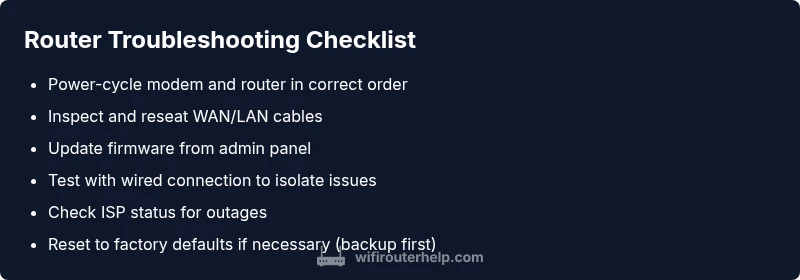
- Power-cycle everything in the correct order (modem first, then router). 2) Re-seat cables and inspect for wear or damage. 3) Test a wired connection to rule out Wi-Fi issues. 4) Update firmware via the admin panel; ensure you’re connected to the router’s network during the update. 5) Reset to factory defaults only if you’ve backed up settings and you suspect misconfiguration. 6) Check ISP status and modem compatibility if problems persist. 7) Reposition the router to improve signal and reduce interference. 8) Re-test across multiple devices and environments. 9) If all else fails, consider hardware replacement.
Safety, Warnings, and Common Pitfalls
Safety comes first. Always unplug devices before disconnecting or reseating cables. Do not open the router or power supply; avoid static discharge by grounding yourself. Keep firmware updates from untrusted sources and back up current settings before any reset. Avoid rushing through steps—skipping even small tests can mask root causes. If you’re uncomfortable with any step, stop and seek professional help. Remember, persistent issues may indicate hardware failure or an ISP outage that requires official support.
WiFi Router Help emphasizes that documenting changes and testing results helps prevent repeat problems and speeds up future resets or configurations. By following a cautious, methodical approach, you can restore stability quickly and safely.
Prevention Tips for a Smoother Network
Prevention beats reaction. Place your router in an open, central location away from thick walls and metal objects. Keep firmware up to date and enable automatic updates where possible. Create a simple maintenance routine: quarterly checks of cables, occasional speed tests, and a quick reset to factory defaults if you notice persistent misbehavior. Use a dedicated 2.4 GHz channel for compatibility with older devices and another for higher-speed devices, when supported. Regularly back up settings before major changes to minimize downtime when problems arise.
Steps
Estimated time: 60-90 minutes
- 1
Verify power and indicators
Confirm the router is powered on and that the LED indicators show normal activity. If the power light is off or blinking abnormally, address power or hardware issues before proceeding. This quick check often reveals faulty outlets or power adapters.
Tip: If you’re using a surge protector, try plugging the router directly into a wall outlet to rule out compatibility problems. - 2
Inspect cables and connections
Disengage and re-seat the WAN and LAN cables. Look for damaged connectors, bent pins, or frayed wires. A loose cable is the simplest cause of no Internet or flaky Wi‑Fi.
Tip: Wipe the connectors gently with a dry cloth to remove any dust that could degrade the signal. - 3
Reboot modem then router
Power down the modem and router for 30 seconds, then power the modem first and wait for it to fully sync before powering the router. This resets the path to your provider and clears common routing glitches.
Tip: If you have a separate DMZ or bridge mode, ensure those settings aren’t conflicting during the reboot. - 4
Check firmware and settings
Log into the router's admin interface and check for firmware updates. Apply the latest version and verify basic settings (SSID, password, security mode). Incorrect settings or old firmware can cause instability.
Tip: Back up current configurations before applying updates. - 5
Test wireless vs wired
Use a wired device to test Internet connectivity. If wired is OK but Wi‑Fi is slow or dropping, focus on wireless channels, power, and placement rather than hardware failure.
Tip: Experiment with 2.4 GHz vs 5 GHz to identify interference patterns. - 6
Factory reset if necessary
If configuration issues persist, consider a factory reset. This often resolves stubborn misconfigurations, but you’ll need to re-enter your ISP settings and custom preferences afterward.
Tip: Only reset after backing up settings and noting custom configurations. - 7
Check external factors
Contact your ISP to confirm service status and check whether there are outages or modem compatibility issues affecting your area. Sometimes the fault lies beyond your home network.
Tip: Keep a note of the outage reference number if given by the provider. - 8
Evaluate hardware health
If none of the above steps resolve the issue, test with another router or contact support to check for hardware faults. A failing device often shows intermittent power or connectivity symptoms.
Tip: If you’re within warranty, request an assessment or replacement rather than DIY repair. - 9
Document and plan next steps
Record what you tried, the outcomes, and any settings changes. A clear log helps when seeking professional support or discussing the issue with your ISP.
Tip: Create a simple checklist you can reuse for future troubleshooting.
Diagnosis: Intermittent connectivity or no internet despite devices showing Wi‑Fi
Possible Causes
- highPower issue or faulty adapter
- highLoose or damaged cabling (WAN/LAN)
- mediumOutdated firmware or misconfigured settings
- mediumWireless interference or poor placement
- lowISP outage or modem compatibility problem
Fixes
- easyPower-cycle the modem and router in the correct order (modem first, then router)
- easyCheck and reseat all cables; replace damaged cables
- easyUpdate firmware from the router's admin page and apply any recommended settings
- mediumReset the router to factory defaults only after backing up current configuration
- easyTest with a wired connection to isolate wireless issues
- mediumCheck ISP status and confirm modem compatibility if problems persist
- hardConsider hardware replacement if the router shows signs of failure
People Also Ask
Why is my router not connecting to the Internet even though the LED is on?
Often this means either a modem-to-router path issue or an ISP outage. Start with a power-cycle of the modem and router, then verify cables. If the issue persists, check for firmware updates or contact your ISP for service status.
If your router shows power but no Internet, start by rebooting both devices and checking cables. If it still fails, check for firmware updates or ISP outages.
How do I reset my router to factory settings safely?
A factory reset restores default settings. Back up your current configuration first. After reset, reconfigure from scratch or restore from the backup to avoid losing essential settings like your Wi-Fi name and password.
Resetting clears custom settings, so back up first and be prepared to reconfigure your network.
Should I enable automatic firmware updates or do it manually?
Automatic updates simplify maintenance and reduce vulnerability, but they can occasionally reset settings. If you rely on specific configurations, manually update after backing up and verifying compatibility.
Automatic updates are convenient, but manual updates give you control over changes.
Can I troubleshoot router problems without calling my ISP?
Yes. Start with local checks—power, cables, and firmware—then isolate wireless vs wired problems. If the issue remains, ISP outages or modem compatibility may be the cause, which may require provider assistance.
Often you can fix it yourself, but some problems need ISP input.
Why is Wi‑Fi weak in some rooms but strong in others?
Weak Wi‑Fi can be due to interference, distance, or physical barriers. Try repositioning the router, changing channels, or using a mesh system to extend coverage.
Weak spots usually mean placement or interference; moving the router helps.
What’s the difference between a modem and a router?
A modem connects you to the Internet provider’s network, while a router creates your home network and distributes Internet to devices. Some devices combine both roles in a gateway.
A modem connects you to the Internet; a router shares that connection inside your home.
Watch Video
What to Remember
- Power and cables first; they fix the majority of issues
- Keep firmware up to date to reduce glitches
- Use wired tests to isolate wireless problems
- Always reset safely and back up settings before major changes
- Check with your ISP for outages or compatibility if problems persist